> ## Documentation Index
> Fetch the complete documentation index at: https://www.mintlify.com/docs/llms.txt
> Use this file to discover all available pages before exploring further.
# Contextual menu
> Add a contextual menu to your docs with one-click AI integrations for ChatGPT, Claude, Perplexity, Google AI Studio, Devin, Windsurf, and MCP tools.
export const PreviewButton = ({children, href}) => {
return
{children}
;
};
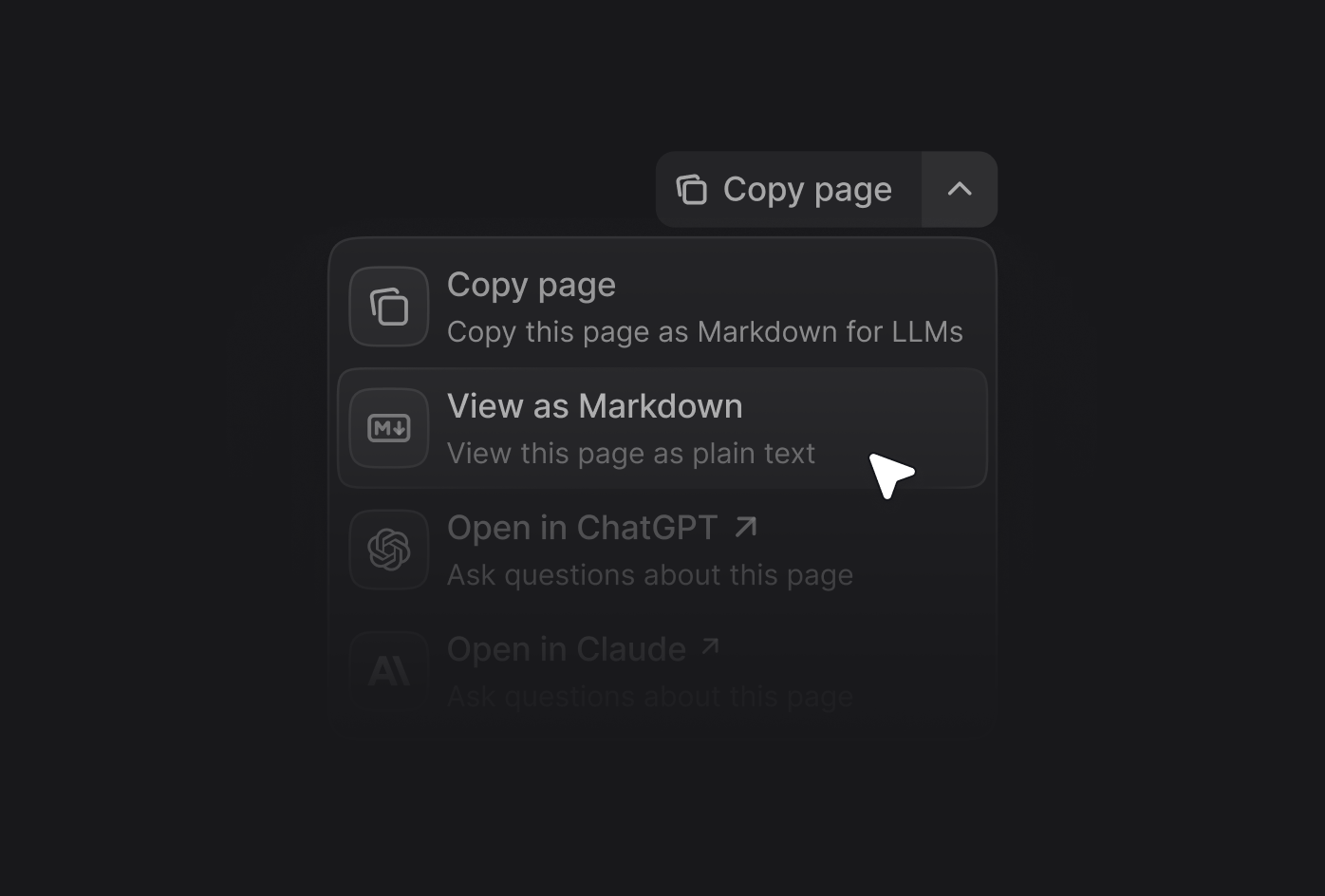
The contextual menu provides quick access to AI-optimized content and direct integrations with popular AI tools. When users click the contextual menu on any page, they can copy content as context for AI tools or open it in an AI conversation. Supported tools include ChatGPT, Claude, Perplexity, Google AI Studio, Grok, Devin, Windsurf, and any custom tool you configure.
Pair the contextual menu with your hosted [`skill.md`](/ai/skillmd) file and [MCP server](/ai/model-context-protocol) so that users can install your product's full capabilities into their AI tools, not just the page they are reading.
## Menu options
The contextual menu includes several pre-built options that you can enable by adding their identifier to your configuration.
| Option | Identifier | Description |
| :--------------------------- | :-------------- | :------------------------------------------------------------------------------------------------------------------------------------------- |
| **Copy page** | `copy` | Copies the current page as Markdown for pasting as context into AI tools |
| **View as Markdown** | `view` | Opens the current page as Markdown |
| **Ask assistant** | `assistant` | Opens the [assistant](/assistant/index) with the current page as context |
| **Download PDF** | `download-pdf` | Downloads the current page as a PDF. Available on [Enterprise plans](https://mintlify.com/pricing). |
| **Open in ChatGPT** | `chatgpt` | Creates a ChatGPT conversation with the current page as context |
| **Open in Claude** | `claude` | Creates a Claude conversation with the current page as context |
| **Open in Perplexity** | `perplexity` | Creates a Perplexity conversation with the current page as context |
| **Open in Grok** | `grok` | Creates a Grok conversation with the current page as context |
| **Open in Google AI Studio** | `aistudio` | Creates a Google AI Studio conversation with the current page as context |
| **Open in Devin** | `devin` | Creates a Devin session with the current page as context |
| **Open in Windsurf** | `windsurf` | Opens Windsurf Cascade with the current page as context |
| **Copy MCP server URL** | `mcp` | Copies your MCP server URL to the clipboard |
| **Copy MCP install command** | `add-mcp` | Copies the `npx add-mcp` command to install the MCP server |
| **Connect to Cursor** | `cursor` | Installs your hosted MCP server in Cursor |
| **Connect to VS Code** | `vscode` | Installs your hosted MCP server in VS Code |
| **Connect to Devin** | `devin-mcp` | Installs your hosted MCP server in Devin |
| **Download API spec** | `download-spec` | Downloads your deployment's OpenAPI spec. If there are multiple specs, downloads them as a zip archive. Only appears on API reference pages. |
| **Download PDF** | `download-pdf` | Downloads the current page as a PDF |
| **Custom options** | Object | Add custom options to the contextual menu |
 ## Enable the contextual menu
Add the `contextual` field to your `docs.json` file and specify which options you want to include.
```json theme={null}
{
"contextual": {
"options": [
"copy",
"view",
"assistant",
"chatgpt",
"claude",
"perplexity",
"grok",
"aistudio",
"devin",
"windsurf",
"mcp",
"cursor",
"vscode",
"devin-mcp",
"download-spec",
"download-pdf"
]
}
}
```
## Display location
By default, the contextual menu appears in the page header. You can configure it to display in the table of contents sidebar instead using the `display` option.
```json theme={null}
{
"contextual": {
"options": ["copy", "view", "chatgpt", "claude"],
"display": "toc"
}
}
```
| Value | Description |
| :------- | :--------------------------------------------------------- |
| `header` | Displays options in the top-of-page context menu (default) |
| `toc` | Displays options in the table of contents sidebar |
## Add custom options
Create custom options in the contextual menu by adding an object to the `options` array. Each custom option requires these properties:
The title of the option.
The description of the option. Displayed beneath the title when the contextual menu expands.
The icon to display.
Options:
* [Font Awesome icon](https://fontawesome.com/icons) name, if you have the `icons.library` [property](/organize/settings-appearance#param-icons) set to `fontawesome` in your `docs.json`
* [Lucide icon](https://lucide.dev/icons) name, if you have the `icons.library` [property](/organize/settings-appearance#param-icons) set to `lucide` in your `docs.json`
* [Tabler icon](https://tabler.io/icons) name, if you have the `icons.library` [property](/organize/settings-appearance#param-icons) set to `tabler` in your `docs.json`
* URL to an externally hosted icon
* Path to an icon file in your project
The [Font Awesome](https://fontawesome.com/icons) icon style. Only used with Font Awesome icons.
Options: `regular`, `solid`, `light`, `thin`, `sharp-solid`, `duotone`, `brands`.
The href of the option. Use a string for simple links or an object for dynamic links with query parameters.
The base URL for the option.
The query parameters for the option.
The query parameter key.
The query parameter value. Mintlify replaces the following placeholders with the corresponding values:
* Use `$page` to insert the current page content in Markdown.
* Use `$path` to insert the current page path.
* Use `$mcp` to insert the hosted MCP server URL.
Example custom option:
```json {9-14} wrap theme={null}
{
"contextual": {
"options": [
"copy",
"view",
"chatgpt",
"claude",
"perplexity",
{
"title": "Request a feature",
"description": "Join the discussion on GitHub to request a new feature",
"icon": "plus",
"href": "https://github.com/orgs/mintlify/discussions/categories/feature-requests"
}
]
}
}
```
### Custom option examples
```json theme={null}
{
"title": "Request a feature",
"description": "Join the discussion on GitHub",
"icon": "plus",
"href": "https://github.com/orgs/mintlify/discussions/categories/feature-requests"
}
```
```json theme={null}
{
"title": "Share on X",
"description": "Share this page on X",
"icon": "x",
"href": {
"base": "https://x.com/intent/tweet",
"query": [
{
"key": "text",
"value": "Check out this documentation: $page"
}
]
}
}
```
## Related topics
- [Search Model Context Protocol (MCP) server](/docs/ai/model-context-protocol.md)
- [Analytics integrations](/docs/integrations/analytics/overview.md)
- [Site structure](/docs/organize/settings-structure.md)
## Enable the contextual menu
Add the `contextual` field to your `docs.json` file and specify which options you want to include.
```json theme={null}
{
"contextual": {
"options": [
"copy",
"view",
"assistant",
"chatgpt",
"claude",
"perplexity",
"grok",
"aistudio",
"devin",
"windsurf",
"mcp",
"cursor",
"vscode",
"devin-mcp",
"download-spec",
"download-pdf"
]
}
}
```
## Display location
By default, the contextual menu appears in the page header. You can configure it to display in the table of contents sidebar instead using the `display` option.
```json theme={null}
{
"contextual": {
"options": ["copy", "view", "chatgpt", "claude"],
"display": "toc"
}
}
```
| Value | Description |
| :------- | :--------------------------------------------------------- |
| `header` | Displays options in the top-of-page context menu (default) |
| `toc` | Displays options in the table of contents sidebar |
## Add custom options
Create custom options in the contextual menu by adding an object to the `options` array. Each custom option requires these properties:
The title of the option.
The description of the option. Displayed beneath the title when the contextual menu expands.
The icon to display.
Options:
* [Font Awesome icon](https://fontawesome.com/icons) name, if you have the `icons.library` [property](/organize/settings-appearance#param-icons) set to `fontawesome` in your `docs.json`
* [Lucide icon](https://lucide.dev/icons) name, if you have the `icons.library` [property](/organize/settings-appearance#param-icons) set to `lucide` in your `docs.json`
* [Tabler icon](https://tabler.io/icons) name, if you have the `icons.library` [property](/organize/settings-appearance#param-icons) set to `tabler` in your `docs.json`
* URL to an externally hosted icon
* Path to an icon file in your project
The [Font Awesome](https://fontawesome.com/icons) icon style. Only used with Font Awesome icons.
Options: `regular`, `solid`, `light`, `thin`, `sharp-solid`, `duotone`, `brands`.
The href of the option. Use a string for simple links or an object for dynamic links with query parameters.
The base URL for the option.
The query parameters for the option.
The query parameter key.
The query parameter value. Mintlify replaces the following placeholders with the corresponding values:
* Use `$page` to insert the current page content in Markdown.
* Use `$path` to insert the current page path.
* Use `$mcp` to insert the hosted MCP server URL.
Example custom option:
```json {9-14} wrap theme={null}
{
"contextual": {
"options": [
"copy",
"view",
"chatgpt",
"claude",
"perplexity",
{
"title": "Request a feature",
"description": "Join the discussion on GitHub to request a new feature",
"icon": "plus",
"href": "https://github.com/orgs/mintlify/discussions/categories/feature-requests"
}
]
}
}
```
### Custom option examples
```json theme={null}
{
"title": "Request a feature",
"description": "Join the discussion on GitHub",
"icon": "plus",
"href": "https://github.com/orgs/mintlify/discussions/categories/feature-requests"
}
```
```json theme={null}
{
"title": "Share on X",
"description": "Share this page on X",
"icon": "x",
"href": {
"base": "https://x.com/intent/tweet",
"query": [
{
"key": "text",
"value": "Check out this documentation: $page"
}
]
}
}
```
## Related topics
- [Search Model Context Protocol (MCP) server](/docs/ai/model-context-protocol.md)
- [Analytics integrations](/docs/integrations/analytics/overview.md)
- [Site structure](/docs/organize/settings-structure.md)