> ## Documentation Index
> Fetch the complete documentation index at: https://www.mintlify.com/docs/llms.txt
> Use this file to discover all available pages before exploring further.
# Update
> Use the update component to display product updates, release notes, and changelog entries in a structured timeline format with dates.
Use the `Update` component to display changelog entries, version updates, and release notes with consistent formatting.
## Example update
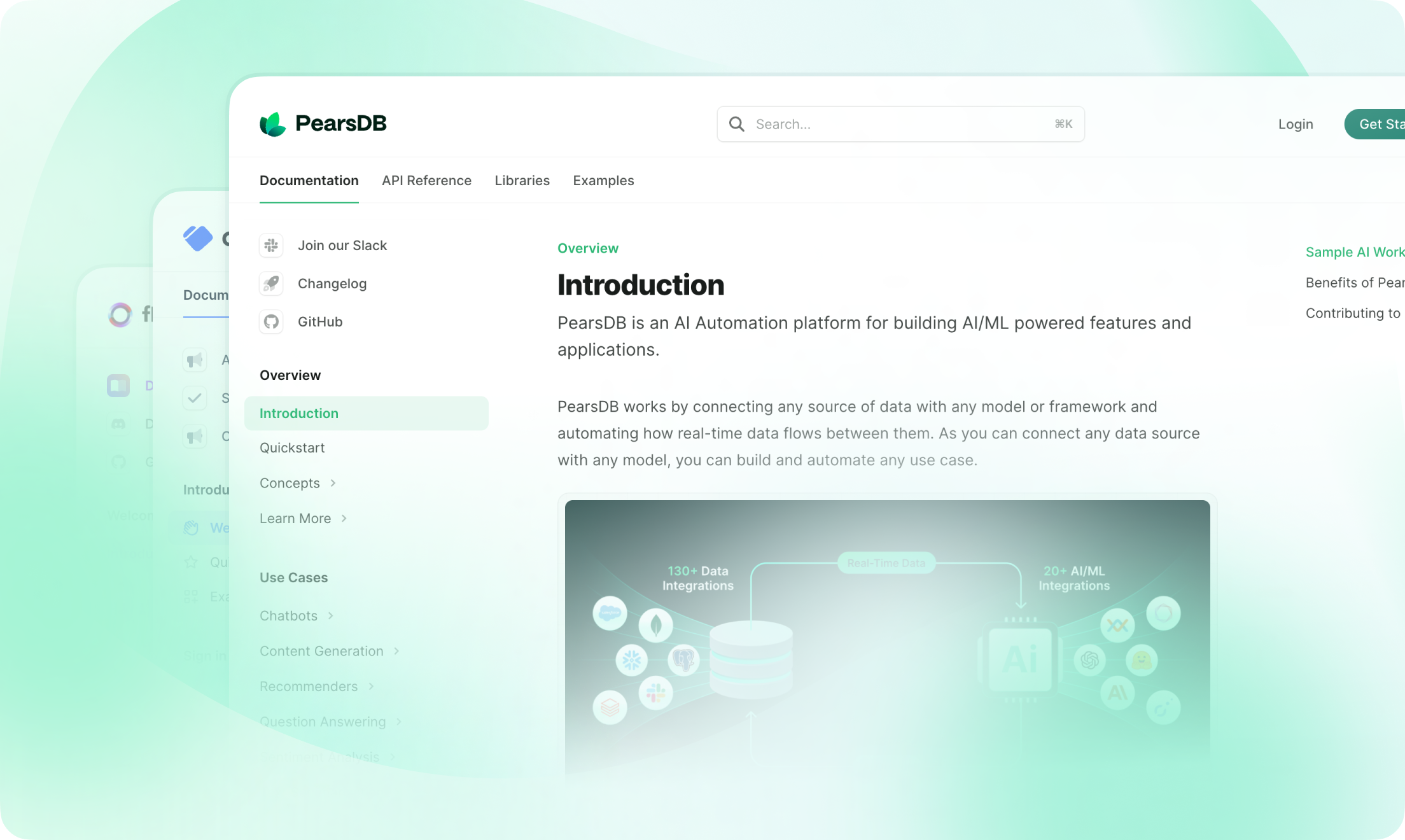
You can add anything here, like a screenshot, a code snippet, or a list of changes.
 ### Features
* Responsive design
* Anchor for each update
* Generated RSS feed entry for each update
## How to use
```mdx Update example theme={null}
This is an update with a label, description, and tag.
```
Use multiple `Update` components to create [changelogs](/create/changelogs).
Update components automatically generate RSS feed entries. The entries contain pure Markdown only--components, code blocks, inline code, and raw HTML elements are not included.
If your update includes components or HTML, use the `rss` prop to provide alternative text for RSS subscribers.
```mdx Custom RSS content theme={null}
## New dashboard
### Features
* Responsive design
* Anchor for each update
* Generated RSS feed entry for each update
## How to use
```mdx Update example theme={null}
This is an update with a label, description, and tag.
```
Use multiple `Update` components to create [changelogs](/create/changelogs).
Update components automatically generate RSS feed entries. The entries contain pure Markdown only--components, code blocks, inline code, and raw HTML elements are not included.
If your update includes components or HTML, use the `rss` prop to provide alternative text for RSS subscribers.
```mdx Custom RSS content theme={null}
## New dashboard
 Check out our redesigned dashboard with improved navigation.
```
## Props
Label for the update. Appears to the left of the update and creates an anchor link. Labels should be unique.
Tags for the update. Shown as filters in the right side panel.
Description of the update. Appears below the label and tag.
Update components automatically generate RSS feed entries. Use the `rss` property to create a single RSS feed entry with a custom title and description.
If not provided:
* Updates with Markdown headings create a separate RSS feed entry for each heading.
* Updates without Markdown headings create a single RSS feed entry using the `label` as the title.
Custom title for the RSS feed entry.
Custom description for the RSS feed entry.
## Related topics
- [Install the CLI](/docs/cli/install.md)
- [Add the agent to Slack](/docs/agent/slack.md)
- [Predefined workflows](/docs/workflows/reference.md)
Check out our redesigned dashboard with improved navigation.
```
## Props
Label for the update. Appears to the left of the update and creates an anchor link. Labels should be unique.
Tags for the update. Shown as filters in the right side panel.
Description of the update. Appears below the label and tag.
Update components automatically generate RSS feed entries. Use the `rss` property to create a single RSS feed entry with a custom title and description.
If not provided:
* Updates with Markdown headings create a separate RSS feed entry for each heading.
* Updates without Markdown headings create a single RSS feed entry using the `label` as the title.
Custom title for the RSS feed entry.
Custom description for the RSS feed entry.
## Related topics
- [Install the CLI](/docs/cli/install.md)
- [Add the agent to Slack](/docs/agent/slack.md)
- [Predefined workflows](/docs/workflows/reference.md)