> ## Documentation Index
> Fetch the complete documentation index at: https://www.mintlify.com/docs/llms.txt
> Use this file to discover all available pages before exploring further.
# GitLab
> Connect your GitLab repository to Mintlify for automated documentation deployments, merge request previews, and continuous synchronization.
Mintlify uses access tokens and webhooks to authenticate and sync changes between GitLab and Mintlify.
* Mintlify uses access tokens to pull information from GitLab.
* GitLab uses webhooks to notify Mintlify when you make changes, which enables preview deployments for merge requests.
## Set up the connection
When you open [Git Settings](https://app.mintlify.com/settings/deployment/git-settings) for the first time, a setup wizard guides you through connecting your GitLab repository.
On the [Git Settings](https://app.mintlify.com/settings/deployment/git-settings) page, click **Connect to GitLab** and then click **Continue**.
If you already have a GitLab repository with your documentation, you can skip the download and click **Continue setup** directly.
If your documentation is hosted by Mintlify, download it as a zip file.
* Create a new repository in GitLab.
* Extract the zip contents.
* Push the contents to your repository.
Click **Continue setup** to proceed.
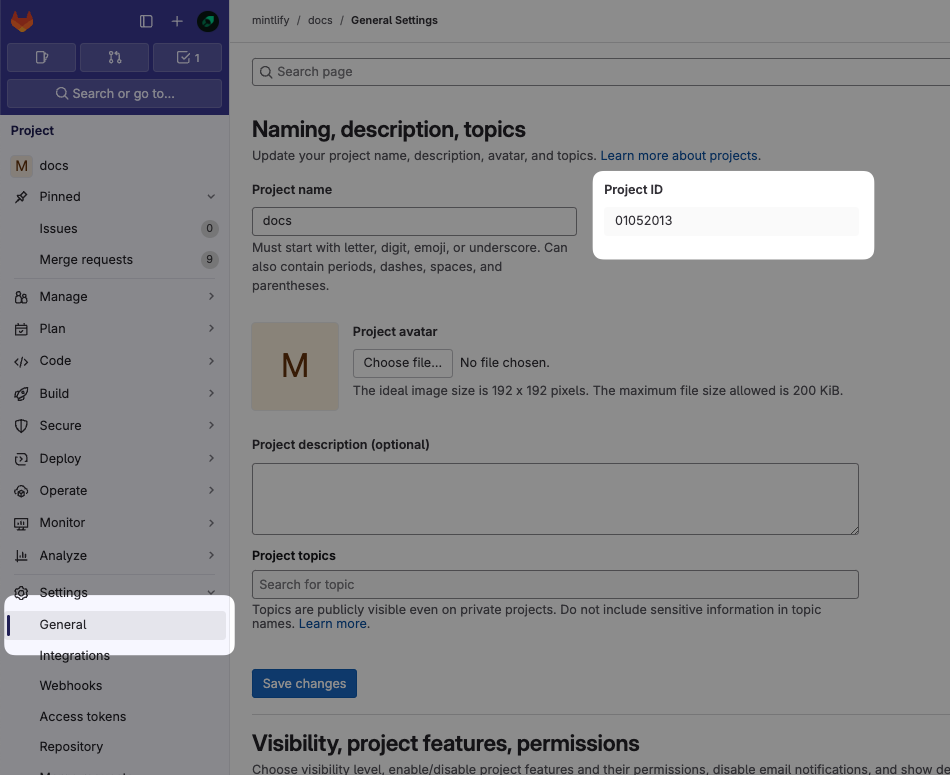
In your GitLab project, navigate to **Settings** > **General** and locate your **Project ID**.
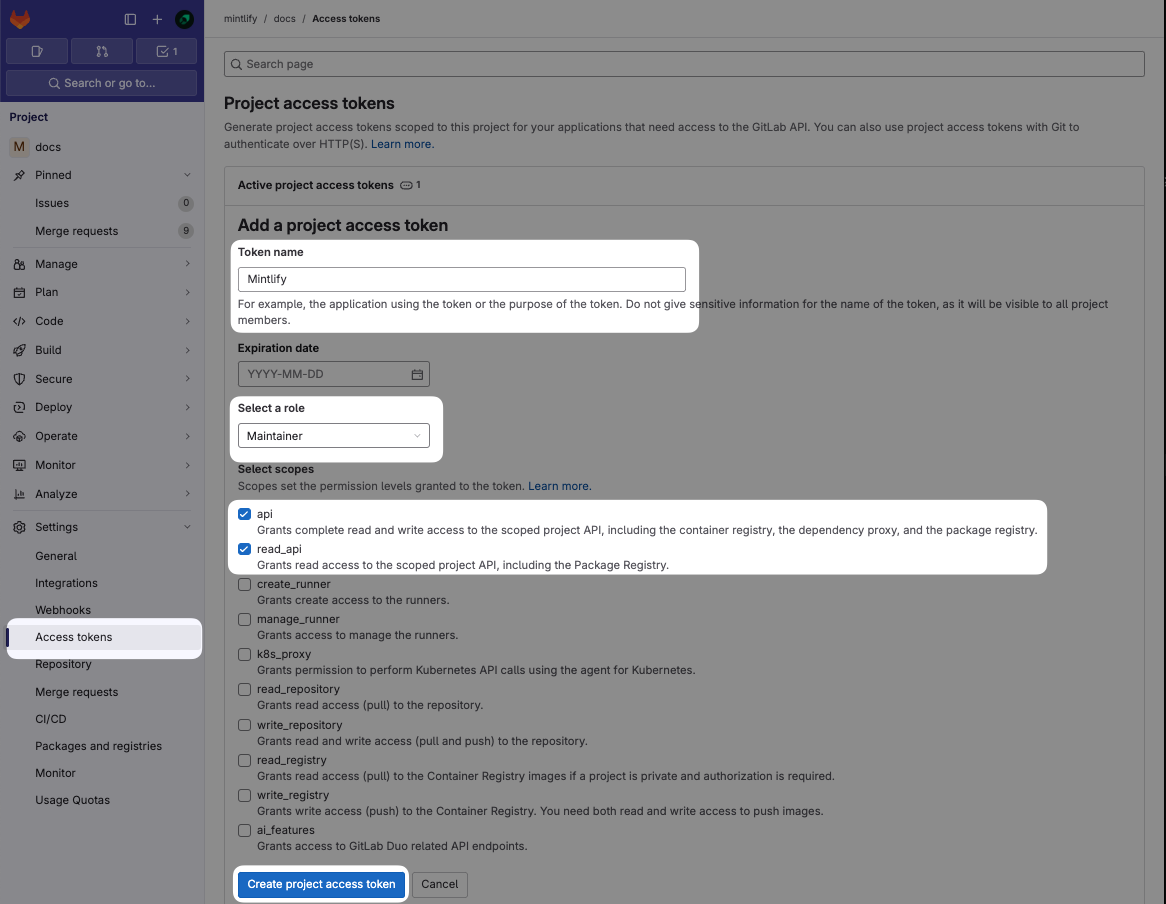
 Navigate to **Settings** > **Access Tokens** and click **Add new token**.
Configure the token with these settings:
* **Name**: Mintlify
* **Role**: Maintainer (required for private repos)
* **Scopes**: `api` and `read_api`
Click **Create project access token** and copy the token.
If Project Access Tokens are not available, you can use a Personal Access Token instead. Note that Personal Access Tokens expire and must be updated.
Navigate to **Settings** > **Access Tokens** and click **Add new token**.
Configure the token with these settings:
* **Name**: Mintlify
* **Role**: Maintainer (required for private repos)
* **Scopes**: `api` and `read_api`
Click **Create project access token** and copy the token.
If Project Access Tokens are not available, you can use a Personal Access Token instead. Note that Personal Access Tokens expire and must be updated.
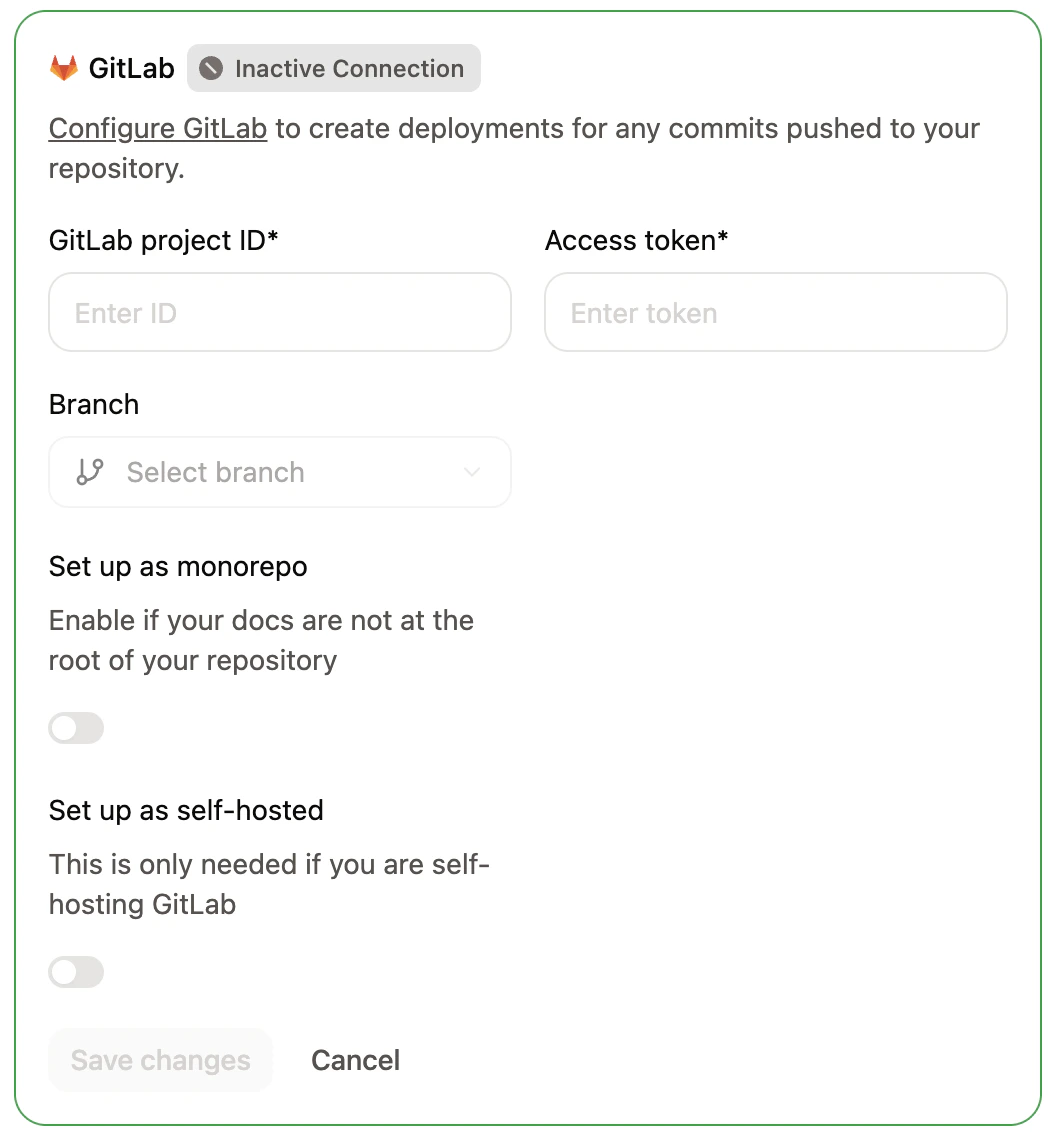
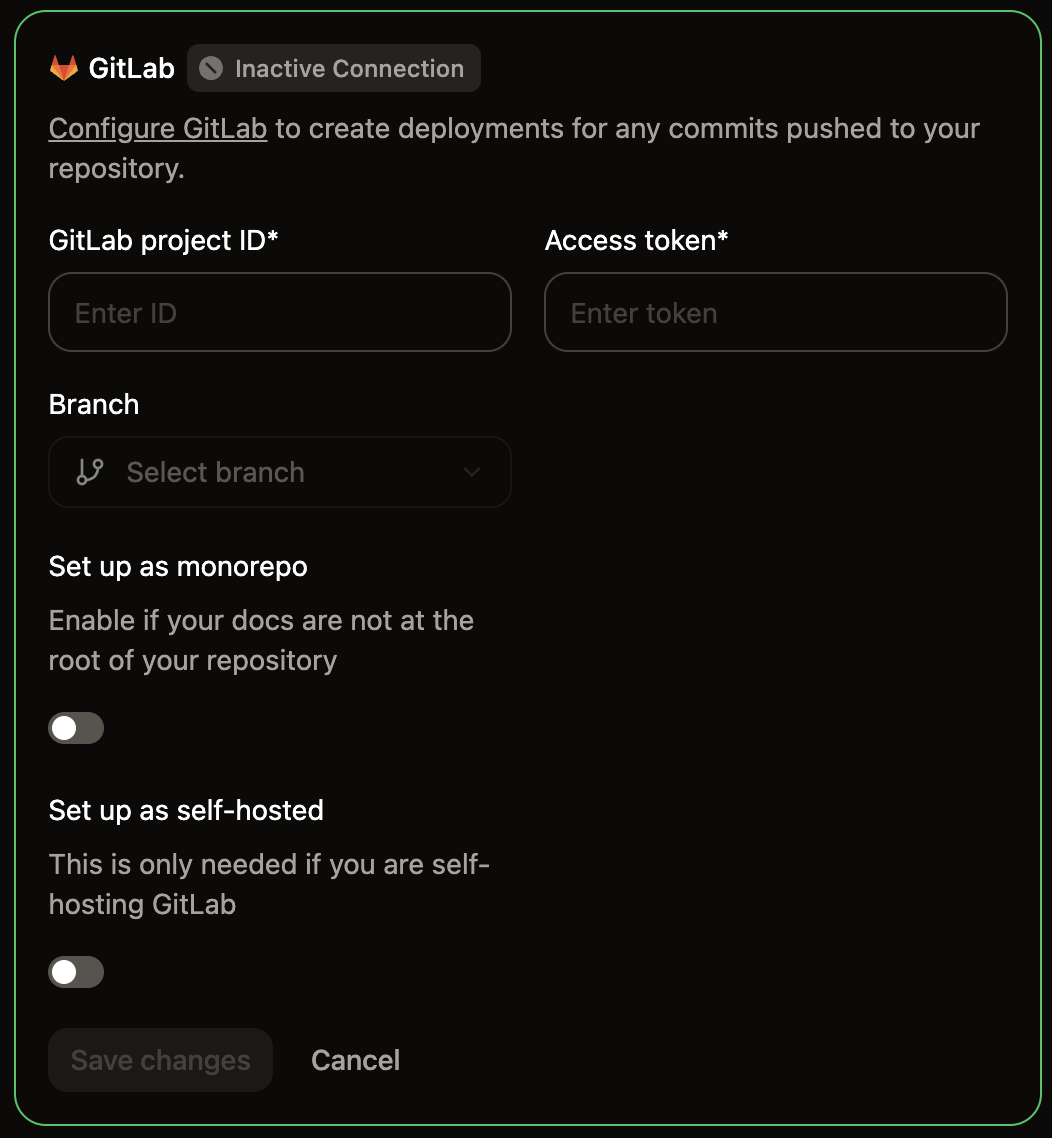
 Back in the setup wizard, fill in the following fields:
* **GitLab instance URL**: Leave blank for `gitlab.com`, or enter your self-hosted instance URL (for example, `https://gitlab.your-domain.com`). Your instance must be publicly accessible for Mintlify to reach it.
* **Project ID**: The project ID from your GitLab project settings.
* **GitLab deployment token**: The access token you generated.
* **Branch**: Select the branch to deploy your documentation from.
Click **Connect**.
Back in the setup wizard, fill in the following fields:
* **GitLab instance URL**: Leave blank for `gitlab.com`, or enter your self-hosted instance URL (for example, `https://gitlab.your-domain.com`). Your instance must be publicly accessible for Mintlify to reach it.
* **Project ID**: The project ID from your GitLab project settings.
* **GitLab deployment token**: The access token you generated.
* **Branch**: Select the branch to deploy your documentation from.
Click **Connect**.
 ## Update an existing connection
To modify your GitLab connection settings after the initial setup, go to [Git Settings](https://app.mintlify.com/settings/deployment/git-settings) and update your project ID, access token, branch, or instance URL directly.
## Revalidate Git settings
If your deployment shows unexpected behavior, such as missing branch options or stale configuration, you can force Mintlify to refresh your Git source.
Go to [Git Settings](https://app.mintlify.com/settings/deployment/git-settings) in your dashboard.
Click the green **Active** badge in the corner of the GitLab settings box to revalidate your Git source.
## Create the webhook
Webhooks notify Mintlify when you push changes so that deployments trigger
automatically.
1. In GitLab, navigate to **Settings** > **Webhooks**.
2. Click **Add new webhook**.
## Update an existing connection
To modify your GitLab connection settings after the initial setup, go to [Git Settings](https://app.mintlify.com/settings/deployment/git-settings) and update your project ID, access token, branch, or instance URL directly.
## Revalidate Git settings
If your deployment shows unexpected behavior, such as missing branch options or stale configuration, you can force Mintlify to refresh your Git source.
Go to [Git Settings](https://app.mintlify.com/settings/deployment/git-settings) in your dashboard.
Click the green **Active** badge in the corner of the GitLab settings box to revalidate your Git source.
## Create the webhook
Webhooks notify Mintlify when you push changes so that deployments trigger
automatically.
1. In GitLab, navigate to **Settings** > **Webhooks**.
2. Click **Add new webhook**.
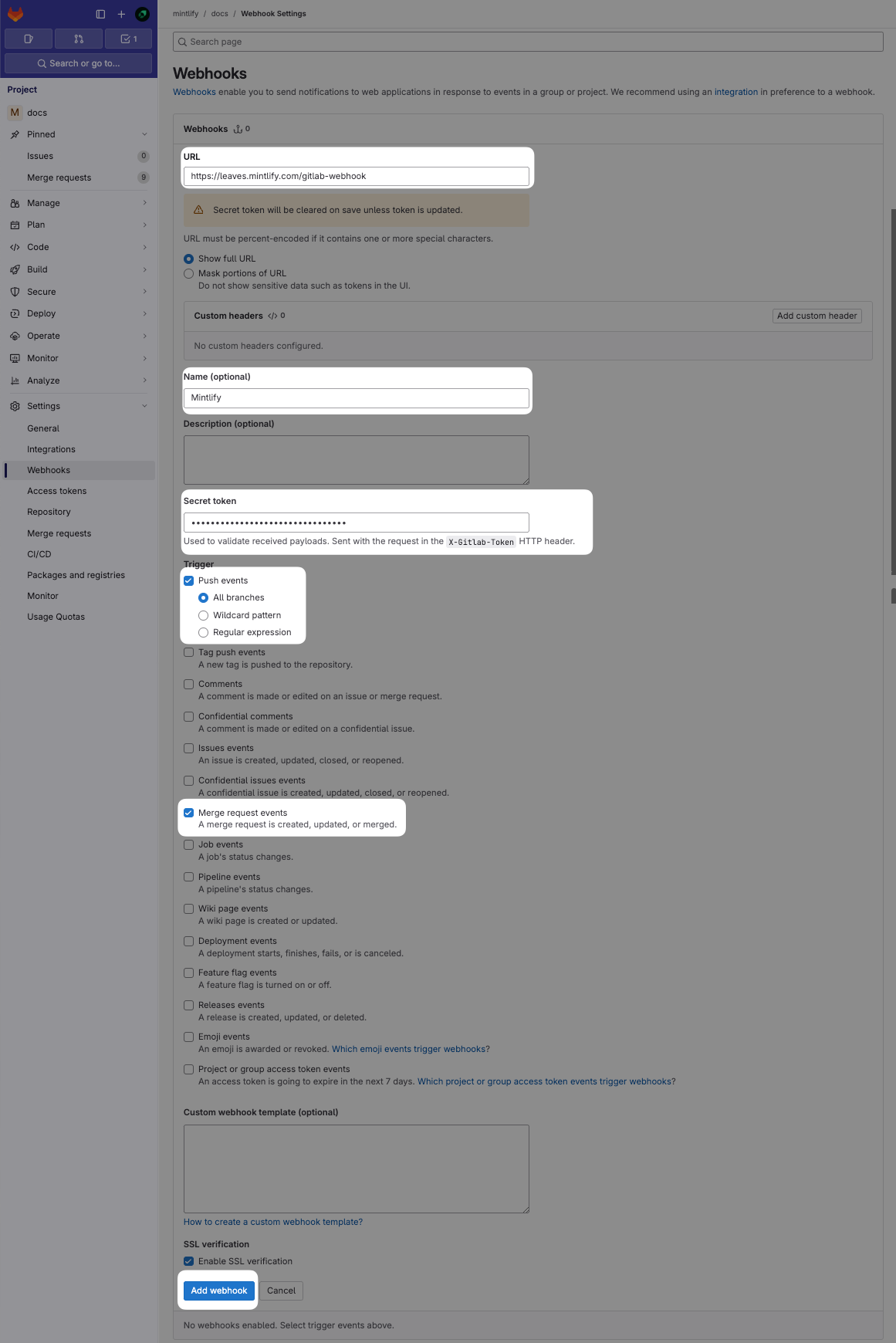
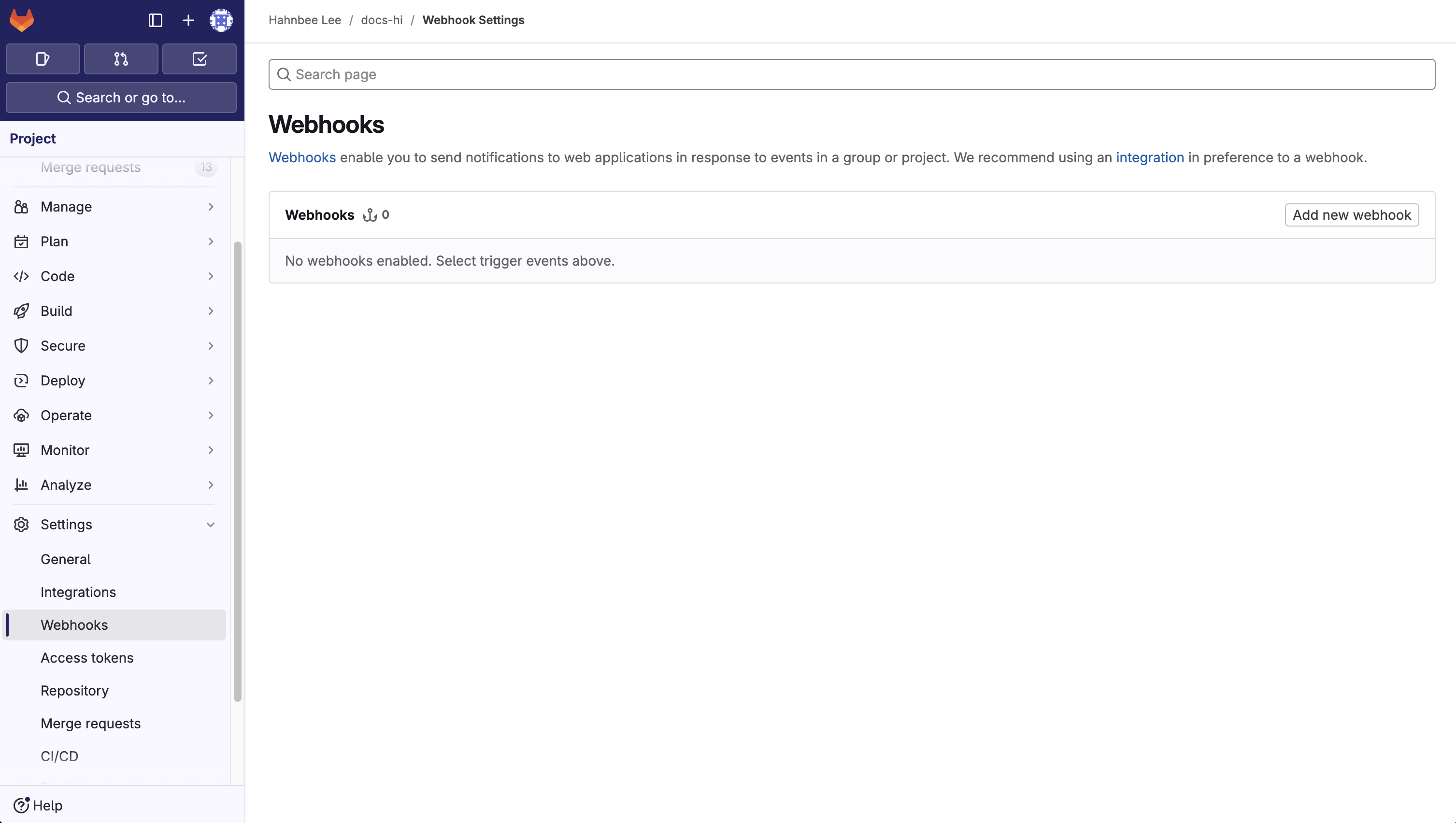 Name the webhook **Mintlify**.
In the **URL** field, enter the endpoint `https://leaves.mintlify.com/gitlab-webhook`.
In your Mintlify dashboard, click **Show Webtoken**. Copy the webtoken.
Name the webhook **Mintlify**.
In the **URL** field, enter the endpoint `https://leaves.mintlify.com/gitlab-webhook`.
In your Mintlify dashboard, click **Show Webtoken**. Copy the webtoken.
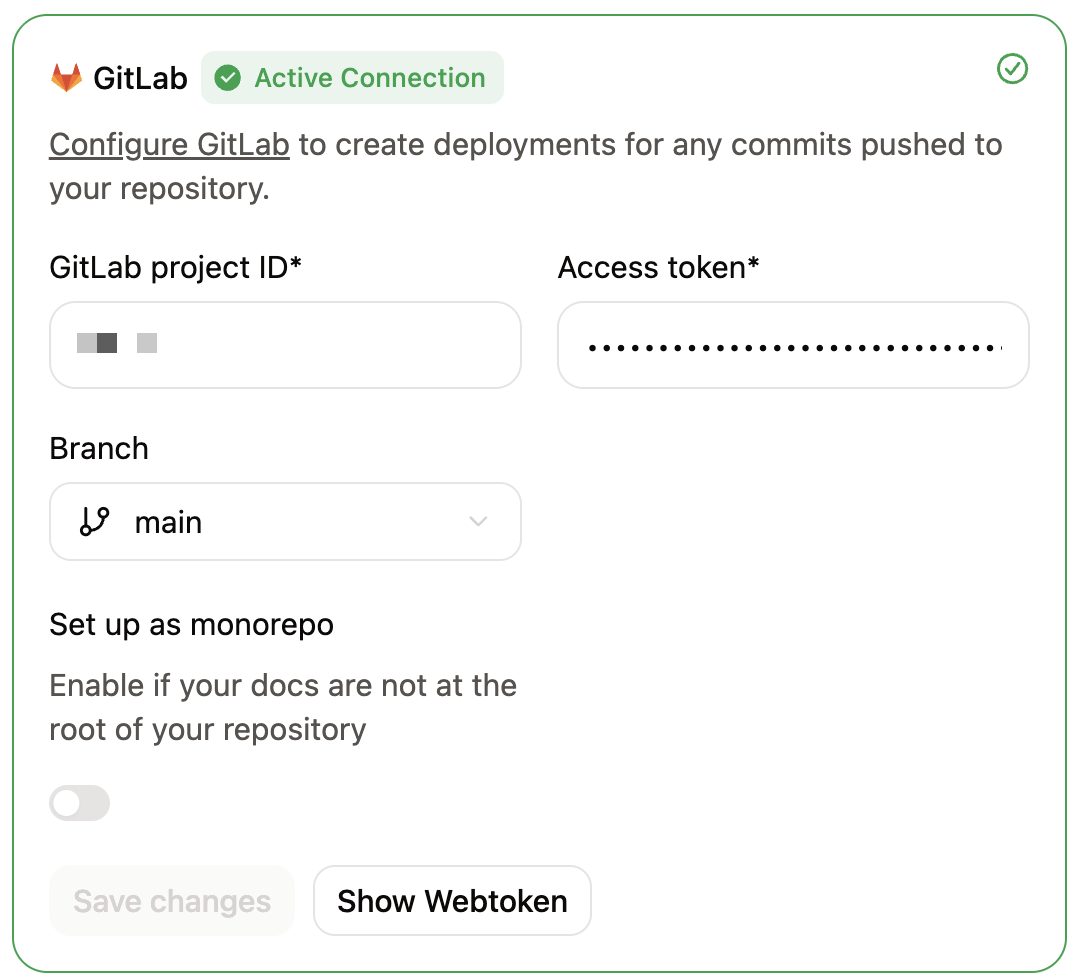
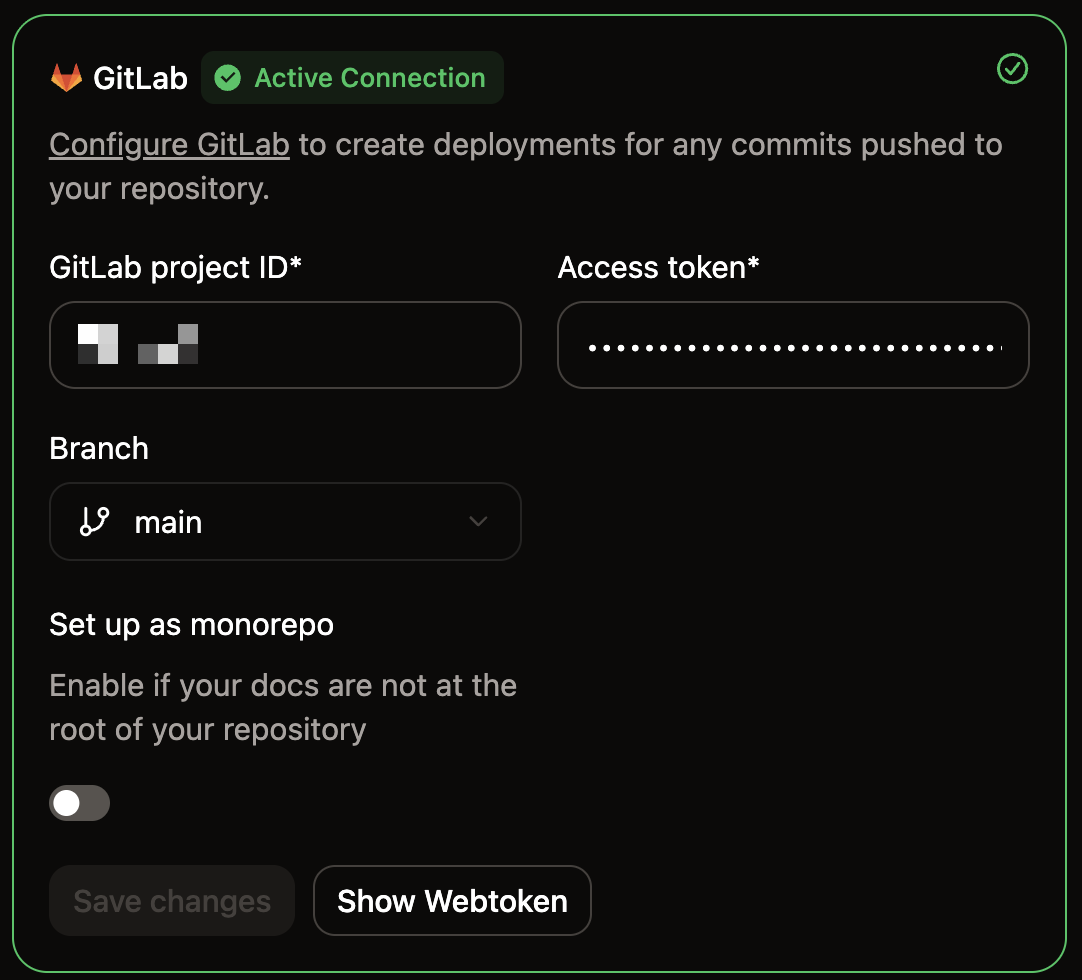 In GitLab, paste the webtoken from your Mintlify dashboard in the **Secret token** field.
Select the following events to trigger the webhook:
* **Push events** (All branches)
* **Merge requests events**
You should see the following settings after configuring the webhook:
* **Name**: Mintlify
* **URL**: `https://leaves.mintlify.com/gitlab-webhook`
* **Secret token**: The webtoken from your Mintlify dashboard
* **Events**: **Push events** (All branches) and **Merge requests events**
Add the webhook.
In GitLab, paste the webtoken from your Mintlify dashboard in the **Secret token** field.
Select the following events to trigger the webhook:
* **Push events** (All branches)
* **Merge requests events**
You should see the following settings after configuring the webhook:
* **Name**: Mintlify
* **URL**: `https://leaves.mintlify.com/gitlab-webhook`
* **Secret token**: The webtoken from your Mintlify dashboard
* **Events**: **Push events** (All branches) and **Merge requests events**
Add the webhook.
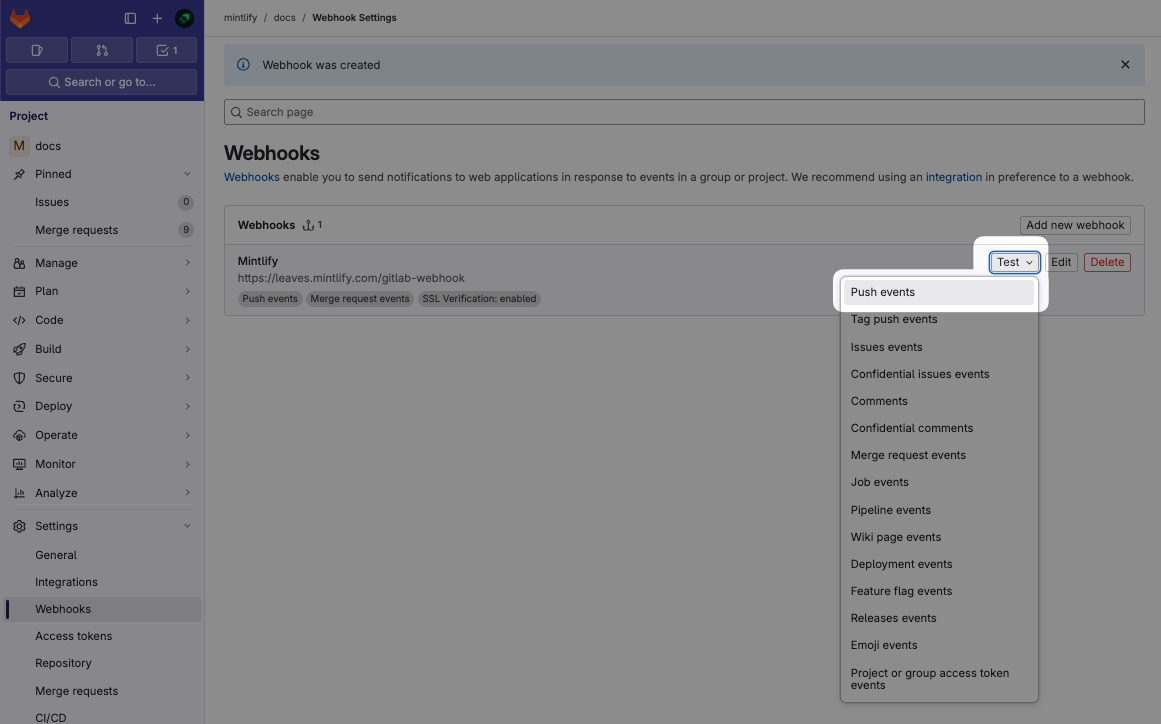
 After you create the webhook, click the **Test** dropdown. Click **Push events** to send a sample payload. If the test returns `Hook executed successfully: HTTP 200`, you configured the webhook correctly.
 ## Related topics
- [Self-hosted GitLab OAuth](/docs/deploy/gitlab-self-hosted.md)
- [Create a custom workflow](/docs/workflows/create.md)
- [Manage workflows](/docs/workflows/manage.md)
## Related topics
- [Self-hosted GitLab OAuth](/docs/deploy/gitlab-self-hosted.md)
- [Create a custom workflow](/docs/workflows/create.md)
- [Manage workflows](/docs/workflows/manage.md)