> ## Documentation Index
> Fetch the complete documentation index at: https://www.mintlify.com/docs/llms.txt
> Use this file to discover all available pages before exploring further.
# Desktop app
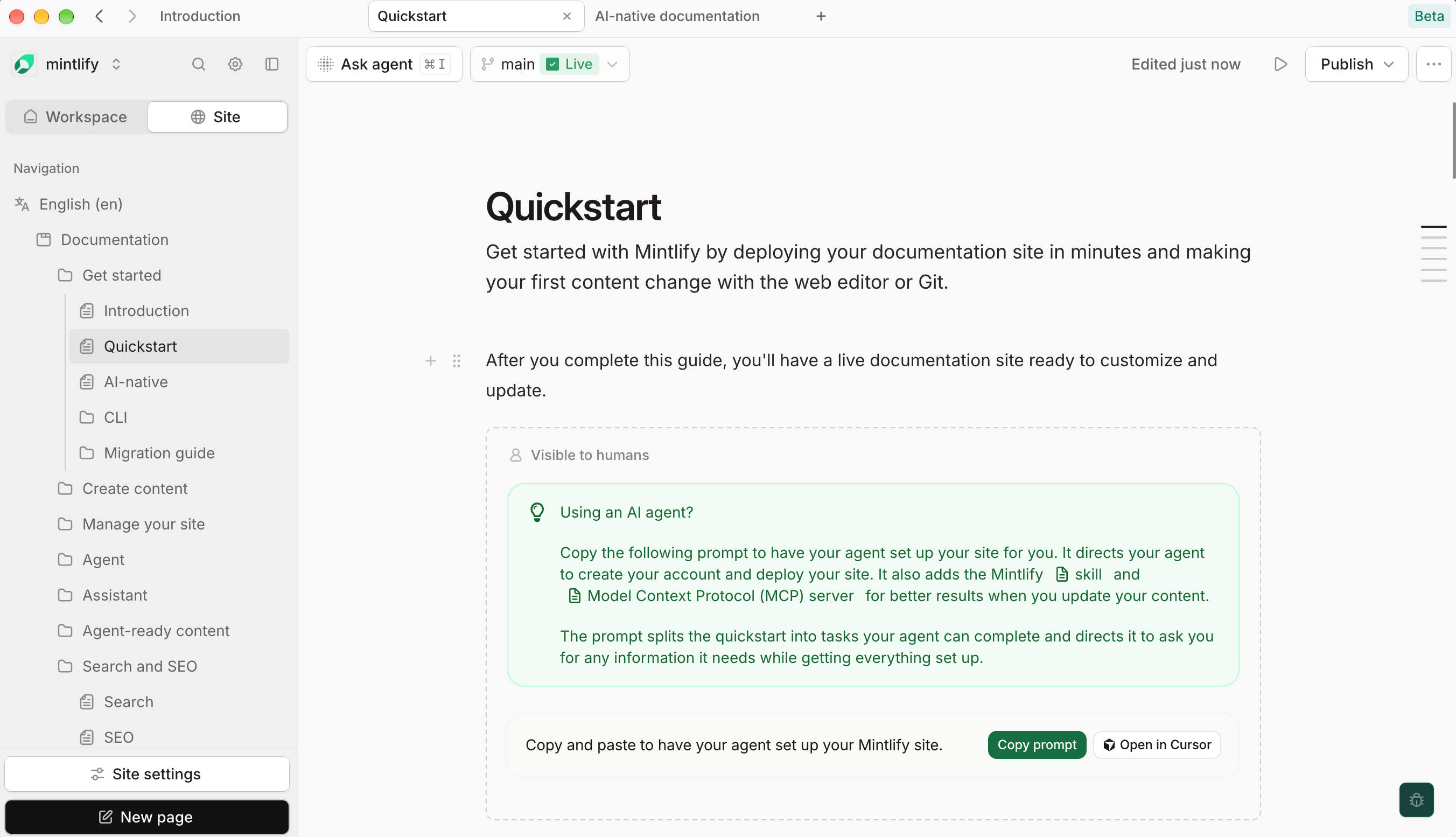
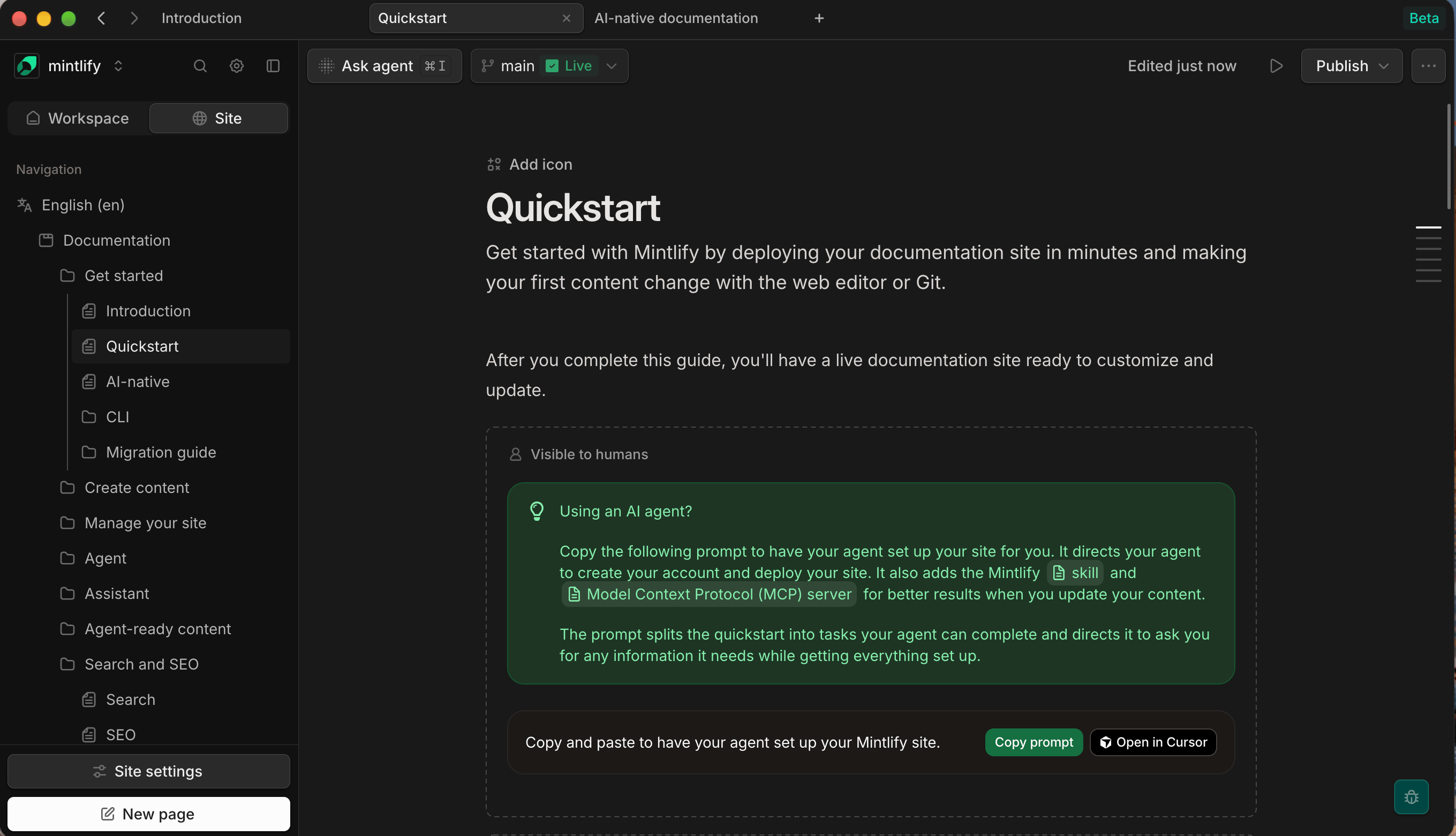
> Install the Mintlify desktop app for macOS, Windows, or Linux to use your dashboard and editor in a native window with tabs and keyboard shortcuts.
The desktop app is in beta and subject to change.
The Mintlify desktop app runs your [dashboard](https://app.mintlify.com) and [editor](/docs/editor/index) on your computer. Work in tabs or multiple windows with access to the same content and settings you access in the browser.
The desktop app updates content the same way the editor does. It does not open or edit files on your computer. To work on local files, use the [CLI](/docs/cli/index).
 ## Install
Requires macOS 14 or later on Apple silicon.
1. Download the desktop app from [mintlify.com/desktop](https://mintlify.com/desktop).
2. Open the file.
3. Drag **Mintlify** to your **Applications** folder.
You can also install from the terminal.
```bash Install the desktop app theme={null}
curl -fsSL https://desktop.mintlify.com/install.sh | bash
```
The script installs to `/Applications`, or to `~/Applications` if you can't write to `/Applications`.
Requires Windows 10 or later, 64-bit.
1. Download the desktop app from [mintlify.com/desktop](https://mintlify.com/desktop).
2. Run the installer.
Requires an x86\_64 machine. The desktop app is available as an AppImage and a `.deb` package.
Download either file from [mintlify.com/desktop](https://mintlify.com/desktop) or install the AppImage from the terminal.
```bash Install the desktop app theme={null}
curl -fsSL https://desktop.mintlify.com/install.sh | bash
```
The script installs the app to `~/.local/share/mintlify-desktop`, adds a `mintlify-desktop` command to `~/.local/bin`, and adds Mintlify to your application menu.
AppImages require FUSE 2. If the desktop app doesn't start, install FUSE 2. On Ubuntu:
```bash Install FUSE 2 theme={null}
sudo apt install libfuse2
```
## Sign in
1. Open the desktop app. The desktop app shows a **Log in to Mintlify** screen.
2. Click **Log in here instead**.
3. Sign in the same way you sign in to your dashboard in your browser.
Browser-based login is not available during beta access. You cannot use the **Continue in browser** button to sign in.
## Tabs and windows
Open each page you're working on in its own tab or window. Tabs and windows reopen where you left them when you restart the app.
Right-click a tab to duplicate it, copy its link, or close other tabs. Middle-click a tab to close it.
To show tabs in a sidebar instead of across the top of the window, change the tab layout in [Settings](#settings).
### Each tab has its own session
A new tab opens signed in to the same account and organization as the tab you opened it from. After that, each tab keeps its own session:
* Switching organizations in one tab doesn't change your other tabs, so you can work in different organizations side by side.
* Signing out or signing in to a different account only affects that tab.
To sign out everywhere, use **Clear all data** in [Settings](#settings).
### Links to other sites
Tabs only load the Mintlify dashboard and the services it uses for signing in, accessing credits for AI features, and connecting Git providers. Links to any other site open in your default browser.
## Keyboard shortcuts
On Windows and Linux, use Ctrl instead of Cmd.
| Action | Shortcut |
| :------------ | :-------------------------------------------------- |
| New tab | Cmd + T |
| New window | Cmd + Shift + N |
| Close tab | Cmd + W |
| Close window | Cmd + Shift + W |
| Go to tab 1-9 | Cmd + 1-9 |
| Next tab | Ctrl + Tab |
| Previous tab | Ctrl + Shift + Tab |
| Back | Cmd + \[ |
| Forward | Cmd + ] |
| Reload | Cmd + R |
| Copy page URL | Cmd + Shift + C |
| Open settings | Cmd + , |
For shortcuts inside the editor, see [Keyboard shortcuts](/docs/editor/keyboard-shortcuts).
## Settings
Open settings with Cmd + , on macOS or Ctrl + , on Windows and Linux.
* **Tab layout**: Show tabs across the top of the window (**Horizontal**) or in a sidebar (**Vertical**).
* **Clear all data**: Sign out of every tab, close all tabs, and reset settings. The app restarts.
The settings window also shows the app version.
## Updates
The app checks for updates when it starts and every four hours while it runs. When an update is available, an **Update** button appears in the tab bar.
* **macOS**: Click **Update** to download and install the update in the app.
* **Windows and Linux**: Click **Update** to download the new version from your browser, then install it.
## Uninstall
1. Quit the desktop app.
2. Move **Mintlify** from your **Applications** folder to the Trash.
3. To remove your sign-in and settings, delete `~/Library/Application Support/Mintlify Electron`.
1. Open **Settings** > **Apps** > **Installed apps**.
2. Find **Mintlify** and click **Uninstall**.
3. To remove your sign-in and settings, delete `%APPDATA%\Mintlify Electron`.
If you installed the desktop app with the script, delete the files it created:
```bash Remove the desktop app theme={null}
rm -rf ~/.local/share/mintlify-desktop \
~/.local/bin/mintlify-desktop \
~/.local/share/applications/mintlify-desktop.desktop \
~/.local/share/icons/hicolor/512x512/apps/mintlify-desktop.png
```
If you installed the `.deb` package, remove it with your package manager.
To remove your sign-in and settings, delete `~/.config/Mintlify Electron`.
## Related topics
- [Guides](/docs/guides/index.md)
- [Examples](/docs/components/examples.md)
- [AI-native documentation](/docs/ai-native.md)
## Install
Requires macOS 14 or later on Apple silicon.
1. Download the desktop app from [mintlify.com/desktop](https://mintlify.com/desktop).
2. Open the file.
3. Drag **Mintlify** to your **Applications** folder.
You can also install from the terminal.
```bash Install the desktop app theme={null}
curl -fsSL https://desktop.mintlify.com/install.sh | bash
```
The script installs to `/Applications`, or to `~/Applications` if you can't write to `/Applications`.
Requires Windows 10 or later, 64-bit.
1. Download the desktop app from [mintlify.com/desktop](https://mintlify.com/desktop).
2. Run the installer.
Requires an x86\_64 machine. The desktop app is available as an AppImage and a `.deb` package.
Download either file from [mintlify.com/desktop](https://mintlify.com/desktop) or install the AppImage from the terminal.
```bash Install the desktop app theme={null}
curl -fsSL https://desktop.mintlify.com/install.sh | bash
```
The script installs the app to `~/.local/share/mintlify-desktop`, adds a `mintlify-desktop` command to `~/.local/bin`, and adds Mintlify to your application menu.
AppImages require FUSE 2. If the desktop app doesn't start, install FUSE 2. On Ubuntu:
```bash Install FUSE 2 theme={null}
sudo apt install libfuse2
```
## Sign in
1. Open the desktop app. The desktop app shows a **Log in to Mintlify** screen.
2. Click **Log in here instead**.
3. Sign in the same way you sign in to your dashboard in your browser.
Browser-based login is not available during beta access. You cannot use the **Continue in browser** button to sign in.
## Tabs and windows
Open each page you're working on in its own tab or window. Tabs and windows reopen where you left them when you restart the app.
Right-click a tab to duplicate it, copy its link, or close other tabs. Middle-click a tab to close it.
To show tabs in a sidebar instead of across the top of the window, change the tab layout in [Settings](#settings).
### Each tab has its own session
A new tab opens signed in to the same account and organization as the tab you opened it from. After that, each tab keeps its own session:
* Switching organizations in one tab doesn't change your other tabs, so you can work in different organizations side by side.
* Signing out or signing in to a different account only affects that tab.
To sign out everywhere, use **Clear all data** in [Settings](#settings).
### Links to other sites
Tabs only load the Mintlify dashboard and the services it uses for signing in, accessing credits for AI features, and connecting Git providers. Links to any other site open in your default browser.
## Keyboard shortcuts
On Windows and Linux, use Ctrl instead of Cmd.
| Action | Shortcut |
| :------------ | :-------------------------------------------------- |
| New tab | Cmd + T |
| New window | Cmd + Shift + N |
| Close tab | Cmd + W |
| Close window | Cmd + Shift + W |
| Go to tab 1-9 | Cmd + 1-9 |
| Next tab | Ctrl + Tab |
| Previous tab | Ctrl + Shift + Tab |
| Back | Cmd + \[ |
| Forward | Cmd + ] |
| Reload | Cmd + R |
| Copy page URL | Cmd + Shift + C |
| Open settings | Cmd + , |
For shortcuts inside the editor, see [Keyboard shortcuts](/docs/editor/keyboard-shortcuts).
## Settings
Open settings with Cmd + , on macOS or Ctrl + , on Windows and Linux.
* **Tab layout**: Show tabs across the top of the window (**Horizontal**) or in a sidebar (**Vertical**).
* **Clear all data**: Sign out of every tab, close all tabs, and reset settings. The app restarts.
The settings window also shows the app version.
## Updates
The app checks for updates when it starts and every four hours while it runs. When an update is available, an **Update** button appears in the tab bar.
* **macOS**: Click **Update** to download and install the update in the app.
* **Windows and Linux**: Click **Update** to download the new version from your browser, then install it.
## Uninstall
1. Quit the desktop app.
2. Move **Mintlify** from your **Applications** folder to the Trash.
3. To remove your sign-in and settings, delete `~/Library/Application Support/Mintlify Electron`.
1. Open **Settings** > **Apps** > **Installed apps**.
2. Find **Mintlify** and click **Uninstall**.
3. To remove your sign-in and settings, delete `%APPDATA%\Mintlify Electron`.
If you installed the desktop app with the script, delete the files it created:
```bash Remove the desktop app theme={null}
rm -rf ~/.local/share/mintlify-desktop \
~/.local/bin/mintlify-desktop \
~/.local/share/applications/mintlify-desktop.desktop \
~/.local/share/icons/hicolor/512x512/apps/mintlify-desktop.png
```
If you installed the `.deb` package, remove it with your package manager.
To remove your sign-in and settings, delete `~/.config/Mintlify Electron`.
## Related topics
- [Guides](/docs/guides/index.md)
- [Examples](/docs/components/examples.md)
- [AI-native documentation](/docs/ai-native.md)