> ## Documentation Index
> Fetch the complete documentation index at: https://www.mintlify.com/docs/llms.txt
> Use this file to discover all available pages before exploring further.
# Google Analytics 4
> Integrate Google Analytics 4 with your Mintlify documentation to track visitor behavior, page views, and content engagement with your GA4 ID.
You need to generate a new GA4 property to use with Mintlify. The data collected goes into the same project as your other Google Analytics data.
If you are using the old version of Google Analytics, Universal Analytics, you can still generate a GA4 property. GA4 data is slightly different from UA data but still gets collected in the same project.
## Connect GA4 to Mintlify
### Create a web stream
You need to create a web stream to get the Measurement ID to put into Mintlify.
Click the cog at the bottom left of the Google Analytics screen. Then click Data Streams.
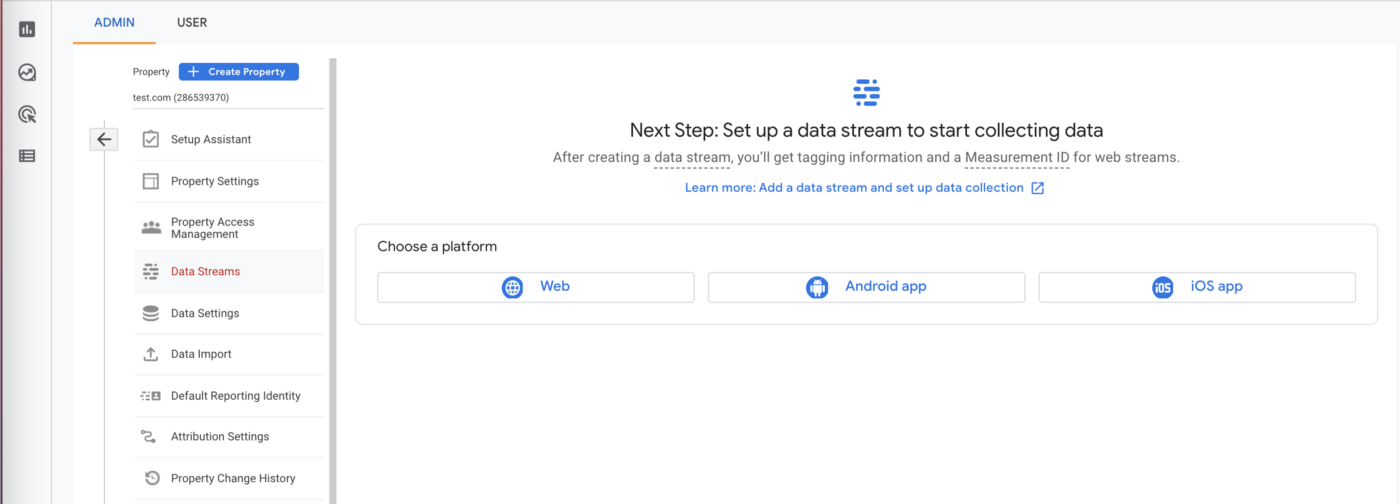 Create a Web Stream and put the URL of your Mintlify docs site as the stream URL.
Your Measurement ID looks like `G-XXXXXXX` and appears under Stream Details immediately after you create the Web Stream.
### Put measurement ID in docs.json
Add your Measurement ID to your `docs.json` file like so:
```json docs.json theme={null}
"integrations": {
"ga4": {
"measurementId": "G-XXXXXXX"
}
}
```
### Wait
Google Analytics takes two to three days to show your data.
You can use the [Google Analytics Debugger](https://chrome.google.com/webstore/detail/google-analytics-debugger/jnkmfdileelhofjcijamephohjechhna?hl=en) to check your analytics configuration. The extension logs to your browser's console every time GA4 makes a request.
Preview links have analytics turned off.
## Related topics
- [Analytics integrations](/docs/integrations/analytics/overview.md)
- [Content Security Policy (CSP) configuration](/docs/deploy/csp-configuration.md)
- [Custom scripts](/docs/customize/custom-scripts.md)
Create a Web Stream and put the URL of your Mintlify docs site as the stream URL.
Your Measurement ID looks like `G-XXXXXXX` and appears under Stream Details immediately after you create the Web Stream.
### Put measurement ID in docs.json
Add your Measurement ID to your `docs.json` file like so:
```json docs.json theme={null}
"integrations": {
"ga4": {
"measurementId": "G-XXXXXXX"
}
}
```
### Wait
Google Analytics takes two to three days to show your data.
You can use the [Google Analytics Debugger](https://chrome.google.com/webstore/detail/google-analytics-debugger/jnkmfdileelhofjcijamephohjechhna?hl=en) to check your analytics configuration. The extension logs to your browser's console every time GA4 makes a request.
Preview links have analytics turned off.
## Related topics
- [Analytics integrations](/docs/integrations/analytics/overview.md)
- [Content Security Policy (CSP) configuration](/docs/deploy/csp-configuration.md)
- [Custom scripts](/docs/customize/custom-scripts.md)