> ## Documentation Index
> Fetch the complete documentation index at: https://www.mintlify.com/docs/llms.txt
> Use this file to discover all available pages before exploring further.
# Quickstart
> Deploy your documentation site and make your first change.
After you complete this guide, you'll have a live documentation site ready to customize and update.
## Before you begin
Mintlify uses a docs-as-code approach to manage your documentation. Every page on your site has a corresponding file stored in your documentation repository.
When you connect your documentation repository to your Mintlify deployment, you can work on your documentation locally or in the web editor and sync any changes to your remote repository.
## Deploy your documentation site
Go to [mintlify.com/start](https://mintlify.com/start) and complete the onboarding process. During onboarding, you'll connect your GitHub account, create or select a repository for your documentation, and install the GitHub App to enable automatic deployments.
After onboarding, your documentation site is deployed and accessible at your `.mintlify.app` URL.
If you want to get started quickly without connecting your own repository, you can skip the GitHub connection during onboarding. Mintlify creates a private repository in a private organization and automatically configures the GitHub App for you.
This lets you use the web editor immediately and migrate to your own repository later.
## View your deployed site
Your documentation site is now deployed at `https://.mintlify.app`.
Find your exact URL on the **Overview** page of your [dashboard](https://dashboard.mintlify.com/).
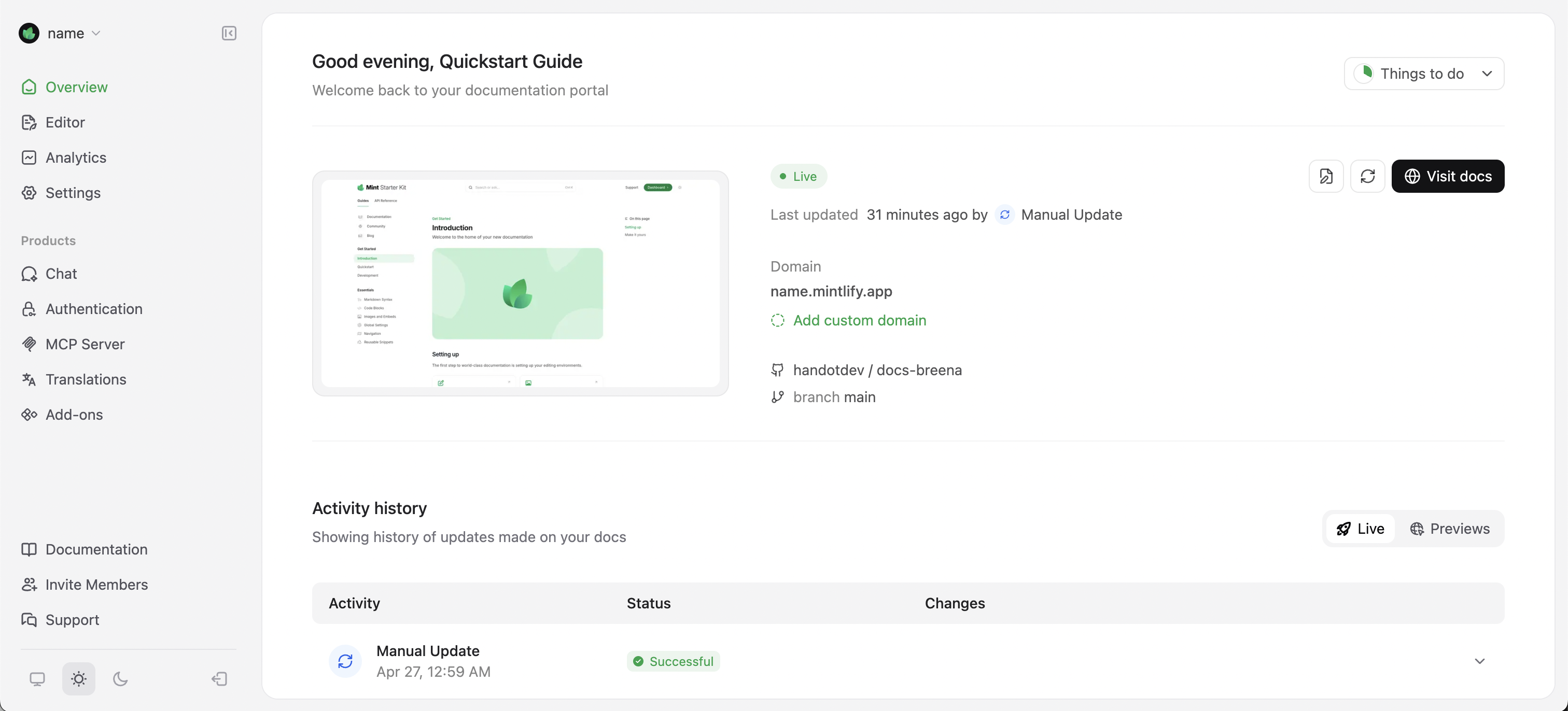
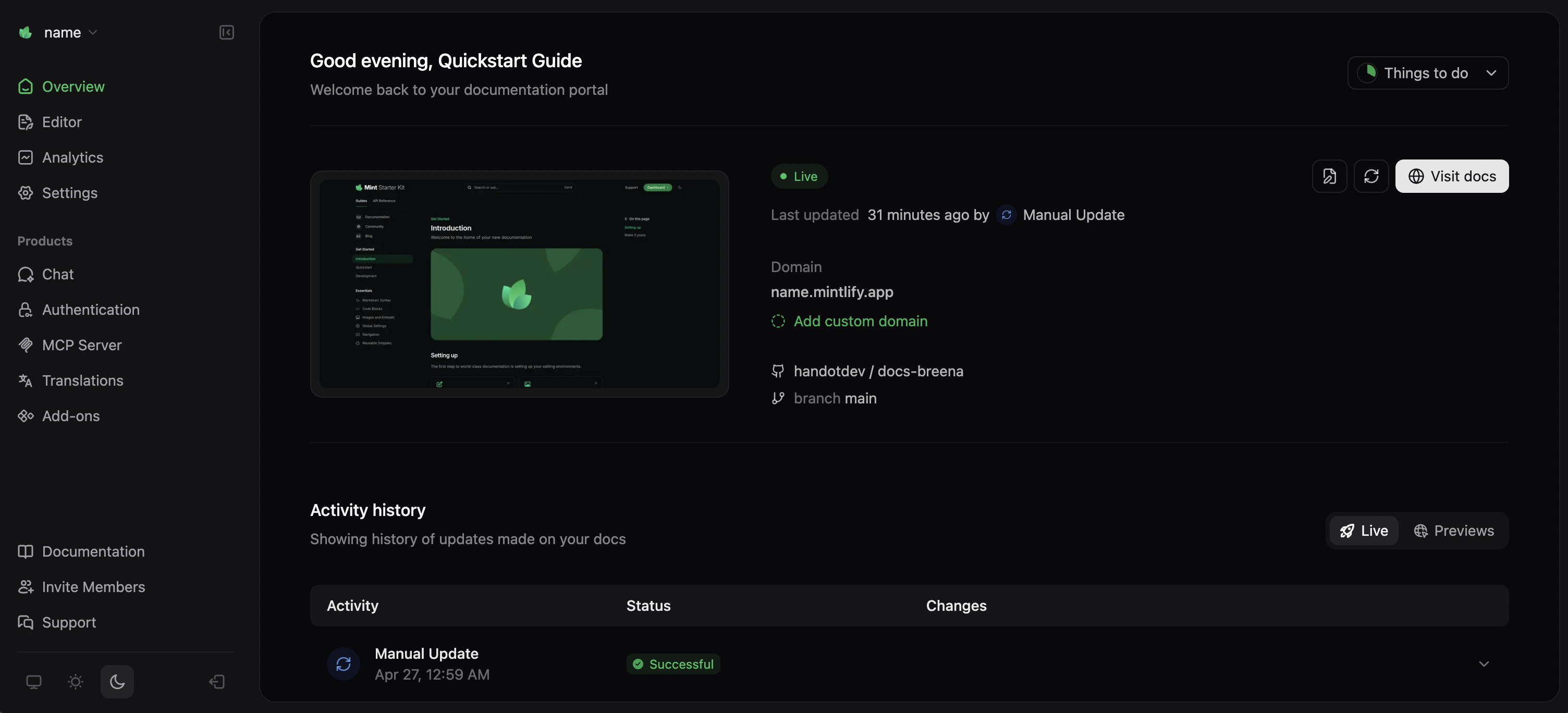 Your site is ready to view immediately. Use this URL for testing and sharing with your team. Before sharing with your users, you may want to add a [custom domain](/customize/custom-domain).
## Make your first change
The CLI requires [Node.js](https://nodejs.org/en) v20.17.0 or higher. Use an LTS version for stability.
```bash npm theme={null}
npm i -g mint
```
```bash pnpm theme={null}
pnpm add -g mint
```
See [Install the CLI](/installation) for full details and troubleshooting.
If you haven't already cloned your repository locally, follow the instructions in [Clone your repository](/installation#clone-your-repository).
Open `index.mdx` in your preferred editor and update the description in the frontmatter:
```mdx theme={null}
---
title: "Introduction"
description: "Your custom description here"
---
```
Run the following command from your documentation directory:
```bash theme={null}
mint dev
```
View your preview at `http://localhost:3000`.
Commit and push your changes to trigger a deployment:
```bash theme={null}
git add .
git commit -m "Update description"
git push
```
Mintlify automatically deploys your changes. View your deployment status on the [Overview](https://dashboard.mintlify.com/) page of your dashboard.
Navigate to the [web editor](https://dashboard.mintlify.com/editor) in your dashboard.
Open the **Introduction** page and update the description.
Your site is ready to view immediately. Use this URL for testing and sharing with your team. Before sharing with your users, you may want to add a [custom domain](/customize/custom-domain).
## Make your first change
The CLI requires [Node.js](https://nodejs.org/en) v20.17.0 or higher. Use an LTS version for stability.
```bash npm theme={null}
npm i -g mint
```
```bash pnpm theme={null}
pnpm add -g mint
```
See [Install the CLI](/installation) for full details and troubleshooting.
If you haven't already cloned your repository locally, follow the instructions in [Clone your repository](/installation#clone-your-repository).
Open `index.mdx` in your preferred editor and update the description in the frontmatter:
```mdx theme={null}
---
title: "Introduction"
description: "Your custom description here"
---
```
Run the following command from your documentation directory:
```bash theme={null}
mint dev
```
View your preview at `http://localhost:3000`.
Commit and push your changes to trigger a deployment:
```bash theme={null}
git add .
git commit -m "Update description"
git push
```
Mintlify automatically deploys your changes. View your deployment status on the [Overview](https://dashboard.mintlify.com/) page of your dashboard.
Navigate to the [web editor](https://dashboard.mintlify.com/editor) in your dashboard.
Open the **Introduction** page and update the description.
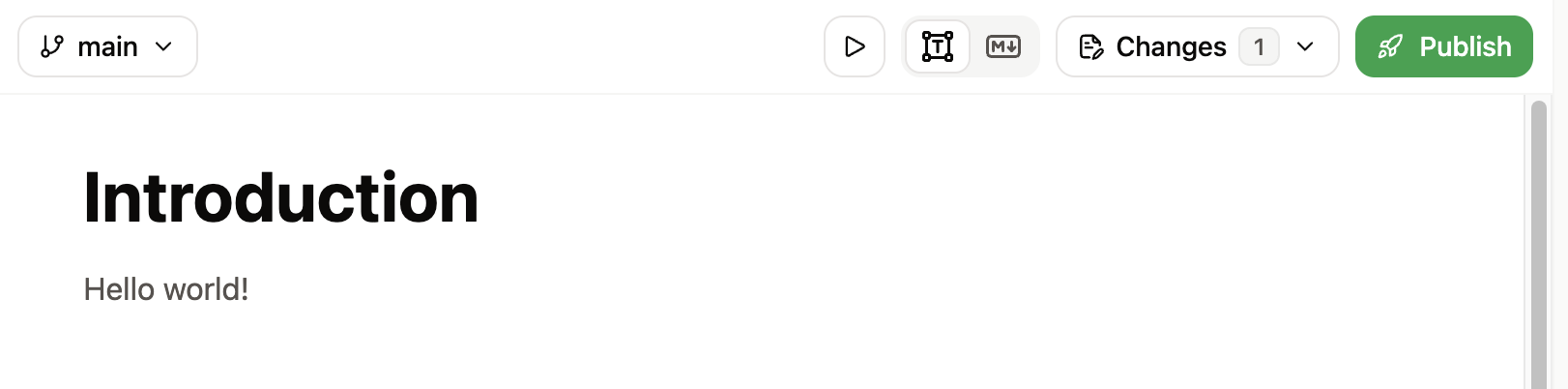
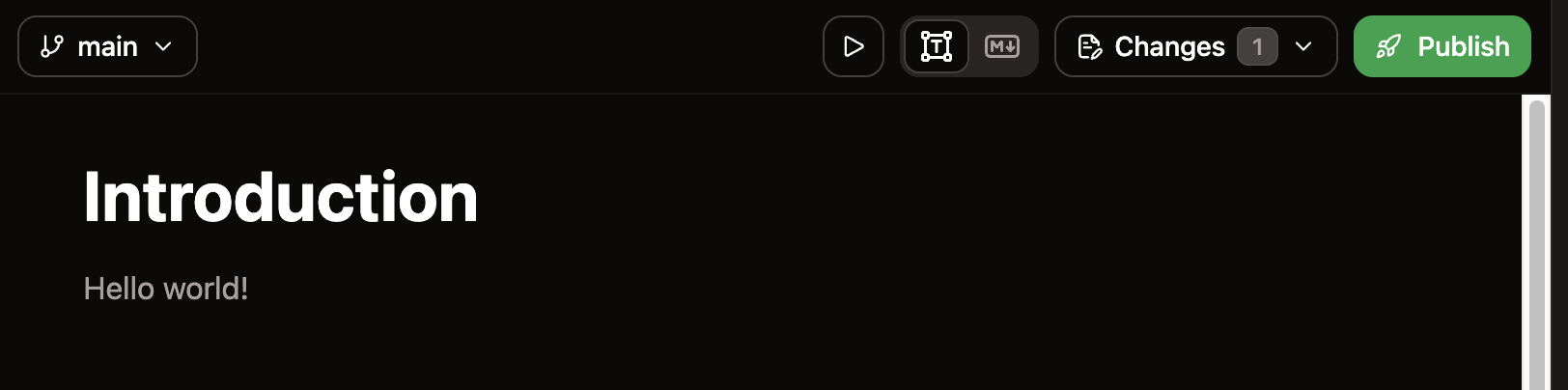 Click the **Publish** button in the top-right of the web editor toolbar.
On the [Overview](https://dashboard.mintlify.com/) page of your dashboard, you can see your site's deployment status. When it finishes deploying, refresh your documentation site to see your changes live.
## Next steps
Edit documentation in your browser and preview how your pages will look when published.
Find broken links, check accessibility, validate OpenAPI specs, and more.
Use your own domain for your documentation site.
Click the **Publish** button in the top-right of the web editor toolbar.
On the [Overview](https://dashboard.mintlify.com/) page of your dashboard, you can see your site's deployment status. When it finishes deploying, refresh your documentation site to see your changes live.
## Next steps
Edit documentation in your browser and preview how your pages will look when published.
Find broken links, check accessibility, validate OpenAPI specs, and more.
Use your own domain for your documentation site.