Get Started in Minutes
This guide will walk you through setting up Showdown Trivia locally and playing your first multiplayer trivia game. You’ll create an account, configure a game room, and experience real-time competitive trivia.Prerequisites
Ensure you have the following installed on your system:
Minimum Requirements:
- Go 1.21 or higher
- MongoDB 4.4 or higher
- 512MB RAM (1GB recommended)
Clone and Configure
Clone the repository and set up your environment configuration:Configure your
.env file with the following settings:.env
Environment Variable Details
Environment Variable Details
| Variable | Required | Description | Valid Values |
|---|---|---|---|
DB_URL | Yes | MongoDB connection string | Any valid MongoDB URI |
PORT | Yes | HTTP server port | Any valid port number |
LOG_LEVEL | Yes | Application logging verbosity | debug, info, warn, error |
ENV | Yes | Runtime environment | dev, prod |
Install Dependencies and Build
Install the required Go modules and build the application:You should see output similar to:
Using Make (Alternative)
Using Make (Alternative)
If you prefer using Make for development:
Using Docker Compose (Alternative)
Using Docker Compose (Alternative)
For a containerized setup that includes MongoDB:Docker Compose automatically configures networking between the app and MongoDB.
Create Your Account
Navigate to the application and create your player account: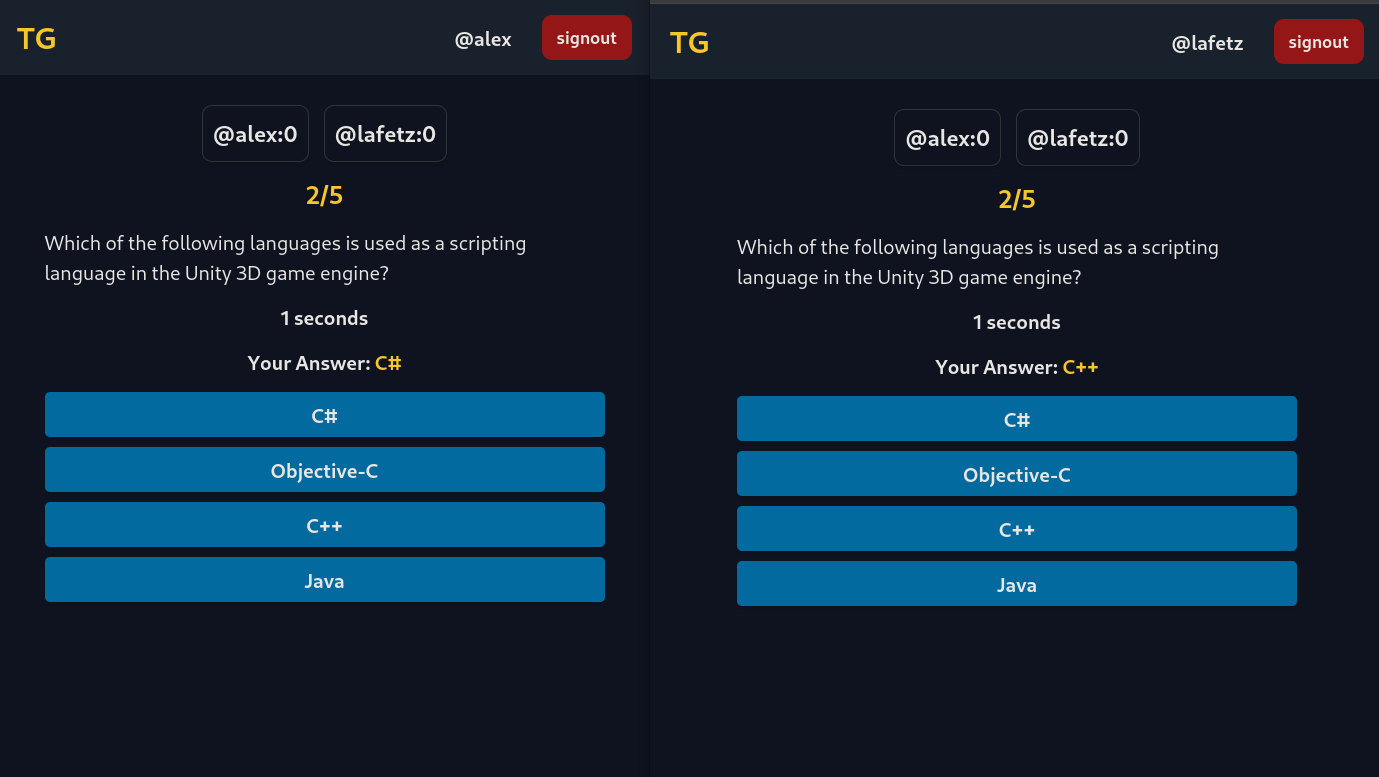 The application uses secure password hashing:
- Open your browser to
http://localhost:8080 - Click Sign Up in the navigation
- Fill out the registration form:
- Username: Your display name in games (3-20 characters)
- Email: Must be unique
- Password: Minimum 8 characters
- Submit the form
Account validation happens in real-time. You’ll see immediate feedback if your username or email is already taken, or if password requirements aren’t met.
Sign In
After successful registration, sign in with your credentials: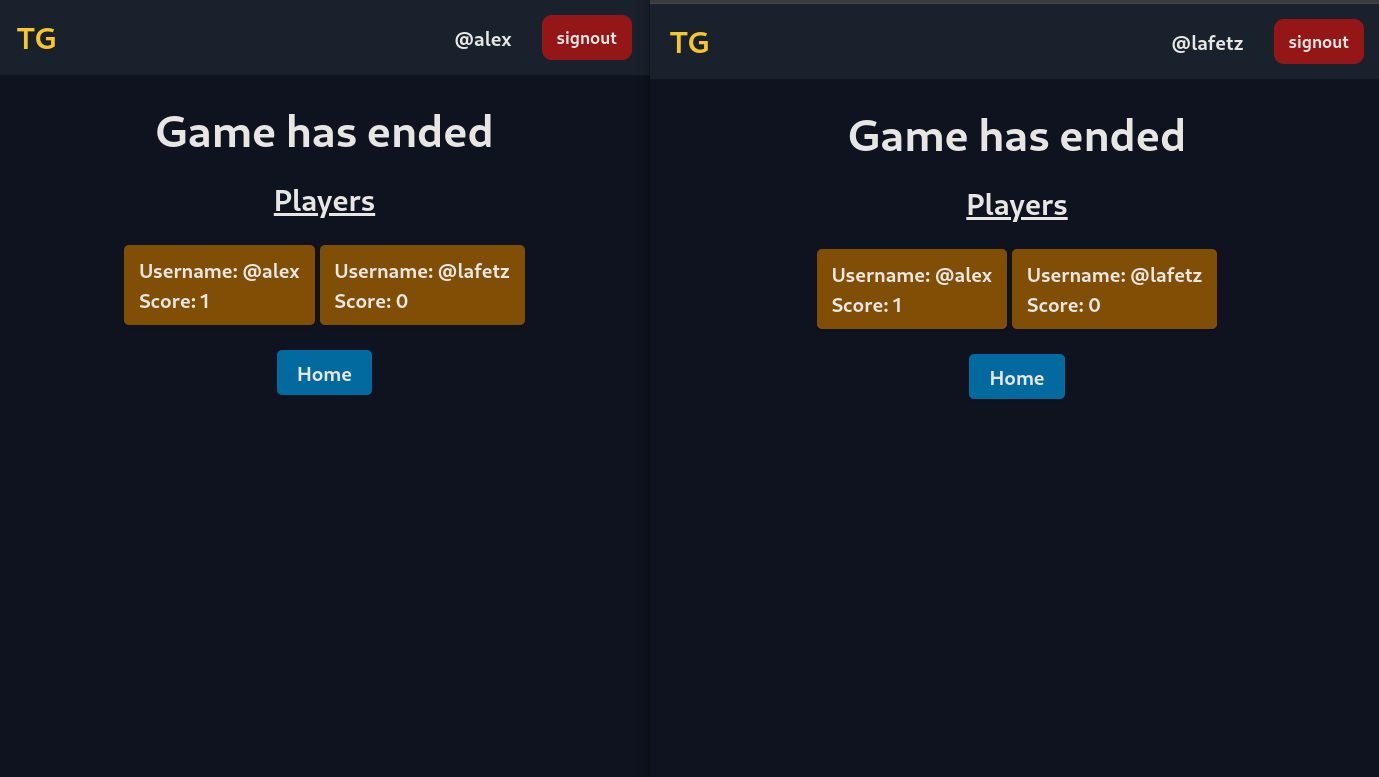
- Navigate to
http://localhost:8080/signin - Enter your email and password
- Click Sign In
Create Your First Game
Set up a new trivia game room:
- From the home dashboard, click Create Game
- Configure your game settings:
Choose from 32+ trivia categories including:
- General Knowledge (9)
- Science & Nature (17)
- Sports (21)
- History (23)
- Geography (22)
- And many more!
Number of questions in the game (1-50)Recommended: 10-15 questions for a 5-10 minute game
Seconds per question (2-20)Shorter timers increase difficulty and excitement
- Click Create Game Room
As the game owner, you control when the game starts. The game won’t begin until you click Start Game, allowing time for other players to join.
Invite Players or Join Existing Games
Option A: Invite Players to Your GameShare your game room URL with friends:Players can join your room directly via this link. You’ll see them appear in the player list in real-time.Option B: Join an Existing Game
- From the home dashboard, click Browse Active Games
- View all available game rooms with:
- Game owner name
- Current player count
- Room ID
- Click Join on any available game
Play the Game
Once all players are ready: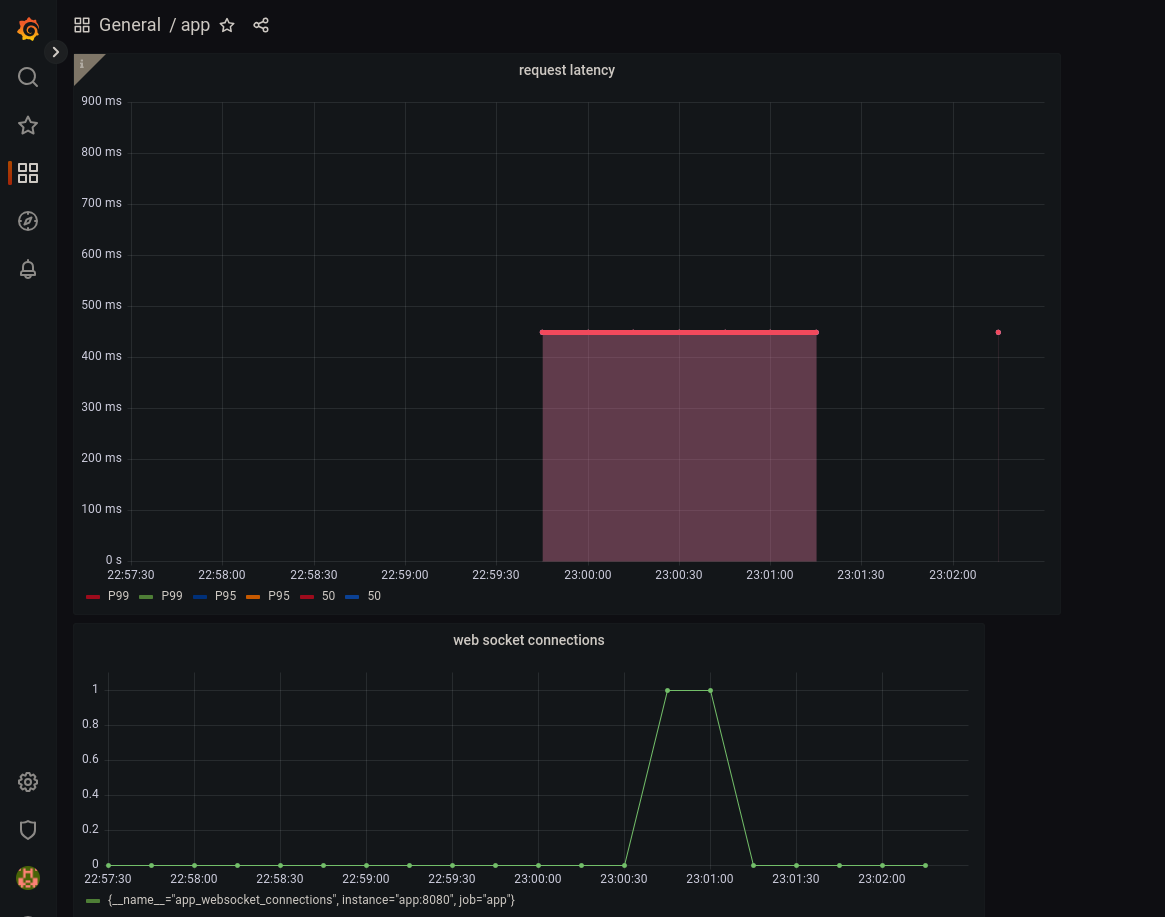 Gameplay Mechanics:
- Game Owner: Click Start Game
- Questions appear simultaneously for all players
- Select your answer before the timer runs out
- Watch scores update in real-time after each question
- See the final leaderboard when all questions are answered
Scoring System
Scoring System
- Each correct answer: +1 point
- Incorrect or missed answers: 0 points
- Fastest correct answer: No bonus (all correct answers worth the same)
- Final scores determine winner(s)
View Results and Play Again
After the final question:
- The winner screen displays with final scores
- All players are ranked by their score
- Return to the home dashboard to create or join another game
Want to play the same group again? The game owner can create a new room with the same settings, and players can rejoin using the new room link.
Production Deployment
Ready to deploy for public access? Check out our Docker Deployment Guide for production deployment considerations including:- Securing your deployment with proper authentication
- Setting up SSL/TLS certificates
- Configuring production environment variables
- Using managed database hosting
- Network security and secrets management
Monitoring Your Instance
Showdown Trivia includes built-in Prometheus metrics for monitoring:app_websocket_connections: Current active WebSocket connectionsapp_request_game_duration: Histogram of game creation request durations
Troubleshooting
Database Connection Failed
Database Connection Failed
Error:
db url is invalid or connection timeoutSolutions:- Verify MongoDB is running:
mongosh(should connect successfully) - Check your
DB_URLin.envmatches your MongoDB configuration - For Docker: Ensure the MongoDB container is running:
docker ps - Test connection manually:
Port Already in Use
Port Already in Use
Error:
address already in useSolutions:- Change the
PORTin your.envfile to an available port - Find and stop the process using port 8080:
WebSocket Connection Failed
WebSocket Connection Failed
Error: Games don’t load or players can’t joinSolutions:
- Check browser console for WebSocket errors
- Ensure your firewall allows WebSocket connections
- If behind a proxy, ensure WebSocket upgrade headers are forwarded
- Verify the application is running:
curl http://localhost:8080/home
Questions Not Loading
Questions Not Loading
Error: Game created but questions don’t appearSolutions:
- The application fetches questions from OpenTDB API - check your internet connection
- Verify API is accessible:
- Check logs for API errors:
LOG_LEVEL=debugin.env - Some categories may have limited questions - try different categories
Next Steps
Browse Features
Explore all available features and capabilities
API Integration
Integrate with Showdown Trivia’s services
Contributing
Contribute to the project on GitHub
Deployment
Deploy to production environments