
Features
Native Agent Experience
Integrated AI assistant panel within your JetBrains IDE
Agent Client Protocol
Full support for ACP enabling advanced IDE interactions
Symbol Management
#-mention files to add them to the conversation context
Conversation History
Access to past conversations within the IDE
Multi-IDE Support
Works with IntelliJ IDEA, WebStorm, PyCharm, and more
Workspace Integration
Full access to your project structure and files
Supported IDEs
Qwen Code works with JetBrains IDEs that support the Agent Client Protocol:IntelliJ IDEA
Ultimate and Community editions
WebStorm
For web development
PyCharm
Professional and Community editions
GoLand
For Go development
PhpStorm
For PHP development
RubyMine
For Ruby development
CLion
For C/C++ development
Rider
For .NET development
Android Studio
For Android development
Ensure your JetBrains IDE version supports ACP. Check the JetBrains documentation for your specific IDE.
Requirements
- JetBrains IDE: Version with ACP support
- Qwen Code CLI: Installed globally
- Node.js: Version 20 or later
Installation
Install Qwen Code CLI
Install the Qwen Code CLI globally using npm:Verify the installation:Note the full path to the
qwen executable:Open AI Chat Tool Window
In your JetBrains IDE:
- Navigate to the AI Chat tool window
- If not visible, enable it via View → Tool Windows → AI Chat
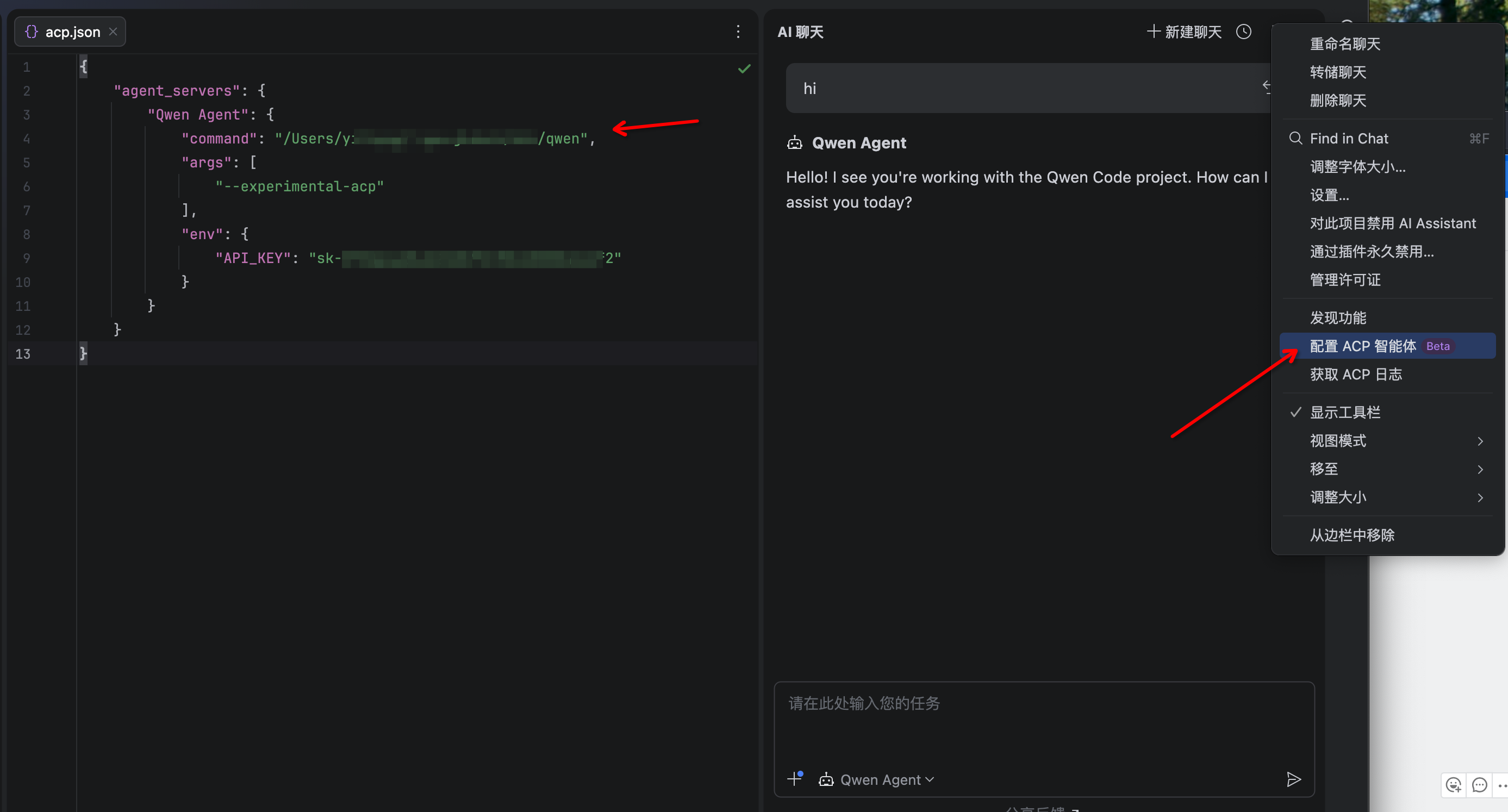
Configure ACP Agent
Configure Qwen Code as an ACP agent:Replace
- Click the 3-dot menu in the upper-right corner of the AI Chat window
- Select Configure ACP Agent
- Add the following configuration:
/path/to/qwen with the actual path from Step 1.Configuration Details
Finding the Qwen Executable Path
- macOS/Linux
- Windows
- npm global:
/usr/local/bin/qwen - nvm:
~/.nvm/versions/node/v20.x.x/bin/qwen - Homebrew:
/opt/homebrew/bin/qwen
Advanced Configuration
You can add environment variables and custom settings:Qwen Code Settings
The agent reads configuration from:- User settings:
~/.qwen/settings.json - Project settings:
.qwen/settings.json
Usage
Opening the AI Chat
Access the Qwen Code agent:- Open the AI Chat tool window (View → Tool Windows → AI Chat)
- Select Qwen Code from the agent dropdown
- Start your conversation
Using #-mentions
Reference files using the # symbol:Common Tasks
Qwen Code can help with: Code Explanation:Authentication
Configure authentication using the Qwen Code CLI:- Qwen OAuth
- API Key
Recommended for individual developers
- Free tier: 1,000 requests/day
- Browser-based login flow
- Automatic credential caching
/auth and select “Qwen OAuth” to start the browser flow.Tips & Best Practices
Use precise file references
Use precise file references
When asking about code, use #-mentions to specify exact files:Good: “Fix the bug in #UserService.java:156”Not as good: “Fix the bug in the user service”
Provide context with your questions
Provide context with your questions
Give Qwen context about what you’re trying to achieve:“I’m implementing user authentication. Can you help refactor #AuthController to use JWT tokens?”
Review generated code
Review generated code
Always review Qwen’s suggestions before applying them. Use your IDE’s diff view to see changes clearly.
Build on conversation history
Build on conversation history
Qwen remembers previous messages in the conversation. Use this to iterate on solutions:
- “Explain how #DataProcessor works”
- “Now optimize it for large datasets”
- “Add error handling to the optimized version”
Use natural language
Use natural language
Don’t worry about formal syntax. Qwen understands natural language:“Make this function faster”
“Add logging to track performance”
“What’s wrong with this code?”
Troubleshooting
Agent not appearing in list
Agent not appearing in list
Issue: Can’t find Qwen Code in the AI Chat agent dropdownSolutions:
- Verify Qwen Code CLI is installed:
- Check the agent configuration:
- Ensure the
commandpath is correct - Verify the path points to the
qwenexecutable
- Ensure the
- Restart your JetBrains IDE
- Check IDE version supports ACP
Qwen Code not responding
Qwen Code not responding
Issue: Agent appears but doesn’t respond to messagesSolutions:
- Check internet connection
- Verify authentication is configured:
- Review IDE logs for errors:
- Help → Show Log in Explorer (Windows/Linux)
- Help → Show Log in Finder (macOS)
- Test the CLI directly:
Authentication errors
Authentication errors
Issue: “Authentication failed” or similar errorsSolutions:
- Run authentication setup:
- Verify API keys in
~/.qwen/settings.json - Check environment variables in ACP configuration
- Test with the CLI:
Command path issues (Windows)
Command path issues (Windows)
Issue: “Command not found” on WindowsSolutions:
- Use the full path to
qwen.cmd: - Use forward slashes or escaped backslashes
- Verify npm global bin is in PATH:
Node.js version issues
Node.js version issues
Issue: Agent fails to start due to Node.js versionSolutions:
- Check Node.js version:
- Upgrade to Node.js 20 or later:
- Download from nodejs.org
- Or use a version manager (nvm, n, volta)
- Reinstall Qwen Code after upgrading Node.js:
Viewing Logs
Access logs for debugging: JetBrains IDE Logs:- Help → Show Log in Explorer (Windows/Linux)
- Help → Show Log in Finder (macOS)
- Look for ACP-related error messages
Reporting Issues
When reporting issues, include:-
Environment information:
- JetBrains IDE name and version
- Qwen Code version:
qwen --version - Node.js version:
node --version - Operating system
-
Configuration:
- Your ACP agent configuration (remove sensitive data)
- Relevant parts of
~/.qwen/settings.json
-
Error details:
- Error messages from IDE logs
- Error messages from Qwen Code logs
- Steps to reproduce the issue
- Submit to:
Resources
JetBrains Documentation
Official JetBrains IDE documentation
Agent Client Protocol
Learn about the ACP specification
Qwen Code CLI Guide
Full CLI documentation and features
GitHub Discussions
Join the community discussion
Next Steps
- Learn about configuration options
- Explore authentication methods
- Try the VS Code extension for a different IDE experience
- Check out the Zed integration for Zed editor users