
This guide gets you from zero to sending your first WhatsApp message via API in under 5 minutes.
Prerequisites
You’ll need:- Docker installed (or see Installation for other methods)
- A WhatsApp account (phone number)
Quick Start with Docker
Run the container
Start the GOWA API server using Docker:The API will be available at
http://localhost:3000Open the web interface
Navigate to 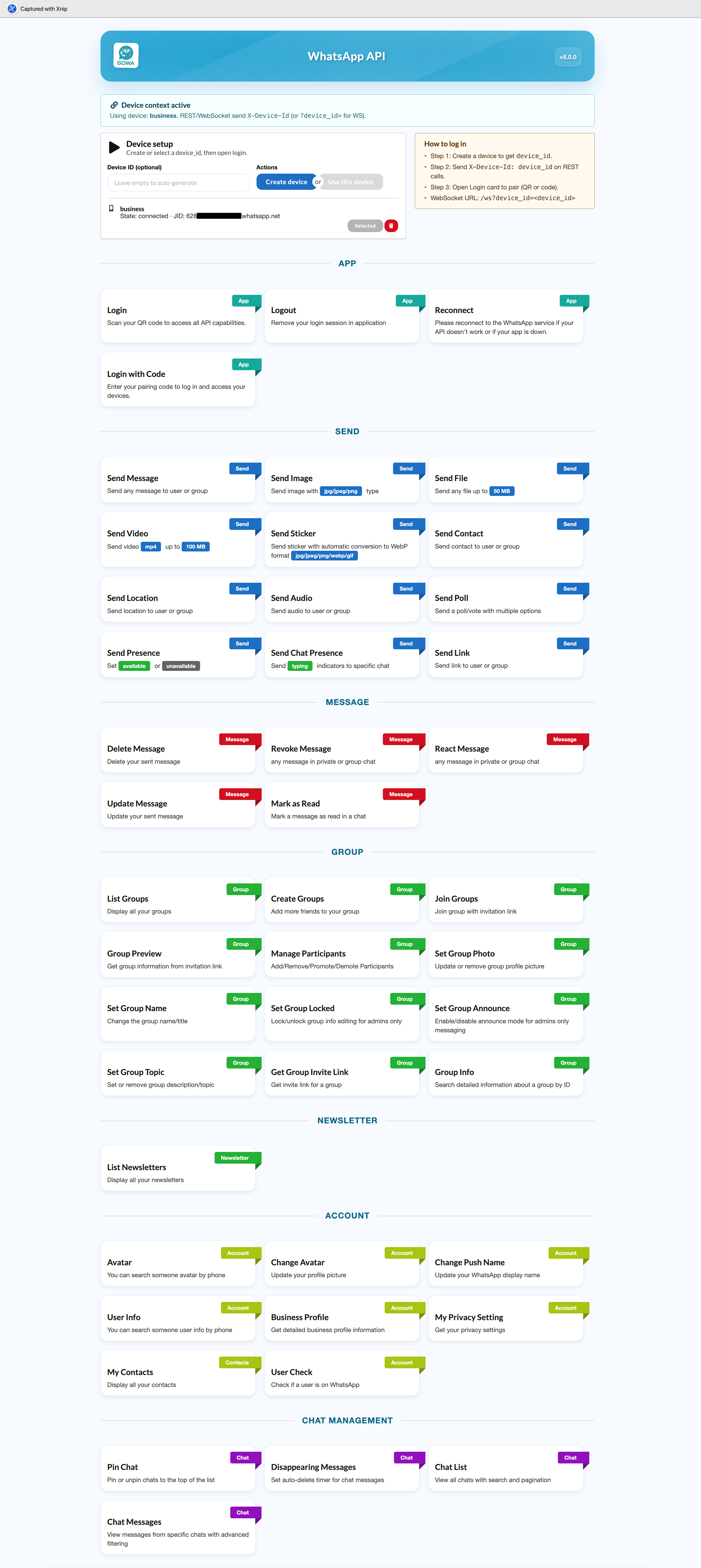
http://localhost:3000 in your browser. You’ll see the GOWA homepage.Connect your WhatsApp account
Click Login or navigate to the login page: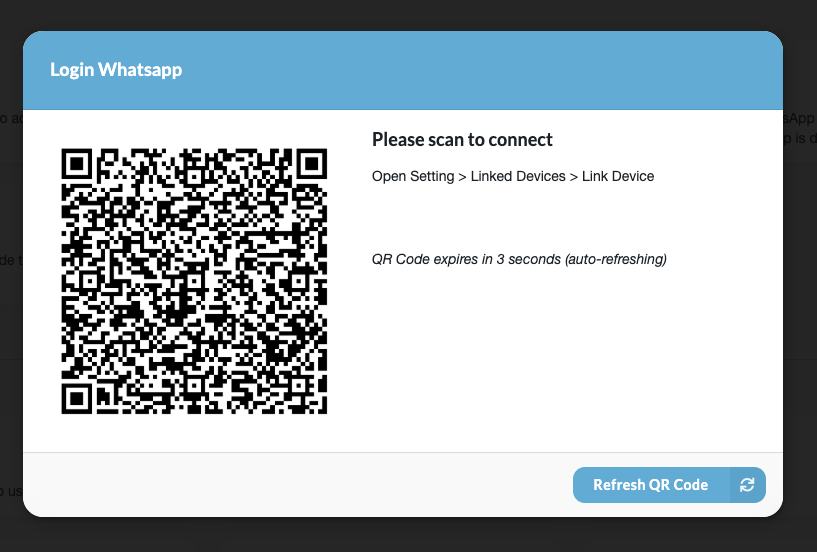
- QR Code (Recommended)
- Pairing Code
- Navigate to
http://localhost:3000/app/login - A QR code will appear on the screen
- Open WhatsApp on your phone:
- Android: Tap ⋮ → Linked devices → Link a device
- iOS: Tap Settings → Linked Devices → Link a Device
- Scan the QR code displayed on your screen
- Wait for “Connected” status confirmation
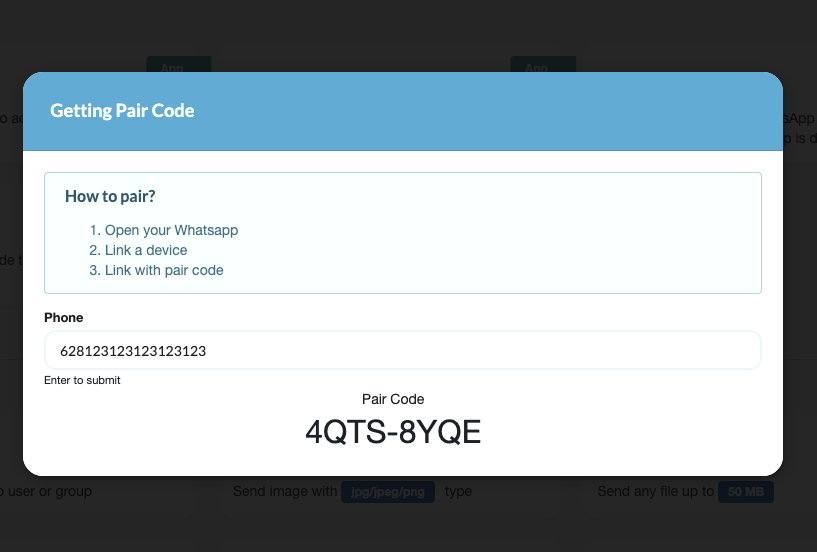
Your WhatsApp session is stored in the Docker volume and persists across restarts.
What’s Next?
Congratulations! You’ve successfully set up GOWA and sent your first WhatsApp message. Here are some next steps:Send Media Messages
Learn how to send images, videos, audio, and files
Receive Messages
Set up webhooks to receive incoming messages
Multi-Device Setup
Connect and manage multiple WhatsApp accounts
API Reference
Explore all available API endpoints
Common Use Cases
Send images with captions
Send images with captions
Send to multiple recipients
Send to multiple recipients
Send the same message to multiple phone numbers:
Check connection status
Check connection status
Send messages to groups
Send messages to groups
Groups use the
@g.us suffix:Troubleshooting
QR code not appearing
QR code not appearing
- Check that Docker container is running:
docker ps - Check logs:
docker logs whatsapp - Ensure port 3000 is not in use by another application
- Try restarting the container:
docker restart whatsapp
Connection lost after scan
Connection lost after scan
- Check your internet connection
- Ensure your phone has a stable internet connection
- Try reconnecting:
curl http://localhost:3000/app/reconnect - Check device status:
curl http://localhost:3000/app/status
Message not sending
Message not sending
- Verify the recipient number format (no
+, spaces, or hyphens) - Ensure you’re connected: check
http://localhost:3000/app/status - Check if the number is registered on WhatsApp
- Review logs for errors:
docker logs whatsapp
Port 3000 already in use
Port 3000 already in use
Change the port mapping when starting Docker:Then access the API at
http://localhost:8080