This guide was contributed by Frazer Kearl from MeetDoris. Thank you for sharing your experience with the community!
For the official announcement from Zoom about this policy, see here.
Basic Information
For Attendee to function as an anonymous attendee:- No Zoom user information is required
- No OAuth scopes are required
- You can set the redirect URL to your app’s home page (e.g.,
/home,/dashboard)
Configuration Steps
Embed Settings
- Select Meeting SDK in your Zoom app configuration
Scopes
user:read:zakwill always be selected automatically- You can use this description:
Our app embeds the Zoom Meeting SDK.
Zoom’s Marketplace builder automatically adds theuser_zak:readscope whenever the Meeting SDK feature is enabled. We do not call the/users/{id}/token?type=zakendpoint in our current flow. We join meetings withrole = 0(participant/guest), so a ZAK is never requested or stored. No other Zoom REST APIs are used; no additional scopes are requested. The scope remains in the manifest only because it is required by the Meeting SDK toggle. It enables future host-start functionality without forcing another review, but it is not exercised in production today.
App Listing
You still need to fill out the app listing section and provide images. Once approved:- Users don’t need to take any action to “approve” your software
- Once Zoom approves it, it’s ready to join external meetings
Technical Design Section
Technology Stack
The form says “describe in detail,” but for basic Attendee you can keep it high-level. You don’t need to list every library—only the major components. Example (customize to match your setup):- Frontend: React 18.3+, Material UI
- Backend: Python 3.11, Flask
- Auth: Auth0 (OIDC)
- Data/Storage: Azure SQL Database
- Hosting: Azure App Service (backend), Azure Static Web Apps (frontend)
- CI/CD & Security: GitHub Actions, CodeQL SAST
- Observability: Azure Application Insights, centralized logging
- Zoom Integration: Zoom Meeting SDK (Web) only; no Zoom REST APIs are used in the Attendee flow
Architecture Diagram
Submit a high-level architecture diagram showing:- Your frontend and backend components
- How they interact with Attendee
- How Attendee connects to Zoom meetings
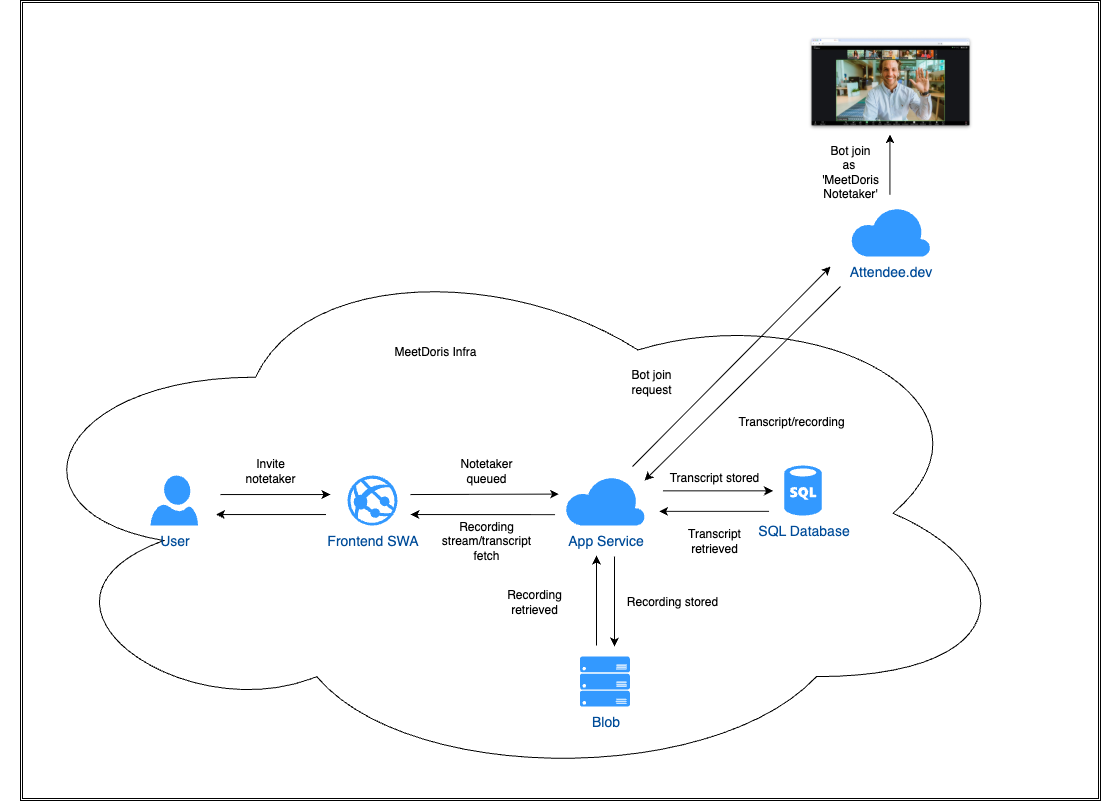
Application Development
Do you have a Secure Software Development Lifecycle (SSDLC)?
Do you have a Secure Software Development Lifecycle (SSDLC)?
- Select Yes
- Submit a document detailing your secure development practices:
- Requirements gathering
- Code reviews
- Secrets management
- Dependency scanning
- Security testing
Does your app undergo Static Application Security Testing (SAST)?
Does your app undergo Static Application Security Testing (SAST)?
- Select Yes
- Submit a screenshot of your SAST results (e.g., CodeQL analysis from GitHub Actions)
Does your app undergo 3rd party penetration testing?
Does your app undergo 3rd party penetration testing?
- Select whichever applies
- Not required for basic Attendee implementation
Additional Documents
- Submit whatever security documentation you have
- SOC 2 or ISO 27001 certifications are not required
- Zoom will refer to excerpts from your privacy policy
Security Section
Privacy Section
Industry-specific usage
- Is your app intended for education, healthcare, or government?
- Select as applicable
App Submission
Review Process
Usability Review
- Your app enters an approval queue and gets assigned a reviewer
- The reviewer will log in and test your app as described
- If they encounter issues, you’ll get a “more information required” request
Security Review
- Zoom will use tools like Burp Suite to intercept and manipulate requests
- Ensure privileged UI (like admin controls) has proper server-side validation
- Client-side validation alone is not sufficient
After Approval
✅ Once approved, your Attendee-powered bot can join any external Zoom meeting!Community Resources
Two community members have created detailed guides:Need Help?
Join Slack
Get help from the Attendee community
GitHub Issues
Report issues or ask questions