Prerequisites
- Node.js version 19 or higher
- A documentation repository with a
docs.jsonconfiguration file
Install and run Mintlify
Follow these steps to get the Mintlify CLI running on your local machine.Install the Mintlify CLI
Install the CLI globally using npm:This makes the
mint command available from anywhere on your system.Advanced configuration
Custom ports
By default, Mintlify runs on port 3000. You can specify a different port using the--port flag:
This automatic port selection ensures you can always preview your docs, even if other services are running.
Keeping Mintlify up to date
Each CLI release corresponds to a specific Mintlify version. If your local preview doesn’t match production, update the CLI:Link validation
The CLI includes a built-in link checker to identify broken links in your documentation:- Scans all pages in your documentation
- Checks internal links between pages
- Validates external URLs
- Reports any broken or unreachable links
Deployment verification
When you push changes to your repository, the Mintlify GitHub app handles deployment automatically. A successful deployment shows: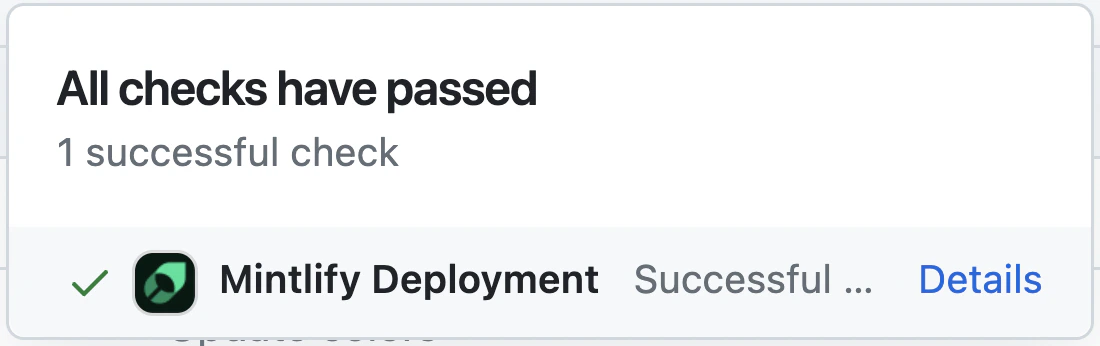
You can monitor deployment status in your repository’s Actions tab on GitHub.
Development tools
Code formatting and syntax
We recommend using IDE extensions for the best MDX development experience:MDX syntax highlighting
Install the MDX VSCode extension for syntax highlighting and IntelliSense.
Code formatting
Use Prettier to automatically format MDX files on save.
Troubleshooting
Common issues and solutions when working with the Mintlify CLI:Error: Could not load the "sharp" module using the darwin-arm64 runtime
Error: Could not load the "sharp" module using the darwin-arm64 runtime
This error typically occurs with outdated Node.js versions. To fix it:
Upgrade Node.js
Upgrade to Node.js version 19 or higher. We recommend using nvm to manage Node versions:
Issue: Encountering an unknown error
Issue: Encountering an unknown error
If you encounter unexpected errors or the CLI behaves erratically:
- Navigate to your home directory root
- Delete the
~/.mintlifyfolder:
- Run
mint devagain to regenerate the configuration
Issue: Changes not appearing in preview
Issue: Changes not appearing in preview
If your edits aren’t reflected in the preview:
- Check that you’re editing files in the correct directory
- Ensure you saved the file (check for unsaved indicators in your editor)
- Try stopping the server (Ctrl+C) and running
mint devagain - Clear your browser cache and refresh the page
Issue: Port conflicts
Issue: Port conflicts
If you see port-related errors:
- Specify a different port:
mint dev --port 4000 - Or stop the process using port 3000 and try again
- Use
lsof -i :3000(macOS/Linux) to identify what’s using the port
Stay updated
Curious about what changed in the latest CLI version? Check out the CLI changelog on npm to see new features, bug fixes, and improvements.Next steps
Write your first page
Learn how to create documentation pages using MDX and Mintlify components.
Customize navigation
Structure your documentation with groups, tabs, and navigation links.