Quick start
In this tutorial, you’ll build a working counter app to learn the fundamentals of Flet. By the end, you’ll understand how to create UI controls, handle events, and update your app in response to user actions.What you’ll build
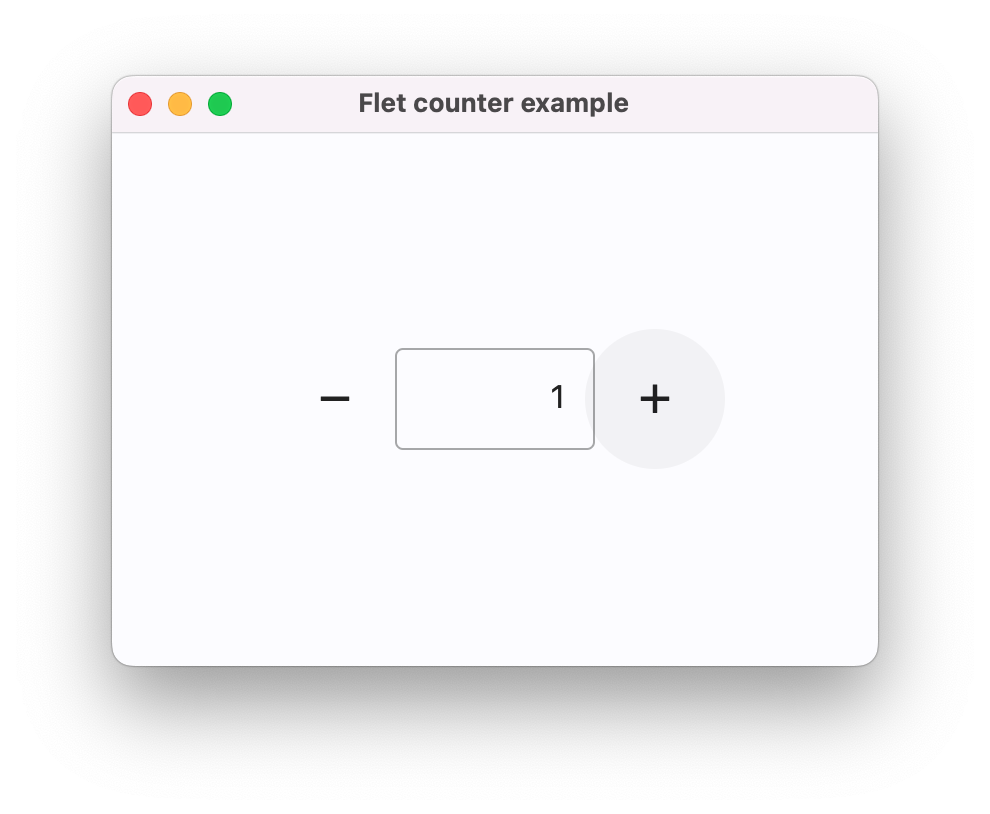
A simple counter application with:- A text field displaying the current count
- Buttons to increment and decrement the value
- Clean, centered layout
Prerequisites
Before starting, make sure you have:- Flet installed on your system
- A text editor or IDE
- Basic Python knowledge
Create your first app
Import Flet
Start by importing the Flet module:This gives you access to all Flet controls and functionality through the
ft namespace.Define the main function
Every Flet app starts with a main function that receives a The
Page object:Page is the top-level container for your app. Here we set the window title and center the content vertically.Create the counter control
Add a text field to display the counter value:The
TextField starts at 0, aligns text to the right, and has a fixed width.Add event handlers
Create functions to handle button clicks:These functions update the text field’s value and call
page.update() to refresh the UI.Build the layout
Create a row with the counter controls and add it to the page:The
Row layout arranges the minus button, text field, and plus button horizontally.Run your app
Launch your counter app from the terminal:The default
flet run command opens your app in a native desktop window. Use the --web flag to run it in your browser instead.Understanding the code
Let’s break down the key concepts:Page object
ThePage is the root container for your app. It represents the window (desktop) or browser tab (web) where your app runs.
Controls
Controls are the building blocks of your UI. In this app, we used:TextField- Text input/display fieldIconButton- Clickable button with an iconRow- Layout that arranges controls horizontally
Event handlers
Functions that respond to user interactions. Each handler receives an event object (usually namede):
Always call
page.update() after modifying control properties to refresh the UI. Without this call, your changes won’t be visible to the user.Layout controls
Layout controls likeRow and Column help you organize other controls:
Experiment and learn
Try modifying the app to deepen your understanding:Add a reset button
Create a button that sets the counter back to zero.
Change the increment
Make the buttons add/subtract by 5 or 10 instead of 1.
Add styling
Change colors, fonts, or sizes using control properties.
Display limits
Prevent the counter from going below 0 or above 100.
Common issues
UI doesn’t update
Import errors
If you seeModuleNotFoundError: No module named 'flet', ensure Flet is installed:
App window doesn’t open
On Linux, you may need to install additional system packages. See the installation guide for details.Next steps
You’ve built your first Flet app! Here’s what to explore next:Controls reference
Learn about all available UI controls and their properties.
Layout guide
Master layouts with Row, Column, Stack, and GridView.
Todo app tutorial
Build a more complex app with data persistence and multiple views.
Browse examples
Explore sample apps showcasing different Flet features.
Get help
Need assistance? The Flet community is here to help:- GitHub Discussions - Ask questions and get answers
- Discord - Real-time chat with other developers
- Documentation - Comprehensive guides and API reference