If you’re using React, check out the React Embedding SDK for a better developer experience with full TypeScript support and advanced features.
When to use modular embedding
Modular embedding is ideal when you want to:- Embed specific components (dashboards, questions, query builder)
- Use a non-React framework (Vue, Angular, Svelte, etc.)
- Have granular control over each embedded component
- Customize appearance and behavior
- Support both authenticated (SSO) and guest embeds
Enable modular embedding
Configure CORS (for authenticated embeds)
For authenticated embeds (Pro/Enterprise only):Under Cross-Origin Resource Sharing (CORS), add the URLs of the websites where you want to embed Metabase (such as
https://*.example.com). For testing embeds, you can use localhost which is always included in CORS policy.Handle cross-domain embedding (if needed)
If embedding on a different domain, see the authentication guide for additional configuration.
For guest embeds, you’re done after step 2! Continue to create a new embed or see the Guest embedding guide for detailed setup.
Create a new embed
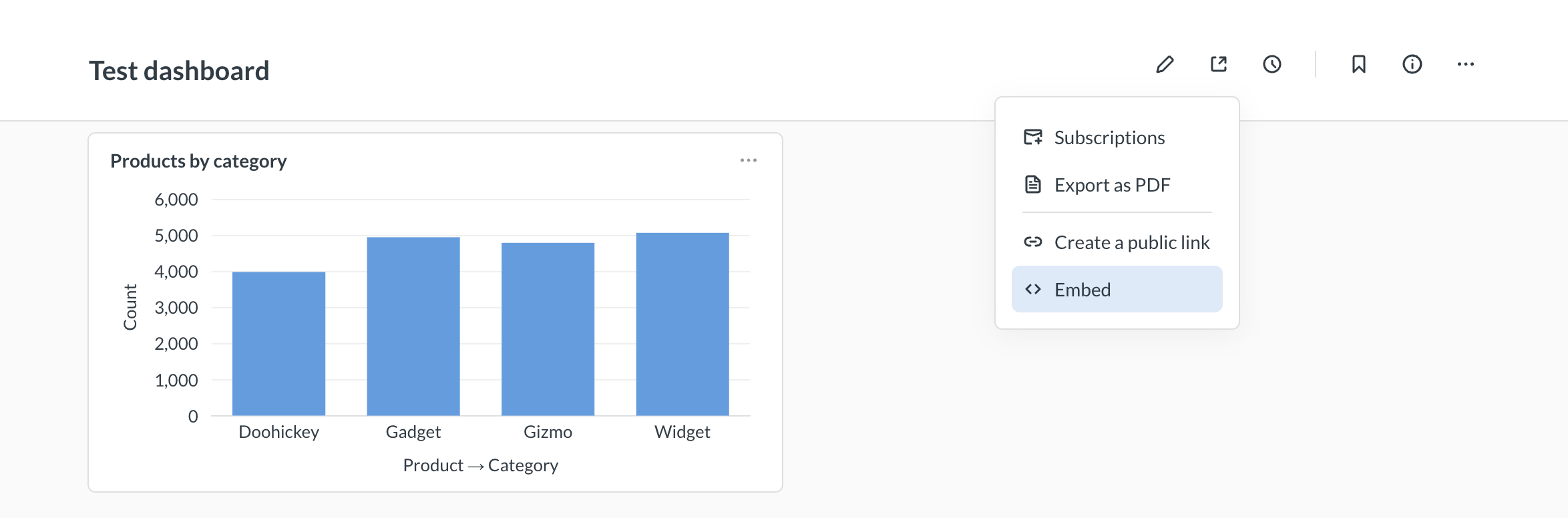
You can generate a code snippet for embedding a component through the embed wizard:1. Open the embed wizard
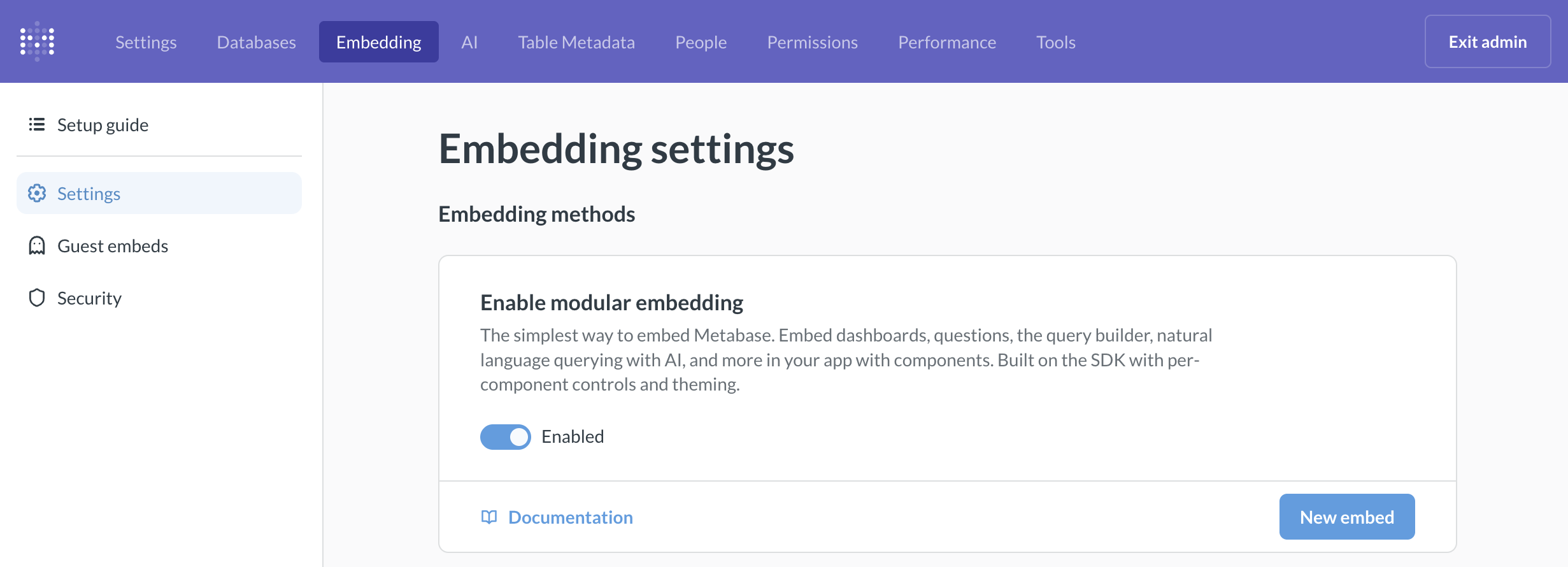
There are three ways to open the wizard:- From the item
- Command palette
- Admin panel
- Visit the item you want to embed (question, dashboard, etc.)
- Click the sharing icon
- Select Embed
2. Pick authentication method
SSO (Pro/Enterprise)
With SSO, Metabase knows who is viewing the embed and can unlock advanced features like drill-through, query builder, and AI chat.
Guest embeds (All plans)
Simple, secure embedding without individual user accounts. Great for basic dashboards and charts.
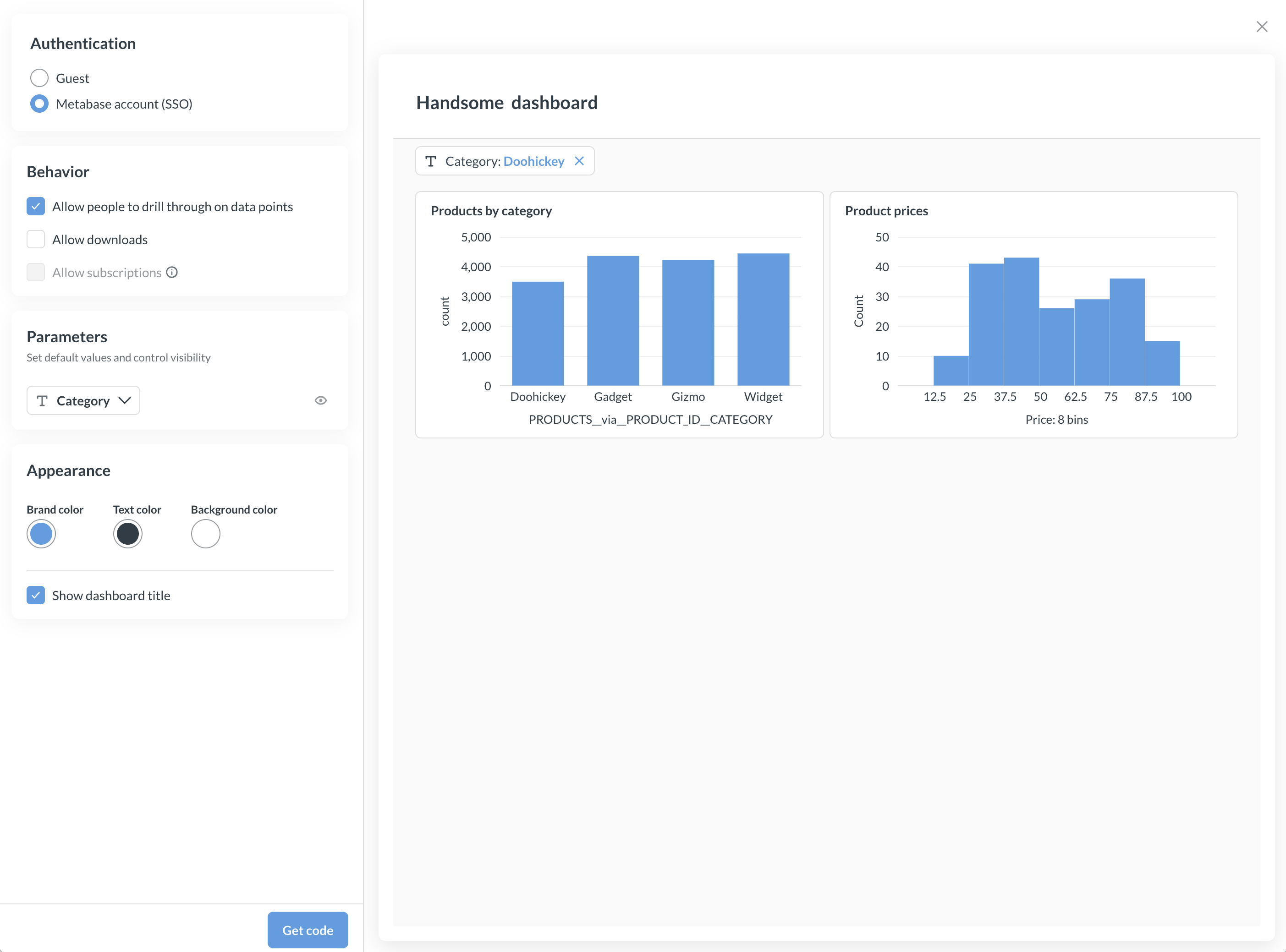
3. Customize your embed
The wizard shows customization options based on the entity type and your Metabase plan. You’ll see a live preview with your customizations.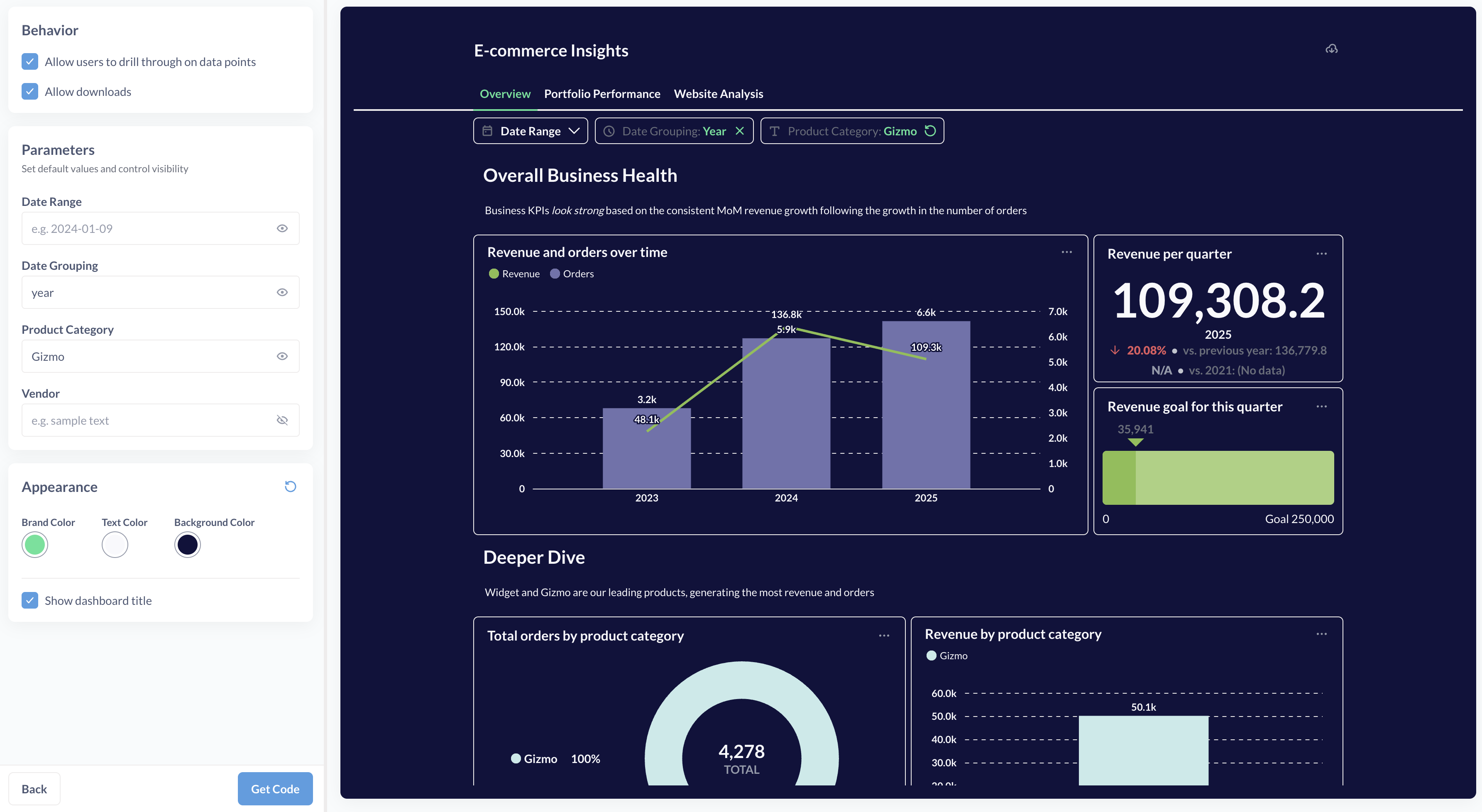
Customization options
- OSS/Starter plans
- Pro/Enterprise plans
- Light or dark theme selection
- Show/hide title
- Enable/disable downloads
4. Copy the code snippet
Once you’re done customizing, click Next to get your code snippet.Add the embedding script to your app
The wizard generates a complete code snippet that includes:- Loading the modular embedding library from your Metabase instance
- Global configuration (URL, theme, etc.)
- The component(s) to embed with their parameters
Example code snippet
If you’re embedding multiple components on a single page, you only need to include the
<script> tags once globally.Available components
Modular embedding supports these web components:Questions
Embed individual questions (charts):Dashboards
Embed interactive dashboards:Browser (authenticated embeds only)
The browser component is only available for authenticated modular embeds (SSO). It’s unavailable for guest embeds.
AI chat (authenticated embeds only)
AI chat is only available for authenticated modular embeds (SSO) on Pro and Enterprise plans.
Authentication requirements
Each end user should have their own Metabase account
The problem with sharing accounts:- All end-users have access to the same session token
- They could use the token to access Metabase directly via the API
- They could see data they’re not supposed to access
- Configure proper permissions in Metabase
- Everyone only sees data they should have access to
- Fair usage of modular embedding
Page-level configuration
ThedefineMetabaseConfig() function sets configuration for all embeds on the page:
Configuration options
The URL of your Metabase instance (e.g.,
https://metabase.example.com)Appearance customization. See appearance docs for details.
Development only. Preview embeds locally using your Metabase admin session. Only works in Chrome.
Development only. Alternative way to preview embeds locally using an API key.
Customize how the SDK fetches JWT tokens. See authentication docs.
Configure plugins like
handleLink to customize behavior. See plugins docs.Customization options for authenticated embeds
These options are available on Pro and Enterprise plans for authenticated embeds. For guest embed options, see guest embedding.
Allow drill-through on data points
Allow drill-through on data points
Determines whether people can interact with charts—drilling down to individual records, filtering on click, zooming in, etc.Disabling drill-through for an embedded question also disables adding filters and summaries.
Allow downloads
Allow downloads
Determines whether people can download question results and save dashboards as PDFs.
Allow saving new questions
Allow saving new questions
If you embed the query builder but disable this option, people can explore data but can’t save their work.
Parameters
Parameters
For dashboard filters, SQL variables, and time grouping:
- Set default values (overrides dashboard/question defaults)
- Choose whether to hide the parameter from view
Show title
Show title
Display or hide the question/dashboard title.
Allow editing dashboards and questions
Allow editing dashboards and questions
Lets people create and edit dashboards or questions in the current collection, including visual and SQL questions.When disabled, they can still filter, summarize, and drill-through, but can’t save results.
Allow alerts
Allow alerts
Lets people set up email alerts on embedded questions.Requires email setup. Only for authenticated question embeds.
Authentication setup
For production use with authenticated embeds, you’ll need to set up authentication:JWT SSO
Most common SSO method for embedded analytics
SAML SSO
Enterprise SSO with your identity provider
API keys
For local development only
Cross-domain
Configure CORS for different domains
Dashboard auto-resizing
The<metabase-dashboard> web component automatically resizes to fit its content. No additional configuration is needed.
Best practices
Use the embed wizard
The wizard generates correct code snippets and helps you avoid common mistakes.
Test in your target environment
Always test embeds in the actual environment where they’ll be used, including testing CORS and authentication.
Configure proper permissions
Remember that hiding UI elements doesn’t replace proper Metabase permissions—configure data permissions correctly.
Use guest embeds when appropriate
If you don’t need drill-through or advanced features, guest embeds are simpler and work on all plans.
Consider the React SDK for React apps
If you’re using React, the React SDK provides better developer experience and more features.
Next steps
Component reference
Detailed documentation for all components
Authentication
Set up JWT or SAML SSO
Appearance
Customize themes and styling
Guest embeds
Simple embedding without SSO