Bedrock Crossplay
Enable seamless cross-play between Minecraft Java and Bedrock Edition players on your server network with zero backend plugins required. Gate provides built-in Geyser integration that handles all Bedrock protocol translation automatically.Overview
Gate’s Bedrock support uses a proxy-in-front-of-proxy architecture with built-in Floodgate protocol support: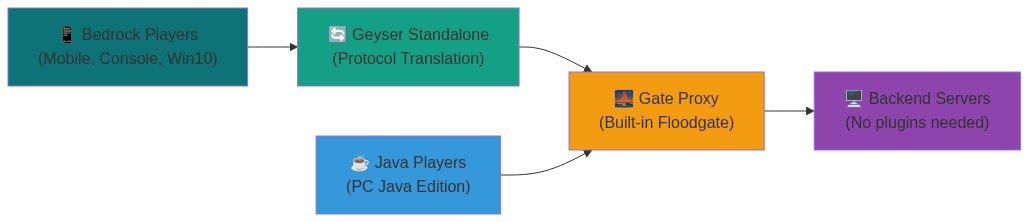
How It Works
- Bedrock Players connect to Geyser on UDP port 19132 (customizable)
- Geyser translates Bedrock protocol to Java Edition and forwards to Gate
- Gate handles Floodgate authentication internally and routes connections
- Backend servers see all players as normal Java Edition connections
Key Benefits
- No backend plugins - Gate handles all Bedrock logic internally
- Zero configuration - Managed mode handles everything automatically
- Cross-platform - Supports all Bedrock platforms (mobile, console, Windows)
- Secure - Uses AES-128 encryption for player authentication
Quick Start
Get Bedrock support running in 30 seconds with managed mode:Start Gate
Launch Gate with your configuration:Gate automatically:
- Generates encryption keys
- Downloads Geyser
- Creates optimized configs
- Manages the Geyser process
The
managed: true shorthand enables both Bedrock support and managed mode in one line!Configuration
Basic Configuration
For most users, managed mode provides the perfect balance of simplicity and control:Configuration Options
| Option | Description | Default |
|---|---|---|
usernameFormat | Format string for Bedrock usernames (use %s for username) | ".%s" |
geyserListenAddr | Address where Gate listens for Geyser connections | localhost:25567 |
floodgateKeyPath | Path to Floodgate encryption key | floodgate.pem |
Managed Mode Options
| Option | Description | Default |
|---|---|---|
enabled | Enable automatic Geyser management | false |
autoUpdate | Automatically update Geyser JAR | true |
javaPath | Path to Java executable | java |
dataDir | Directory for Geyser files | .geyser |
extraArgs | Additional JVM arguments | [] |
Network Configuration
Advanced Configuration
Custom Geyser Settings
Override any Geyser configuration option usingconfigOverrides:
Username Formatting
Prevent conflicts between Java and Bedrock usernames:Manual Setup (Advanced)
For users who want to manage their own Geyser installation:Troubleshooting
Bedrock Players Can't Connect
Bedrock Players Can't Connect
Solutions:
-
Check UDP port - Ensure port 19132 is open for UDP traffic:
-
Verify managed mode status - Check Gate logs for Geyser startup:
-
Check firewall - Allow UDP 19132 and TCP 25567:
Authentication Errors
Authentication Errors
Solutions:
-
Verify key generation - Check if Floodgate key was created:
-
Check key permissions:
-
Regenerate if corrupted:
Performance Issues
Performance Issues
Solutions:
-
Tune Geyser settings:
-
Increase memory for Geyser:
Supported Features
Fully Supported
- Cross-platform play - All Bedrock devices can join Java servers
- Authentication - Secure Xbox Live authentication via Floodgate
- Chat & commands - Full compatibility between editions
- World interaction - Building, mining, crafting work normally
- Device detection - Server can identify player platforms
- Inventory sync - Items transfer correctly between editions
Partial Support
- Custom items - Java-specific items may render differently
- Resource packs - Bedrock packs need special conversion
- Some plugins - Java-specific plugins may not work with Bedrock players
Not Supported
- Bedrock-exclusive features - Education Edition content, some UI elements
- Java mods - Forge/Fabric mods don’t work with Bedrock clients
- Complex redstone - Some advanced redstone may behave differently
- Lite Mode - Gate Lite isn’t compatible with Bedrock Edition (coming soon)
For more information about Geyser and Floodgate, visit the GeyserMC Wiki.