

Prerequisites
Before you begin, make sure you have:- Raycast version 0.29 or later installed (Download Raycast)
- Basic familiarity with your terminal and file system
Installation
Create a script directory
First, create a directory to store your script commands. You can place this anywhere, but we recommend keeping it organized:
It’s better to create your own directory rather than pointing directly to community script folders. This prevents unexpected scripts from appearing in Raycast when the repository is updated.
Choose a script from the repository
Browse the community script commands and save one to your new directory.For your first script, let’s try a simple one. Create a file called Make the script executable:
caffeinate-status.sh:caffeinate-status.sh
Add the script directory to Raycast
Now connect your script directory to Raycast: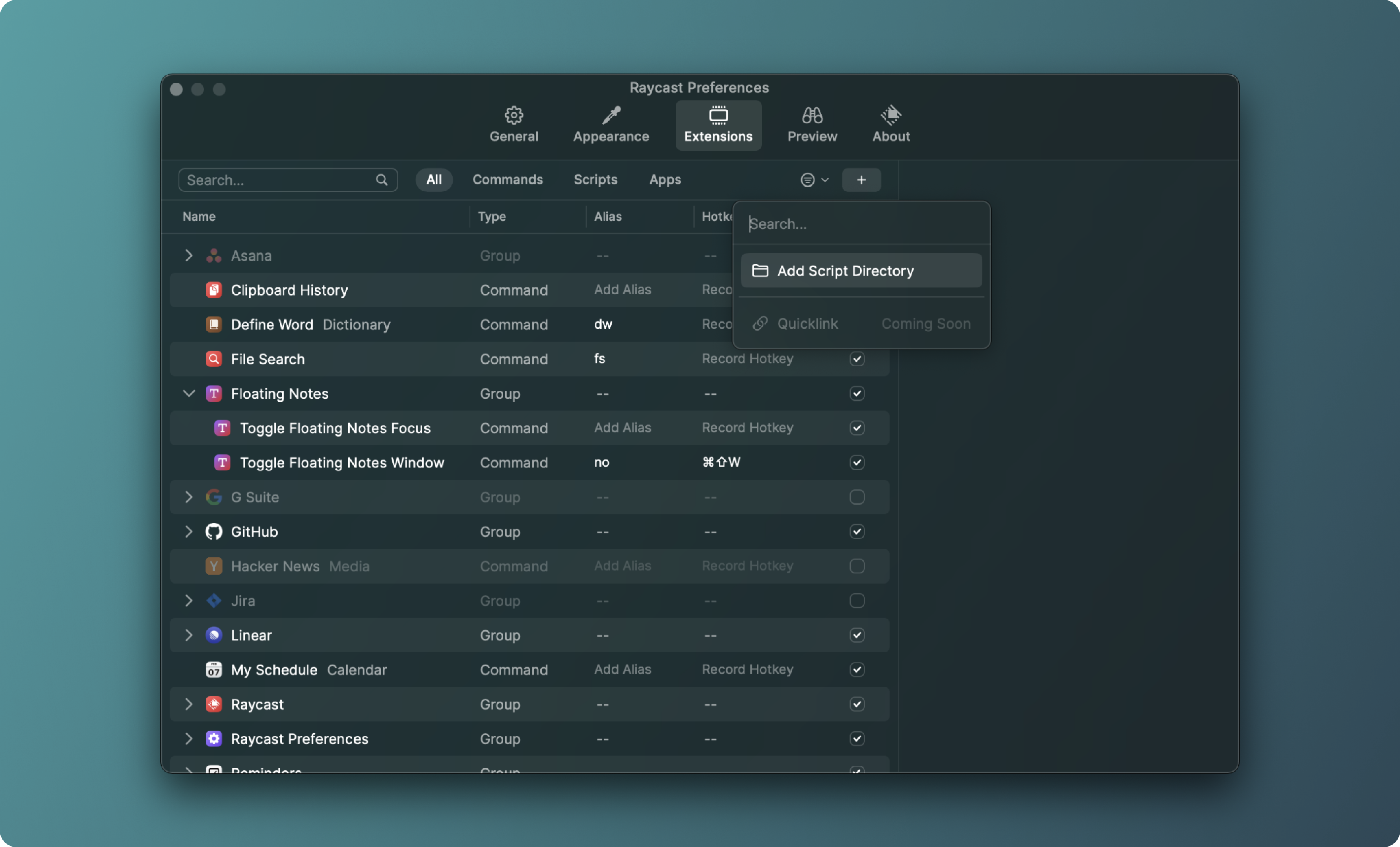
- Open Raycast and navigate to Extensions (or press
⌘,for Preferences, then click Extensions) - Click the + button in the top-right corner
- Select Add Script Directory
- Navigate to and select your
raycast-scriptsfolder - Click Add
Run your first script
Open Raycast (
⌘ Space by default) and type “Caffeinate” to find your script.Since this script uses inline mode with a 30-second refresh interval, it will display the caffeinate status directly in the search results and update automatically every 30 seconds.Press Return to pin it to your favorites for quick access.Understanding Script Metadata
The script you just installed contains metadata that tells Raycast how to display and execute it. Let’s break down the key parameters:| Parameter | Purpose | Example |
|---|---|---|
schemaVersion | API version (currently always 1) | 1 |
title | Display name in Raycast | Caffeinate |
mode | How the script displays output | inline, compact, fullOutput, silent |
packageName | Category grouping for the script | System |
icon | Emoji or image for visual identification | ☕️ |
refreshTime | Auto-refresh interval for inline mode | 30s, 5m, 1h |
All metadata is defined using special comment syntax (
# @raycast.parameterName value). This keeps configuration simple and readable.Try More Examples
Now that you have the basics down, try these popular script commands:Network Status
Display your current WiFi connection and internet statusMode:
inline • Location: commands/system/network-status.shHex to RGB
Convert hex color codes to RGB valuesMode:
silent • Location: commands/conversions/hex-to-rgb.shSearch GitHub
Quick search GitHub repositories from anywhereMode:
silent • Location: commands/web-searches/search-github.shCopy Last Screenshot
Instantly copy your most recent screenshot to clipboardMode:
silent • Location: commands/system/copy-last-screenshot.swiftOutput Modes Explained
Script Commands support four different output modes to suit different use cases:Silent Mode
Perfect for instant actions that don’t need feedback. The script runs, performs its task, and shows a brief HUD notification when complete.Compact Mode
Shows the last line of output in a toast notification. Great for quick confirmations or status messages.Full Output Mode
Displays the complete script output in a dedicated window, similar to a terminal. Ideal when you need to see detailed information or logs.Inline Mode
Shows the first line of output directly in the Raycast search results. Automatically refreshes based on yourrefreshTime setting, making it perfect for dashboard widgets.
Inline mode requires a
refreshTime parameter. Without it, Raycast will default to compact mode instead.Adding Custom Arguments
Many scripts accept arguments to make them more flexible. For example, the Hex to RGB converter accepts a color value:- text: Free-form text input
- password: Secure password entry
- dropdown: Selection from predefined options
Troubleshooting
My script isn't appearing in Raycast
My script isn't appearing in Raycast
Common causes:
- Filename contains
.template.(remove it or configure required values) - Missing required metadata parameters (
schemaVersion,title,mode) - Incorrect comment syntax (must use
#for shell scripts,//for others) - Script isn’t executable (run
chmod +x script-name.sh)
Script runs but shows an error
Script runs but shows an error
Check these common issues:
- Script has proper shebang line (
#!/bin/bash) - All required dependencies are installed
- File paths are correct and accessible
- For shell scripts, validate with ShellCheck
Script works in terminal but not in Raycast
Script works in terminal but not in Raycast
Raycast runs scripts in a non-login shell with limited
$PATH. To fix:- Add full paths to commands (e.g.,
/usr/local/bin/npm) - Extend
$PATHat the top of your script:export PATH='/custom/path:$PATH' - Use shebang arguments for login shell:
#!/bin/bash -l(not recommended for community scripts)
/usr/local/bin is automatically included in $PATH.Inline mode script isn't updating
Inline mode script isn't updating
Verify:
refreshTimeparameter is set correctly- Refresh interval is at least 10 seconds (minimum allowed)
- Script returns output quickly (long-running scripts may timeout)
- You have fewer than 10 inline scripts (only first 10 auto-refresh)
Next Steps
Create Your Own Script
Learn how to write custom script commands from scratch
Browse Community Scripts
Explore hundreds of ready-to-use scripts
Understand Output Modes
Master the different ways to display script results
Add Arguments
Make your scripts interactive with custom inputs
Need help? Join the Raycast community on Slack to connect with other users and get support.