
Prerequisites
Installing WSL2
Install WSL2
Follow the official Microsoft guide: Get WSL2
Install Build Dependencies
Once WSL2 is set up, follow the Linux build instructions for your chosen distribution:Ubuntu/Debian
Most common choice for WSL2
Other Distributions
Arch, Fedora, and more
Filesystem Performance
Recommended Setup
Store your project in the Linux filesystem:Accessing Linux Files from Windows
You can access your Linux filesystem from Windows Explorer at:This allows you to use Windows editors and tools while keeping the build fast.
Setting up QEMU
Download QEMU for Windows
Download the latest QEMU binaries from qemu.org
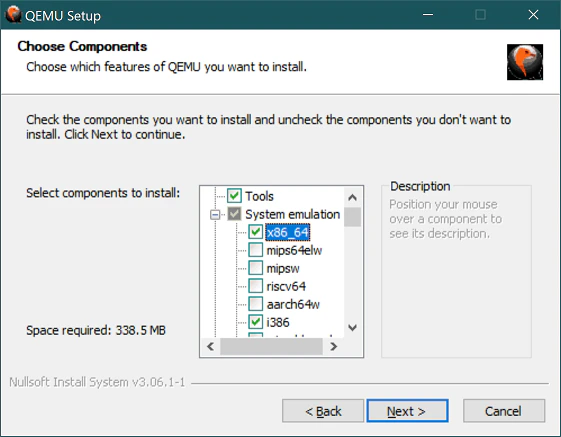
Install required components
During installation, select at minimum:
- Tools
- System emulators (i386 and x86_64)
-
DLL libraries
Hardware Acceleration
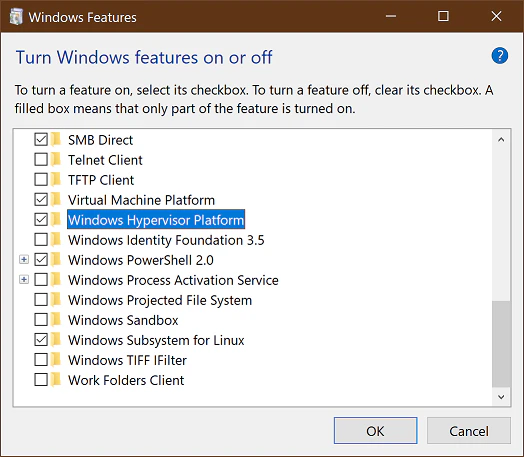
By default, QEMU runs in software virtualization mode, which is very slow. Enable hardware acceleration for better performance:Enable Windows Hypervisor Platform
- GUI Method
- PowerShell Method
- Open “Turn Windows features on or off”
- Check Windows Hypervisor Platform
-
Click OK
Advanced Filesystem Configuration
Using Native Windows Partitions
For better QEMU performance, you can copy the disk image to a native Windows partition:SERENITY_DISK_IMAGE to point to the Windows path (e.g., D:\serenity\_disk_image).
This avoids the 9P network filesystem overhead when accessing WSL2 files from Windows QEMU.
WSL Network Path
The root of your WSL2 distribution is accessible from Windows at:Troubleshooting
WSL Version Issues
If you’re unsure about your WSL version:Performance Problems
If builds are very slow:- Verify you’re using Linux filesystem (not
/mnt/c/) - Check current directory:
QEMU Launch Failures
If QEMU doesn’t start:- Verify QEMU is in Windows PATH
- Check QEMU installation:
- Ensure hardware acceleration is enabled
File Permission Errors
If you encounter permission issues:Best Practices
Use Linux filesystem for source code
Use Linux filesystem for source code
Always clone and build in
/home/ or /root/, never in /mnt/c/ or other Windows mounts.Enable hardware acceleration
Enable hardware acceleration
WHPX provides massive performance improvements. Always enable it.
Use Windows editors with WSL files
Use Windows editors with WSL files
Access your Linux files via
\\wsl$\ to use VS Code, Sublime, or other Windows editors.Allocate sufficient resources
Allocate sufficient resources
Configure WSL2 memory and CPU limits in
.wslconfig:Next Steps
Build System Overview
Learn about the SuperBuild system
Advanced Options
Explore CMake options and customization