Quick Start Tutorial
This tutorial will guide you through creating a complete Django SuperApp project with an admin portal and authentication system. By the end, you’ll have a running Django application with a modern admin interface.This tutorial assumes you have already installed Django SuperApp. If not, please complete the installation first.
What You’ll Build
In this tutorial, you’ll create:- A Django SuperApp project with modular architecture
- An admin portal with Django Unfold integration
- An authentication app with user management
- A fully Dockerized development environment
Create Your First Project
Bootstrap the Project
Create a new Django SuperApp project using the default template:This command:
- Downloads the project template from GitHub
- Creates the base project structure
- Sets up the modular app architecture
- Configures
settings.pyto automatically discover apps
Add the Admin Portal App
Navigate to the apps directory and bootstrap the admin portal:The admin portal app includes:
- Django Unfold admin interface
- Custom admin site configuration
- Pre-configured admin templates
- Admin-specific URL patterns
Add the Authentication App
Add user authentication functionality:The authentication app provides:
- User registration and login
- Password reset functionality
- User profile management
- Integration with Django’s auth system
Set Up Environment Variables
Create your environment configuration file:This creates a
.env.local file with default development settings. You can customize this file for your specific needs.Start Docker Containers
Launch your application with Docker:This command:
- Builds the Docker images
- Starts the web server and database
- Sets up networking between containers
- Exposes the application on port 8080
Load Environment Variables
Export the environment variables to your shell:This makes the configuration available to Django management commands.
Run Database Migrations
Apply all database migrations:This creates all necessary database tables for:
- Django core tables
- Admin portal models
- Authentication models
- Any other app-specific models
Create a Superuser
Create an admin account to access the admin portal:Follow the prompts to enter:
- Username
- Email address
- Password (twice for confirmation)
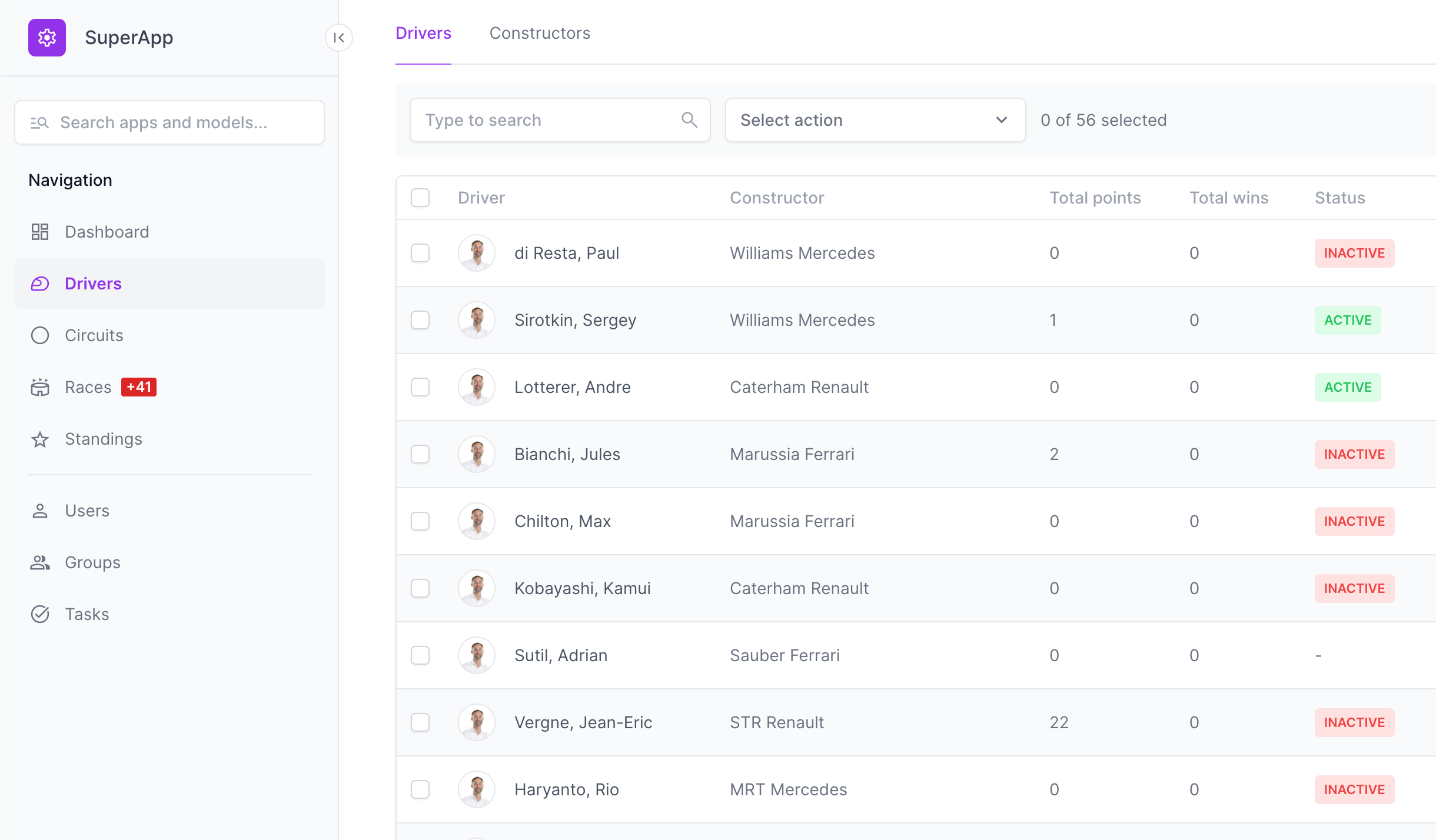
Understanding the Project Structure
Your new Django SuperApp project has the following structure:How Automatic Discovery Works
Django SuperApp automatically discovers and integrates your apps:Settings Integration
When you add a new app, Django SuperApp looks for asettings.py file with an extend_superapp_settings() function:
URL Integration
Similarly, for URLs, Django SuperApp looks for aurls.py file with an extend_superapp_urlpatterns() function:
Next Steps
Congratulations! You’ve created your first Django SuperApp project. Here are some ideas for what to do next:Add More Apps
Bootstrap additional apps for your specific features using
django_superapp bootstrap-appCustomize Templates
Modify your app templates and sync them back with
push-templateDeploy to Production
Configure your production environment and deploy your application
Explore the Code
Dive into the generated code to understand how everything works together
Common Commands
Here are some useful commands you’ll use frequently:Getting Help
If you encounter any issues:- Check the GitHub repository for documentation
- Open an issue on GitHub Issues
- Review the official Django SuperApp documentation