
Remote Development Overview
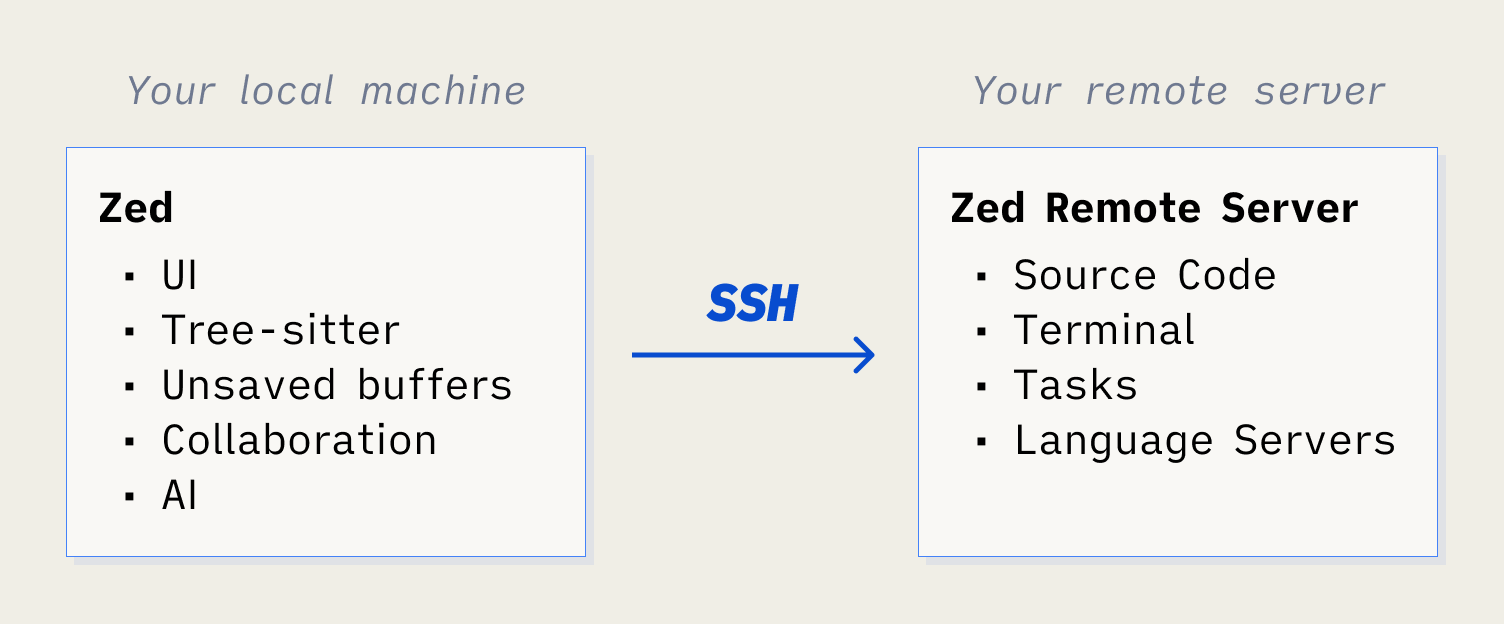
Zed’s remote development features allow you to edit code on a remote server while keeping the UI responsive on your local machine. The editor runs locally for fast rendering and interaction, while language servers, tasks, terminals, and file operations run on the remote server.How It Works
Remote development in Zed uses a client-server architecture:- Local Machine: Runs the Zed UI, handles syntax highlighting with Tree-sitter, stores unsaved changes, and manages AI features
- Remote Server: Hosts your source code, runs language servers, executes tasks and terminals, and handles file operations
- Communication: The two sides communicate over SSH using a multiplexed connection
Remote Connection Types
Zed supports multiple ways to connect to remote environments:SSH Remote Editing
Connect to any remote server accessible via SSH. This is the most common and flexible remote development mode.- Supports Linux, macOS, and Windows servers
- Works with x86_64 and ARM64 architectures
- Uses SSH multiplexing for efficient connections
- Automatically downloads and manages the remote server binary
Dev Containers
Open projects inside Docker containers with pre-configured development environments.- Supports Docker and Podman
- Automatically detects
.devcontainerconfiguration files - Useful for consistent development environments across teams
- Can be combined with SSH for remote container development
WSL (Windows Subsystem for Linux)
On Windows, open folders directly in WSL distributions.- Native integration with WSL on Windows
- Access files from both Windows and Linux perspectives
- Use Linux development tools from Windows
Key Features
Full Language Server Support
Language servers run on the remote machine, providing accurate completions, diagnostics, and refactoring based on the remote environment.Remote Terminals
Terminals spawn on the remote server, giving you direct shell access to the remote environment.Task Execution
Zed tasks execute on the remote server, allowing you to build, test, and run code in the remote environment.AI Features
AI features including the Agent Panel and Inline Assistant work seamlessly with remote projects, using local AI model connections.Port Forwarding
Forward ports from the remote server to your local machine for accessing web servers and other services.Persistent Sessions
The remote server runs as a daemon, allowing you to reconnect and resume work even after network interruptions.Platform Support
Local Machines (Client)
- macOS (Intel or Apple Silicon)
- Linux (x86_64 or ARM64)
- Windows 10/11 (x86_64 or ARM64)
Remote Servers
- macOS: Catalina (10.15) or later
- Linux: Most distributions, x86_64 or ARM64 (glibc-based)
- Windows: Server and desktop editions (SSH server support)
Note: 32-bit platforms are not currently supported for remote servers.
Performance Characteristics
Local Operations
- Syntax highlighting and UI rendering
- Unsaved file buffers
- AI model interactions
- Project search indexing
Remote Operations
- File system operations
- Language server protocol requests
- Terminal command execution
- Build and test tasks
- Git operations
Network Considerations
- Initial connection requires downloading the remote server binary (~10-50 MB)
- File contents are transferred on-demand
- Large files (>1 MB) may show latency during initial load
- Syntax highlighting happens locally, so scrolling remains smooth
- Language server responses depend on network latency
Settings and Configuration
Settings File Locations
When working with remote projects, three settings locations are relevant:- Local Zed Settings:
~/.config/zed/settings.json(Linux/macOS) or%AppData%\Zed\settings.json(Windows) - Remote Zed Settings: Same path on the remote server
- Project Settings:
.zed/settings.jsonor.editorconfigin your project
Which Settings to Use
- Local settings: UI preferences (font size, theme, keybindings)
- Remote settings: Language server paths, proxy configuration, remote-specific tools
- Project settings: Code formatting, language server options, project-specific tools
Extensions
Extensions installed locally are automatically propagated to the remote server, ensuring language servers and other tools work correctly.Proxy Configuration
The remote server uses its own network configuration, independent of your local machine. Configure proxy settings on the remote server via:- Environment variables:
http_proxy,https_proxy,no_proxy - Remote Zed settings:
~/.config/zed/settings.jsonon the server
Known Limitations
- Cannot open files from remote terminal using the
zedcommand - Very large directories (>100,000 files) may cause performance issues
- Windows remote servers have experimental support
- File watching may have delays on some remote filesystems
Security Considerations
SSH Authentication
Zed uses your system’s SSH configuration and key management:- SSH keys and
~/.ssh/configare respected - Password authentication is supported but key-based is recommended
- SSH agent forwarding is supported via standard SSH options
Server Binary Verification
The remote server binary is downloaded fromhttps://zed.dev by default. Version must match your local Zed version exactly.
Data Storage
Unsaved changes are stored locally by default, not transmitted until you save.Troubleshooting
For connection issues:- Check the Zed log with
Cmd+Shift+P(macOS) orCtrl+Shift+P(Linux/Windows) → “Open Log” - Verify SSH connectivity:
ssh <host>from your terminal - Check remote server logs:
~/.zed_server/logon the remote machine - Join
#remoting-feedbackin the Zed Discord