Before you begin
Ensure you have:- Installed Somnium and all dependencies
- Permission to generate malicious traffic in your environment
- Access to your firewall, IDS, or SIEM logs
- Noted the IP address of the system running Somnium
Run your first test
Select test #1 - Known bad IPs
Enter
1 and press Enter to test connections to known malicious IP addresses.Somnium will:- Download threat feeds from Cisco Talos, EmergingThreats, and Mirai
- Select 15 random IPs from the combined lists
- Test connections on ports 80, 443, and 22
- Log all results to
IP_Results.txt
Most connections will fail (timeout) because many malicious IPs are offline. This is expected - the goal is to test detection of the connection attempts, not successful connections.
Check the log file
Open You’ll see timestamped entries for each connection attempt:Note the timestamps - you’ll use these to find the activity in your security logs.
IP_Results.txt in the Somnium directory:Validate detection in your security tools
Use the timestamps from 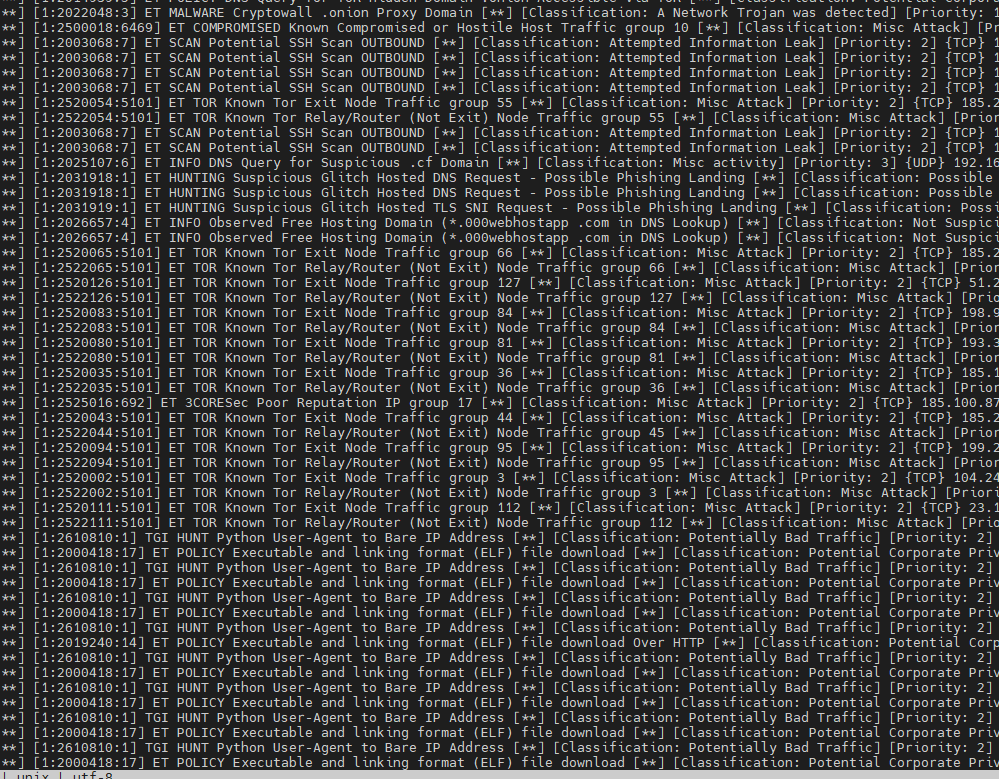
IP_Results.txt to search your security device logs.- Firewall deny/block events for the malicious IPs
- IDS/IPS signature alerts (ET INFO, Talos, etc.)
- Proxy blocks or reputation-based denies
- SIEM correlation rules triggering on threat intel matches
Understanding the results
Log file format
Each test generates a dedicated log file:| Log File | Test Type |
|---|---|
IP_Results.txt | Known bad IP connections |
URL_Results.txt | Phishing URL tests |
TOR_Results.txt | TOR exit node connections |
Malware_Results.txt | Malware distribution URLs |
Mining_Results.txt | Cryptomining domains |
DGA_Results.txt | DGA domain generation |
RAT_Results.txt | Remote access tool connections |
Agent_Results.txt | Bad user-agent strings |
DoH_Results.txt | DNS over HTTPS queries |
Success vs. failure
- test SUCCESSFUL - Connection was established (rare, indicates IP/domain is still active)
- test FAILED - Connection timed out or was refused (expected for most tests)
- test DONE - Test completed (used for ping-based tests)
Run additional tests
Now try other threat scenarios:Example workflow: Validate IDS signatures
Here’s a complete workflow for testing your IDS/IPS:Verify the signature triggered
If you see alerts like:Your IDS successfully detected the malicious connection attempt.
Common testing scenarios
Test firewall blocking
Goal: Confirm firewall blocks connections to known bad IPs- Run test #1 (Known bad IPs)
- Check firewall deny logs for the destination IPs
- Verify the action is “DENY” or “BLOCK”
Test proxy URL filtering
Goal: Validate proxy blocks phishing and malware URLs- Run test #2 (Phishing URLs) or #4 (Malware distribution)
- Check proxy logs for URL category blocks
- Look for categories like “Phishing”, “Malware”, or “Security”
Test SIEM threat correlation
Goal: Ensure SIEM creates alerts for threat intel matches- Run any test (e.g., test #5 for cryptomining)
- Wait 5-10 minutes for log ingestion
- Check SIEM for correlation alerts
- Verify incident/ticket was created if configured
Test DNS visibility
Goal: Detect encrypted DNS (DoH) that bypasses controls- Run test #9 (DNS over HTTPS)
- Check if your firewall/proxy detected the DoH queries
- Verify you have visibility into the encrypted DNS requests
Troubleshooting
No log files generated
All tests show FAILED
This is expected - most malicious infrastructure is offline. The goal is to verify your security tools detect the attempts, not that connections succeed.No alerts in security logs
Possible causes:- Security device isn’t monitoring the test system’s network segment
- Threat intelligence feeds aren’t enabled
- Logs aren’t being forwarded to SIEM
- Time synchronization issues between systems
Next steps
Test scenarios
Detailed guide to all nine threat simulation tests
Integration guide
Integrate Somnium with your security infrastructure
Interpreting results
Parse and analyze Somnium results at scale
Data sources
Learn about threat intelligence feeds used by Somnium