This guide will get you from installation to extracting entities from historical sources in just a few steps.
Make sure you’ve completed the installation before starting this guide.

List available domains

First, check what research domains are already configured:
just domains
You should see at least the guantanamo domain that ships with Hinbox, plus the template domain.

Create a new research domain

Let’s create a domain for researching the history of food in Palestine:
just init palestine_food_history
This copies the template configuration to configs/palestine_food_history/ with these files:
  • config.yaml - Research domain settings and data paths
  • prompts/*.md - Extraction instructions for each entity type
  • categories/*.yaml - Entity type definitions
1

Edit the domain configuration

Open configs/palestine_food_history/config.yaml and update the domain settings:
domain: "palestine_food_history"
description: "Historical analysis of Palestinian food culture and agriculture"

data_sources:
  default_path: "data/palestine_food_history/raw_sources/historical_sources.parquet"

output:
  directory: "data/palestine_food_history/entities"

similarity_threshold: 0.75
2

Customize entity types

Edit configs/palestine_food_history/categories/people.yaml to define relevant person types:
person_types:
  farmer:
    description: "Agricultural workers and farmers"
    examples: ["olive farmer", "wheat grower", "shepherd"]
  trader:
    description: "Food merchants and traders"
    examples: ["spice trader", "grain merchant", "market vendor"]
  cookbook_author:
    description: "Authors of cookbooks and recipe collections"
    examples: ["food writer", "culinary historian"]
  researcher:
    description: "Anthropologists and food historians"
    examples: ["ethnographer", "food anthropologist"]
Similarly, customize organizations.yaml, locations.yaml, and events.yaml for your domain.
3

Update extraction prompts

Edit configs/palestine_food_history/prompts/people.md with domain-specific instructions:
You are an expert at extracting people from historical documents about Palestinian food culture.

Focus on:
- Farmers and agricultural workers
- Traders and merchants
- Cookbook authors and food writers
- Researchers and anthropologists
- Community leaders involved in food systems

Extract their names, roles, affiliations, and any biographical details mentioned.

Prepare your data

Hinbox expects historical sources in Parquet format with these columns:
ColumnDescription
titleDocument or article title
contentFull text content
urlSource URL (if applicable)
published_datePublication or creation date
source_typeType: “book_chapter”, “journal_article”, “news_article”, “archival_document”
import pandas as pd

# Create a sample dataset
data = {
    "title": [
        "Traditional Palestinian Olive Cultivation",
        "Food Markets in 19th Century Jerusalem"
    ],
    "content": [
        "The olive harvest in Palestine has been documented since...",
        "According to travelers' accounts, the markets of Jerusalem..."
    ],
    "url": [
        "https://example.com/olives",
        "https://example.com/markets"
    ],
    "published_date": ["1920-01-01", "1895-06-15"],
    "source_type": ["book_chapter", "archival_document"]
}

df = pd.DataFrame(data)
df.to_parquet("data/palestine_food_history/raw_sources/historical_sources.parquet")

Process your sources

Now you’re ready to process historical sources and extract entities:
just process-domain palestine_food_history --limit 5
This command:
  • Processes the first 5 articles
  • Checks relevance to your domain
  • Extracts entities using AI models
  • Applies quality controls and retries if needed
  • Deduplicates entities using smart matching
  • Saves results to data/palestine_food_history/entities/
Start with --limit 5 to test your configuration. Once you’re satisfied with the results, remove the limit to process all sources.

Processing options

Hinbox provides several options to control processing:
# Process with verbose output to see extraction details
just process-domain palestine_food_history --limit 10 --verbose

# Enable relevance checking to filter irrelevant sources
just process-domain palestine_food_history --relevance-check

# Use local models for privacy (requires Ollama)
just process-domain palestine_food_history --local

# Force reprocess articles (ignores cache)
just process-domain palestine_food_history --force-reprocess

Explore your results

Launch the web interface to browse extracted entities:
just frontend
Open http://localhost:5001 in your browser. You’ll see:
  • Dashboard - Overview of all entities by type
  • Entity listings - Browse people, organizations, locations, and events
  • Entity profiles - Detailed profiles with sources, aliases, and version history
  • Search and filtering - Find specific entities quickly
  • Confidence badges - Visual indicators of extraction quality
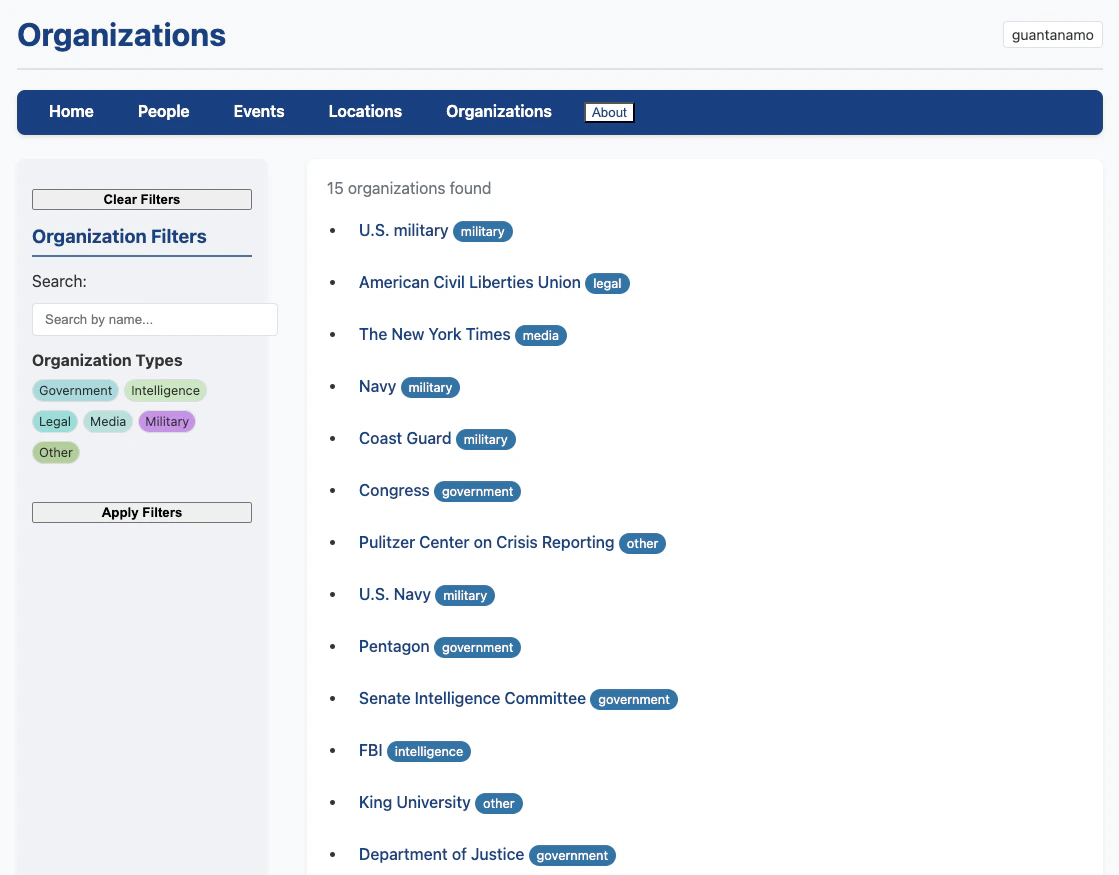
Organizations listing

Understanding the output

Entity files

Results are saved as Parquet files in your output directory:
data/palestine_food_history/entities/
├── people.parquet
├── organizations.parquet
├── locations.parquet
└── events.parquet
Each file contains:
  • id - Unique entity identifier
  • canonical_name - Best display name selected by 5-layer scoring
  • aliases - Alternative names found in sources
  • type - Entity type (e.g., “farmer”, “trader”)
  • description - Extracted description
  • source_articles - List of articles mentioning this entity
  • confidence_score - Quality metric
  • version - Profile version number

Processing status

Check which articles have been processed:
just check
This shows:
  • Total articles in your dataset
  • Articles processed successfully
  • Articles pending processing
  • Articles that failed

Cache directory

Extraction results are cached to avoid redundant LLM calls:
data/palestine_food_history/entities/cache/extractions/
The cache is keyed on content hash, model, prompt, schema, and temperature. Bump cache.extraction.version in config.yaml to invalidate the cache.

Next steps

Configuration guide

Learn advanced configuration options for your domain

Processing pipeline

Understand how extraction, merging, and QC work

Web interface

Explore the FastHTML frontend features

API reference

Technical details of the processing engine

Tips for better results

Always test your configuration with --limit 5 before processing large datasets. This helps you iterate on prompts and entity types quickly.

1. Write specific prompts

Generic prompts produce generic results. Make your extraction prompts specific to your historical period and sources:
❌ Generic: "Extract people from the text."

✓ Specific: "Extract farmers, traders, and food artisans from 19th century Palestinian sources. Include their roles, villages, and relationships to agricultural cooperatives."

2. Define narrow entity types

Specific entity types improve extraction quality:
❌ Too broad:
person_types:
  person:
    description: "Any person"

✓ Specific:
person_types:
  olive_farmer:
    description: "Farmers specializing in olive cultivation"
  grain_trader:
    description: "Merchants trading wheat, barley, and other grains"

3. Use relevance filtering

Enable relevance checking to skip irrelevant sources:
just process-domain palestine_food_history --relevance-check
Update prompts/relevance.md to define what makes a source relevant to your research.

4. Adjust similarity thresholds

Fine-tune deduplication for each entity type in config.yaml:
dedup:
  similarity_thresholds:
    default: 0.75
    people: 0.82      # Higher for people (more strict)
    organizations: 0.78
    locations: 0.80
    events: 0.76      # Lower for events (more lenient)

5. Monitor quality

Use verbose mode to see extraction quality issues:
just process-domain palestine_food_history --limit 5 --verbose
Look for:
  • QC warnings about missing fields
  • Automatic retry attempts
  • Merge dispute agent decisions
  • Cache hit rates

Build docs developers (and LLMs) love