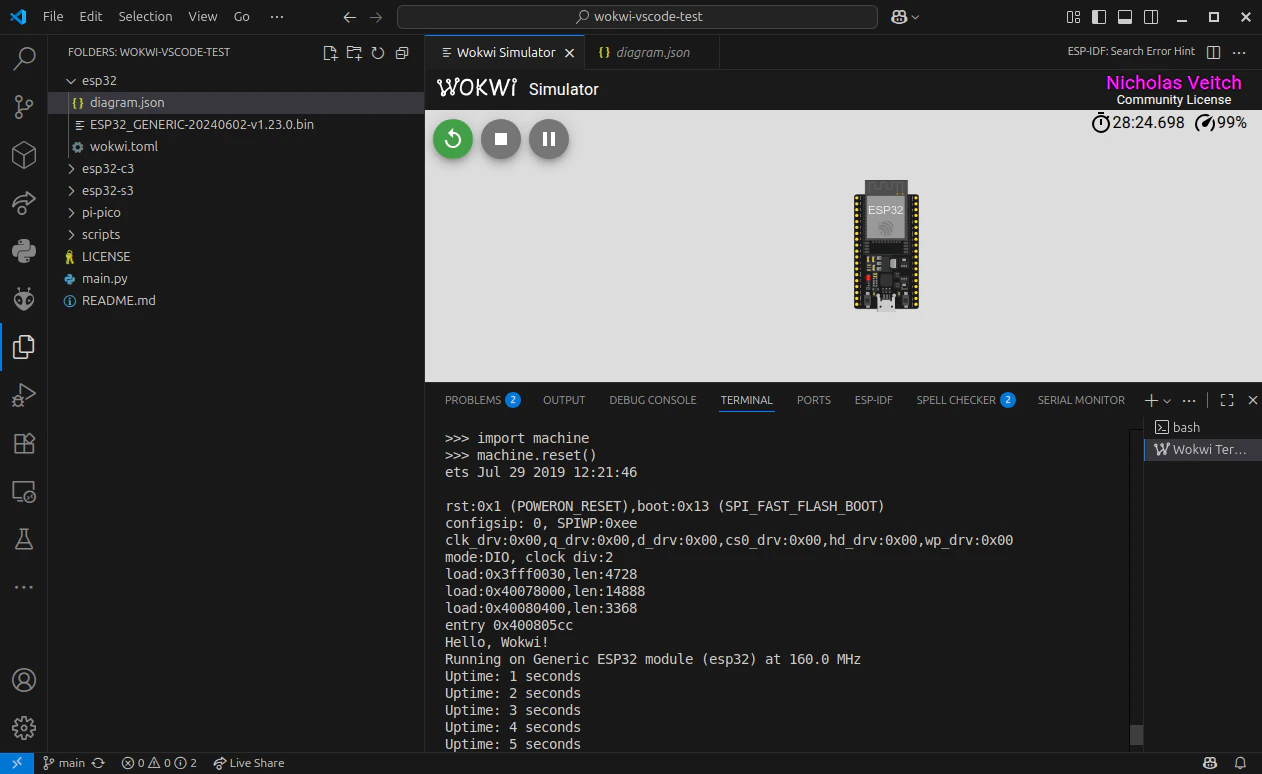
main.py you create and any additional libraries are the components which need to be uploaded.
When the device or simulator is initialized or rebooted, it will first load MicroPython, then run the main.py code, and then (assuming the main code exits) respond to further interaction using the REPL prompt.
In the case of the Wokwi simulator, this means, in addition to the code you have created, it also requires a version of the firmware to run the simulation on.
Before You Start
There are three things you should install before migrating your project to VS Code (or starting a new one).Install Wokwi for VS Code
Make sure you have the VS Code extension for Wokwi (See the getting started guide).
Install mpremote
Install the mpremote software (see the MicroPython documentation for this step). This software uses a serial connection to your MicroPython-enabled hardware (or the Wokwi simulator) to manage the filesystem and perform tasks such as rebooting or entering the REPL interactive mode.
Clone the Example Project
Clone the example project from GitHub. This project has been set up with the relevant files that the Wokwi simulator requires for different types of hardware. You can visit the link to clone or download the repository, or download it via this link as a zip file. Remember to uncompress the file somewhere you want to work with it!
Open the Repository in Visual Studio Code
Run Visual Studio Code and then use ‘File>Open folder’ to open the directory containing the example project. You’ll find the project contains a useful README, amain.py file and some hardware specific directories (esp32, rp2040, and so on, for different microcontrollers).
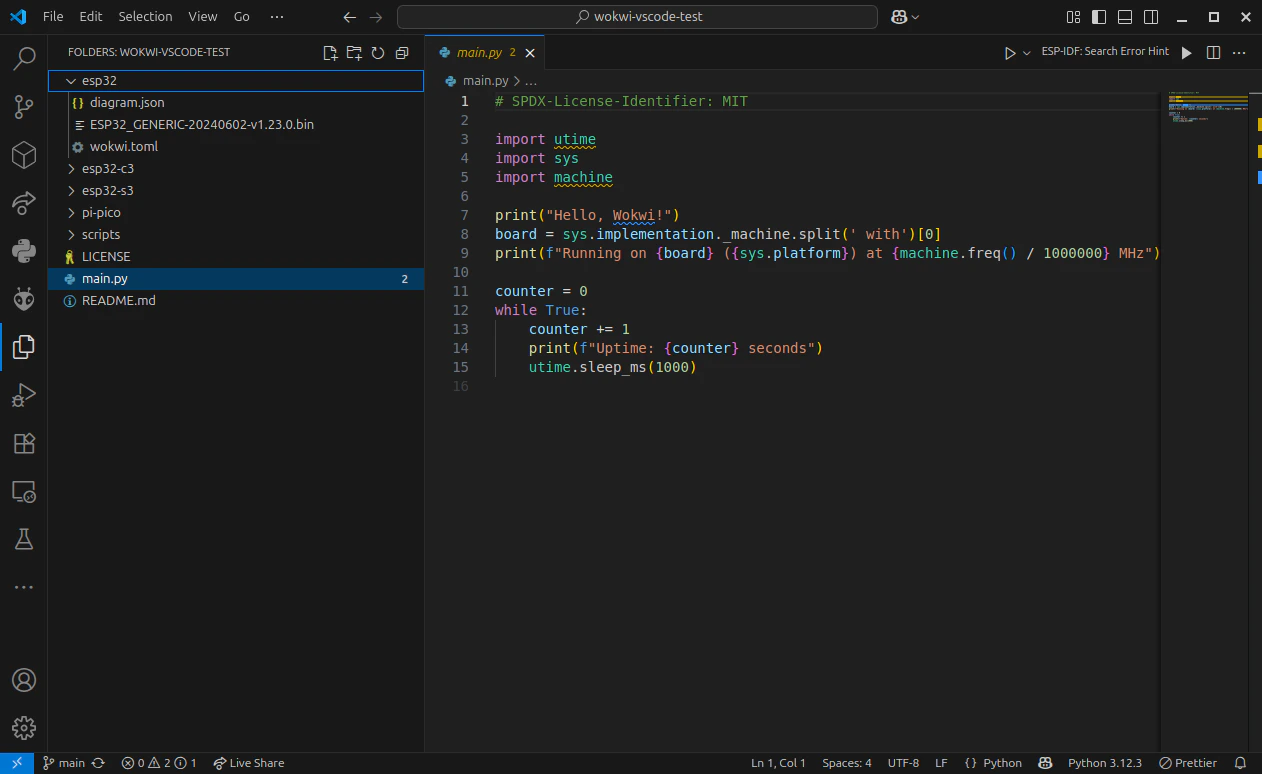
diagram.json file and the wokwi.toml file used to configure the simulator.
Select the diagram.json file, and a new view should open showing a board and the familiar Wokwi simulation display. Click on the play button to run the simulation and test that it works.
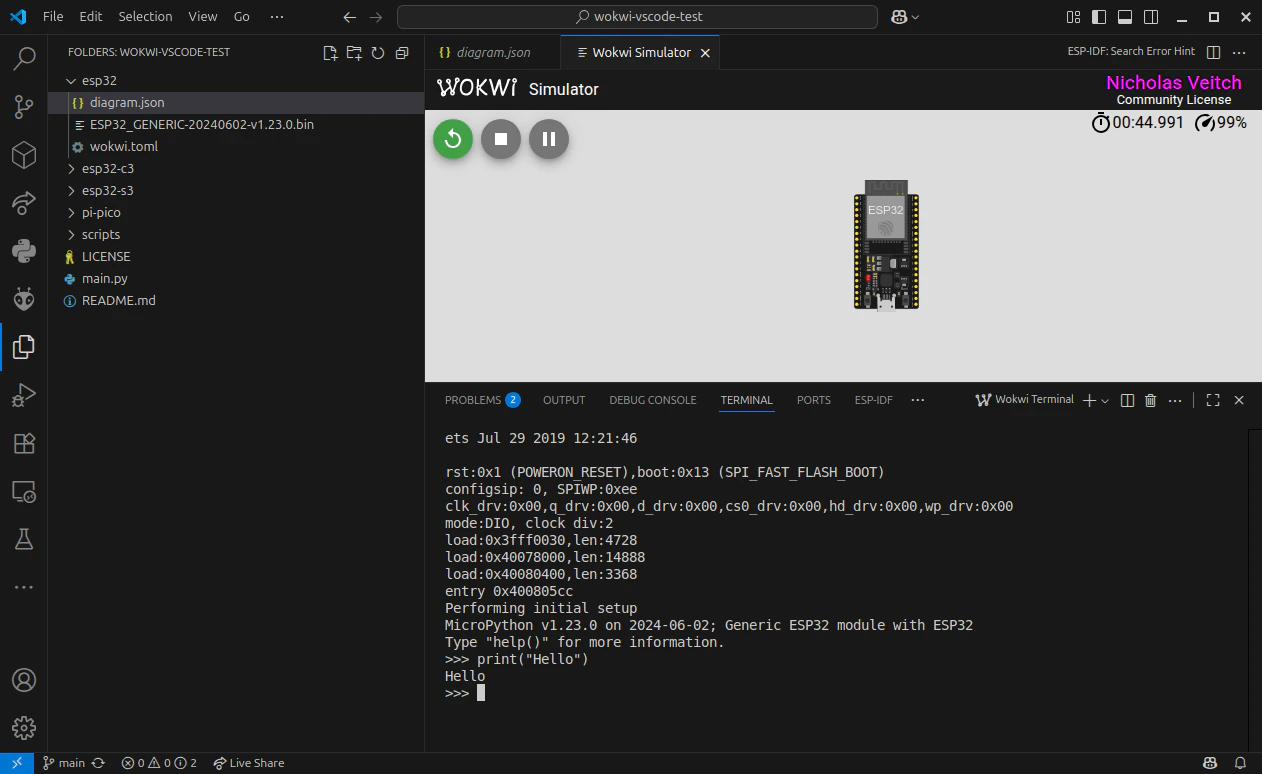
main.py. That’s because the local version of main.py hasn’t been uploaded to the filesystem of MicroPython in the simulator - it’s just running the bare MicroPython firmware.
(Optional) Add Your Own Files
If you have downloaded a MicroPython project from the Wokwi online simulator, you should add these files to the project, replacing the default files. The download will contain at a minimum themain.py file and a diagram.json file.
Replace main.py in the main directory of the project with your own. If you used any additional files (for example, extra python modules or data files), these should also be added here.
The diagram.json file needs to be in the hardware specific directories. Copy it into each of the hardware directories (or just the ones you intend to use).
You can select the diagram.json file again to open the simulator and confirm that your circuit is displayed.
Uploading Files to the Wokwi Simulator
Before we can upload anything, we need to start the simulation. When it’s running, Wokwi also opens a serial connection through a server on a local port. We can then use this connection to upload the files.The serial port configuration for the simulator can be found in the This designates port ‘4000’ for the connection. You may wish to change this if you have other services already using this port.
wokwi.toml file in each hardware specific directory:main.py file, open a new terminal (you can add an additional terminal within VS Code and switch between it and the Wokwi REPL) and enter the command to upload the main.py file:
Sometimes the command will return an error which ends with
TransportError("could not enter raw repl"). If you get this error you can force the REPL into ‘Raw’ mode by activating the Wokwi REPL window and pressing Ctrl + A, then go back to your terminal and run the command again.mpremote to install libraries which are part of the MicroPython mip package library. For example, to install the ssd1306 library:
ls command:
main.py will begin running automatically after the device finishes booting.
If using the soft-reboot command provided by mpremote, main.py will not begin running automatically - you will have to connect to the device and specify for it to run the file.