
Download the Project Source
To start, the first step is to save your online project. From the same menu, under the save button, you can then select to download a.zip archive of the project. This will contain useful files such as any source code and the diagram.json file used by Wokwi.
Once downloaded you can extract the files from the archive and use them in your local project.
Create an Empty Project in VS Code
If you are using an extension such as ESP-IDF or PlatformIO in VS Code, it is far easier to create an empty template project first before adding your Wokwi code. Use the provided templates for your chosen platform to create a new empty project. This will include specifying the hardware to be targeted and will create the required source structure and build files. This step will create a boilerplate project in a working state, ready to add your own code.Add the Source
Depending on the complexity of your project, adding the source should be quite straightforward.- PlatformIO
- ESP-IDF
- Zephyr
For a new PlatformIO Arduino project, the directory tree should look like this:In this case you would delete the
/src/main.cpp and replace it with the .ino file from the project you downloaded.Verify/Add Libraries
If your project has used any additional libraries you may need to resolve them for your local build environment. The Wokwi online simulator includes access to a whole range of built-in and third party libraries which you may have added to your project - now your local build environment will also need them. It is usually better to use the library manager included with your build tools to ensure that you get an up to date and known working version of the library.- PlatformIO
- ESP-IDF
- Custom Libraries
If you are using PlatformIO in VS Code, many libraries are available in the Library Manager. Use the 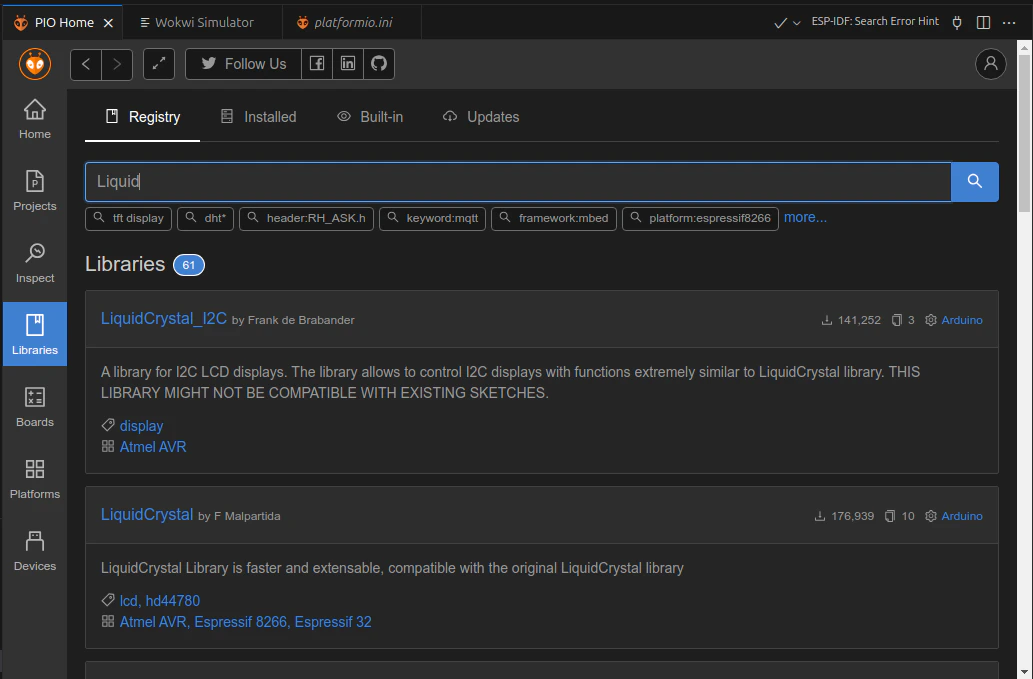
libraries.txt file downloaded with your project as a guide to the names of the libraries you need.The PlatformIO Library Manager has a search facility which will make this easier - just copy in the name of the library and hit search. Clicking on the ‘Add’ button will add the library to the platformio.ini file for each of the build targets you have configured.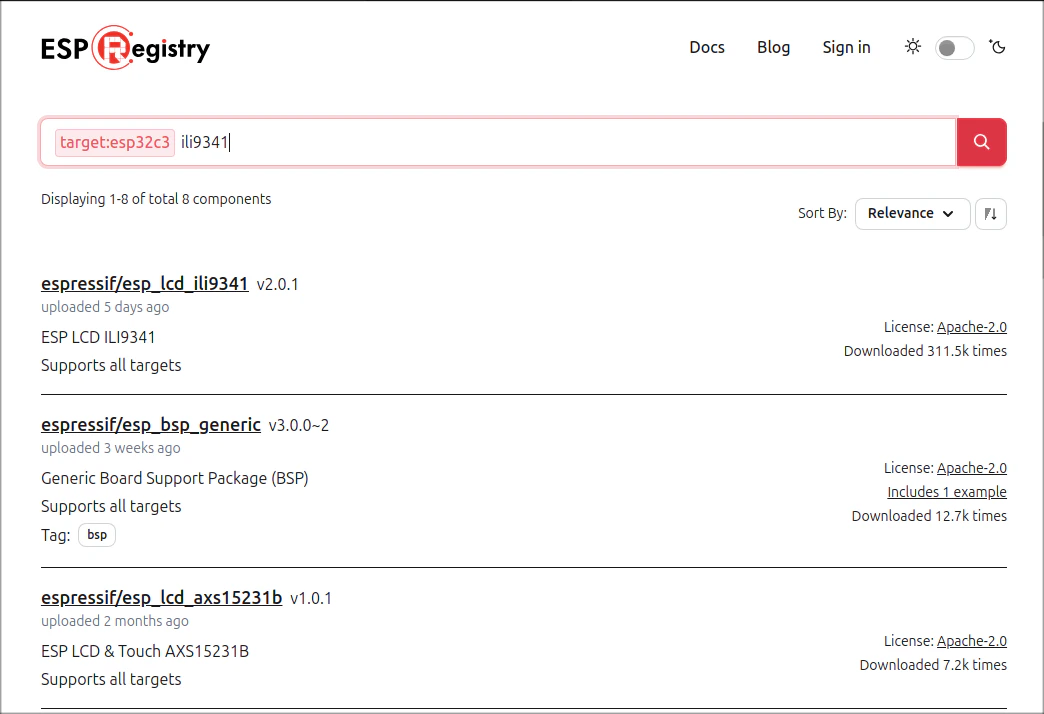
Test the Build Tools
The Wokwi simulator requires a built firmware file to run, so the next step should be to check that you can generate one. Use the relevant build command from your chosen framework to build the files. Check the terminal window output for any errors or warnings which you may want or need to correct.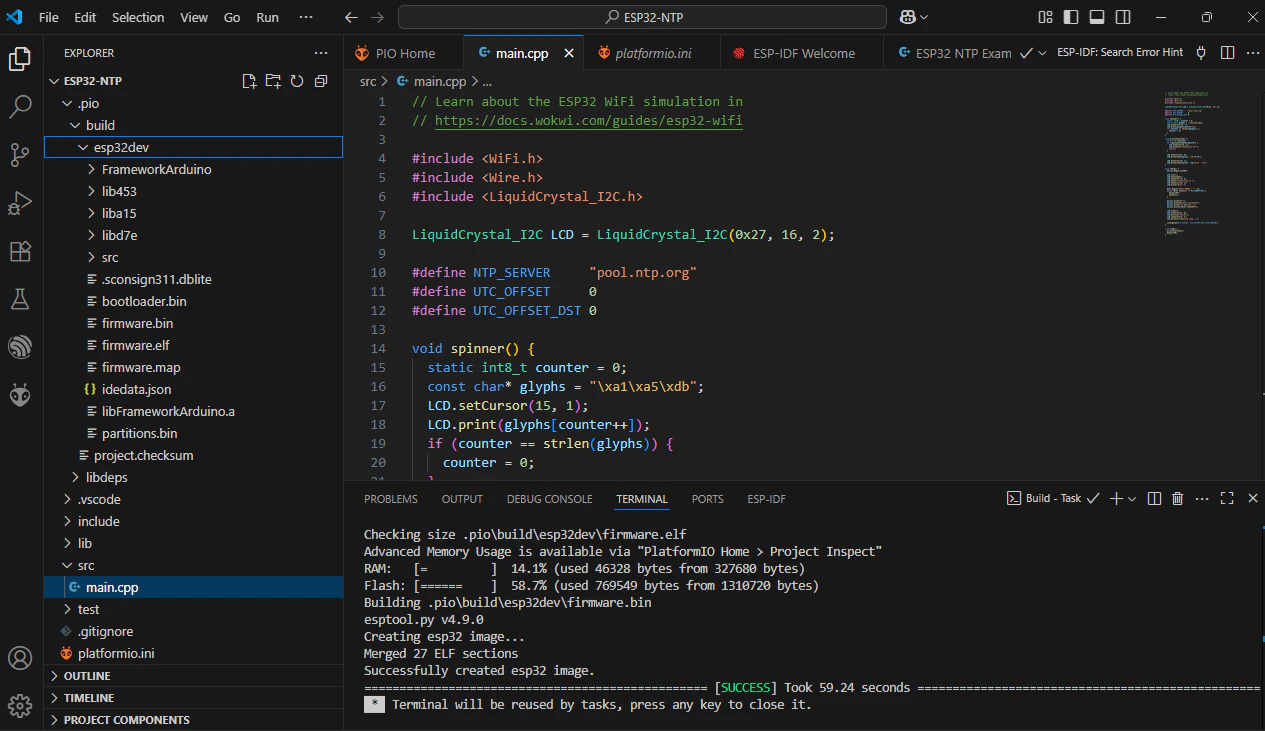
Add Configuration
The online simulator controls its own build environment. To work locally in VS Code, you will need to provide an extra configuration file,wokwi.toml. This will not be part of the downloaded archive because Wokwi doesn’t know what build tools or framework you will use for local VS Code development.
The structure and contents of the wokwi.toml file are covered in the VS Code project configuration page. In the previous step you already built the firmware files needed.
At this point you should also add the diagram.json file from your downloaded project. This must be in the same directory as the wokwi.toml file.
Test the Simulator
When you select thediagram.json file in the VS Code editor, it will automatically open an embedded window with a graphical display showing the Wokwi circuit layout.
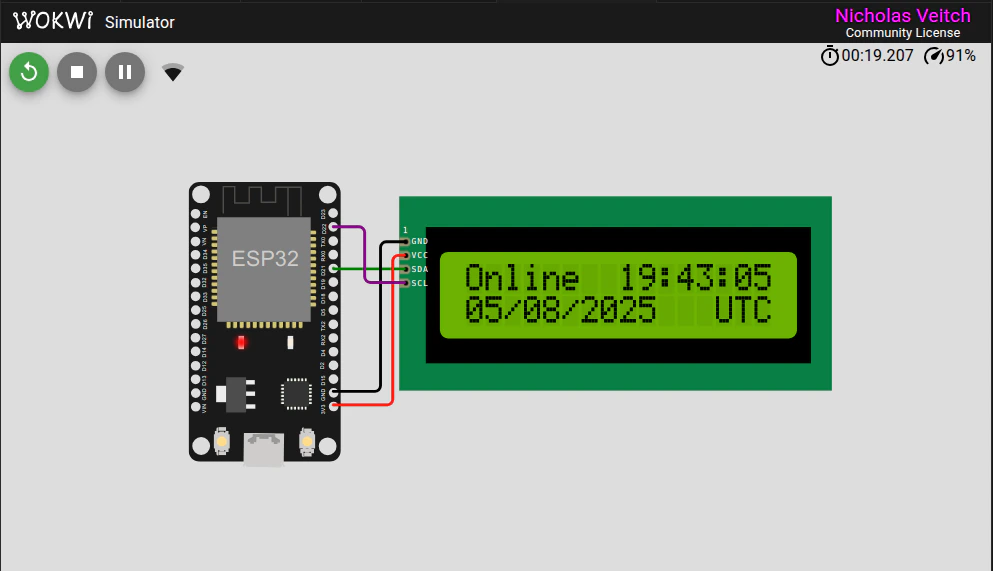
You will need a license to edit the diagram in this view (see the Wokwi pricing page).