Core Features
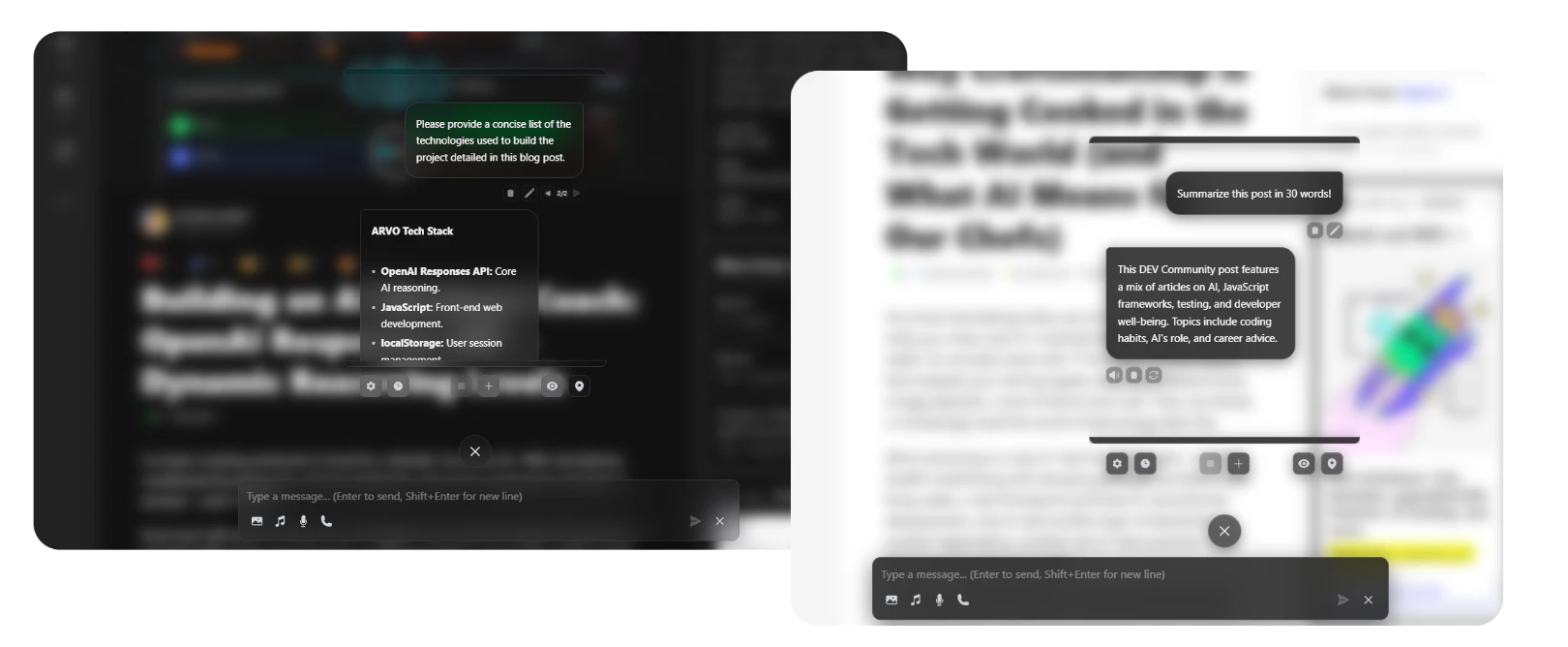
Page Context
Ask questions about the webpage you’re viewing
File Attachments
Attach images and audio files for context
Voice Mode
Hands-free conversation with TTS and STT
Chat History
Auto-saved conversations with search and branching
Page Context
Chat with AI about the current webpage you’re viewing. VAssist automatically extracts and analyzes page content to provide relevant answers.What You Can Ask
Summarize Content
Summarize Content
“Summarize this article”“What are the main points on this page?”“Give me a TL;DR of this documentation”
Extract Information
Extract Information
“What’s the author’s contact information?”“List all the products mentioned”“Find pricing details on this page”
Explain Concepts
Explain Concepts
“Explain this technical term in simple words”“How does this feature work?”“What’s the difference between these two options?”
Navigate Content
Navigate Content
How It Works
File Attachments
Attach images and audio files to provide additional context for your conversations.Supported File Types
- Images
- Audio
Formats: JPG, PNG, GIF, WebP, BMPUse Cases:
- Describe image content
- Extract text from screenshots (OCR)
- Identify objects and scenes
- Compare multiple images
- Get design feedback
How to Attach Files
File attachments are processed entirely on-device using Chrome’s Multimodal Input API. Your files never leave your computer.
Voice Mode
Have hands-free conversations with VAssist using voice input and text-to-speech output.Features
Speech-to-Text
Chrome AI Multimodal InputSpeak naturally and see your words transcribed in real-time
Text-to-Speech
Kokoro.js TTSHear responses with natural-sounding on-device voices
Continuous Mode
Automatic listening after each response for seamless conversation flow
Privacy First
All voice processing happens locally - no cloud services
Voice Configuration
- Speech-to-Text
- Text-to-Speech
Configure STT in the Control Panel:Supported languages: English, Spanish, Japanese
STT Configuration
How to Use Voice Mode
Voice mode works completely offline using Chrome’s built-in AI and Kokoro.js for text-to-speech.
Chat History with Branching
VAssist automatically saves all conversations with powerful branching support.History Features
Auto-Save
Conversations saved automatically to IndexedDB
Search
Full-text search across all conversations
Branching
Create multiple conversation branches from any message
Export
Export conversations to JSON or Markdown
Conversation Branching
Create alternative conversation paths without losing context:Message Actions
Enhance your chat experience with these message actions:Edit
Modify any message to explore different responses
Regenerate
Get a new response without changing your message
Copy
Copy message text to clipboard
TTS Playback
Listen to any message with text-to-speech
Delete
Remove messages from conversation
Branch
Create new conversation branch from this point
Regenerate Responses
Not satisfied with the AI’s response? Regenerate it:- Hover over the assistant’s message
- Click the regenerate icon (circular arrows)
- Get a new response with the same context
Each regeneration creates a branch, allowing you to compare different responses.
Temporary Chats
Start conversations that don’t save to history - perfect for sensitive topics or quick questions.When to Use Temporary Chats
- Testing features
- Sensitive or private information
- Quick one-off questions
- Experimenting with prompts
Enable Temporary Mode
Smooth Animations
Words fade in smoothly one at a time as the AI responds, creating a natural typing effect:- Streaming responses - Text appears word-by-word in real-time
- Smooth transitions - Fade-in effects for each word
- Stop generation - Click stop button to halt response generation
- Resume context - Partial responses maintain conversation context
Performance Tips
Token Limits
Token Limits
Gemini Nano has a 1024 token context window. VAssist automatically manages context:
- Recent messages prioritized
- Older messages summarized
- Page context truncated if needed
Large Attachments
Large Attachments
Processing large files may take time:
- Images: Automatically resized for optimal processing
- Audio: Maximum 60 seconds per recording
- Multiple files: Processed sequentially
Voice Mode Latency
Voice Mode Latency
Reduce voice mode latency:
- Keep TTS model loaded (
keepModelLoaded: true) - Use WebGPU device for faster synthesis
- Choose Q4 quantization for speed
Privacy & Security
Local Storage
All chats stored locally in your browser’s IndexedDB
No Cloud Sync
Conversations never leave your device
On-Device AI
All processing happens with Chrome’s built-in AI
Clear Anytime
Delete conversations or clear all history instantly
Next Steps
Virtual Companion
Learn about the animated 3D assistant
Chrome AI APIs
Understand the underlying AI technology