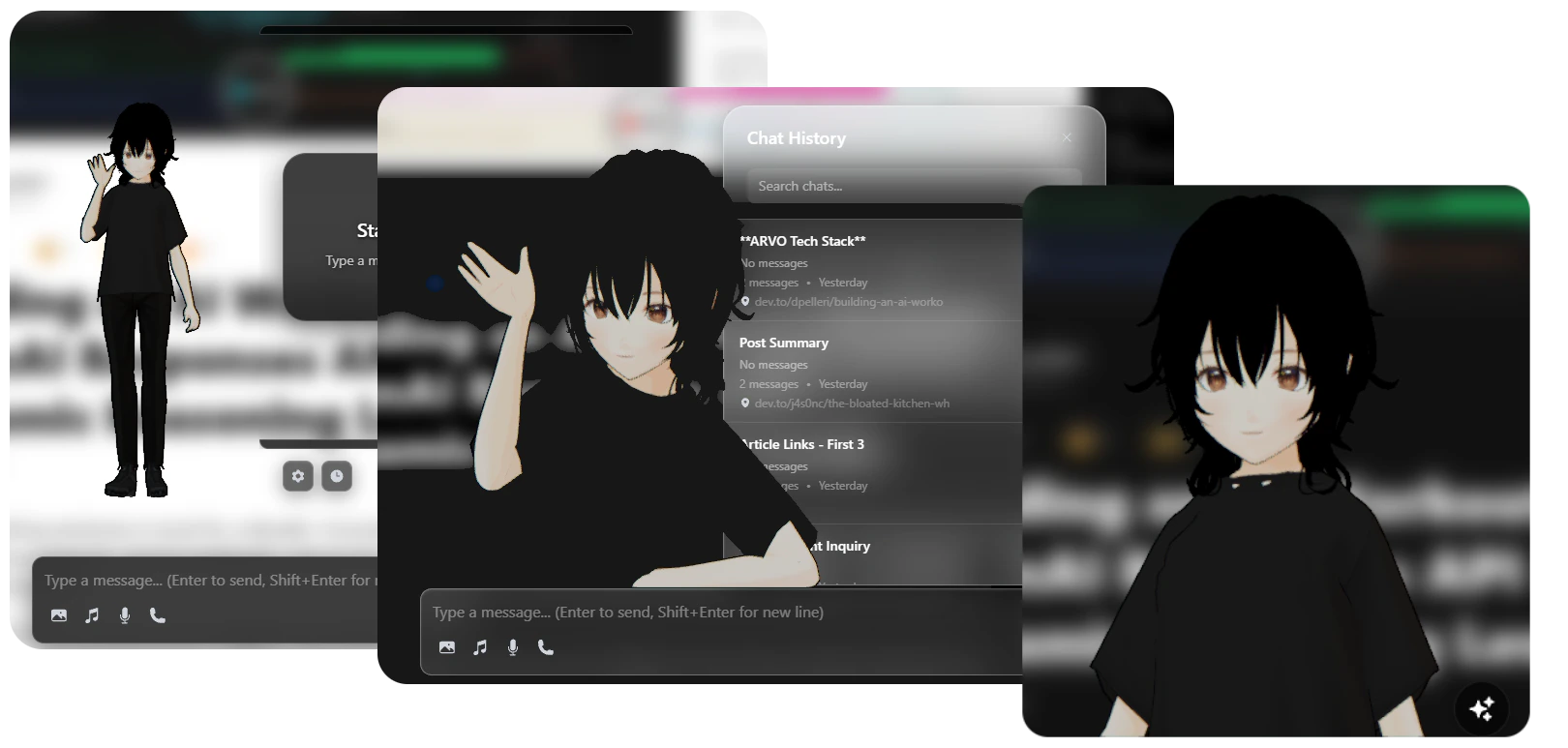
Overview
The companion responds to your interactions with expressions, gestures, and animations that match the conversation context. It exists as a draggable overlay that can be positioned anywhere on your screen.Display Modes
Switch between full body and portrait views
Animations
Idle, thinking, speaking, and celebration states
Lip Sync
Real-time mouth movements synchronized to speech
Positioning
Drag anywhere on screen with per-preset saved positions
Display Modes
Choose how your companion appears on screen:- Full Body
- Portrait
- Entire character model visible
- Full range of body animations
- Hand gestures and full-body expressions
- Larger canvas size for detailed animations
Switching Display Modes
Animations
The companion uses a sophisticated animation system with multiple states and smooth transitions.Animation States
Idle
Idle
Default State - Subtle breathing and natural movements
- Random idle variations
- Occasional yawns and stretches
- Greeting gestures (waves hello)
- Smooth looping animations
Thinking
Thinking
Processing State - Shows the AI is working
- Thoughtful poses
- Hand-on-chin gestures
- Contemplative expressions
- Auto-switches between variants
- Waiting for AI response
- Processing complex queries
- Analyzing page content
Speaking
Speaking
Active Conversation - Animated speech with lip sync
- Body gestures matching emotion
- Real-time lip synchronization
- Blended with base animation
- Facial expressions
- Excited - energetic gestures
- Calm - relaxed movements
- Nervous - anxious body language
- Angry - emphatic gestures
Celebrating
Celebrating
Success State - Positive feedback animations
- Clapping hands
- Excited jumping
- Happy expressions
- One-shot animation
- Task completion
- Success messages
- Positive user interactions
Animation Blending
The companion uses smooth animation blending for natural transitions:- Overlap blending - Old animation fades out while new one fades in
- Bezier easing - Smooth S-curve for natural motion
- Loop transitions - Seamless cycling of looping animations
- Weight-based mixing - Blend multiple animations simultaneously
Lip-Synced Speech
The companion’s mouth movements are synchronized in real-time with text-to-speech output using VMD (Vocaloid Motion Data) generation.How Lip Sync Works
Viseme Mapping
The companion uses standard viseme shapes for realistic mouth movements:| Viseme | Phonemes | Example Words |
|---|---|---|
| A | ah, aa | father, hot |
| E | eh, ae | bed, cat |
| I | ih, iy | bit, see |
| O | oh, ao | go, caught |
| U | uh, uw | book, food |
| M | m, p, b | mom, pet, big |
| F | f, v | fox, van |
| TH | th, dh | think, this |
| S | s, z | sit, zoo |
| T | t, d, n | top, dog, no |
| L | l | love |
| R | r | red |
Lip sync requires the TTS feature to be enabled. See Configuration for TTS setup.
Positioning & Customization
The companion can be freely positioned and customized to suit your workflow.Dragging & Positioning
Position Memory:
- Each display mode (Full Body / Portrait) remembers its own position
- Positions saved per browser profile
- Persists across browser sessions
Customization Options
Customize the companion’s appearance and behavior:Canvas Size
Canvas Size
Adjust the companion’s display size:
- Full Body: 400x600px (default)
- Portrait: 300x400px (default)
- Custom sizes available in settings
Character Scale
Character Scale
Scale the 3D model independently of canvas:
- Range: 0.5 to 2.0
- Default: 1.0
- Affects model size only, not UI elements
Animation Speed
Animation Speed
Adjust animation playback speed:
- Range: 0.5 to 2.0
- Default: 1.0
- Affects all animations globally
Lighting & Effects
Lighting & Effects
Configure scene lighting and visual effects:
- Ambient light intensity
- Directional light position
- Shadow quality
- Background transparency
Built with Babylon.js
The Virtual Companion leverages Babylon.js, a powerful 3D rendering engine, for smooth animations and realistic character rendering.Technical Architecture
- Rendering Engine
- MMD Model Support
- Animation System
Babylon.js provides:
- WebGL-based 3D rendering
- Hardware-accelerated graphics
- Efficient animation system
- Advanced physics and lighting
Performance Optimization
The companion is optimized for smooth performance:Efficient Rendering
- 60 FPS target frame rate
- Culling for off-screen elements
- LOD (Level of Detail) system
- Adaptive quality settings
Smart Loading
- Lazy loading of animations
- Cached animation files
- Progressive model loading
- Resource pooling
Memory Management
- Automatic garbage collection
- Texture compression
- Animation buffer reuse
- Scene disposal on unmount
GPU Acceleration
- WebGL 2.0 support
- Hardware skinning
- GPU-based morphing
- Shader optimization
Interaction & Behaviors
The companion responds intelligently to different contexts:Automatic State Changes
| User Action | Companion Response |
|---|---|
| Send chat message | Transitions to Thinking state |
| Receive AI response | Plays Speaking animation with lip sync |
| Enable voice mode | Listens (idle) then responds (speaking) |
| Complete task | Plays Celebration animation |
| Idle for 30+ seconds | Occasional yawns and stretches |
| Hover over companion | Subtle acknowledgment gesture |
Emotion-Based Animations
The AI can specify emotions in responses, and the companion reacts accordingly:Emotion mapping can be customized in
animationConfig.js. See Configuration for details.Accessibility
The companion can be disabled for users who prefer a minimal interface:
With the companion disabled:
- All AI features remain fully functional
- Chat interface works normally
- Voice mode still available
- Lower resource usage
Next Steps
Chrome AI APIs
Learn about the AI powering the companion’s intelligence
Configuration
Customize the companion’s appearance and behavior