
Conditional Monitoring
Conditional Monitoring allows you to set rules that determine when notifications should be sent. Instead of getting alerted for every change, you can filter notifications based on specific conditions - like price thresholds, keyword presence, or numeric values.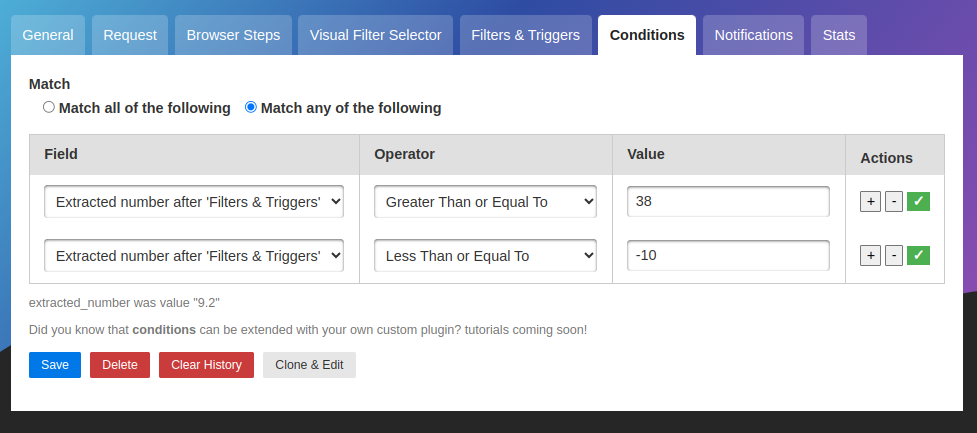
What is Conditional Monitoring?
Conditional monitoring adds intelligent filtering to change detection. While change detection finds what changed, conditions determine whether to notify based on the changed content.How it works
- changedetection.io detects a change on the page
- Conditions are evaluated against the new content
- If conditions are met → Notification is sent ✅
- If conditions are NOT met → Change is recorded, but no notification ❌
When to Use Conditions
Price Thresholds
Only notify when price drops below 200
Keyword Filtering
Alert only when specific keywords appear or disappear
Numeric Ranges
Notify when stock count, ratings, or other numbers meet criteria
Text Presence
Trigger when specific text exists or is removed from the page
Setting Up Conditions
Accessing Condition Rules
Condition Components
Each condition rule has three parts:1. Field (What to Check)
Select what content to evaluate:| Field | Description | Example Use Case |
|---|---|---|
| Text | The extracted page content | Check if “Out of Stock” appears |
| Number | Numeric value extracted from page | Check if price < 100 |
| URL | The watch URL | Conditional logic based on URL |
2. Operator (How to Compare)
Available operators:Text Operators
| Operator | Description | Example |
|---|---|---|
| Contains | Text includes the value | Text contains “In Stock” |
| Does not contain | Text excludes the value | Text does not contain “Sold Out” |
| Matches regex | Text matches regular expression | Text matches ^Price: \$\d+ |
| Equals | Text exactly matches value | Text equals “Available” |
| Does not equal | Text doesn’t match value | Text does not equal “Unavailable” |
Numeric Operators
| Operator | Description | Example |
|---|---|---|
> (Greater than) | Number is larger than value | Number is greater than 100 |
< (Less than) | Number is smaller than value | Number is less than 50 |
>= (Greater or equal) | Number is at least value | Number is at least 10 |
<= (Less or equal) | Number is at most value | Number is at most 500 |
== (Equal) | Number exactly equals value | Number equals 0 |
!= (Not equal) | Number doesn’t equal value | Number does not equal -1 |
3. Value (What to Compare Against)
The value to compare the field against:- For text: Enter the text/keyword/regex pattern
- For numbers: Enter the numeric value (integers or decimals)
- Case sensitivity: Text comparisons are case-insensitive by default
Match Logic
Control how multiple conditions are evaluated:- Match ALL (AND)
- Match ANY (OR)
All conditions must be true to send notificationExample:Use for: Strict filtering where all criteria must be met
Common Use Cases
Price Drop Alert (Below Threshold)
Goal: Only notify when price drops below $100 Configuration:- Use “Extract text” filter:
\$([0-9.]+)to extract price - Add condition: Number < 100
- Save watch
Price in Range (Between Two Values)
Goal: Notify when price is between 150 Configuration:Keyword Presence (Text Contains)
Goal: Alert when “Hiring” or “Now Accepting Applications” appears Configuration:Stock Count Monitoring
Goal: Alert when stock count drops below 10 units Configuration:Restock Alert (Keyword Disappears)
Goal: Notify when “Out of Stock” is removed from page Configuration:Rating Threshold
Goal: Alert when product rating rises above 4.5 stars Configuration:Advanced Conditional Logic
Multiple Keyword Detection (ALL)
Scenario: Notify only when page contains BOTH “Premium” AND “Discount”Price Drop OR Keyword
Scenario: Alert if price < $50 OR “Sale” appearsComplex Price Condition (Outside Range)
Scenario: Notify when price drops below 100 (alert on extremes)Regex Pattern Matching
Scenario: Alert when email address appears in specific formatCombining with Other Features
Conditions + Restock Monitoring
Scenario: Monitor product, notify only when in stock AND price < $200 Setup:- Use “Restock & Price Detection” processor
- Add conditions:
Conditions + Browser Steps
Scenario: Login, navigate to account balance, alert if balance < $100 Setup:- Browser Steps: Login and navigate to balance page
- Extract text:
Balance: \$([0-9.]+) - Condition: Number < 100
Conditions + Visual Selector
Scenario: Select price element, notify only on price drop Setup:- Visual Selector: Select price element
- Extract text:
\$([0-9.]+) - Store original price on first check
- Condition: Number < [previous_price]
For price comparisons over timeUse the built-in Restock monitoring feature instead of manual conditions. It automatically tracks price changes and has built-in thresholds.
Best Practices
Extract before conditioning
Extract before conditioning
Use Extract text filters to isolate the exact value before applying conditions.Example:
- Page shows: “Price: 79.99)”
- Extract filter:
Price: \$([0-9.]+) - Extracted:
49.99 - Condition: Number < 50 ✅
Test conditions before deploying
Test conditions before deploying
After setting up conditions:
- Click “Check now” to run the watch
- View the extracted content in the Preview tab
- Verify conditions would evaluate correctly
- Adjust extract filters or condition values as needed
Use specific operators
Use specific operators
Choose the most specific operator for your use case:
- “Contains” for flexible keyword matching
- “Equals” for exact text matching
- “Matches regex” for complex patterns
- Numeric operators for price/number comparisons
Keep conditions simple
Keep conditions simple
Complex multi-rule conditions can be hard to debug.Instead of:Try:
Document your logic
Document your logic
Use watch titles to indicate conditions:
- “Product X - Alert when < $50”
- “Job Board - Notify on ‘Hiring’ keyword”
- “Stock - Alert when count < 10”
Troubleshooting
Condition Never Triggers
Value not being extracted
Value not being extracted
Problem: Condition checks the full page text, not the extracted valueSolution:
- Add an “Extract text” filter to isolate the value
- Test with “Check now” and view Preview tab
- Verify the extracted value appears correctly
Wrong operator for data type
Wrong operator for data type
Problem: Using numeric operator on text, or vice versaSolution:
- For prices/numbers: Use Field = Number and numeric operators (< > ==)
- For keywords/text: Use Field = Text and text operators (contains, equals)
Regex pattern incorrect
Regex pattern incorrect
Problem: “Matches regex” condition doesn’t matchSolution:
- Test regex pattern in a regex tester (regex101.com)
- Check for escaping issues (use
\\for literal backslash) - Verify the pattern matches the actual page content format
Match logic set incorrectly
Match logic set incorrectly
Problem: Using “Match ALL” when you need “Match ANY” or vice versaSolution:
- ALL: All rules must be true (strict)
- ANY: At least one rule must be true (flexible)
Condition Always Triggers
Possible causes:-
Condition too broad:
- “Text contains ‘a’” will always match (most pages have the letter ‘a’)
- Make conditions more specific
-
Number extraction failing:
- If number can’t be extracted, default value (0 or empty) may match condition
- Verify extraction is working
-
Multiple values extracted:
- If extraction finds multiple numbers, condition may check the first one
- Refine extraction regex to target exact value
Notifications Still Send Despite Conditions
Check:- Are conditions enabled?
- Verify condition rules are configured and saved
- Is there a separate trigger text filter?
- “Trigger text” (different feature) may override conditions
- Check if “Keyword triggers” field is set
- Global vs watch notifications:
- Check if global notifications are sending (they ignore per-watch conditions)
- Configure conditions in both global and per-watch if needed
Condition Examples by Scenario
E-commerce Product Monitoring
Job Board Monitoring
Real Estate Listings
Stock/Inventory Tracking
Conditions vs. Other Features
Conditions vs. Trigger Text
| Feature | Purpose | Example |
|---|---|---|
| Trigger Text | Wait for specific text to appear before detecting ANY change | Wait for “Pre-order Available” then start monitoring |
| Conditions | Filter notifications based on content criteria | Only notify when price < $50 |
Conditions vs. Filters
| Feature | Purpose |
|---|---|
| Filters (CSS/XPath/Extract) | Control what content is monitored |
| Conditions | Control when notifications are sent |
- Filters extract the price:
$49.99 - Conditions decide whether to notify:
if price < 50
Related Features
Filters & Extraction
Extract specific values to use in conditions
Restock Monitoring
Built-in price and stock conditions
Trigger Text
Wait for specific text before monitoring