
Visual Selector
The Visual Selector is a powerful point-and-click tool that makes it easy to monitor specific parts of a webpage without writing any code. Simply click on the elements you want to track, and changedetection.io will monitor only those sections for changes.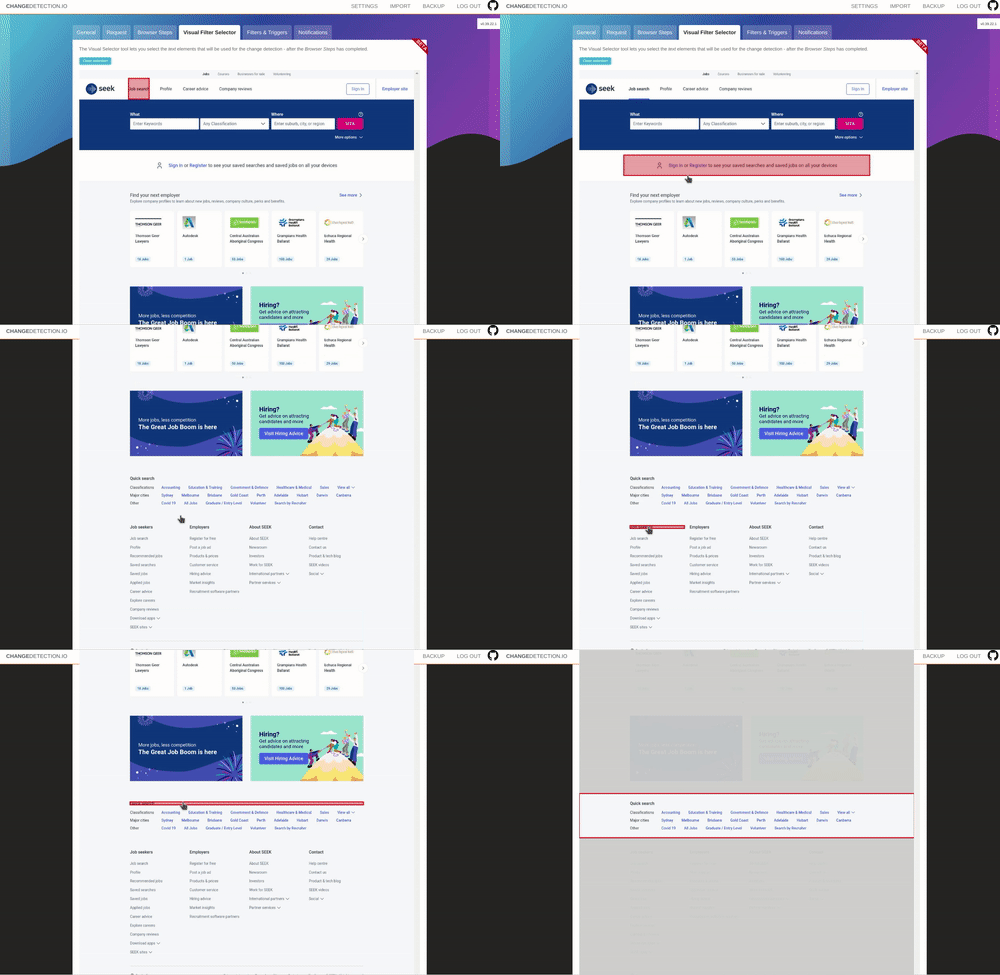
What is the Visual Selector?
The Visual Selector provides an interactive, visual way to target specific content on webpages. Instead of manually writing CSS selectors or XPath expressions, you can:- Click directly on page elements to select them
- See a live preview of what content will be monitored
- Combine multiple selections to track different page sections
- Visually refine your selections in real-time
Why Use the Visual Selector?
No Coding Required
Point and click to select elements - no need to understand CSS or XPath
Precise Targeting
Monitor exactly what matters by selecting specific page sections
Reduce Noise
Ignore irrelevant content like ads, navigation, or footers
Visual Feedback
See exactly what content will be monitored before saving
Prerequisites
The Visual Selector requires a browser-based fetcher to work:Chrome/Browser Fetch Method RequiredYou need to use one of these fetch methods:
- Playwright (recommended)
- WebDriver/Chrome
Enabling Browser Fetching
- Go to Settings → Requests
- Select Chrome/Playwright as your fetch method
- Or enable it per-watch in the watch settings
How to Use the Visual Selector
Step 1: Create or Edit a Watch
- Click Add new watch or edit an existing watch
- Enter the URL you want to monitor
- Make sure the fetch method is set to Chrome/Playwright (not “Basic fast Plaintext/HTTP fetcher”)
Step 2: Open the Visual Selector
- Navigate to the Visual Selector tab in the watch settings
- Click Open Visual Selector button
- Wait for the page to load in the interactive viewer
Step 3: Select Elements
Click on Elements
Click on any text, image, or section you want to monitor. Selected elements will be highlighted.
Review Selection
The selector will show you the CSS/XPath selector being generated at the bottom of the screen.
Add Multiple Selections
Click additional elements to monitor multiple page sections. Each selection adds to your filter.
Step 4: Test and Save
- Click Check now to test your watch
- Review the Preview tab to confirm you’re tracking the right content
- Click Save to enable monitoring
Best Practices
Be Specific, Not Too Broad
Be Specific, Not Too Broad
Select the smallest element that contains your target content. Selecting a large container div may include unwanted content like ads or navigation.Good: Select the price element
<span class="price">$19.99</span>Bad: Select the entire product card that includes images, reviews, and other changing contentTest Your Selection
Test Your Selection
After selecting elements, always click “Check now” to verify you’re getting the expected content. Check the Preview tab to see what’s being monitored.
Combine with Browser Steps
Combine with Browser Steps
Use Browser Steps to interact with the page first (login, accept cookies, etc.), then use Visual Selector to choose what to monitor.Example workflow:
- Use Browser Steps to log in and navigate to a dashboard
- Use Visual Selector to pick the data you want to track
Watch for Dynamic Content
Watch for Dynamic Content
Some websites use dynamic IDs or classes that change on every page load. If your selector stops working, try selecting a parent element with a more stable selector.
Common Use Cases
Monitor Product Prices
Select just the price element on a product page to track price changes without false alerts from reviews or stock updates.Track Specific Table Rows
Monitor a specific row in a data table, ignoring other rows.Monitor Article Content Only
Track blog post or article changes without monitoring comments, sidebars, or ads.Troubleshooting
Element Not Selectable
If you can’t click on an element:- The element might be covered by another element (try clicking precisely)
- The page might not be fully loaded (wait a few seconds)
- Some interactive elements require Browser Steps to reveal them first
Selection Keeps Breaking
If your selection stops working after a few checks:- The website may use dynamic IDs/classes that change
- Try selecting a parent element with a more stable structure
- Use the manual CSS/XPath filter field instead for more control
Selected Too Much Content
If your selection includes unwanted content:- Click a more specific child element instead of a container
- Use the Remove elements field to exclude unwanted sections
- Manually refine the generated CSS selector
Advanced Tips
Working with the Generated Selector
The Visual Selector generates CSS selectors automatically. You can:- View the generated selector in the filter field
- Manually edit it for more control
- Switch between CSS and XPath if needed
Multiple Element Selection
Select multiple unrelated elements by:- Click first element → generates selector
- Click second element → adds to selector with comma
- The result monitors all selected elements
Related Features
Browser Steps
Interact with pages before selecting elements
Filters & Triggers
Refine what content triggers notifications