
Restock & Price Monitoring
The Restock & Price Detection feature is specifically designed for monitoring single product pages. It automatically detects when products come back in stock and tracks price changes, making it perfect for e-commerce monitoring, deal hunting, and inventory tracking.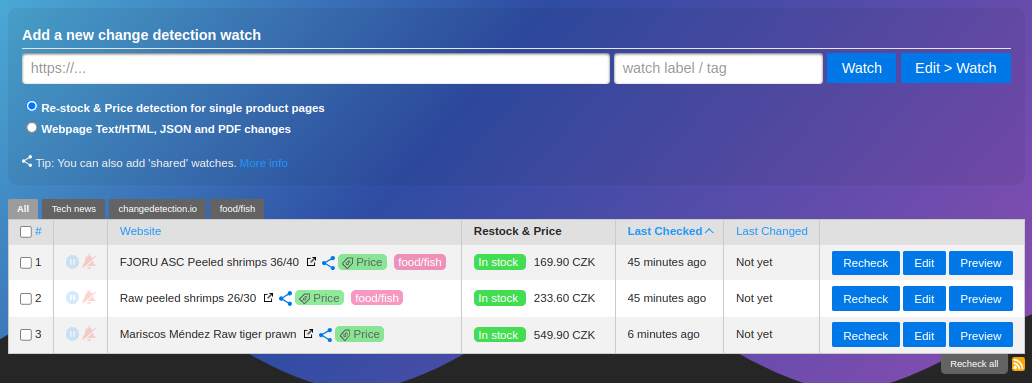
What is Restock Monitoring?
Restock monitoring automatically extracts product availability and pricing information from e-commerce websites using structured metadata (JSON-LD, microdata, OpenGraph). It provides:- Automatic price detection from product pages
- Stock status tracking (In Stock, Out of Stock, Pre-sale, etc.)
- Price change alerts with customizable thresholds
- Currency detection from product metadata
- Visual price history in the dashboard
How it workschangedetection.io reads structured product data embedded in the HTML:
- JSON-LD schema markup (
<script type="application/ld+json">) - Microdata attributes (
itemprop="price",itemprop="availability") - OpenGraph meta tags (
og:price:amount,og:availability)
When to Use Restock Monitoring
Product Restocks
Get notified immediately when out-of-stock items come back
Price Drops
Track price changes and get alerted when prices drop
Deal Hunting
Monitor multiple products and catch the best deals
Inventory Management
Track competitor pricing and availability
Enabling Restock Monitoring
Step 1: Select the Processor
Choose Processor
Under “Processor - What do you want to achieve?”, select:“Re-stock & Price detection for pages with a SINGLE product”
Step 2: Configure Restock Settings
Navigate to the Restock & Price Detection tab to configure monitoring options.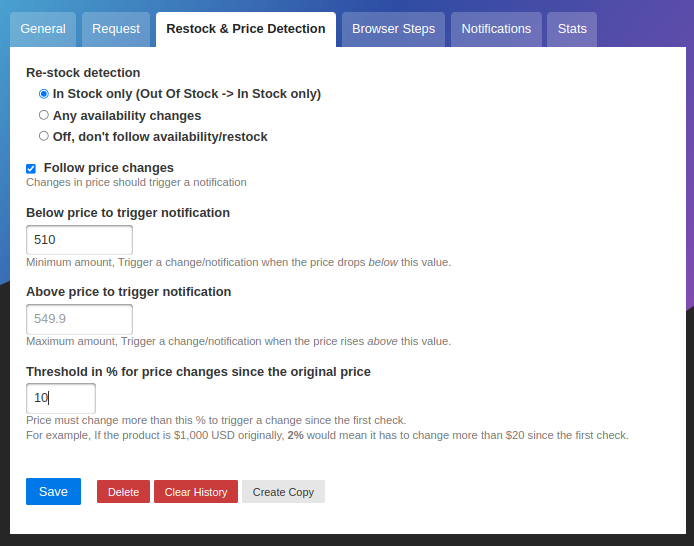
Configuration Options
Re-stock Detection Mode
Choose how you want to be notified about stock changes:- In Stock Only (Default)
- Any Availability Changes
- Off
Best for: Restock alertsTriggers notifications only when:
- Product goes from Out of Stock → In Stock
- In Stock → Out of Stock changes
- In Stock → In Stock (no change)
Price Change Tracking
Follow Price Changes
Enable/Disable Price Monitoring
Enable/Disable Price Monitoring
Checkbox: “Follow price changes”
- ✅ Enabled (Default): Get notified when prices change
- ❌ Disabled: Ignore price changes, only monitor stock status
Price Thresholds
Set minimum and maximum price limits to filter notifications:How thresholds work
- Below price: Triggers when price drops below this value
- Above price: Triggers when price rises above this value
- Both set: Triggers when price goes outside the range
- Neither set: Triggers on any price change
Percentage Change Threshold
Ignore small price fluctuations by setting a percentage threshold:How Restock Monitoring Works
Automatic Data Extraction
changedetection.io uses a multi-step approach to extract product data:Fallback to Page Scraping
If metadata is missing, scans page text for stock keywords like:
- “Out of Stock”
- “Add to Cart”
- “Sold Out”
- “Pre-order”
Supported Availability States
The following stock statuses are recognized as In Stock:InStockInStoreOnlyLimitedAvailabilityOnlineOnlyPreSale/PreOrder
OutOfStock, Discontinued, SoldOut) are treated as Out of Stock.
Real-World Use Cases
Get Notified When Sold-Out Item Restocks
Track Price Drops Below $100
Monitor Competitor Pricing
Alert on Price Increases
Dashboard Integration
When using restock monitoring, the dashboard displays:- Current price in the watch list
- Stock status badge (In Stock / Out of Stock)
- Price history graph (if multiple checks recorded)
- Original price (first detected price)
- Currency automatically detected
Troubleshooting
No Price or Stock Data Detected
Website doesn't include metadata
Website doesn't include metadata
Solution: The website may not include structured product data.Try:
- Switch to “Text & JSON change detection” processor
- Use Visual Selector to select price and stock elements manually
- Use CSS/XPath filters to extract price with regex
Multiple prices found
Multiple prices found
Error: “More than one price detected, this plugin is only for product pages with ONE product”Cause: The page contains multiple products or price variations.Solution:
- Ensure you’re monitoring a single product page, not a category
- Some sites show multiple prices (e.g., different sizes/colors)
- Switch to standard text monitoring and use filters to target specific price
Price detected but not stock status
Price detected but not stock status
Cause: Website includes price metadata but not availability.Behavior:
- Price changes will be tracked
- Stock status falls back to page text scraping
- May see “Possibly in stock” if no clear stock indicators found
False Positives
Problem: Getting notifications for minor price changes Solution: Set a percentage threshold:Stock Status Not Updating
Causes:- Website uses JavaScript to load stock status
- Stock data is behind authentication/login
- Stock information in metadata is incorrect
- Switch fetch method to Chrome/Playwright
- Use Browser Steps to log in first
- Enable “Wait for seconds” in watch settings to let page fully load
Best Practices
Use Chrome Fetcher for JavaScript Sites
Use Chrome Fetcher for JavaScript Sites
Many modern e-commerce sites load prices and stock via JavaScript.Recommendation: Set fetch method to Playwright/Chrome for reliable data extraction.
Set Appropriate Check Intervals
Set Appropriate Check Intervals
- High-demand items: Check every 5-10 minutes
- Regular monitoring: Check every 1-6 hours
- Price tracking: Check daily
Use Price Thresholds to Reduce Noise
Use Price Thresholds to Reduce Noise
Set minimum price thresholds to only get notified when deals meet your budget.Example: Only alert when price < $50 for budget-conscious monitoring.
Combine with Tags for Organization
Combine with Tags for Organization
Advanced: Group Tags with Restock Overrides
You can configure restock settings at the tag/group level to apply the same settings to multiple watches:Configure Restock Settings
In the tag settings, configure:
- Price thresholds
- Percentage thresholds
- Restock detection mode
Notification Variables
When configuring notifications for restock watches, you can use these special variables:| Variable | Description | Example |
|---|---|---|
{{watch_url}} | The product page URL | https://store.com/product |
{{current_price}} | Current price | $299.99 |
{{original_price}} | First detected price | $349.99 |
{{in_stock}} | Stock status (True/False) | True |
{{currency}} | Currency code | USD |
{{diff}} | Price change summary | Price dropped from $349.99 to $299.99 |
Related Features
Conditional Monitoring
Set up complex price and stock conditions
Notifications
Configure alerts via Discord, Slack, Email, and more
Scheduling
Set specific times to check for restocks