Common Error Messages
You may encounter the following error messages when experiencing connection issues:Direct Connection Error
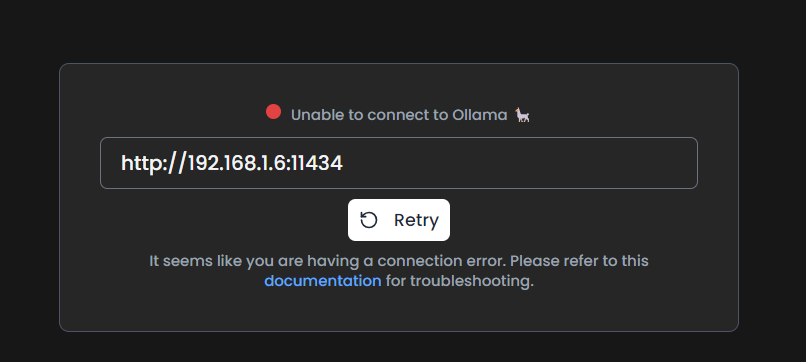 This error indicates that Page Assist cannot reach your Ollama server.
403 Error When Sending a Message
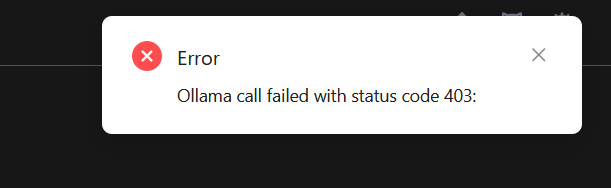 This error is caused by CORS (Cross-Origin Resource Sharing) restrictions. Since Page Assist is a browser extension, it needs to communicate with the server through the browser, but browsers restrict communication between different origins.
Solutions
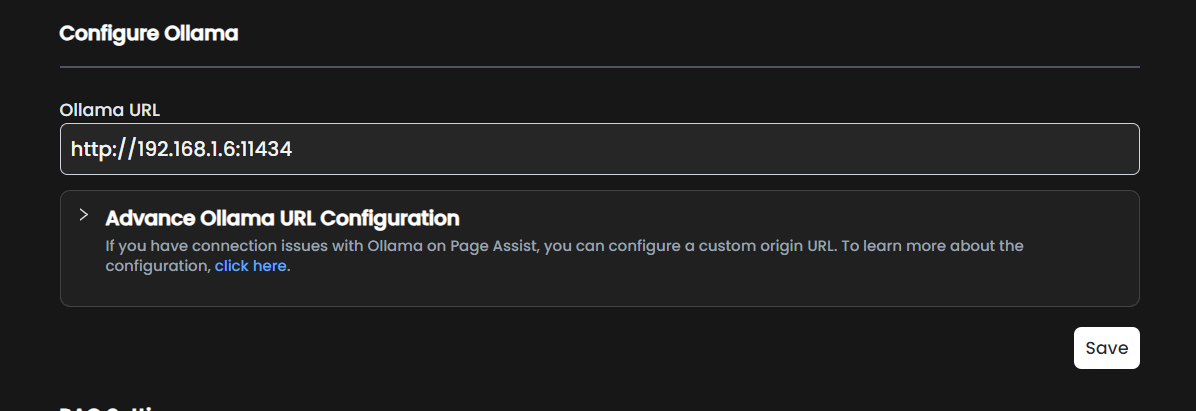
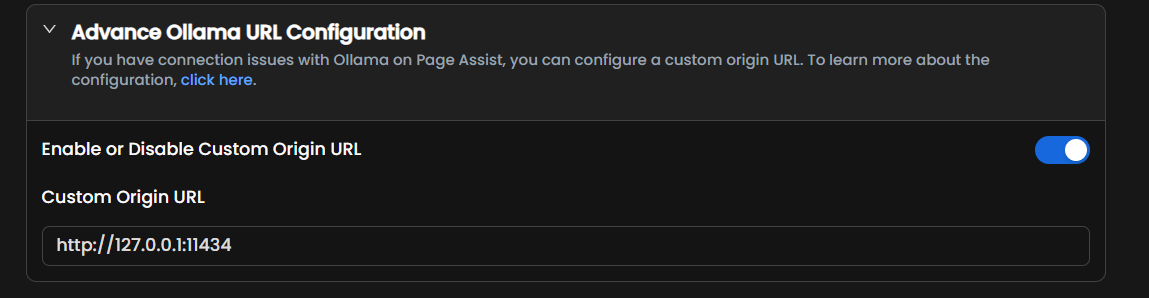
Solution 1: Configure Custom Origin URL
Solution 1: Configure Custom Origin URL
Page Assist automatically rewrites request headers to work with Ollama, but this only works for This should resolve the connection issue, and you’ll be able to use Ollama without any problems on Page Assist.
http://127.0.0.1:* and http://localhost:* URLs.Open Page Assist Settings
Click on the Page Assist icon in your browser toolbar and click on the Settings icon.
Solution 2: Set OLLAMA_ORIGINS Environment Variable
Solution 2: Set OLLAMA_ORIGINS Environment Variable
You can set
OLLAMA_ORIGINS=* to allow connections from any origin. Follow the instructions for your operating system:- Windows
- macOS
- Linux
- Docker
Open Environment Variables
- Open the Start menu and search for “Environment Variables”
- Click “Edit the system environment variables”
Additional Troubleshooting
Ollama is not running
Ollama is not running
Make sure Ollama is actually running on your system:
- Check if Ollama is running by visiting
http://localhost:11434in your browser - You should see “Ollama is running” if it’s active
- If not, start Ollama using the command:
ollama serve
Wrong port configuration
Wrong port configuration
Verify that Page Assist is using the correct port:
- Check which port Ollama is running on (default is 11434)
- In Page Assist settings, go to Ollama Settings
- Verify the Ollama URL matches your configuration (e.g.,
http://localhost:11434)
Firewall blocking connection
Firewall blocking connection
Your firewall may be blocking the connection:
- Check your firewall settings
- Allow connections to port 11434 (or your custom port)
- For Windows, add an exception in Windows Defender Firewall
- For Linux, use
ufworiptablesto allow the port
Using a remote Ollama server
Using a remote Ollama server
If you’re connecting to a remote Ollama instance:
- Make sure the server is accessible from your network
- Use the full URL including the IP address:
http://192.168.1.100:11434 - Ensure OLLAMA_HOST is set on the server to allow external connections:
- Configure OLLAMA_ORIGINS on the server as described in Solution 2
Still Having Issues?
If you’ve tried all the solutions above and still face connection issues, please open an issue on GitHub with:- Your operating system and version
- Your browser and version
- The exact error message you’re seeing
- Your Ollama version (
ollama --version) - Your Page Assist settings configuration