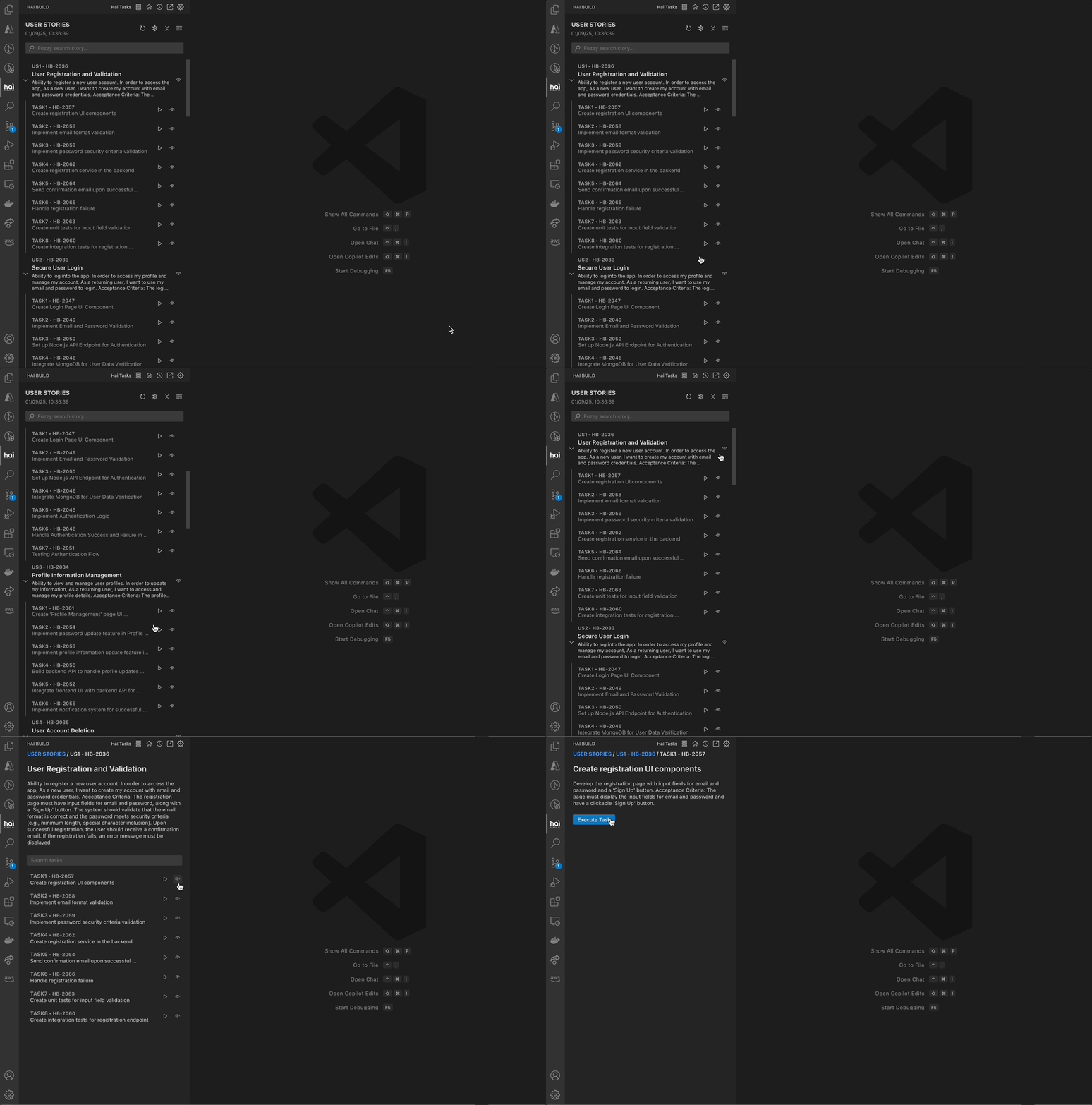
Detailed View of HAI Tasks
What is HAI Tasks?
HAI Tasks is a task management interface that:- Loads AI-generated user stories from Specif AI
- Displays tasks in a structured, searchable interface
- Executes tasks with a single click
- Tracks progress across stories and subtasks
- Manages your entire development workflow
HAI Tasks works seamlessly with Specif AI but can also be used independently for organizing any development work.
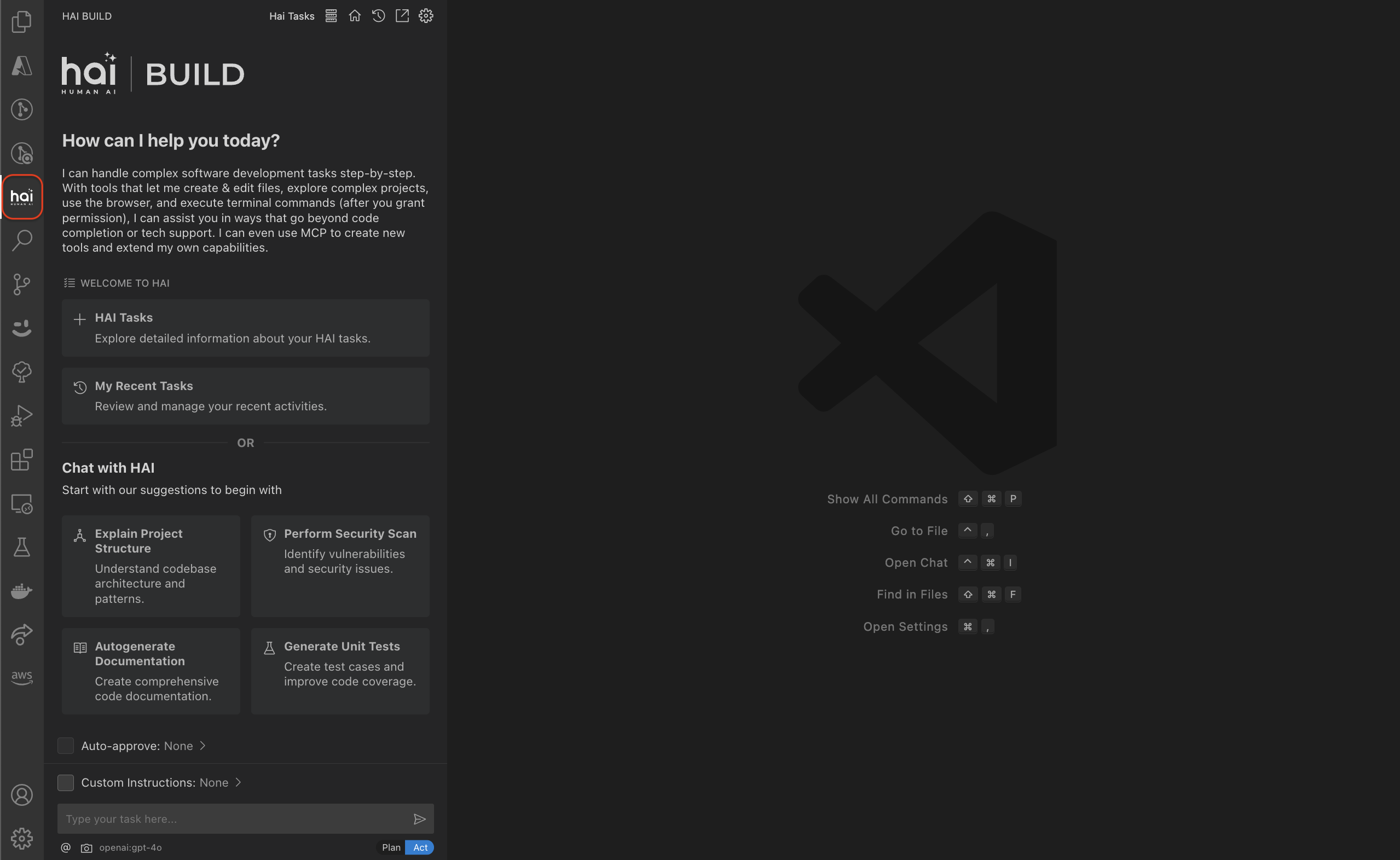
Getting Started
Task Structure
HAI Tasks organizes work hierarchically:User Stories
User Stories
User Stories represent high-level features or requirements:Each story contains:
- ID: Unique identifier
- Name: Story title
- Description: Detailed objectives and context
- Ticket ID: Optional reference to external tracking system
- Tasks: List of subtasks to complete the story
Tasks
Tasks
Tasks are actionable work items:Each task includes:
- ID: Unique identifier
- List: Task description/prompt for the AI
- Ticket ID: Optional reference to task tracking
webview-ui/src/components/hai/hai-tasks-list.tsx:1Task List Interface
The HAI Tasks interface provides powerful organization and search capabilities:Search and Filter

- Story names and descriptions
- Story ticket IDs
- Task descriptions
- Subtask ticket IDs
webview-ui/src/components/hai/hai-tasks-list.tsx:47
Accordion View
Stories are displayed in an expandable accordion:Expand/Collapse All
Control visibility of all stories at once
Individual Stories
Expand specific stories to view their tasks
Task Actions
- View Details
- Execute Task
- Reset Tasks
Click the eye icon to see:
- Full story description
- Prerequisites and dependencies
- Expected outcomes
- All associated tasks
webview-ui/src/components/hai/DetailedView.tsxIntegrating with Specif AI
Specif AI generates structured user stories and tasks from requirements. Here’s how to integrate:Generate with Specif AI
Use Specif AI to create user stories from:
- Product requirements
- Feature specifications
- Bug reports
- Enhancement requests
Task Execution Workflow
When you execute a task from HAI Tasks:Context Loading
HAI Build loads:
- Task description as the initial prompt
- Story context for additional background
- Related files from previous tasks
AI Generation
The AI code generator:
- Analyzes the task requirements
- Creates an implementation plan
- Generates code changes
- Executes necessary commands
Progress Tracking
Monitor progress through:
- Real-time chat updates
- File change notifications
- Terminal command output
- Focus Chain todo list (if enabled)
Task Components
The HAI Tasks interface is built with React components:HaiTasksList
Main component managing task display and search
webview-ui/src/components/hai/hai-tasks-list.tsxHaiStoryAccordion
Expandable story view with task list
webview-ui/src/components/hai/HaiStoryAccordion.tsxHaiTaskComponent
Individual task rendering and interaction
webview-ui/src/components/hai/HaiTaskComponent.tsxDetailedView
Full story and task details modal
webview-ui/src/components/hai/DetailedView.tsxBest Practices
Break Down Large Stories
Break Down Large Stories
- Keep individual tasks focused and atomic
- Limit tasks to 30-60 minute chunks
- Create clear, actionable task descriptions
- Include acceptance criteria in task text
Use Descriptive Names
Use Descriptive Names
- Story names should clearly indicate the feature
- Task descriptions should be specific and actionable
- Include technical context when relevant
- Reference related files or components
Maintain Task Order
Maintain Task Order
- Sequence tasks logically (setup → implementation → testing)
- Consider dependencies between tasks
- Place infrastructure tasks early
- Save integration tasks for later
Track Progress
Track Progress
- Use ticket IDs to link with external tools
- Review completed tasks periodically
- Update story descriptions as understanding evolves
- Mark blockers or issues in task text
Configuration
Task Storage
Tasks are stored in your workspace:Task Updates
HAI Build tracks when tasks were last updated:- Change detection
- Sync status display
- Conflict resolution
Advanced Features
Custom Task Templates
Create reusable task templates:Task Dependencies
Indicate task dependencies in descriptions:Multi-Project Tasks
Manage tasks across multiple workspaces:- Store tasks in a shared location
- Use workspace-relative paths in task descriptions
- Tag tasks with project identifiers
Keyboard Shortcuts
| Shortcut | Action |
|---|---|
Ctrl+F / Cmd+F | Focus search box |
↑ / ↓ | Navigate tasks |
Enter | Execute selected task |
Space | Expand/collapse story |
Esc | Close detailed view |
Troubleshooting
Tasks not loading
Tasks not loading
- Check JSON file format
- Verify file permissions
- Review HAI Build logs
- Ensure valid task structure
Search not working
Search not working
- Clear search field and retry
- Check for special characters
- Verify Fuse.js is loaded
- Try exact string match
Task execution fails
Task execution fails
- Verify AI model is configured
- Check task description clarity
- Review workspace permissions
- Ensure necessary files exist
Next Steps
Experts
Combine tasks with domain experts for better results
Focus Chain
Track task progress with automatic todo lists
File Identification
Help the AI find relevant files for each task
AI-Powered Coding
Learn how the AI executes your tasks