
Prerequisites

Before installing HAI Build, ensure you have:
1

Visual Studio Code

Download and install VS Code version 1.84.0 or higher
2

API Keys (Optional)

Obtain API keys for your preferred LLM provider:
3

Git (Recommended)

Install Git for version control integration features
You can start using HAI Build without API keys by configuring them later. The extension will prompt you when needed.

Install from VS Code Marketplace

The easiest way to install HAI Build is directly from the VS Code Extensions marketplace:
1

Open VS Code Extensions

Press Ctrl+Shift+X (Windows/Linux) or Cmd+Shift+X (macOS) to open the Extensions view
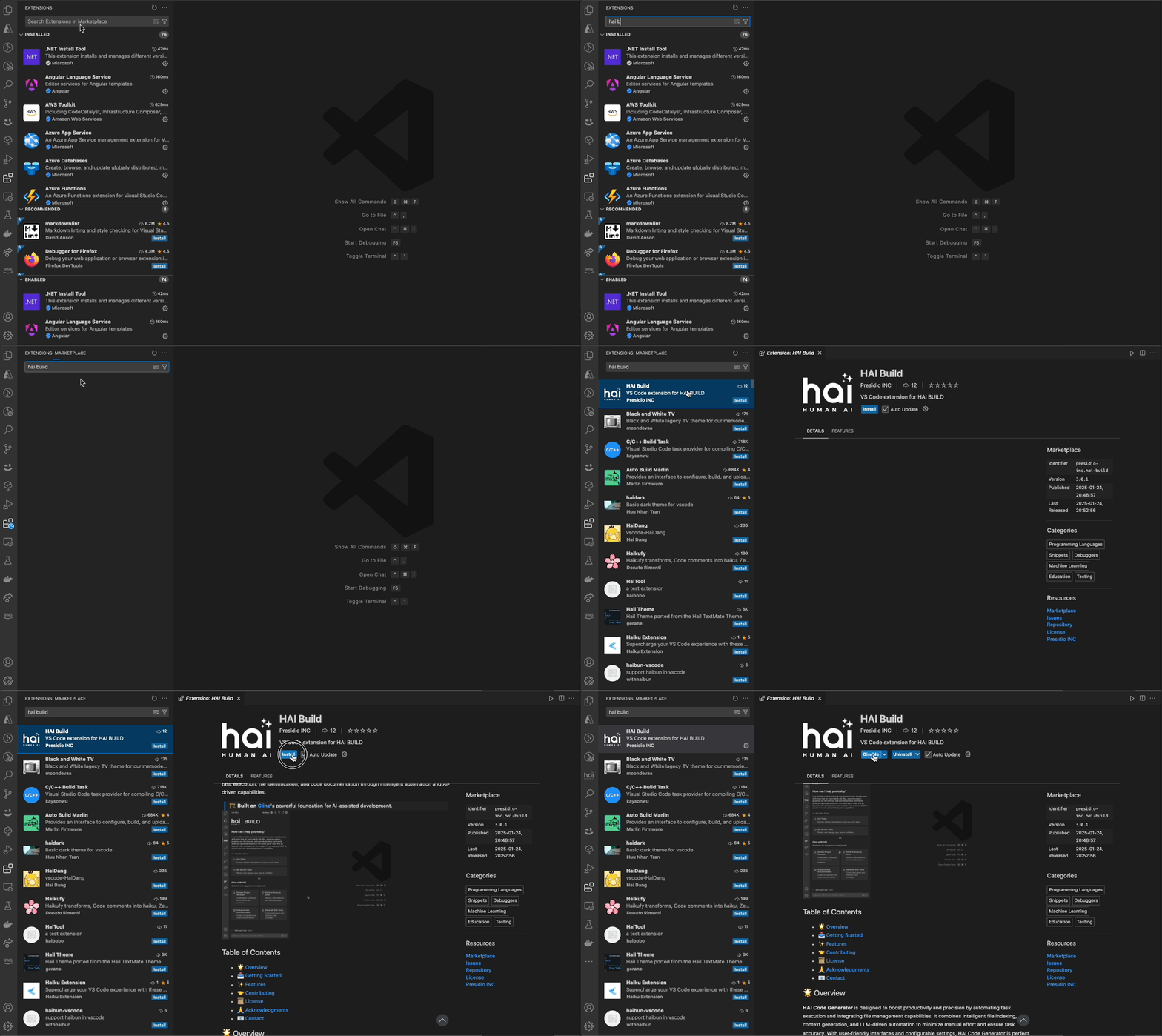
2

Search for HAI Build

Type “HAI Build” in the search bar
3

Install the Extension

Click the Install button next to “HAI Build Code Generator” by Presidio
4

Verify Installation

Look for the HAI icon in the VS Code activity bar (left sidebar)
HAI Build Installation

Alternative Installation Methods

Install via Command Palette

# 1. Open Command Palette
Ctrl+Shift+P (Windows/Linux)
Cmd+Shift+P (macOS)

# 2. Type: Extensions: Install Extensions
# 3. Search for "HAI Build"
# 4. Click Install

Install from VSIX File

For offline installation or testing pre-release versions:
1

Download VSIX

Download the .vsix file from GitHub Releases
2

Install from VSIX

Open Command Palette and run: Extensions: Install from VSIX...
3

Select File

Browse to your downloaded .vsix file and select it
4

Reload VS Code

Reload VS Code when prompted to activate the extension
When installing from VSIX files, you won’t receive automatic updates. Check GitHub releases manually for new versions.

Post-Installation Setup

After installing HAI Build, complete these configuration steps:

1. Open HAI Build Interface

Click the HAI icon in the activity bar or press Ctrl+' (Windows/Linux) or Cmd+' (macOS)
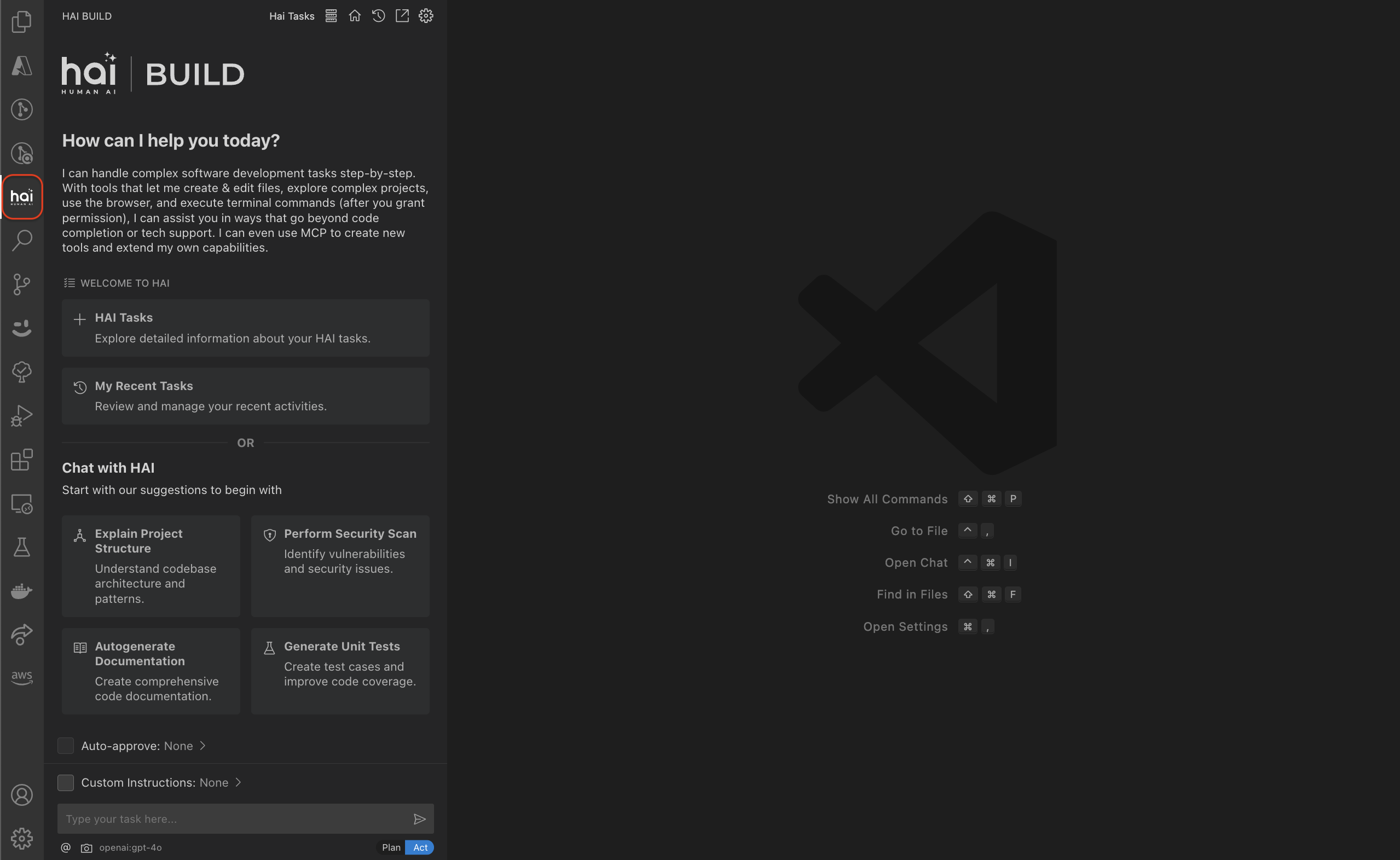
HAI Home Interface

2. Configure Your LLM Provider

1

Open Settings

Click the settings gear icon in the HAI sidebar or use the Settings button
2

Select Provider

Choose your preferred LLM provider from the dropdown:
  • Anthropic (Claude Sonnet, Opus, Haiku)
  • OpenAI (GPT-4, GPT-3.5)
  • Google (Gemini Pro, Ultra)
  • OpenRouter (Access to multiple providers)
  • Ollama (Local models)
  • AWS Bedrock, Azure, Vertex AI
3

Enter API Key

Paste your API key in the configuration field
4

Select Model

Choose the specific model you want to use (e.g., claude-sonnet-4.5)
Start with Claude Sonnet 3.5 or GPT-4 for the best balance of capability and cost. You can switch models anytime.

3. Configure Optional Features

Telemetry Settings

For teams wanting to track AI usage and metrics:
# Langfuse Configuration
langfuse.apiUrl=https://your-langfuse-instance.com
langfuse.apiKey=your-api-key
langfuse.publicKey=your-public-key

# PostHog Configuration
posthog.url=https://app.posthog.com
posthog.apiKey=your-posthog-key
Place this .hai.config file at your workspace root.
The .hai.config file is not git-excluded by default. Avoid committing sensitive API keys to version control.

MCP Servers

Extend HAI with Model Context Protocol servers:
1

Click MCP Icon

Click the server icon in the HAI sidebar navigation
2

Browse Marketplace

Explore available MCP servers for databases, APIs, and tools
3

Install Servers

Click install on servers you want to use with HAI
4

Configure

Provide any required configuration (connection strings, API keys, etc.)

4. Complete the Walkthrough

HAI Build includes an interactive walkthrough to help you learn key features:
# Open Command Palette (Ctrl+Shift+P / Cmd+Shift+P)
# Type: HAI: Open Walkthrough
# Follow the 5-step guided tour
The walkthrough covers:
  1. Goal-oriented prompting - How to communicate effectively with HAI
  2. Codebase learning - Letting HAI understand your project structure
  3. Model selection - Choosing the right AI models for your needs
  4. MCP tools - Extending capabilities with external integrations
  5. Control & approval - Reviewing and managing AI-generated changes

Verify Your Installation

Confirm everything is working correctly:
1

Open a Project

Open a workspace or folder in VS Code
2

Start a New Task

Click the + (New Task) button in the HAI sidebar
3

Test Simple Query

Ask HAI a simple question about your code: “Explain the structure of this project”
4

Review Response

Verify that HAI analyzes your codebase and provides a thoughtful response
If HAI doesn’t respond, check that:
  • Your API key is correctly configured
  • You have internet connectivity
  • Your selected model is available (check provider status pages)

Keyboard Shortcuts Reference

Memoize these shortcuts for efficient workflow:
# Focus HAI chat input
Ctrl+'

# Add selected code to HAI
Ctrl+' (with text selected)

# Open Extensions
Ctrl+Shift+X

# Open Command Palette
Ctrl+Shift+P

Troubleshooting

Extension Not Appearing

1

Reload VS Code

Press Ctrl+Shift+P / Cmd+Shift+P and run: Developer: Reload Window
2

Check Installation

Go to Extensions view and verify HAI Build is installed and enabled
3

Check VS Code Version

Ensure you’re running VS Code 1.84.0 or higher

API Key Issues

1

Verify Key Format

Ensure your API key has no extra spaces or line breaks
2

Check Provider Status

Visit your LLM provider’s status page to verify service availability
3

Test Key

Use the provider’s playground or API to verify the key works
4

Review Quotas

Check that you haven’t exceeded API rate limits or quotas

Performance Issues on Linux

Linux users may need additional system libraries:
sudo apt update
sudo apt install -y \
  dbus \
  libasound2 \
  libatk-bridge2.0-0 \
  libatk1.0-0 \
  libdrm2 \
  libgbm1 \
  libgtk-3-0 \
  libnss3 \
  libx11-xcb1 \
  libxcomposite1 \
  libxdamage1 \
  libxfixes3 \
  libxkbfile1 \
  libxrandr2 \
  xvfb

Next Steps

Now that HAI Build is installed and configured:

Quick Start Guide

Learn how to use HAI Build for your first task

GitHub Repository

Explore source code and contribute

Need Help?

Report an Issue

Found a bug? Let us know on GitHub

Request a Feature

Have an idea? Share it in Discussions

Email Support

Get help from the HAI team

Documentation

Browse comprehensive guides

Build docs developers (and LLMs) love