Installing Rowboat
Rowboat is available as a native desktop application for macOS, Windows, and Linux.Download
macOS
.dmg installerRequires macOS 10.15 or laterWindows
.exe installerRequires Windows 10 or laterLinux
AppImage or
.debTested on Ubuntu 20.04+Platform-specific installation
- macOS
- Windows
- Linux
Install from DMG
- Download the
.dmgfile for macOS - Open the downloaded file
- Drag Rowboat to your Applications folder
- Launch Rowboat from Applications
Data location
Rowboat stores all data in:Uninstall
- Quit Rowboat
- Move Rowboat.app to Trash from Applications
- (Optional) Delete
~/.rowboat/to remove all data
Google setup
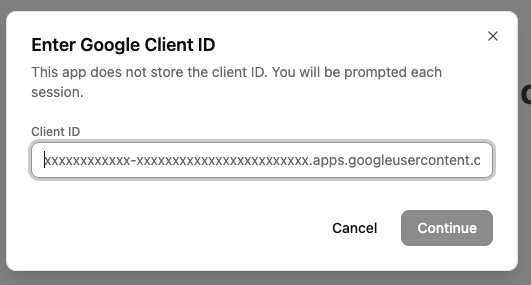
Rowboat requires a Google OAuth Client ID to connect Gmail, Calendar, and Drive.Create Google Cloud project
- Go to Google Cloud Console
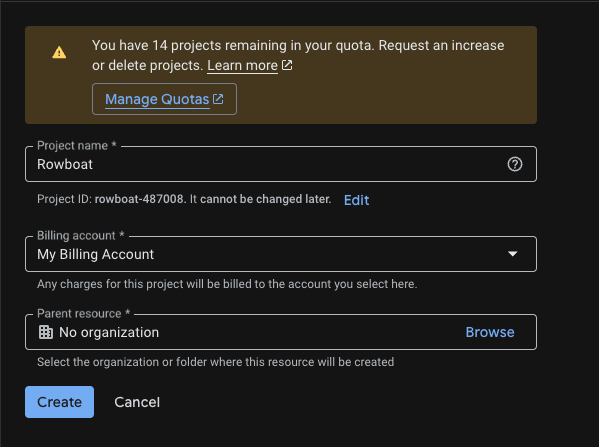
- Click Create Project
- Enter a project name (e.g., “Rowboat Integration”)
- Click Create
- Select the new project from the dropdown
Enable required APIs
Enable these three APIs: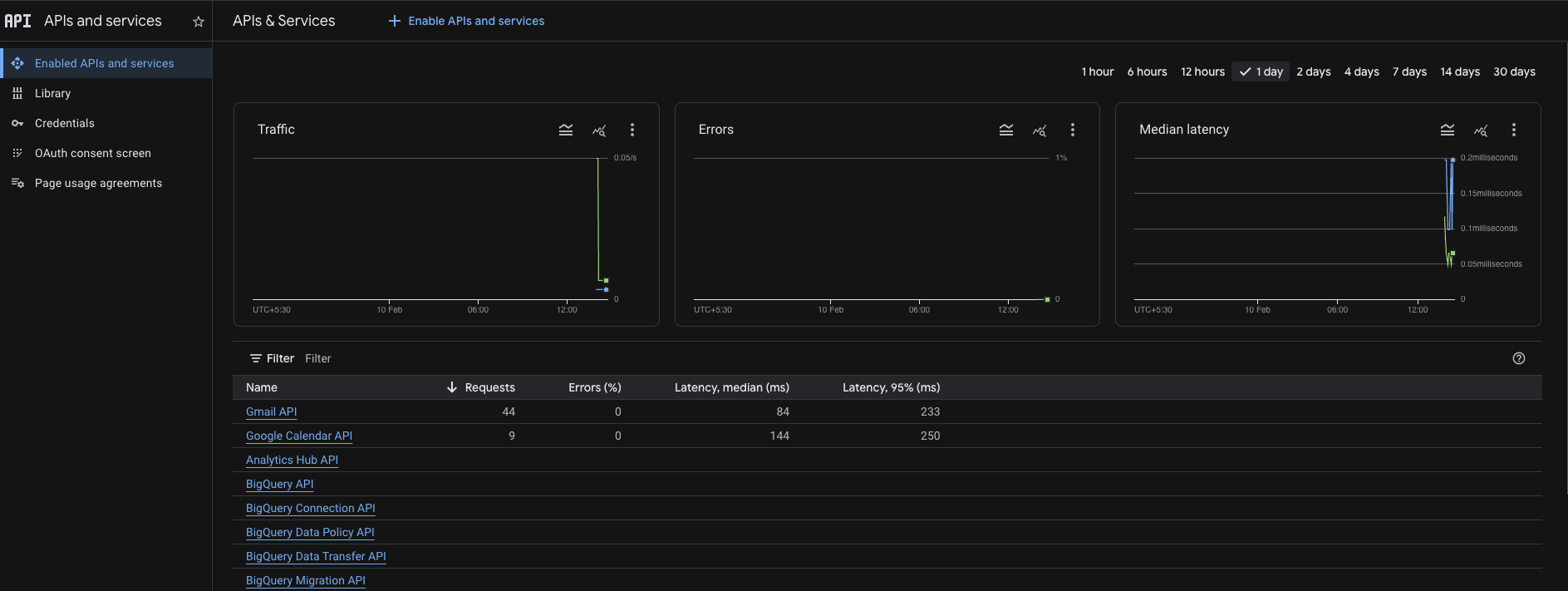
- Gmail API - Click Enable
- Google Calendar API - Click Enable
- Google Drive API - Click Enable
Configure OAuth consent screen
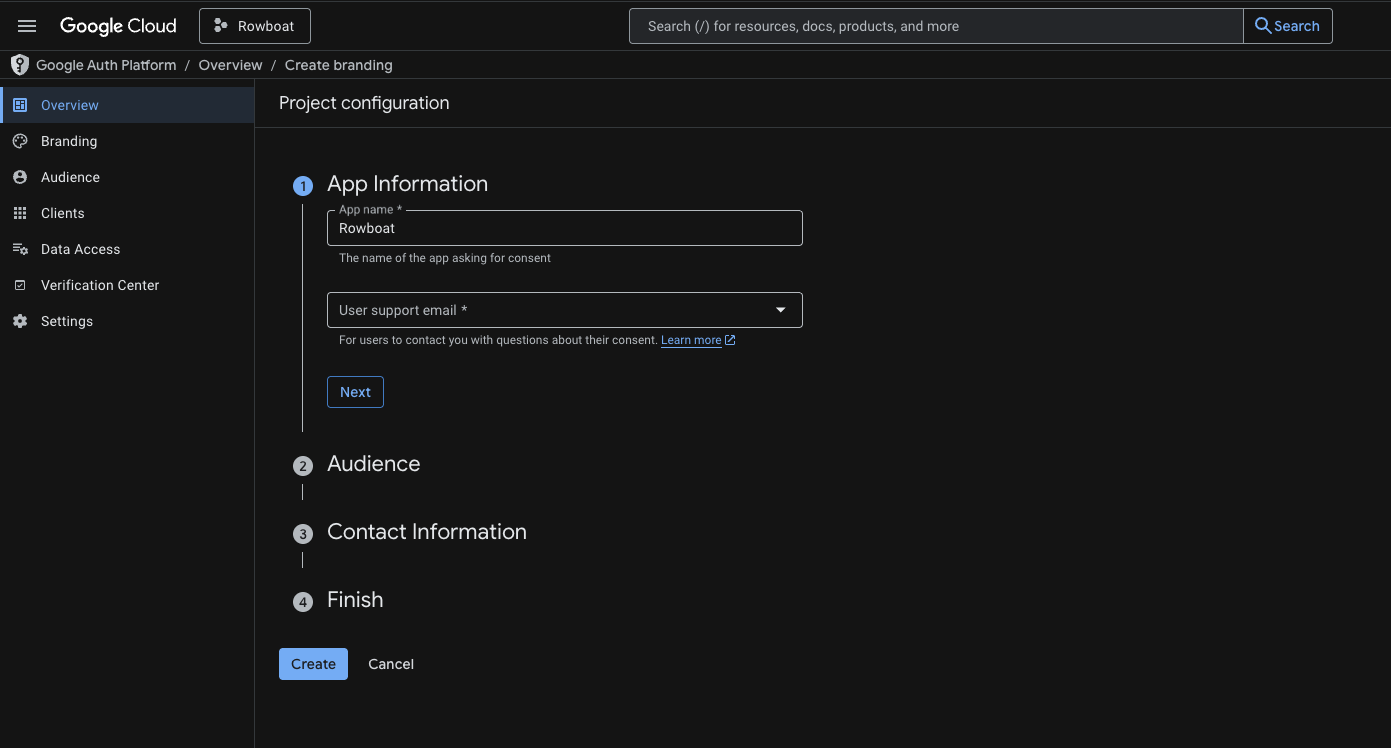
- Go to OAuth consent screen
- Choose External as audience type
- Fill in:
- App name: Rowboat (or your preferred name)
- User support email: Your email address
- Contact email: Your email address
- Click Save and Continue through all steps
You do NOT need to publish the app. Keeping it in Testing mode is completely fine for personal use.
Add test users
Since your app is in Testing mode, you must manually add authorized users.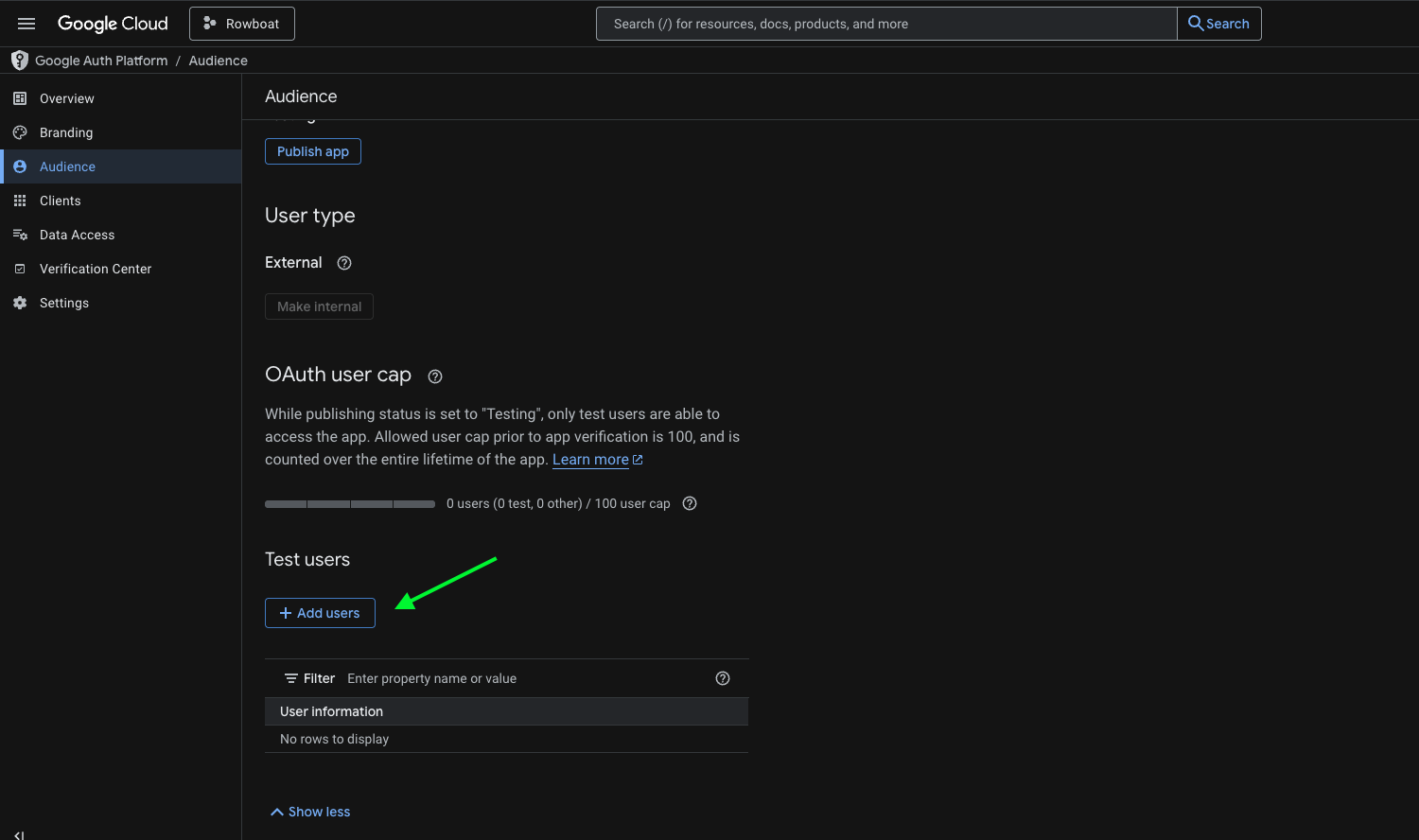
- Go to Test users
- Click Add Users
- Enter the email address you’ll connect with Rowboat
- Click Save
Create OAuth Client ID
- Go to Credentials
- Click Create Credentials → OAuth Client ID
- For Application type, select: Universal Windows Platform (UWP)
-
Enter:
- Name: Rowboat Desktop (or any name)
- Store ID: test (or any value)
- Click Create

Optional features
Voice notes
To enable voice note transcription with Deepgram:- Sign up at deepgram.com
- Get an API key from your Deepgram console
-
Create config file:
Voice memos are saved to
~/.rowboat/knowledge/Voice Memos/<date>/ as Markdown files with automatic transcription.Web search with Brave
To enable web search capabilities:- Get a Brave Search API key from brave.com/search/api
-
Create config file:
Research search with Exa
For enhanced research capabilities:- Get an Exa API key from exa.ai
-
Create config file:
Model configuration
Rowboat stores model config in~/.rowboat/config/models.json.
Example configurations
You can change models at any time through the Rowboat settings UI or by editing the config file directly.
Verification
After installation, verify everything works:-
Check data directory exists:
-
Verify knowledge folder was created:
You should see:
Welcome.mdPeople/Projects/Organizations/Topics/
-
Check logs for errors:
Troubleshooting
App won’t launch
macOS:- Right-click → Open (don’t double-click first time)
- Check Security & Privacy settings if blocked
- Run as Administrator if permissions error
- Check Windows Defender hasn’t quarantined the app
- Ensure AppImage is executable:
chmod +x Rowboat-*.AppImage - Install required dependencies:
sudo apt-get install libfuse2
Google OAuth fails
- Verify you added yourself as a test user
- Check that all three APIs (Gmail, Calendar, Drive) are enabled
- Ensure you created a UWP client type, not “Desktop app”
- Try revoking access at myaccount.google.com/permissions and re-authorizing
Knowledge graph not building
- Check that Gmail sync completed (look in
~/.rowboat/gmail_sync/) - Verify model configuration is valid in
~/.rowboat/config/models.json - Review logs in
~/.rowboat/logs/for errors - The graph builder runs every 30 seconds - give it a few minutes after first sync
Voice memos not transcribing
- Verify Deepgram API key is correct in
~/.rowboat/config/deepgram.json - Check you have recording permissions enabled for Rowboat
- Review logs for transcription errors
Next steps
Quickstart guide
Connect Google and make your first query
Configuration
Customize graph building, agents, and integrations