Native automation requires additional setup beyond the basic Patrol installation. This guide walks you through configuring your project for Android, iOS, and Web.
If you haven’t installed Patrol yet, start with the main installation guide.

Prerequisites

Before setting up native automation, ensure you have:
1

Patrol CLI installed

flutter pub global activate patrol_cli
2

Patrol package added

flutter pub add patrol --dev
3

pubspec.yaml configured

pubspec.yaml
patrol:
  app_name: My App
  android:
    package_name: com.example.myapp
  ios:
    bundle_id: com.example.MyApp

Platform-Specific Setup

Native automation requires integration with native test frameworks. Choose your platform:

Android Setup

Native automation on Android uses UiAutomator through Patrol’s custom test runner.
1

Create test directory

Create the androidTest directory structure:
mkdir -p android/app/src/androidTest/java/com/example/myapp
Replace com/example/myapp with your app’s package name path.
2

Create MainActivityTest.java

Create android/app/src/androidTest/java/com/example/myapp/MainActivityTest.java:
MainActivityTest.java
package com.example.myapp; // replace with your package

import androidx.test.platform.app.InstrumentationRegistry;
import org.junit.Test;
import org.junit.runner.RunWith;
import org.junit.runners.Parameterized;
import org.junit.runners.Parameterized.Parameters;
import pl.leancode.patrol.PatrolJUnitRunner;

@RunWith(Parameterized.class)
public class MainActivityTest {
    @Parameters(name = "{0}")
    public static Object[] testCases() {
        PatrolJUnitRunner instrumentation = (PatrolJUnitRunner) InstrumentationRegistry.getInstrumentation();
        instrumentation.setUp(MainActivity.class);
        instrumentation.waitForPatrolAppService();
        return instrumentation.listDartTests();
    }

    public MainActivityTest(String dartTestName) {
        this.dartTestName = dartTestName;
    }

    private final String dartTestName;

    @Test
    public void runDartTest() {
        PatrolJUnitRunner instrumentation = (PatrolJUnitRunner) InstrumentationRegistry.getInstrumentation();
        instrumentation.runDartTest(dartTestName);
    }
}
If your AndroidManifest.xml uses android:name="io.flutter.embedding.android.FlutterActivity", replace MainActivity.class with io.flutter.embedding.android.FlutterActivity.class.
3

Configure build.gradle.kts

Edit android/app/build.gradle.kts and add to defaultConfig:
android/app/build.gradle.kts
android {
    defaultConfig {
        // ...
        testInstrumentationRunner = "pl.leancode.patrol.PatrolJUnitRunner"
        testInstrumentationRunnerArguments["clearPackageData"] = "true"
    }

    testOptions {
        execution = "ANDROIDX_TEST_ORCHESTRATOR"
    }
}

dependencies {
    // ...
    androidTestUtil("androidx.test:orchestrator:1.5.1")
}
4

Handle ProGuard (if enabled)

ProGuard can cause ClassNotFoundException issues. Either keep Patrol packages or disable ProGuard for debug builds:
android/app/build.gradle.kts
buildTypes {
    getByName("debug") {
        isMinifyEnabled = false
        isShrinkResources = false
    }
}
5

Verify setup

Run a test to verify everything works:
patrol test --target patrol_test/example_test.dart

Groovy Build Files

If your project uses Groovy (.gradle files instead of .gradle.kts):
android/app/build.gradle
android {
    defaultConfig {
        // ...
        testInstrumentationRunner "pl.leancode.patrol.PatrolJUnitRunner"
        testInstrumentationRunnerArguments clearPackageData: "true"
    }

    testOptions {
        execution "ANDROIDX_TEST_ORCHESTRATOR"
    }
}

dependencies {
    // ...
    androidTestUtil "androidx.test:orchestrator:1.5.1"
}

Configuration Options

Native Automator Config

You can customize native automation behavior in your tests:
patrol_test/example_test.dart
import 'package:patrol/patrol.dart';

PatrolTesterConfig patrolConfig = PatrolTesterConfig(
  platformConfig: PlatformAutomatorConfig.fromOptions(
    // Connection timeout (must be > findTimeout)
    connectionTimeout: const Duration(seconds: 30),
    
    // Time to wait for native views to appear
    findTimeout: const Duration(seconds: 10),
    
    // How keyboard behaves when entering text
    keyboardBehavior: KeyboardBehavior.showAndDismiss,
    
    // Android package name
    packageName: 'com.example.myapp',
    
    // iOS bundle identifier
    bundleId: 'com.example.MyApp',
    
    // App names for notification handling
    androidAppName: 'My App',
    iosAppName: 'My App',
  ),
);

void main() {
  patrolTest(
    'test with custom config',
    config: patrolConfig,
    ($) async {
      // Your test code
    },
  );
}

Keyboard Behavior

Control how the keyboard is handled when entering text:
// Show keyboard when entering text, dismiss after
KeyboardBehavior.showAndDismiss  // Default

// Alternative keyboard behaviors
KeyboardBehavior.alternative  // Platform-specific alternative

Troubleshooting

Android

Ensure you’ve added patrol to your pubspec.yaml dev_dependencies and run:
flutter pub get
Verify your patrol_test directory exists and contains .dart test files.
Disable ProGuard for debug builds or configure keep rules for Patrol classes.

iOS

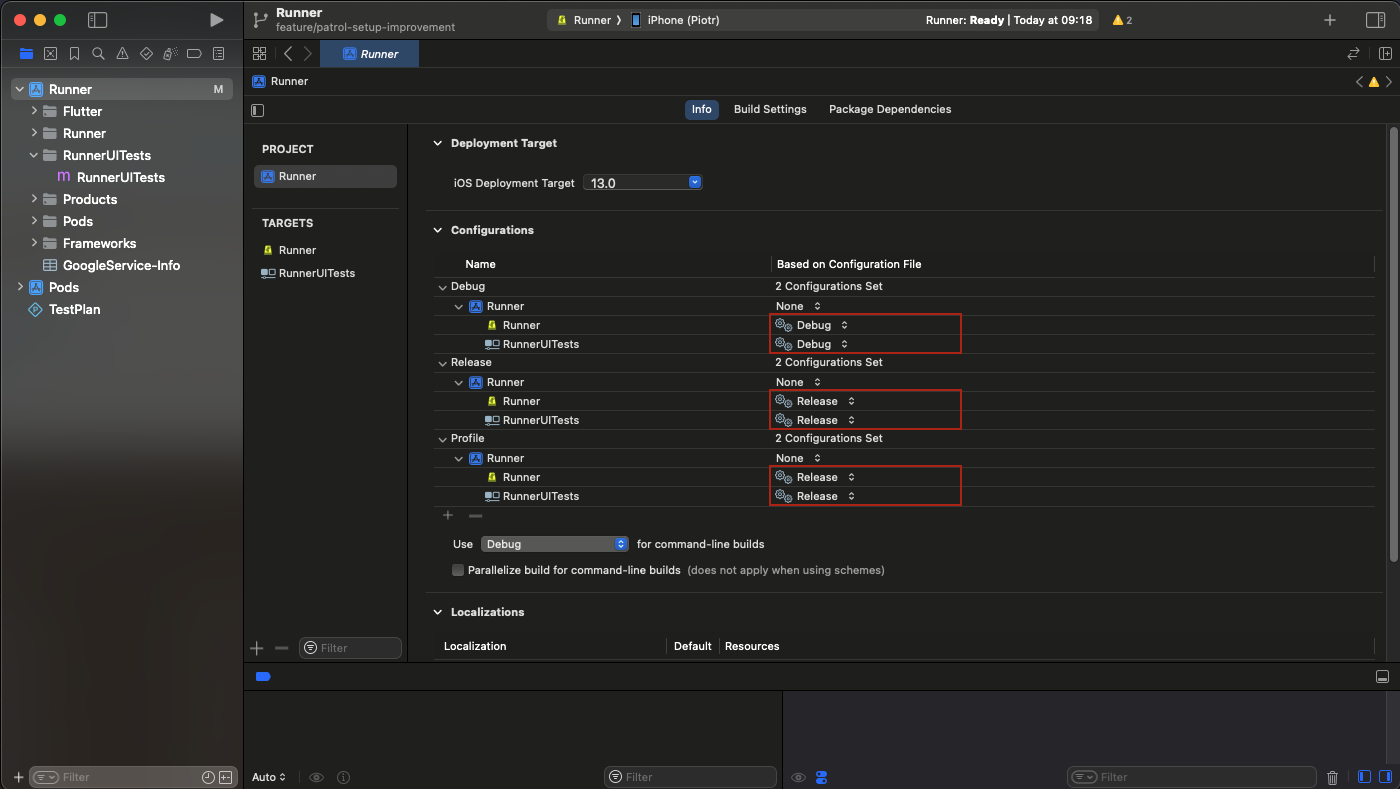
Ensure you ran pod install in the ios directory after updating Podfile.
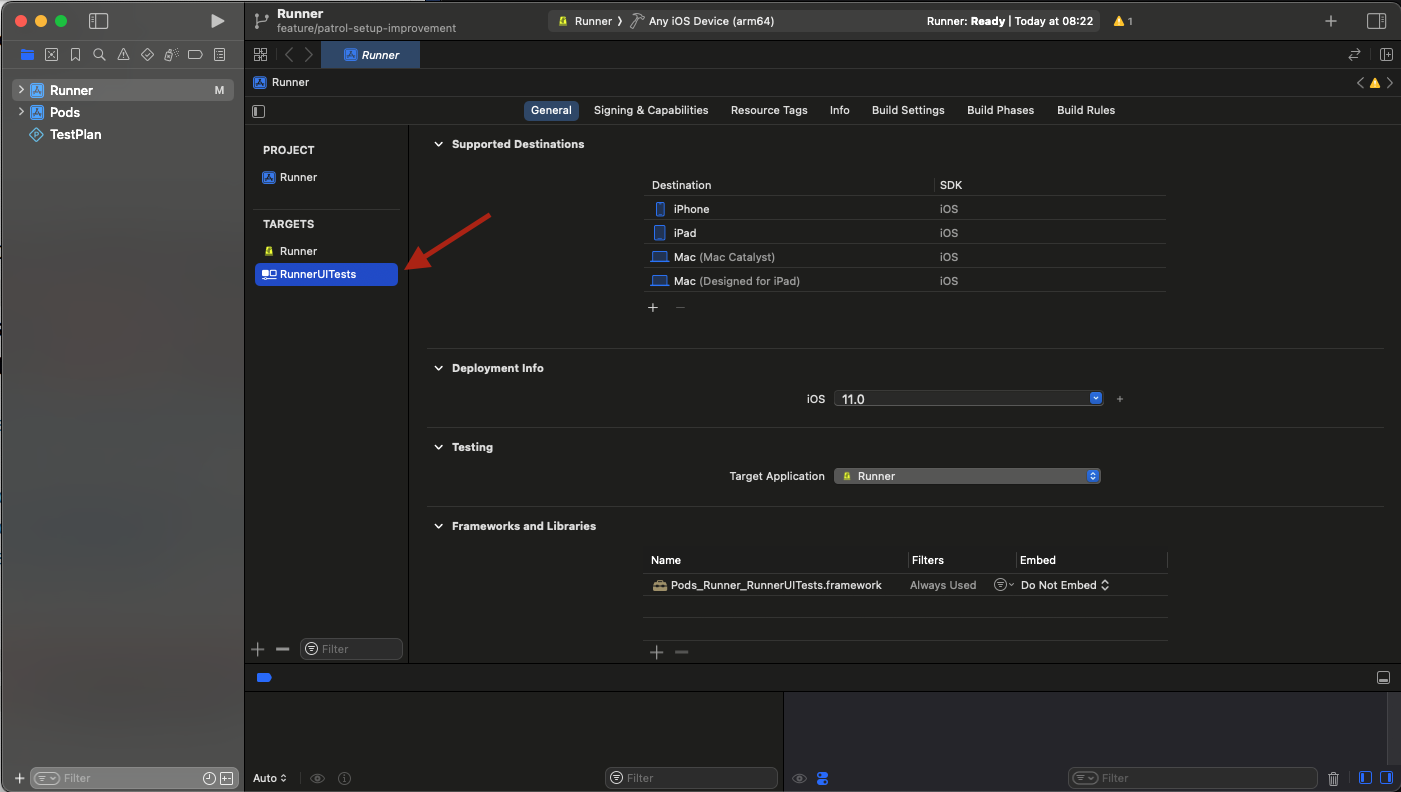
Disable parallel execution in all Xcode schemes (Edit Scheme > Test > uncheck “Execute in parallel”).
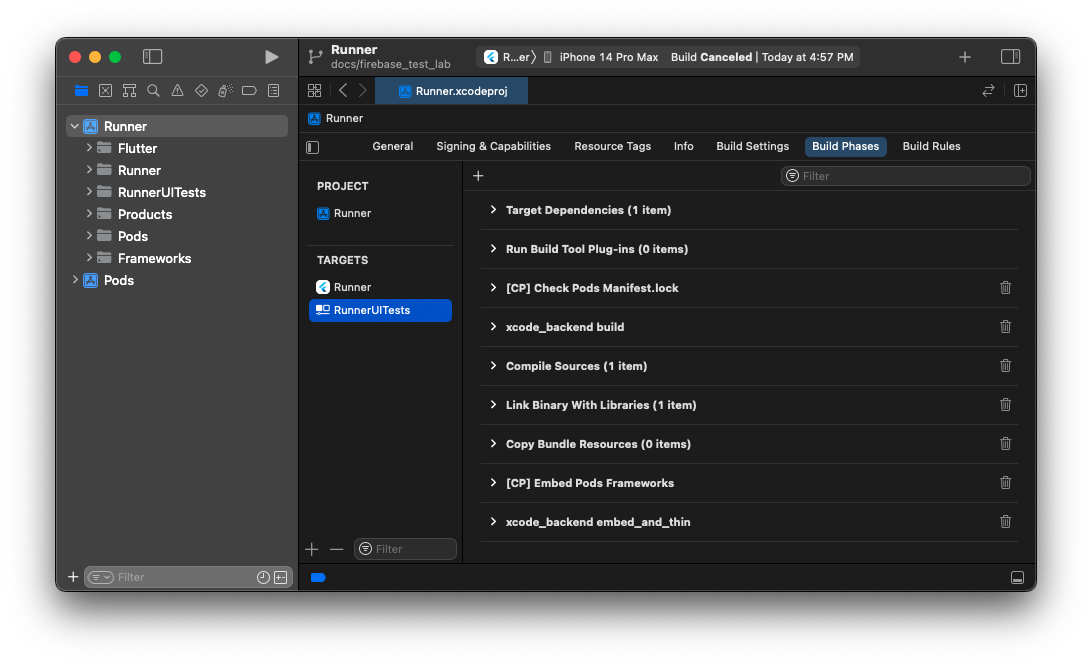
Verify the xcode_backend scripts are in the correct order and User Script Sandboxing is disabled.

Web

Install Node.js from nodejs.org or use a version manager like nvm.
Let Patrol install drivers automatically on first run, or manually run:
npx playwright install

Next Steps

Usage Guide

Learn how to use the native automation API

Write Your First Test

Create your first Patrol test with native automation

Build docs developers (and LLMs) love