Patrol provides comprehensive support for testing Flutter applications on iOS devices and simulators. Built on top of XCTest and XCUITest frameworks, Patrol enables you to interact with both Flutter widgets and native iOS UI elements.

Platform Support

Patrol supports:
  • iOS 13 and newer
  • Both physical devices and simulators
  • iOS-specific native interactions
  • iPhone and iPad devices
Patrol requires iOS 13 or higher. Make sure your deployment target in Xcode is set to at least iOS 13.0.

Setup Requirements

Before testing on iOS, ensure you have the following installed:
1

macOS with Xcode

Patrol iOS testing requires:
  • macOS (iOS development is only supported on macOS)
  • Xcode 13.0 or newer
Verify Xcode is installed:
xcodebuild -version
2

Xcode Command Line Tools

Install command line tools:
xcode-select --install
3

CocoaPods

Patrol uses CocoaPods for iOS dependencies. Install if not already present:
sudo gem install cocoapods
Verify installation:
pod --version
4

For Physical Devices: ideviceinstaller

To test on physical iOS devices, install ideviceinstaller:
brew install ideviceinstaller

Native Integration

To enable Patrol’s native automation on iOS, you need to configure your app’s test infrastructure in Xcode.
1

Configure pubspec.yaml

Add your iOS bundle identifier to pubspec.yaml:
pubspec.yaml
patrol:
  app_name: My App
  ios:
    bundle_id: com.example.MyApp
Find your bundle ID in ios/Runner.xcodeproj/project.pbxproj by searching for PRODUCT_BUNDLE_IDENTIFIER.
2

Open Xcode Project

Open your iOS project in Xcode:
open ios/Runner.xcworkspace
Always open the .xcworkspace file, not .xcodeproj, when using CocoaPods.
3

Create UI Test Target

If you don’t have a UI test target:
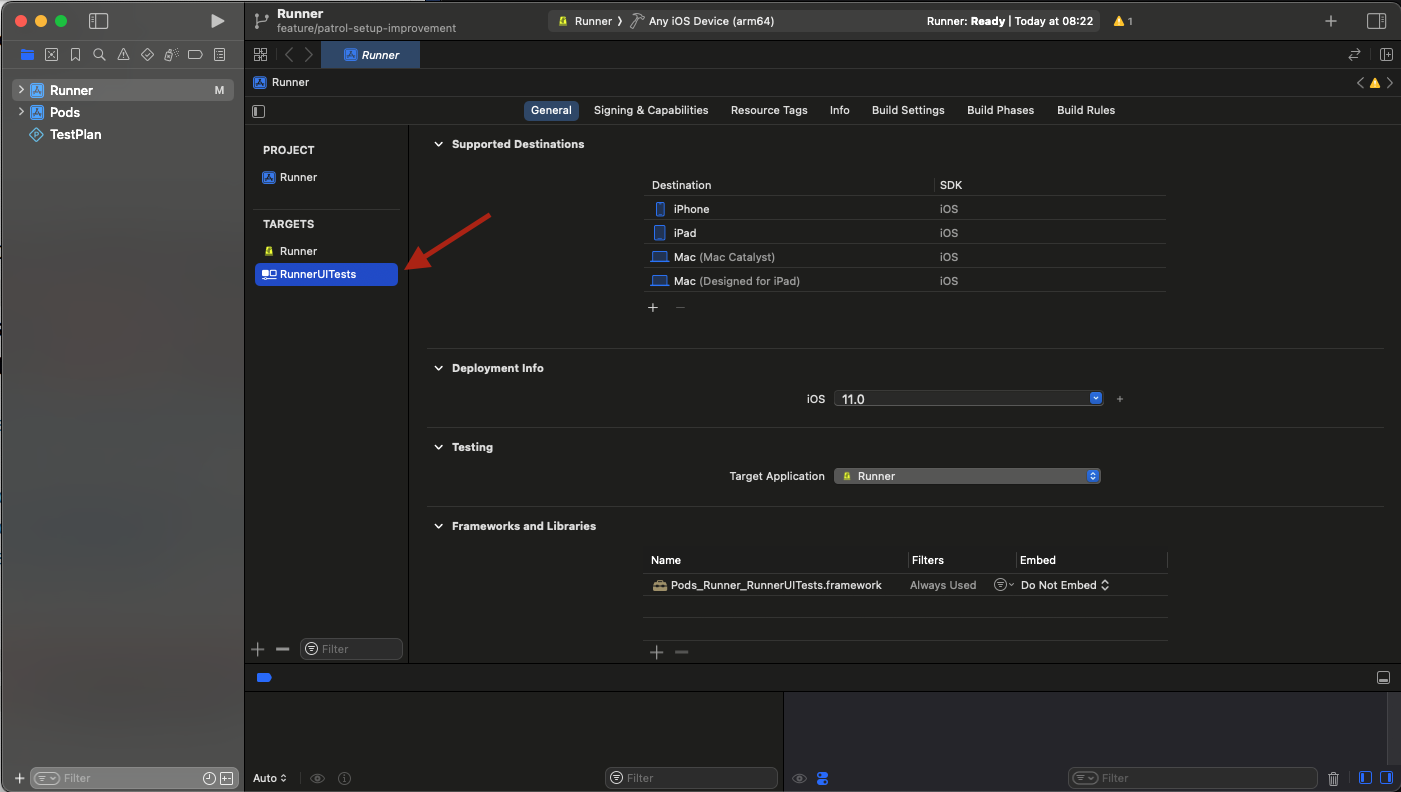
  1. Select File > New > Target…
  2. Choose UI Testing Bundle
  3. Set Product Name to RunnerUITests
  4. Set Organization Identifier to match Runner’s identifier
  5. Set Target to be Tested to Runner
  6. Set Language to Objective-C
  7. Click Finish
Xcode iOS test target
4

Delete Unnecessary Files

Delete RunnerUITestsLaunchTests.m through Xcode (right-click > Move to Trash).
5

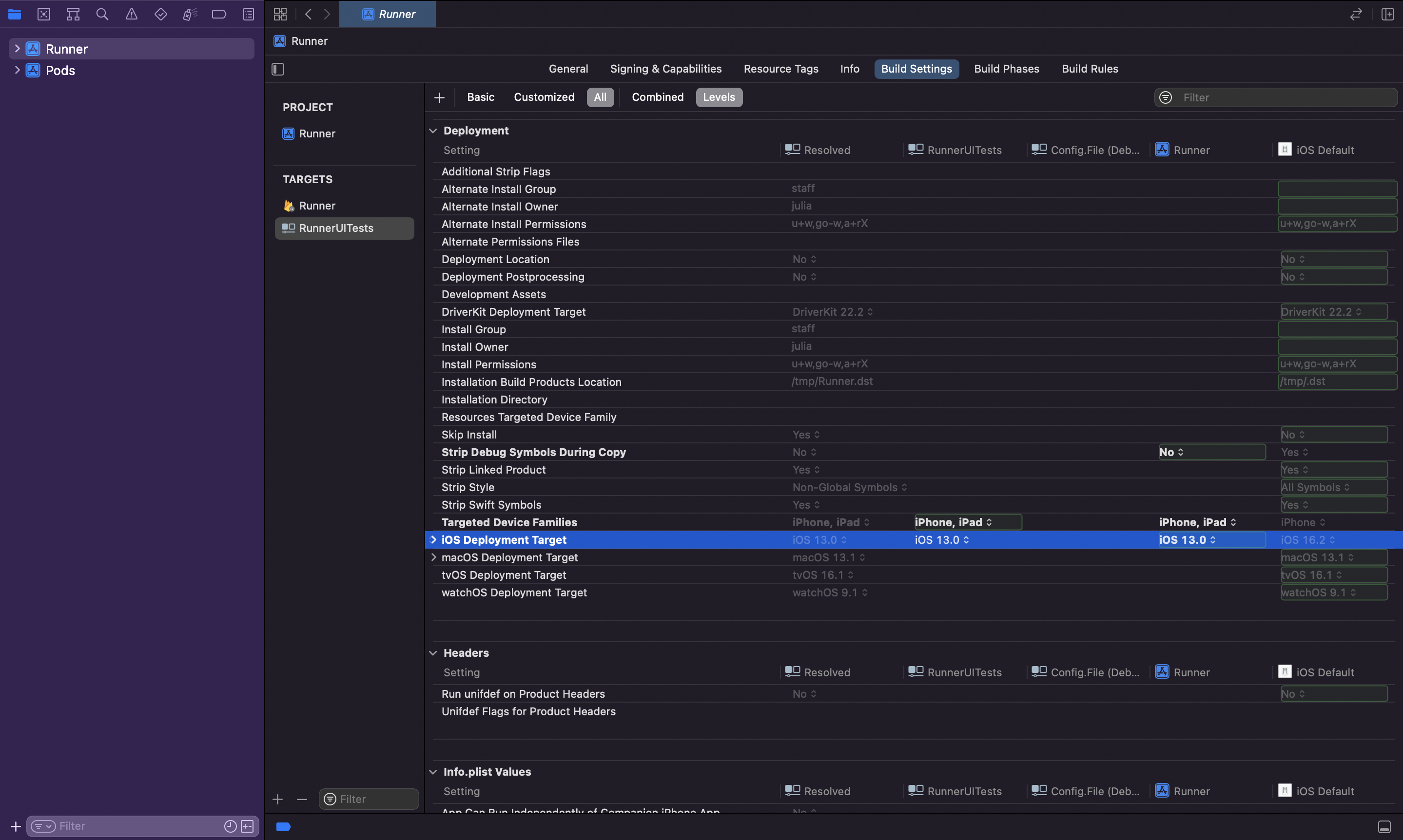
Set Deployment Target

Ensure RunnerUITests deployment target matches Runner:
  1. Select RunnerUITests target
  2. Go to Build Settings
  3. Search for iOS Deployment Target
  4. Set to same version as Runner (minimum iOS 13.0)
Xcode iOS deployment target
6

Configure RunnerUITests.m

Replace the contents of ios/RunnerUITests/RunnerUITests.m:
ios/RunnerUITests/RunnerUITests.m
@import XCTest;
@import patrol;
@import ObjectiveC.runtime;

PATROL_INTEGRATION_TEST_IOS_RUNNER(RunnerUITests)
7

Update Podfile

Add RunnerUITests target to ios/Podfile:
ios/Podfile
target 'Runner' do
  # Existing configuration...
  
  target 'RunnerUITests' do
    inherit! :complete
  end
end
8

Build Configuration

Run Flutter build to generate necessary configuration:
flutter build ios --config-only patrol_test/example_test.dart
9

Install Pods

Navigate to the ios directory and install dependencies:
cd ios
pod install --repo-update
cd ..
10

Configure Build Phases

In Xcode, select RunnerUITests target:
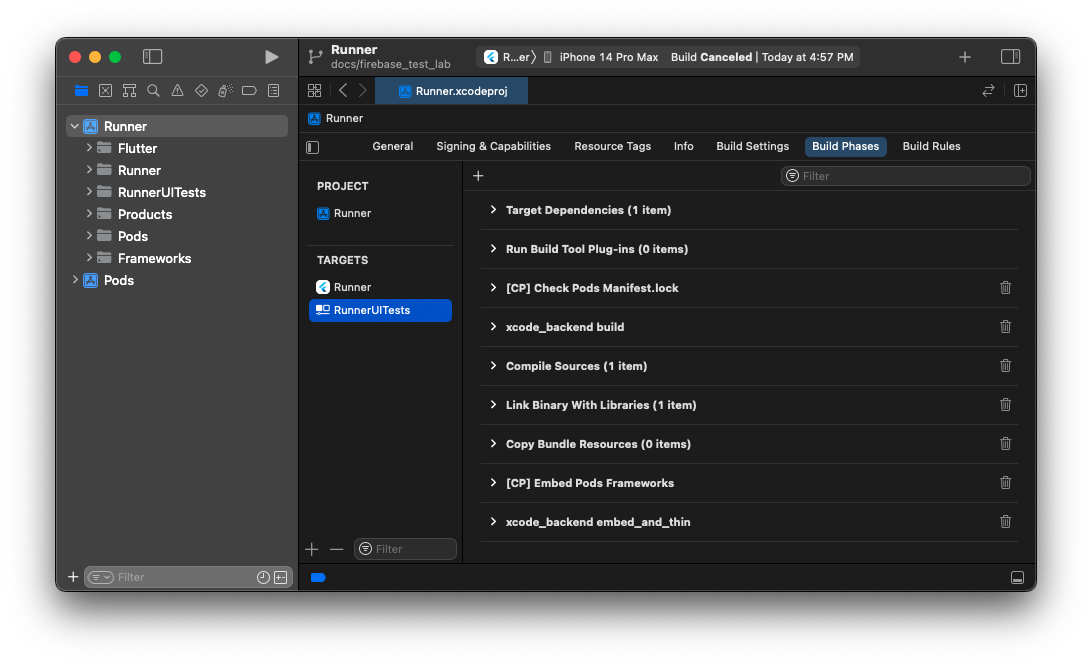
  1. Go to Build Phases
  2. Click + > New Run Script Phase (add 2 phases)
  3. Name them:
    • xcode_backend build
    • xcode_backend embed_and_thin
  4. Arrange in this order:
    • Dependencies
    • xcode_backend build
    • Compile Sources
    • xcode_backend embed_and_thin
    • Link Binary With Libraries
Xcode build phases
11

Add Build Scripts

Add scripts to the build phases:xcode_backend build:
/bin/sh "$FLUTTER_ROOT/packages/flutter_tools/bin/xcode_backend.sh" build
xcode_backend embed_and_thin:
/bin/sh "$FLUTTER_ROOT/packages/flutter_tools/bin/xcode_backend.sh" embed_and_thin
12

Disable Parallel Execution

Critical: Disable parallel execution in Xcode:
  1. Select Product > Scheme > Edit Scheme…
  2. Go to Test tab
  3. Uncheck Execute in parallel
  4. Repeat for all schemes if you have multiple
Parallel execution breaks Patrol. Make sure this is disabled for all schemes.
Watch the setup video for a visual guide.
13

Disable User Script Sandboxing

  1. Select RunnerUITests target
  2. Go to Build Settings
  3. Search for User Script Sandboxing
  4. Set to No
14

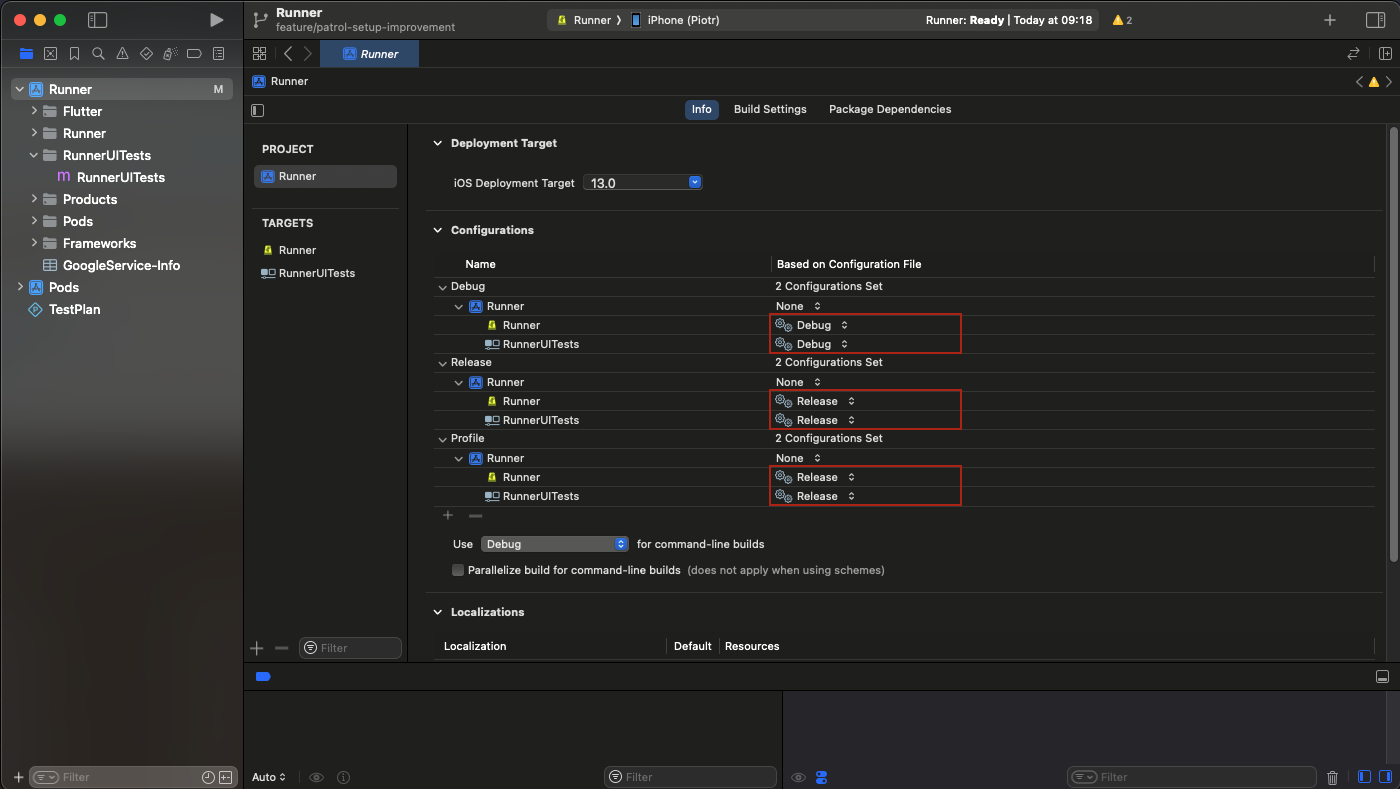
Match Configuration Sets

Ensure RunnerUITests uses the same configuration set as Runner:
  1. Select project in navigator
  2. Select project (not target) in editor
  3. Go to Info tab
  4. For each configuration (Debug, Profile, Release), set RunnerUITests to match Runner
Xcode config setup

Running Tests

On Simulator

Start an iOS simulator and run your tests:
patrol test --target patrol_test/app_test.dart
Patrol will automatically select an available simulator or you can specify one:
patrol devices  # List available simulators
patrol test --device "iPhone 15 Pro" --target patrol_test/app_test.dart

On Physical Device

Testing on physical iOS devices requires additional setup. See the Physical Devices page for detailed instructions.
Physical device testing requires proper code signing and provisioning profiles configured in Xcode.

iOS-Specific Features

Patrol provides iOS-specific automation through $.platform.ios:

UI Interactions

// Tap on native iOS views
await $.platform.ios.tap(
  IOSSelector(label: 'Accept'),
);

// Double tap
await $.platform.ios.doubleTap(
  IOSSelector(identifier: 'submitButton'),
);

// Tap at specific coordinates
await $.platform.ios.tapAt(x: 100, y: 200);

// Enter text into native views
await $.platform.ios.enterText(
  IOSSelector(placeholderValue: 'Enter email'),
  text: '[email protected]',
);

// Enter text by index
await $.platform.ios.enterTextByIndex('username', index: 0);
await $.platform.ios.enterTextByIndex('password', index: 1);

Gestures

// Swipe
await $.platform.ios.swipe(
  from: IOSSelector(label: 'Item 1'),
  to: IOSSelector(label: 'Item 5'),
);

// Swipe back gesture (edge swipe)
await $.platform.ios.swipeBack();

// Pull to refresh
await $.platform.ios.pullToRefresh();

Notifications

// Close heads-up notification
await $.platform.ios.closeHeadsUpNotification();

// Tap on notification by selector
await $.platform.mobile.openNotifications();
await $.platform.ios.tapOnNotificationBySelector(
  IOSSelector(titleContains: 'New message'),
);

// Tap by index
await $.platform.ios.tapOnNotificationByIndex(0);
// Take a photo with camera
await $.platform.ios.takeCameraPhoto();

// Pick image from Photos
await $.platform.ios.pickImageFromGallery();

// Pick multiple images
await $.platform.ios.pickMultipleImagesFromGallery();

WebView Interactions

// iOS supports WebView interactions
await $.platform.ios.tap(
  IOSSelector(label: 'Submit', appId: 'com.apple.WebKit'),
);

iOS Selectors

Use IOSSelector to target native iOS views:
// By label
IOSSelector(label: 'Submit')

// By identifier
IOSSelector(identifier: 'submitButton')

// By label contains
IOSSelector(labelContains: 'Submit')

// By label starts with
IOSSelector(labelStartsWith: 'Sub')

// By placeholder value
IOSSelector(placeholderValue: 'Enter text')

// By title contains (for notifications)
IOSSelector(titleContains: 'New')

// By text
IOSSelector(text: 'Submit')

// By text contains
IOSSelector(textContains: 'Submit')

// Combine with app ID for WebViews
IOSSelector(
  label: 'Button',
  appId: 'com.apple.WebKit',
)

Capabilities

iOS platform features available through $.platform.mobile (cross-platform) and $.platform.ios (iOS-only):
FeatureStatus
Press home
Open app
Open notifications
Close notifications
Open quick settings✅ (Control Center)
Open URL
Enable/disable dark mode
Enable/disable airplane mode
Enable/disable cellular
Enable/disable Wi-Fi
Enable/disable Bluetooth
Press volume up/down✅ (physical devices only)
Handle permission dialogs
Set mock location
Tap native views
Enter text
Swipe
Pull to refresh
Tap on notifications
Close heads-up notification
Camera & gallery
WebView interaction
For a complete feature parity comparison across all platforms, see the Feature Parity page.

Limitations

Volume Buttons

Volume button controls ($.platform.mobile.pressVolumeUp() and pressVolumeDown()) are not supported on iOS simulators. They only work on physical devices.

Simulator Permissions

Some permissions behave differently on simulators:
  • Location services can be mocked on simulators
  • Camera access uses a simulated camera
  • Push notifications work differently than on physical devices

Code Signing

Physical device testing requires:
  • Valid Apple Developer account
  • Proper provisioning profiles
  • Code signing configuration for both Runner and RunnerUITests targets
See Physical Devices for detailed setup.

Troubleshooting

Simulator Cloning

If simulators are being cloned when running tests:
This happens when parallel execution is enabled. Make sure you disabled “Execute in parallel” for all schemes in Xcode.
Watch this video for instructions.

Test Stops at “Wait for com.example.myapp to idle”

  1. Search for FLUTTER_TARGET in your Xcode project files
  2. Remove FLUTTER_TARGET (both key and value) from:
    • *.xcconfig files
    • *.pbxproj files
  3. Regenerate configuration:
    flutter build ios --config-only patrol_test/example_test.dart
    

Real App Opens Instead of Test

This is also caused by incorrect FLUTTER_TARGET configuration:
  1. Remove FLUTTER_TARGET from all Xcode configuration files
  2. Regenerate with the Flutter build command above

Build Fails with Deployment Version Mismatch

  1. Check ios/Podfile has the correct platform version:
    platform :ios, '13.0'
    
  2. Verify all targets have matching deployment targets:
    • Select each target in Xcode
    • Go to Build Settings
    • Search for iOS Deployment Target
    • Ensure all match the Podfile version

Pod Install Fails

# Update CocoaPods
sudo gem install cocoapods

# Clear caches
cd ios
rm -rf Pods Podfile.lock
pod cache clean --all
pod install --repo-update

Next Steps

Physical Devices

Set up testing on physical iOS devices

Feature Parity

See all available iOS features

Write Your First Test

Start writing Patrol tests

Android Platform

Testing on Android devices

Build docs developers (and LLMs) love