
Prerequisite: This guide requires WSA with Magisk installed. BusyBox is not available for non-root builds. If you need root access, install a Magisk variant of WSA.
What is BusyBox?
BusyBox combines tiny versions of many common Unix utilities into a single small executable. It provides replacements for most utilities you usually find in GNU fileutils, shellutils, etc. Common BusyBox tools include:- File management:
cp,mv,rm,ls,cat,grep - Networking:
wget,netstat,ping,ifconfig - System:
ps,kill,mount,umount - Text processing:
sed,awk,cut,sort - And hundreds more…
Why Install BusyBox?
BusyBox is useful for:- Advanced terminal operations via ADB shell
- Running shell scripts that require Unix utilities
- System administration and debugging
- Using Magisk modules that depend on BusyBox
- Automating tasks with shell scripts
- Development and testing
Installation Process
Since Magisk has BusyBox built-in, installation is straightforward using a Magisk module that creates symlinks to the built-in binary.
Download BusyBox Magisk Module
Using an Android browser in WSA:
- Install a browser if you haven’t already (sideloading guide)
- Download the BuiltIn-BusyBox Magisk Module
- Save the
.zipfile to a memorable location
Install Module via Magisk Manager
- Open Magisk Manager app in WSA
- Tap the Modules tab (puzzle piece icon)
- Tap Install from storage
- Navigate to the downloaded
.zipfile - Select the file to begin installation
- Wait for “Done!” message
- Tap Reboot (or manually restart WSA)
Verifying Installation
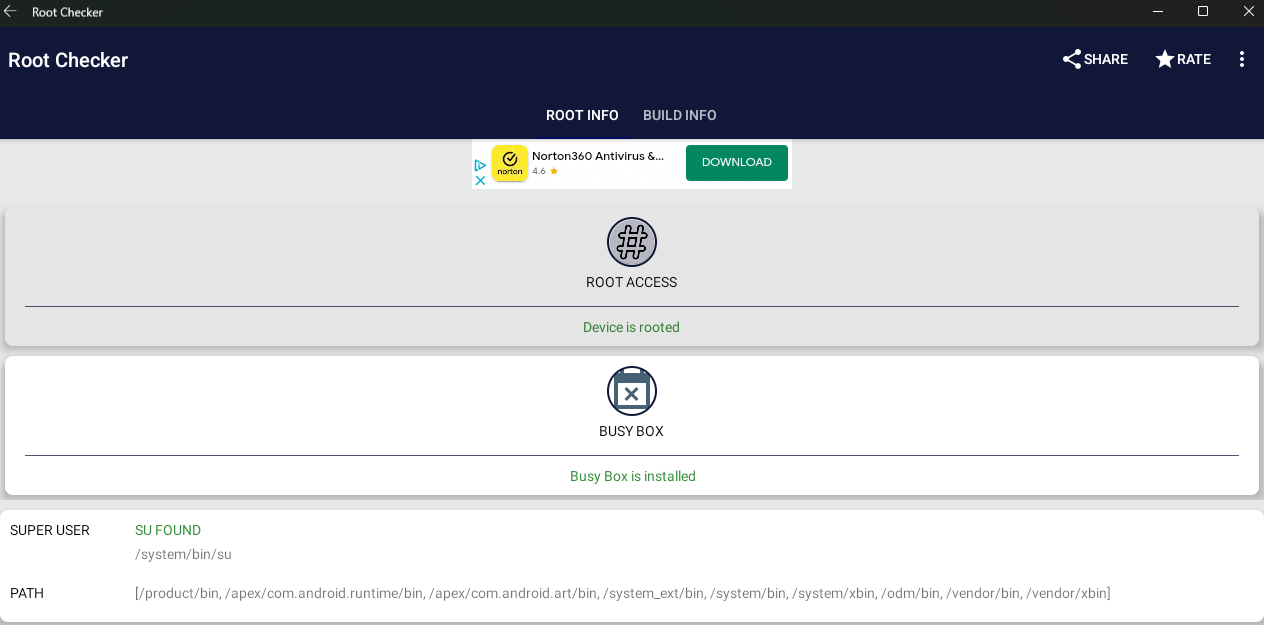
Confirm BusyBox is working correctly using one of these methods:- Root Checker App
- ADB Shell
- Install a root checker app (e.g., Root Checker Basic)
- Open the app and run a root check
- Verify BusyBox is detected and functional

Using BusyBox
Basic Commands
Once installed, BusyBox commands are available in ADB shell:Symlinks
The BusyBox module creates symlinks for all applets, allowing you to use commands directly:List All Available Commands
Advanced Usage
Shell Scripts
Create and run shell scripts using BusyBox utilities:backup.sh
System Analysis
Analyze system resources and processes:Troubleshooting
BusyBox command not found
BusyBox command not found
Possible causes:
- Module not installed correctly
- WSA not restarted after installation
- Not running as root
- Verify module is enabled in Magisk Manager
- Restart WSA completely (not just reboot)
- Run
subefore using BusyBox commands - Check if BusyBox binary exists:
ls -la /system/xbin/busybox
Magisk module installation fails
Magisk module installation fails
Solutions:
- Ensure you’re using a Magisk-enabled WSA build
- Verify Magisk Manager is working correctly
- Try redownloading the module (file might be corrupted)
- Check Magisk logs for error messages
- Update Magisk if you’re using an old version
Some BusyBox commands don't work
Some BusyBox commands don't work
Explanation: Not all BusyBox commands work perfectly on Android due to:
- Different kernel features
- Android-specific filesystem restrictions
- SELinux policies
- Use Android-native alternatives when available
- Check command compatibility with
busybox --help <command> - Some operations require SELinux permissive mode
Permission denied errors
Permission denied errors
Solutions:
- Ensure you’re running as root:
su - Check file/directory permissions:
ls -la - Some protected system areas may not be writable even with root
- SELinux may be blocking operations (check with
getenforce)
BusyBox Alternatives
If you need specific utilities not included in BusyBox:Termux
Full Linux environment with package manager - install as an app
Toybox
Alternative to BusyBox, included in recent Android versions
Individual Binaries
Compile or download specific tools (wget, curl, etc.)
Magisk Modules
Other modules provide additional command-line tools
Useful BusyBox Modules
Consider installing these complementary Magisk modules:- SQLite3: Database management tool
- Busybox NDK: Compiled with Android NDK for better compatibility
- Systemless Hosts: Advanced hosts file management
- Terminal Emulator: Run commands directly in Android
Resources
- BusyBox Official Website
- BusyBox Command Documentation
- BuiltIn-BusyBox Module GitHub
- Magisk Documentation
Need Help?
Join the WSA Community Discord for BusyBox support and advanced usage tips