
When to Change GPU
You might need to change the GPU if you experience:- Black screens or rendering issues in Android apps
- Poor graphics performance in games or graphics-intensive apps
- Intel HD Graphics compatibility problems
- Crashes when opening certain apps
- Better battery life needed (switch to integrated GPU)
- Better performance needed (switch to dedicated GPU)
Changing the GPU
Open WSA Settings
Launch Windows Subsystem for Android Settings from the Start Menu or search for it using Windows Search (Win + S).
Turn Off WSA
Before changing GPU settings: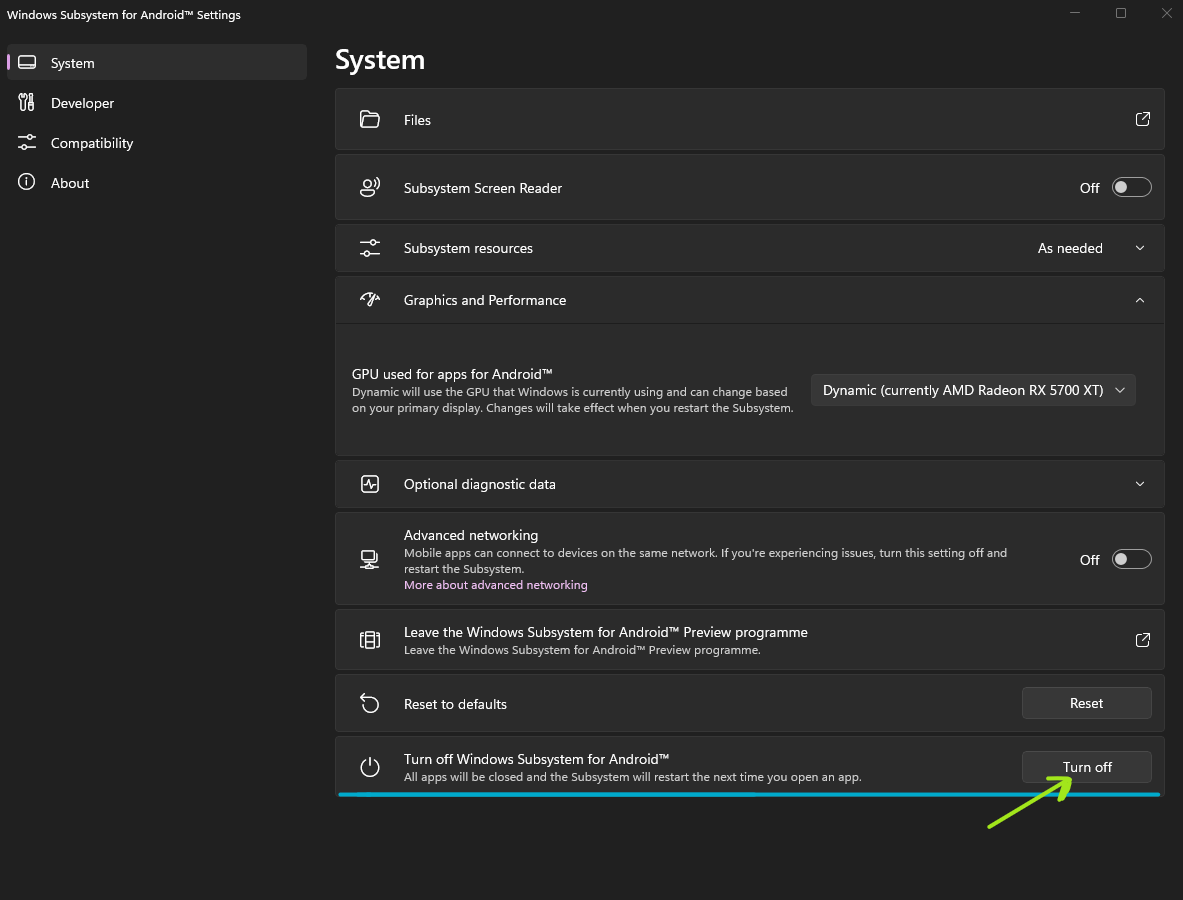
- Navigate to the main settings page
- Find the Turn off Windows Subsystem for Android section
- Click the Turn off button
- Wait for WSA to completely shut down (Status will show “Not running”)
Navigate to Graphics Settings
In WSA Settings, select the Graphics and Performance tab from the sidebar.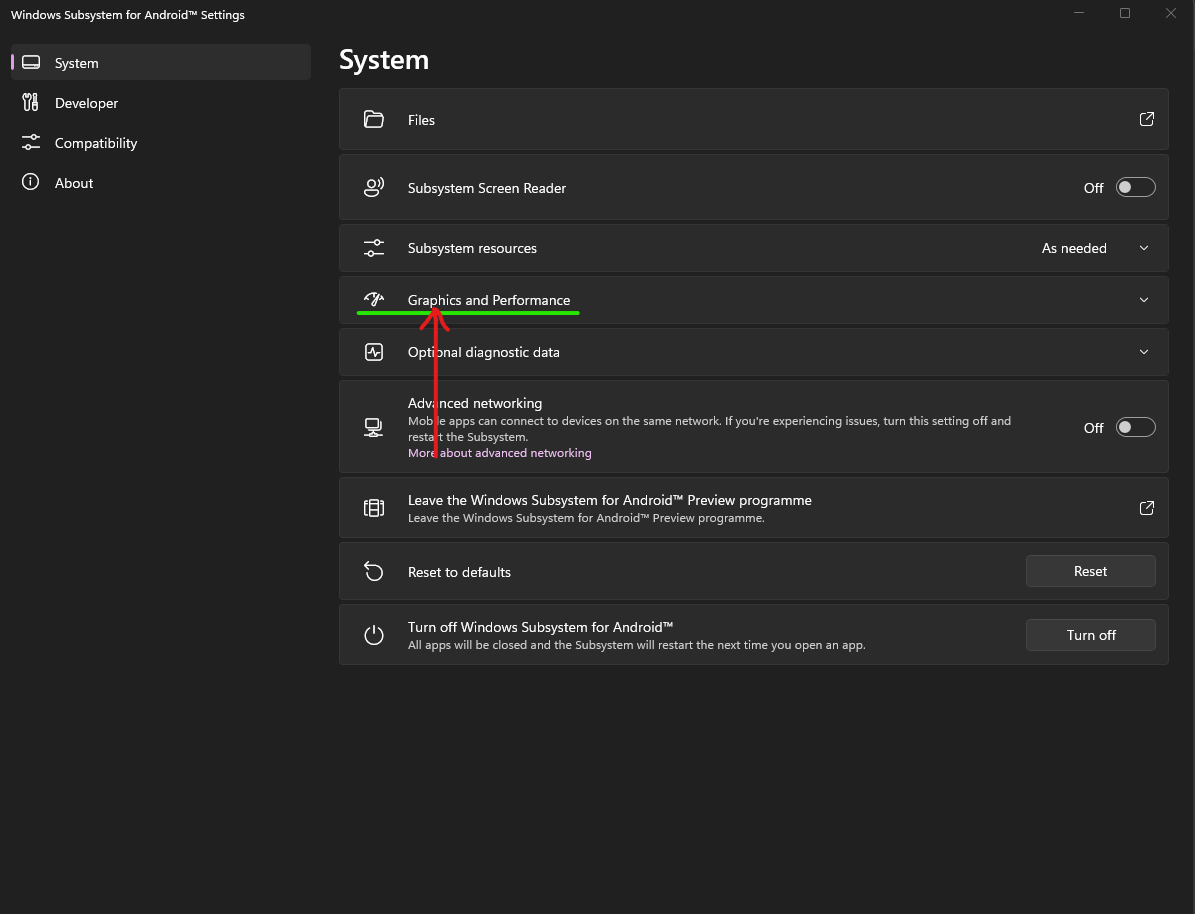
Select GPU
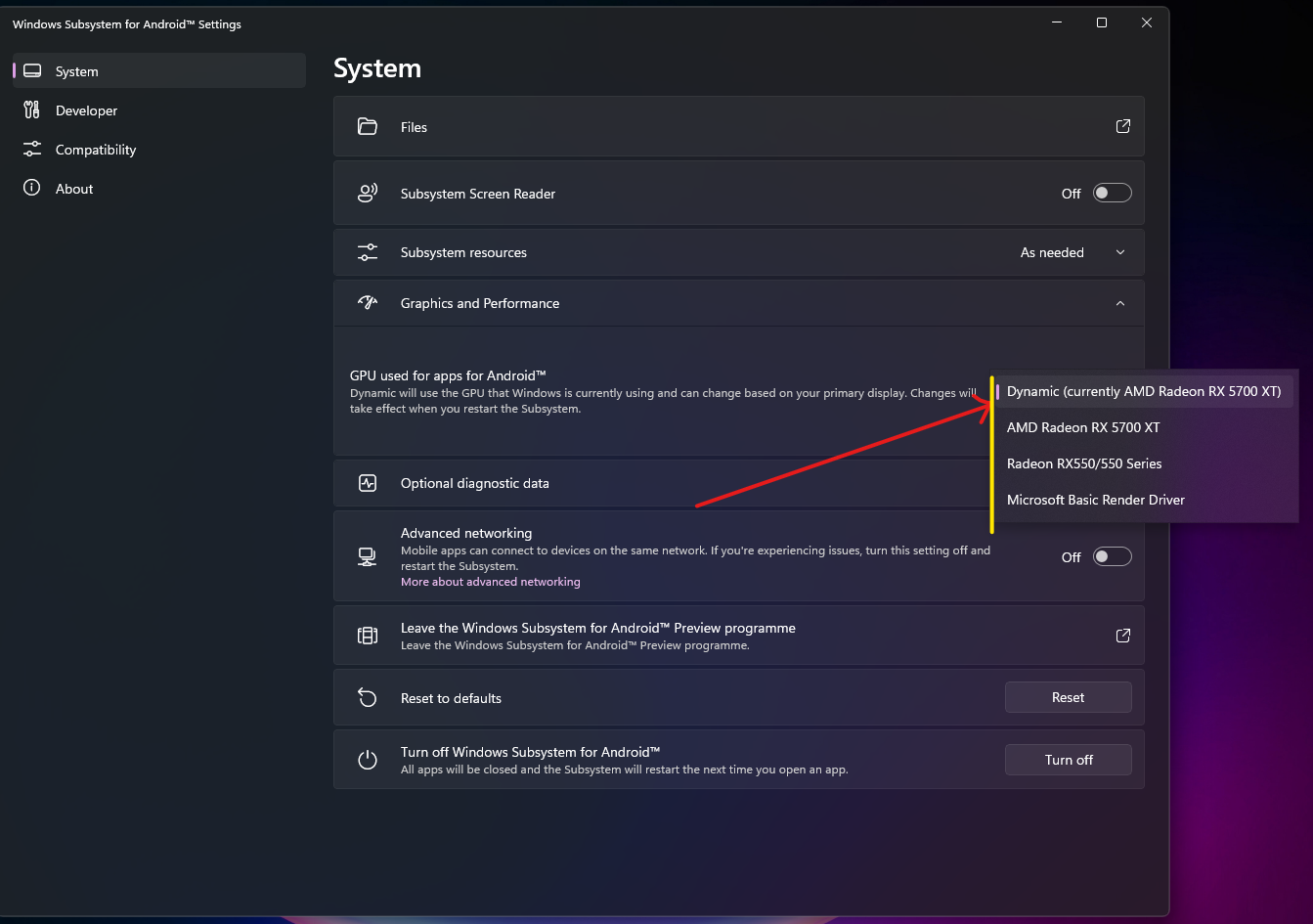
- Click on the dropdown menu for GPU used for apps for Android
- Select your preferred GPU from the available options:
- Intel(R) HD Graphics / Intel(R) Iris(R) Xe Graphics
- NVIDIA GeForce GTX/RTX series
- AMD Radeon Graphics
- Other available GPUs
GPU Selection Guide
- Integrated Graphics (Intel HD/Iris Xe)
- Dedicated GPU (Nvidia/AMD)
Best for:
- Battery efficiency on laptops
- General productivity apps
- Video streaming apps
- Apps with better Intel GPU compatibility
- Lower power consumption
- Better battery life
- Cooler system temperatures
- Good compatibility with most apps
- Lower performance in demanding games
- May have issues with specific graphics-intensive apps
Common GPU Issues and Solutions
Black screen in apps
Black screen in apps
Problem: Apps open but show a black screen instead of content.Solution:
- Turn off WSA completely
- Switch to a different GPU (try dedicated GPU if using integrated, or vice versa)
- Restart WSA and test the app again
- If still black, update your GPU drivers
Poor gaming performance
Poor gaming performance
Problem: Games run slowly or have low frame rates.Solution:
- Switch to your dedicated GPU (Nvidia/AMD)
- Ensure GPU drivers are up to date
- Check Graphics settings and increase memory allocation if available
- Close other resource-intensive Windows applications
- Consider builds with better Android version for gaming
Intel HD Graphics compatibility issues
Intel HD Graphics compatibility issues
Problem: Some apps crash or don’t work properly with Intel integrated graphics.Solution:
- Update Intel Graphics drivers from Intel’s website
- Try switching to dedicated GPU if available
- Check if the app requires specific GPU features
- Some apps may have known compatibility issues - check app documentation
GPU not showing in list
GPU not showing in list
Problem: Your dedicated GPU doesn’t appear in the selection dropdown.Solution:
- Update your GPU drivers (Nvidia GeForce Experience / AMD Adrenalin)
- Ensure virtualization is enabled in BIOS/UEFI
- Check Windows Device Manager for GPU issues
- Restart your computer after driver updates
- Some very old GPUs may not be supported by WSA
Apps crashing after GPU change
Apps crashing after GPU change
Problem: Apps that worked before now crash after changing GPU.Solution:
- Clear app cache in Android settings
- Uninstall and reinstall the problematic app
- Try switching back to the previous GPU
- Check for app updates that might include GPU compatibility fixes
- Some apps may be optimized for specific GPU types
Performance Optimization Tips
Update GPU Drivers
Keep your GPU drivers current:
- Nvidia: Use GeForce Experience
- AMD: Use AMD Adrenalin Software
- Intel: Download from Intel Download Center
Adjust Memory Allocation
In WSA Settings, allocate more memory if you have RAM to spare. This can improve performance with demanding apps.
Close Background Apps
Close unnecessary Windows applications to free up GPU resources for WSA.
Monitor Temperatures
Use MSI Afterburner or similar tools to monitor GPU temperatures, especially when using dedicated GPU for extended periods.
Laptop-Specific Considerations
If you’re using WSA on a laptop with both integrated and dedicated GPU:- On Battery Power
- Plugged In
Recommendation: Use Intel integrated graphics
- Significantly better battery life
- Adequate for most non-gaming apps
- Cooler operation
- Less fan noise
Verifying Active GPU
To confirm which GPU WSA is using:- Open Task Manager (Ctrl + Shift + Esc)
- Go to the Performance tab
- Select your GPU from the sidebar
- Launch an Android app
- Check GPU usage - it should spike when the app is rendering
- Install GPU monitoring software (MSI Afterburner, GPU-Z, etc.)
- Launch Android apps
- Monitor which GPU shows activity
WSA Graphics Settings Reference
In the Graphics and Performance section, you’ll also find:- Memory: Allocate RAM for WSA (Automatic recommended)
- GPU: Select GPU (covered in this guide)
- Virtualization: Shows if hardware virtualization is enabled
Need Help?
Join the WSA Community Discord for GPU troubleshooting and performance optimization tips