OSI Model
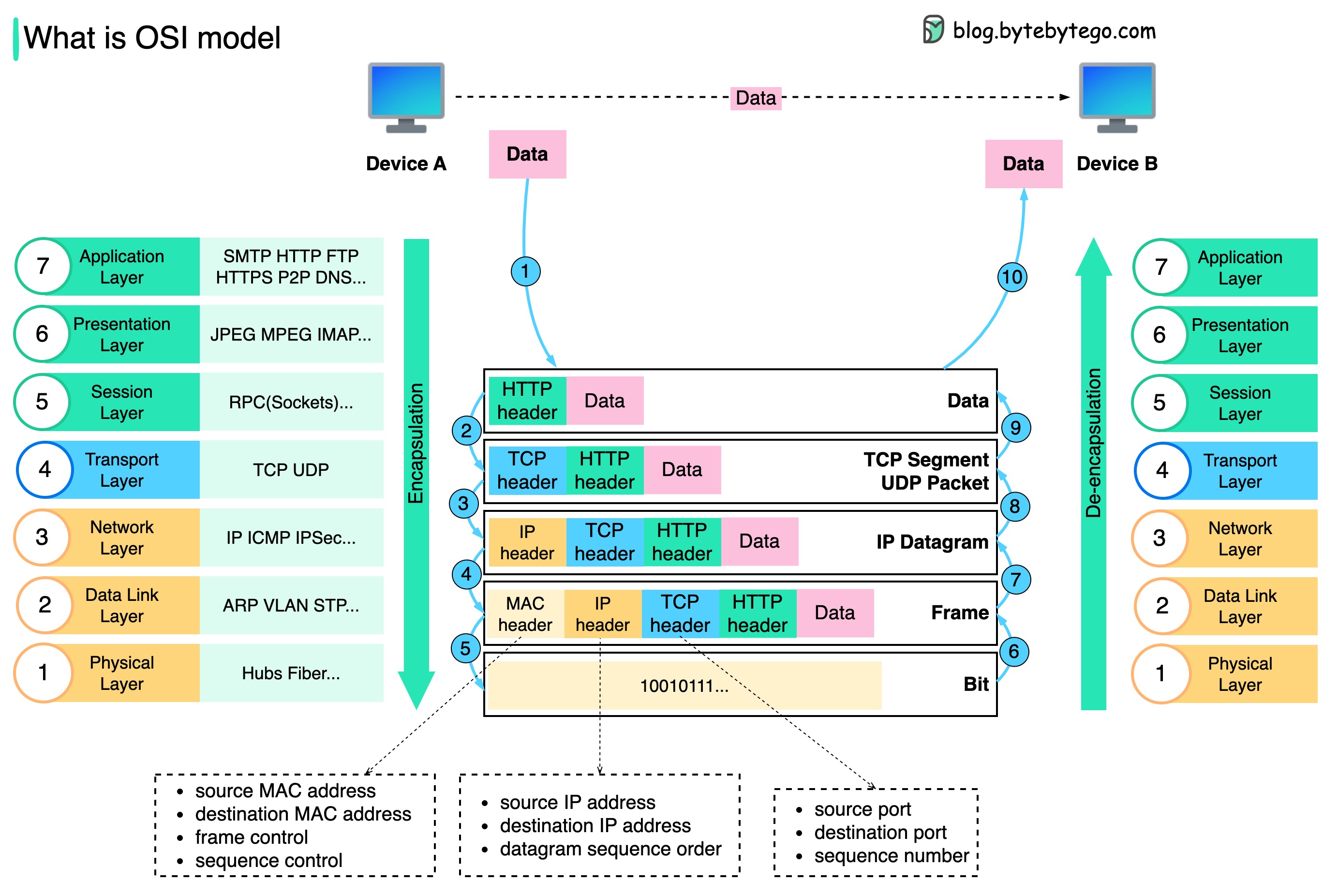 How is data sent over the network? Why do we need so many layers in the OSI model?
The diagram shows how data is encapsulated and de-encapsulated when transmitting over the network.
How is data sent over the network? Why do we need so many layers in the OSI model?
The diagram shows how data is encapsulated and de-encapsulated when transmitting over the network.
Data Encapsulation Process
Application Layer
When Device A sends data to Device B over the network via the HTTP protocol, it is first added an HTTP header at the application layer.
Transport Layer
Then a TCP or a UDP header is added to the data. It is encapsulated into TCP segments at the transport layer. The header contains the source port, destination port, and sequence number.
Network Layer
The segments are then encapsulated with an IP header at the network layer. The IP header contains the source/destination IP addresses.
Data Link Layer
The IP datagram is added a MAC header at the data link layer, with source/destination MAC addresses.
Physical Layer
The encapsulated frames are sent to the physical layer and sent over the network in binary bits.
We need layers in the network model because each layer focuses on its own responsibilities. Each layer can rely on the headers for processing instructions and does not need to know the meaning of the data from the last layer.
Network Protocols
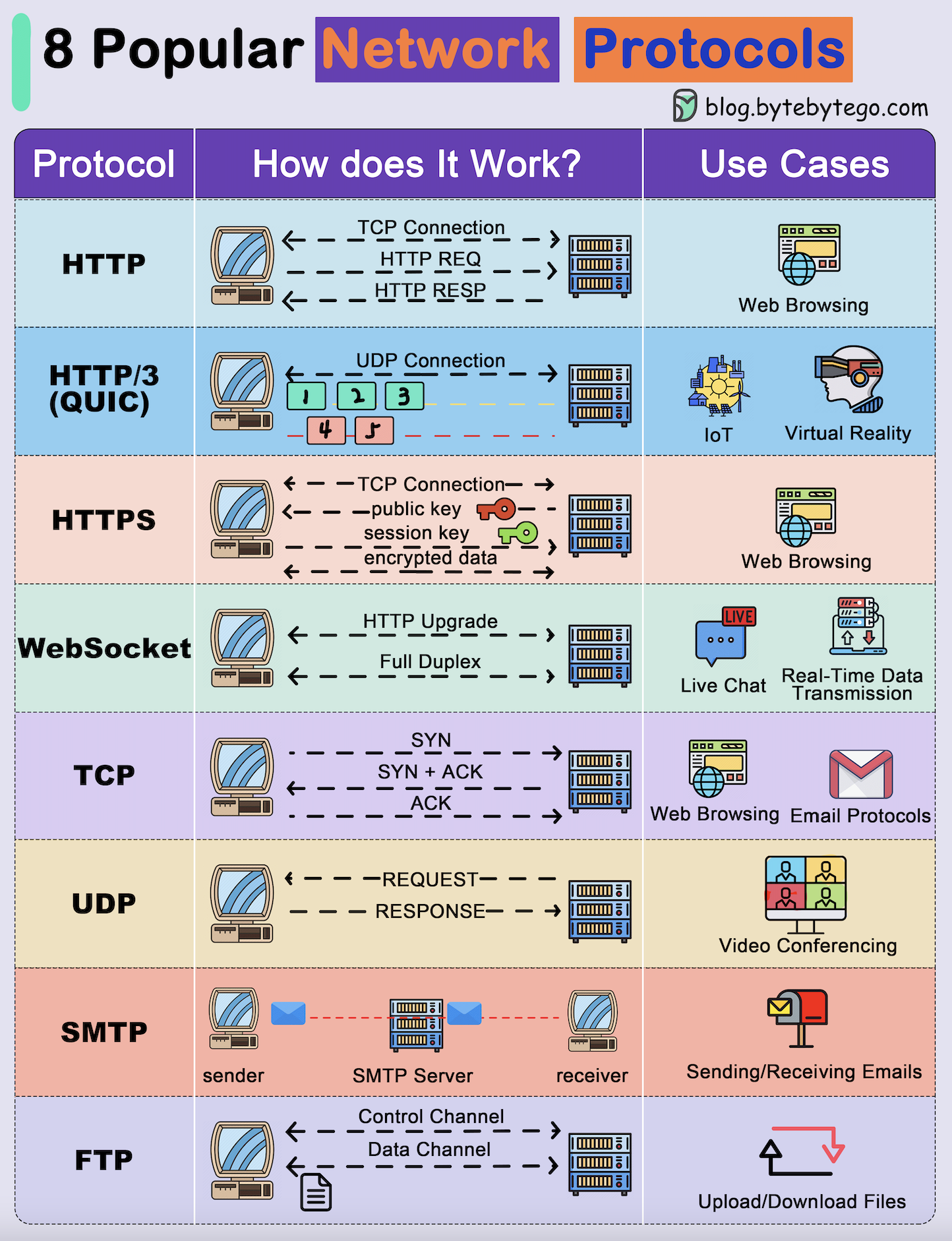 Network protocols are standard methods of transferring data between two computers in a network.
Common Protocols
HTTP (HyperText Transfer Protocol)
HTTP (HyperText Transfer Protocol)
HTTP is a protocol for fetching resources such as HTML documents. It is the foundation of any data exchange on the Web and it is a client-server protocol.Key Features:
- Request-response model
- Stateless protocol
- Port 80 (default)
- Built on TCP
HTTP/3
HTTP/3
HTTP/3 is the next major revision of the HTTP. It runs on QUIC, a new transport protocol designed for mobile-heavy internet usage.Key Features:
- Built on UDP instead of TCP
- Faster web page responsiveness
- Better for VR applications
- Reduced latency
HTTPS (HyperText Transfer Protocol Secure)
HTTPS (HyperText Transfer Protocol Secure)
HTTPS extends HTTP and uses encryption for secure communications.Key Features:
- TLS/SSL encryption
- Port 443 (default)
- Certificate validation
- Secure data transmission
WebSocket
WebSocket
WebSocket is a protocol that provides full-duplex communications over TCP.Key Features:
- Bidirectional communication
- Real-time updates
- Persistent connection
- Used in gaming, trading, messaging
TCP (Transmission Control Protocol)
TCP (Transmission Control Protocol)
TCP is designed to send packets across the internet and ensure the successful delivery of data and messages over networks.Key Features:
- Connection-oriented
- Reliable delivery
- Ordered packets
- Error checking
UDP (User Datagram Protocol)
UDP (User Datagram Protocol)
UDP sends packets directly to a target computer, without establishing a connection first.Key Features:
- Connectionless
- No delivery guarantee
- Lower latency
- Lightweight
SMTP (Simple Mail Transfer Protocol)
SMTP (Simple Mail Transfer Protocol)
SMTP is a standard protocol to transfer electronic mail from one user to another.Key Features:
- Port 25 (default)
- Email transmission
- Text-based protocol
- Push protocol
FTP (File Transfer Protocol)
FTP (File Transfer Protocol)
FTP is used to transfer computer files between client and server.Key Features:
- Port 21 (control)
- Separate data channel
- Authentication required
- Bidirectional transfer
TCP vs UDP
TCP Use Cases
When Reliability Matters
Best for:- Web browsing (HTTP/HTTPS)
- Email (SMTP, IMAP, POP3)
- File transfers (FTP, SFTP)
- Database queries
- APIs (REST, GraphQL)
- Guaranteed delivery
- Order preservation
- Error correction
- Flow control
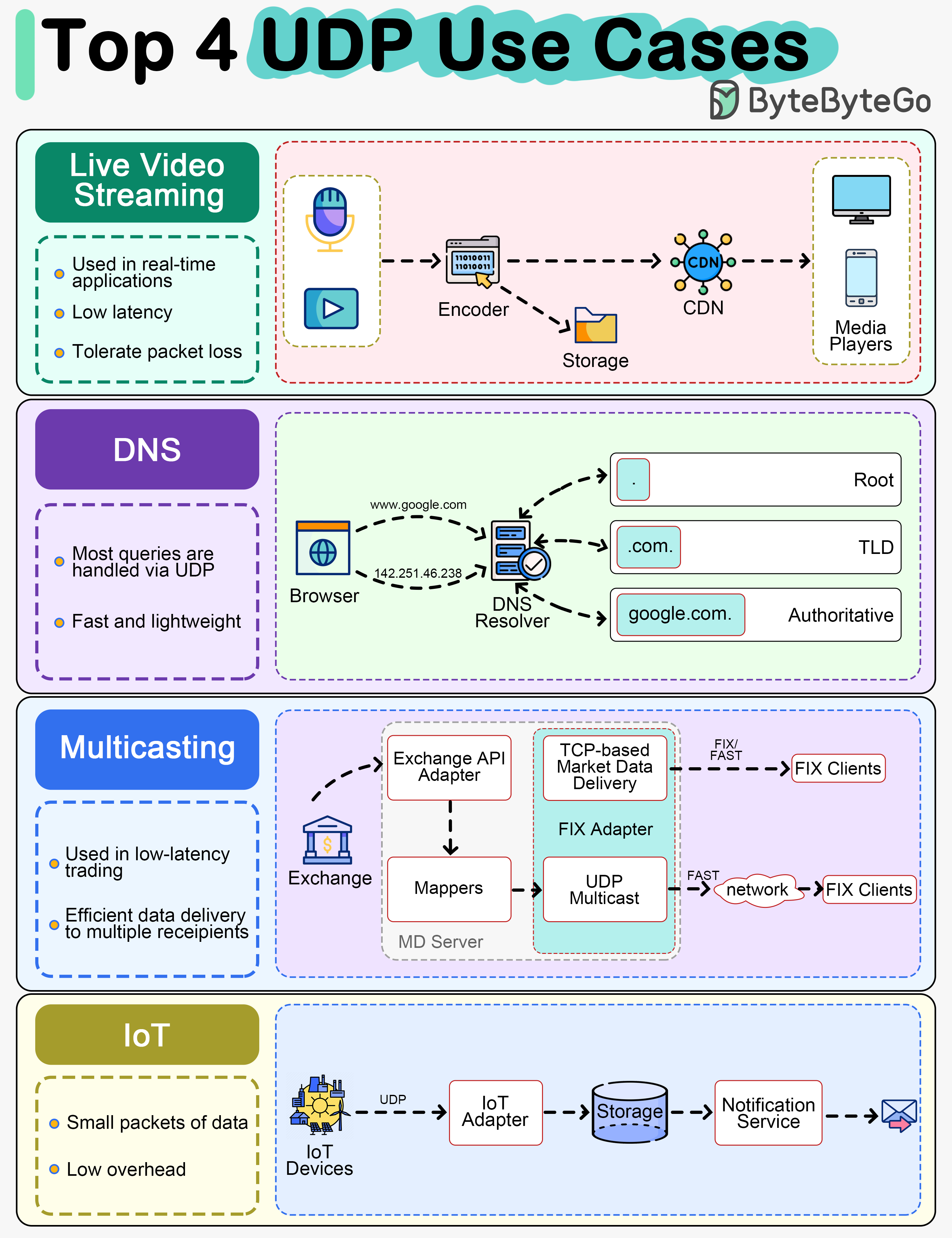
UDP Use Cases
When Speed Matters
Best for:- Live video streaming
- VoIP (Voice over IP)
- DNS queries
- Market data multicast
- IoT communications
- Online gaming
- Lower latency
- No connection overhead
- Tolerates packet loss
- Lightweight
DNS (Domain Name System)
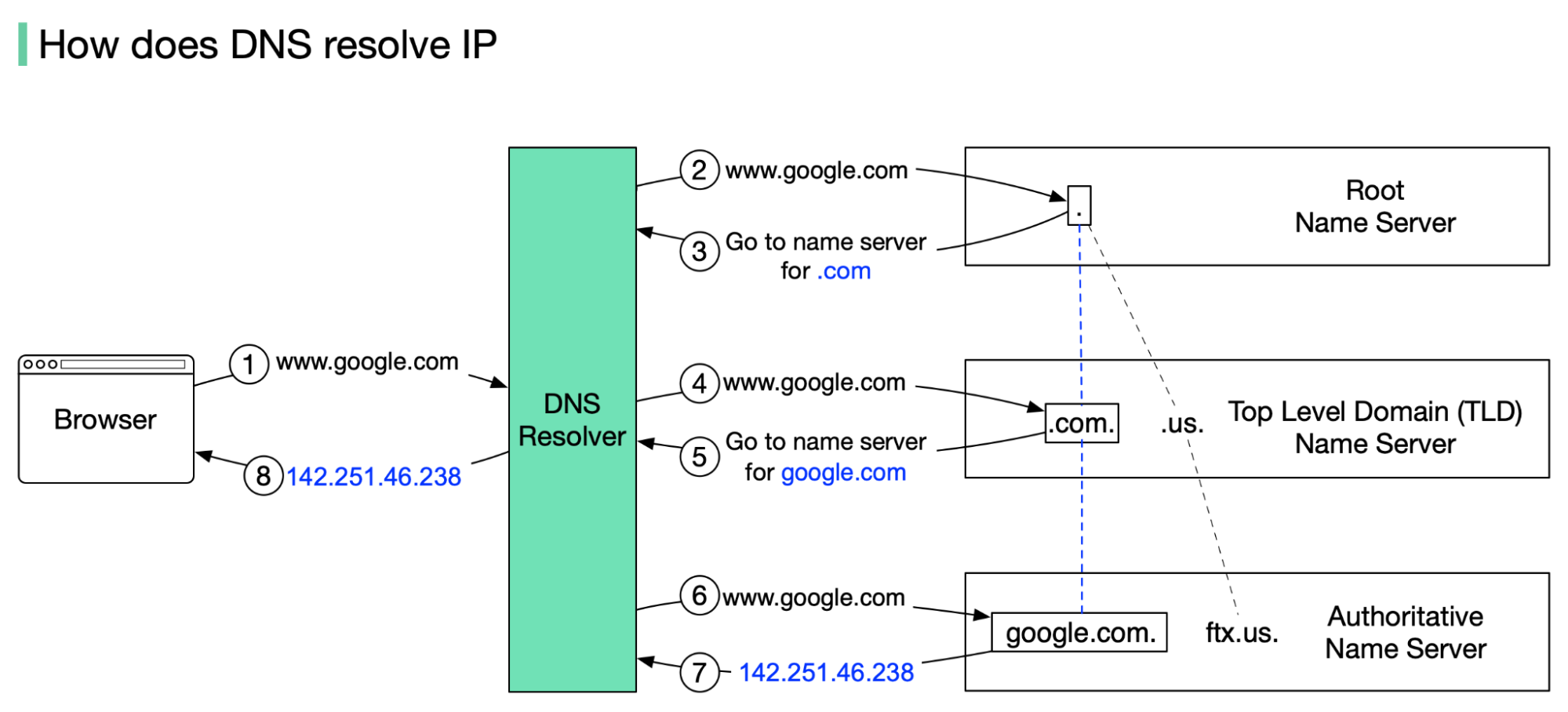 DNS acts as an address book. It translates human-readable domain names (google.com) to machine-readable IP addresses (142.251.46.238).
DNS Hierarchy
To achieve better scalability, the DNS servers are organized in a hierarchical tree structure.- Root Name Server
- TLD Name Server
Root Name Server (.)
- Stores IP addresses of TLD name servers
- 13 logical root name servers globally
- First point of contact in DNS resolution
- Operated by different organizations
DNS Lookup Process
Browser Query
google.com is typed into the browser, and the browser sends the domain name to the DNS resolver.
Root Server Response
The root server responds to the resolver with the address of a TLD DNS server. In this case, it is .com.
TLD Response
The TLD server responds with the IP address of the domain’s name server, google.com (authoritative name server).
IP Address Return
The IP address for google.com is then returned to the resolver from the nameserver.
DNS lookups on average take between 20-120 milliseconds to complete (according to YSlow).
DNS Record Types
A Record
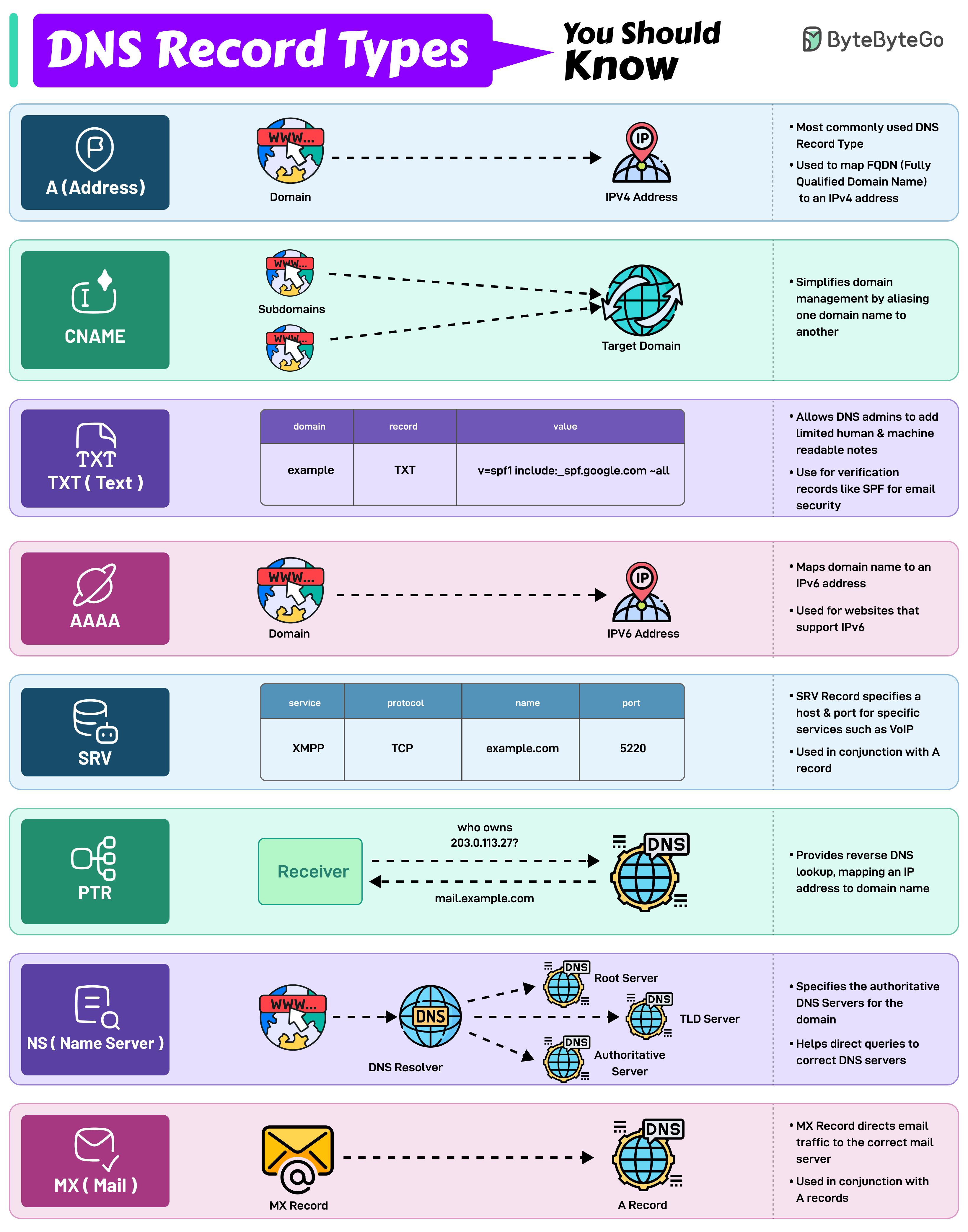
Address RecordMaps a domain name to an IPv4 address. One of the most essential records for translating human-readable domain names into IP addresses.
AAAA Record
IPv6 Address RecordSimilar to an A record but maps a domain name to an IPv6 address. Used for websites and services that support the IPv6 protocol.
CNAME Record
Canonical Name RecordUsed to alias one domain name to another. Often used for subdomains, pointing them to the main domain while keeping the actual domain name hidden.
MX Record
Mail Exchange RecordDirects email traffic to the correct mail server. Essential for email routing.
NS Record
Name Server RecordSpecifies the authoritative DNS servers for the domain. These records help direct queries to the correct DNS servers for further lookups.
PTR Record
Pointer RecordProvides reverse DNS lookup, mapping an IP address back to a domain name. Commonly used in verifying the authenticity of a server.
SRV Record
Service RecordSpecifies a host and port for specific services such as VoIP. Used in conjunction with A records.
TXT Record
Text RecordAllows administrators to add human-readable text to DNS records. Used to include verification records, like SPF, for email security.
IP Addressing
IPv4 vs IPv6
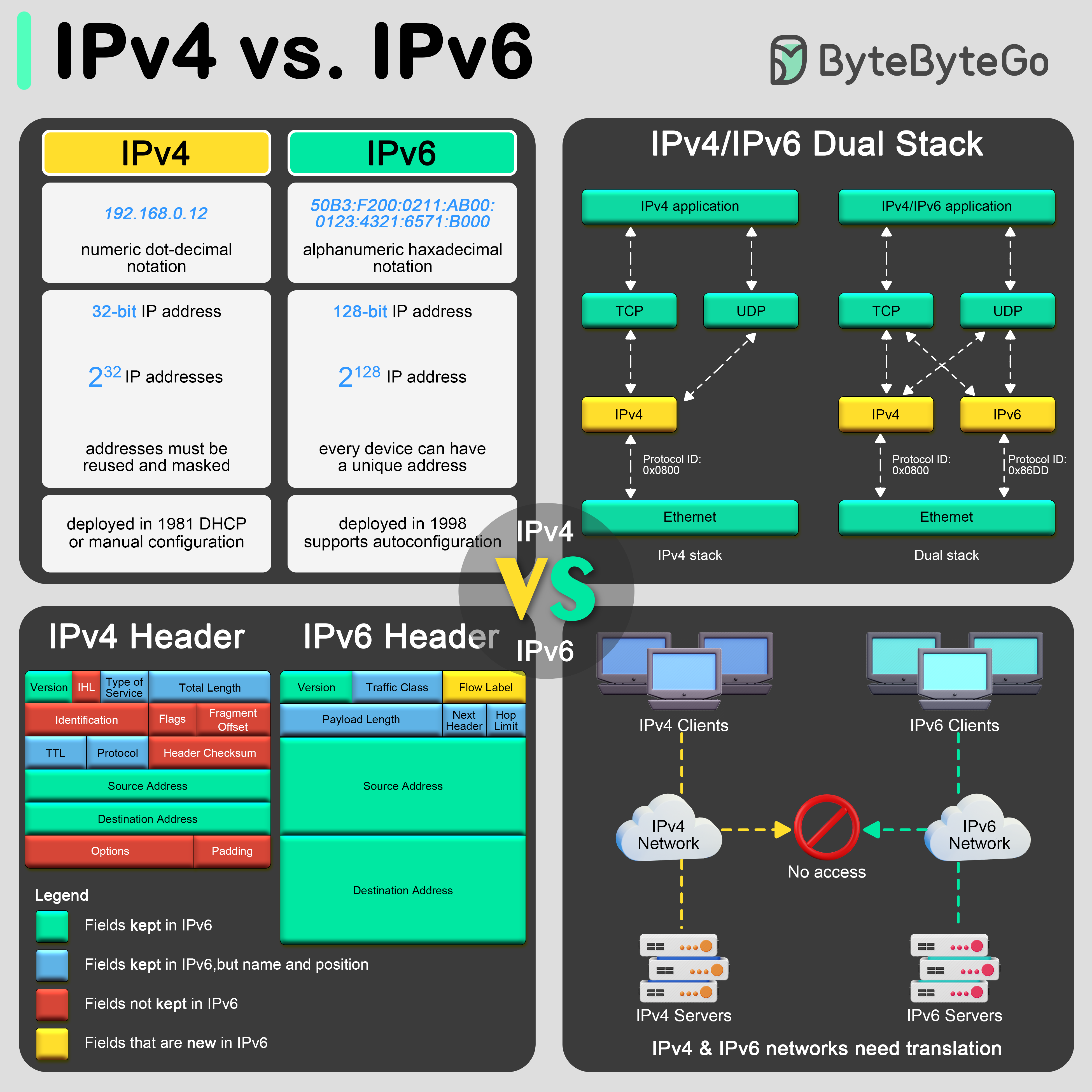 The transition from IPv4 to IPv6 is primarily driven by the need for more internet addresses, alongside the desire to streamline certain aspects of network management.
- IPv4
- IPv6
- Transition
Format and Length
- Address Size: 32-bit
- Format: Four decimal numbers separated by dots
- Example:
192.168.0.12 - Total Addresses: ~4.3 billion
- Status: Address exhaustion
- Header length
- Service type
- Total length
- Identification, flags, fragment offset
- Time to live (TTL)
- Protocol
- Header checksum
- Source and destination IP addresses
- Options
Network Types
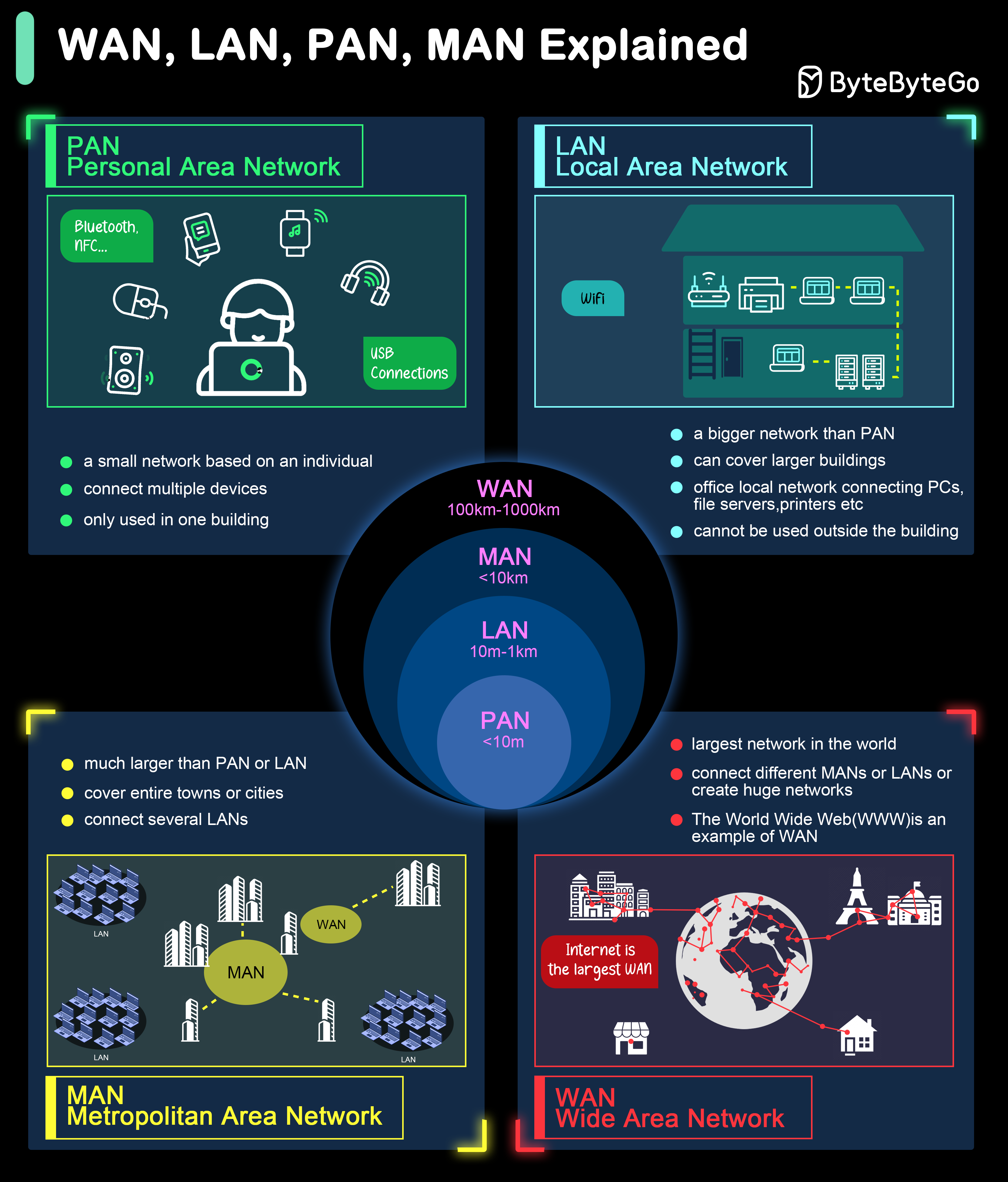 Different types of networks are defined based on their size, range, and purpose.
PAN - Personal Area Network
PAN - Personal Area Network
A PAN is a network used for communication among devices close to one person, typically within a range of a few meters.Use Cases:
- Connecting personal devices like smartphones, tablets, and wearables
- Enabling hands-free communication through Bluetooth headsets
- Synchronizing data between a computer and a smartphone
LAN - Local Area Network
LAN - Local Area Network
A LAN is a network that connects computers and devices within a limited area such as a home, office, or building.Use Cases:
- Sharing resources like printers and file servers within an office
- Facilitating communication and collaboration among employees
- Providing internet access within a home or small business
MAN - Metropolitan Area Network
MAN - Metropolitan Area Network
A MAN covers a larger geographic area than a LAN but smaller than a WAN, typically spanning a city or a large campus.Use Cases:
- Connecting multiple campuses of a university
- Providing high-speed internet access across a city
- Linking local government offices within a metropolitan area
WAN - Wide Area Network
WAN - Wide Area Network
A WAN spans a large geographic area, often a country or continent. The most prominent example of a WAN is the Internet.Use Cases:
- Connecting branch offices of multinational companies
- Facilitating global communication and data exchange
- Enabling remote access to central resources
HTTP Evolution
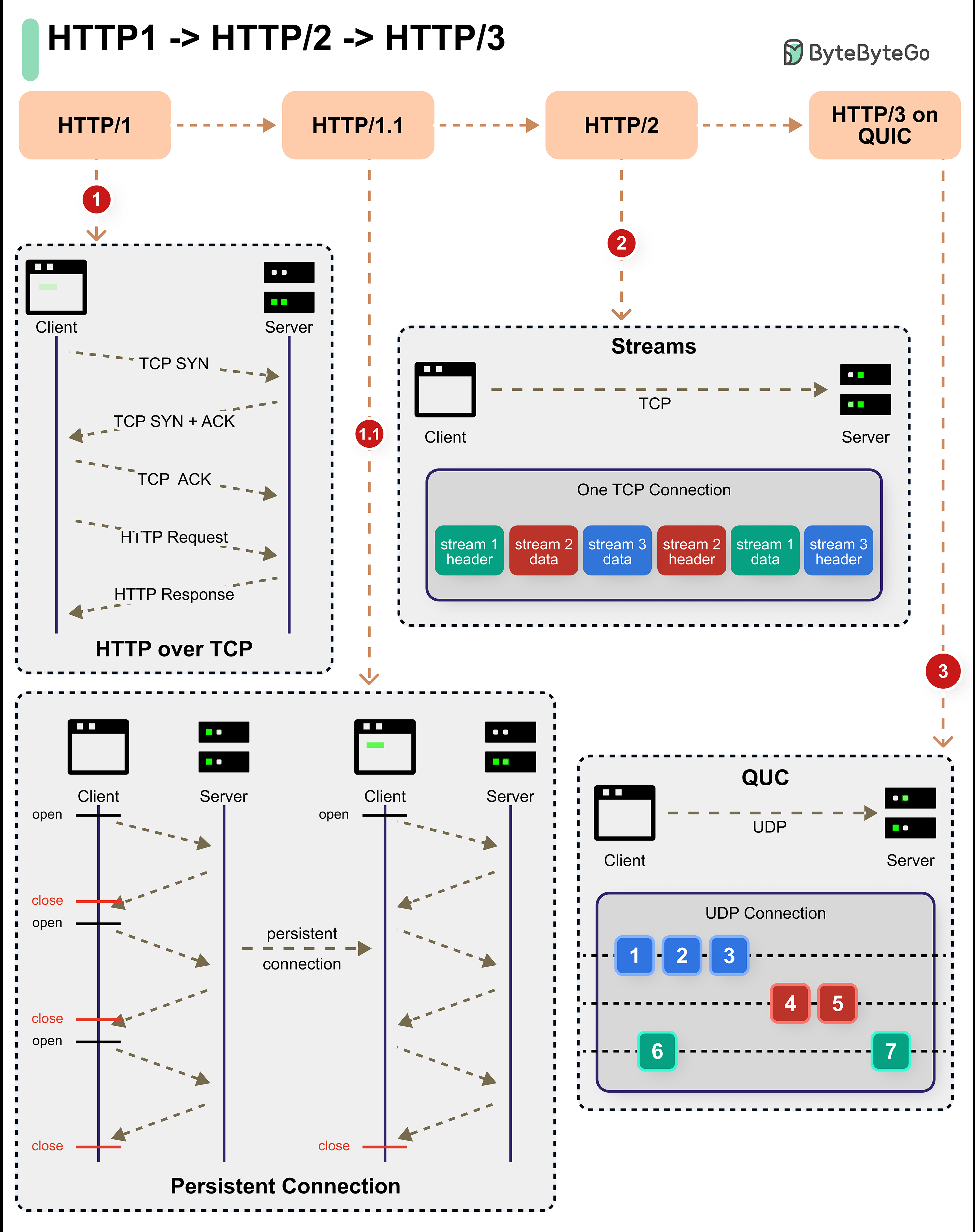
- HTTP/1.x
- HTTP/2
- HTTP/3
HTTP/1 (1996) and HTTP/1.1 (1997)
- Persistent connections
- Pipelining
- Header support
- Built on TCP
- Reliable communication
- Still widely used (25+ years old)
- Head-of-line blocking
- No multiplexing
- Redundant headers
- Sequential requests
HTTPS and Security
 HTTPS is an extension of HTTP that transmits encrypted data using Transport Layer Security (TLS). If the data is hijacked online, all the hijacker gets is binary code.
How HTTPS Works
TLS Handshake
The client sends a “client hello” to the server. The message contains a set of necessary encryption algorithms (cipher suites) and the latest TLS version it can support. The server responds with a “server hello” so the browser knows whether it can support the algorithms and TLS version.The server then sends the SSL certificate to the client. The certificate contains the public key, hostname, expiry dates, etc. The client validates the certificate.
Session Key Exchange
After validating the SSL certificate, the client generates a session key and encrypts it using the public key. The server receives the encrypted session key and decrypts it with the private key.
Why Switch to Symmetric Encryption?
Security
The asymmetric encryption goes only one way. This means that if the server tries to send the encrypted data back to the client, anyone can decrypt the data using the public key.
Performance
The asymmetric encryption adds quite a lot of mathematical overhead. It is not suitable for data transmissions in long sessions.
Common Ports
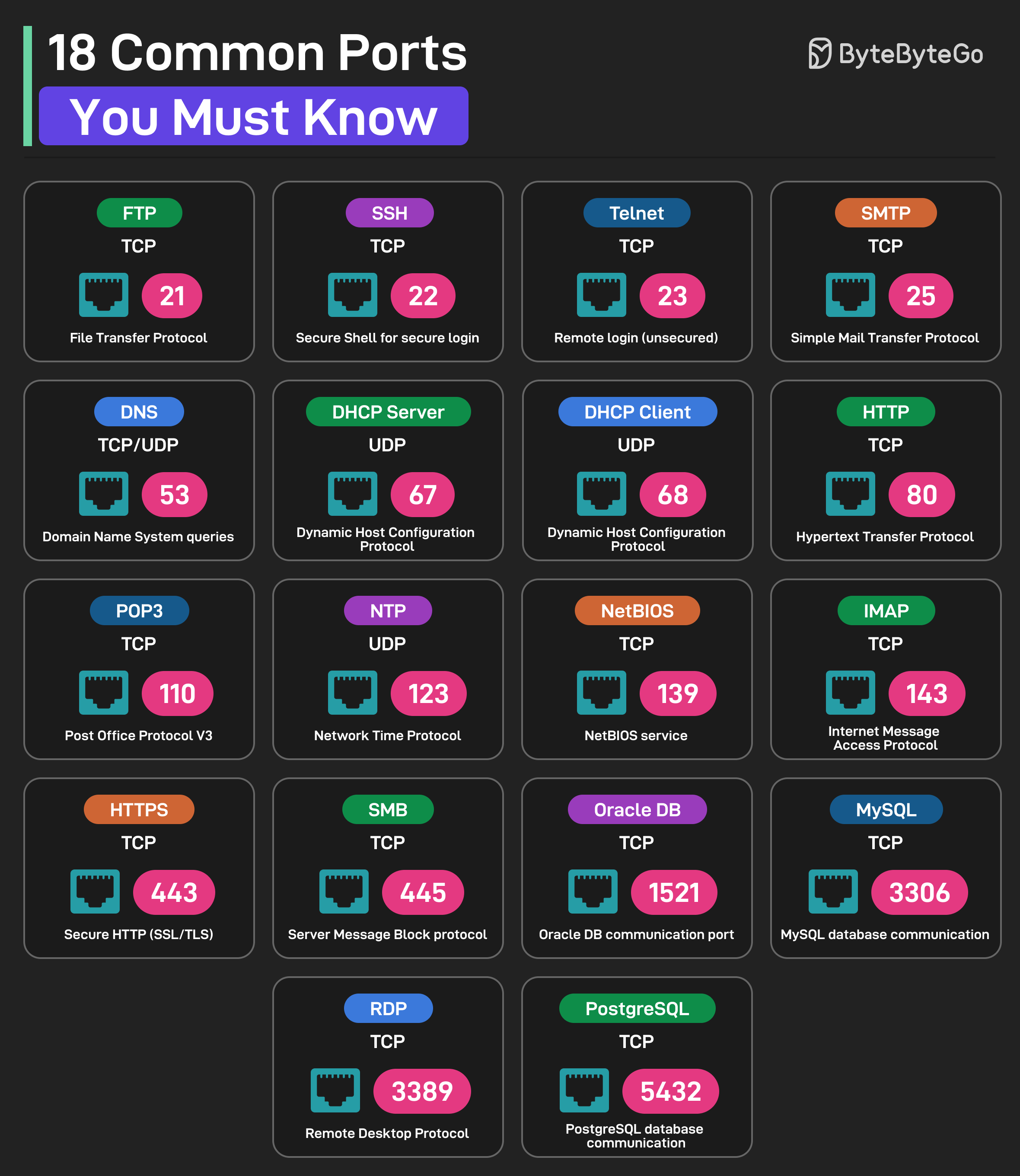
- Web & Email
- Network Services
- Databases
| Port | Protocol | Description |
|---|---|---|
| 21 | FTP | File Transfer Protocol |
| 22 | SSH | Secure Shell for Login |
| 23 | Telnet | Remote login (insecure) |
| 25 | SMTP | Simple Mail Transfer Protocol |
| 80 | HTTP | Hypertext Transfer Protocol |
| 110 | POP3 | Post Office Protocol V3 |
| 143 | IMAP | Internet Message Access Protocol |
| 443 | HTTPS | Secure HTTP |
URL Components
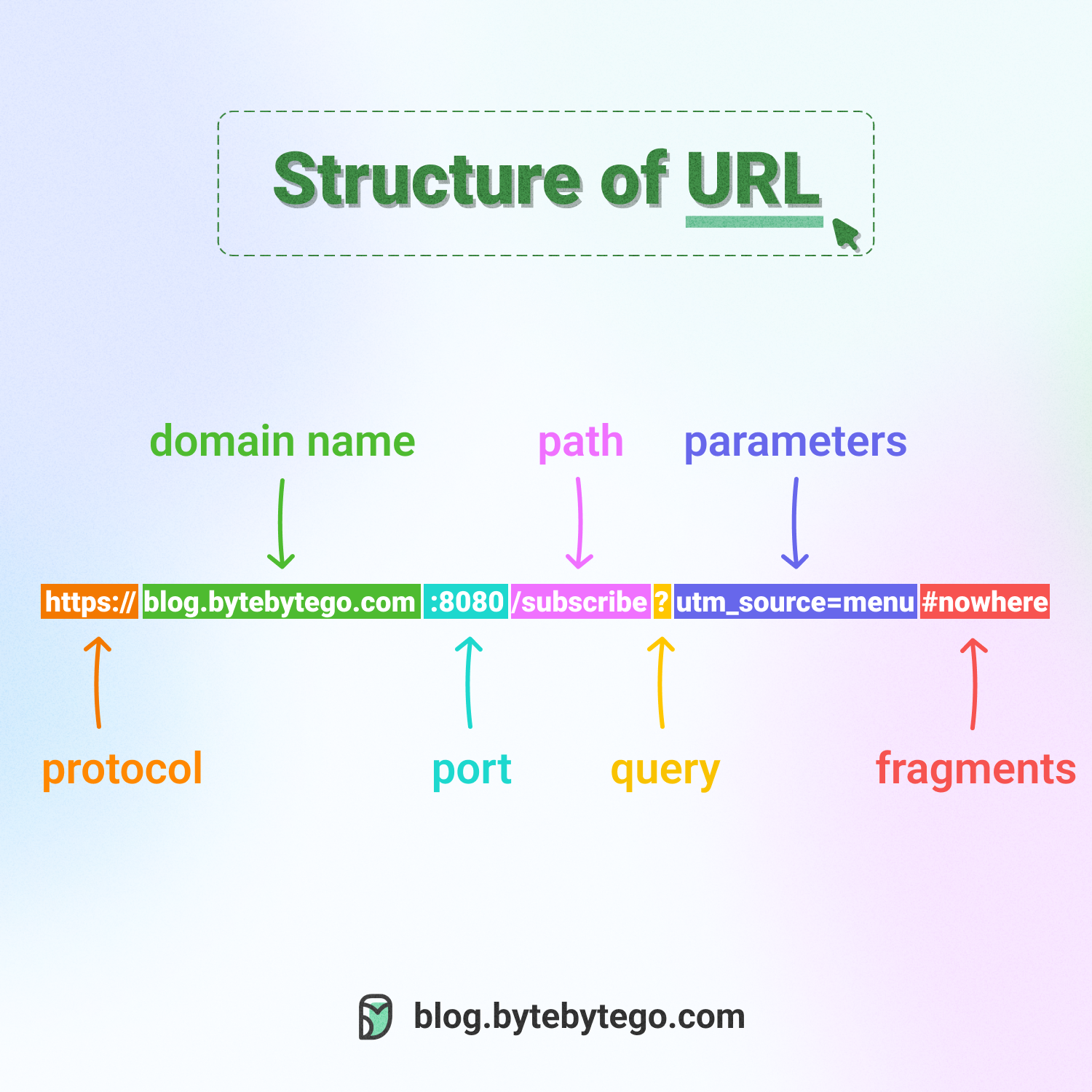 Uniform Resource Locator (URL) is used to locate resources on the internet. URLs comprise several components:
Protocol/Scheme
Protocol/Scheme
The protocol or scheme, such as
http, https, ftp, wsExample: https://Domain and Port
Domain and Port
The domain name and port, separated by a period (.)Example:
www.example.com:443- Domain:
www.example.com - Port:
443(optional, defaults based on protocol)
Path
Path
The path to the resource, separated by a slash (/)Example:
/products/category/itemQuery Parameters
Query Parameters
The parameters, which start with a question mark (?) and consist of key-value pairsExample:
?id=123&color=blue&size=largeFormat: key1=value1&key2=value2Fragment/Anchor
Fragment/Anchor
Indicated by a pound sign (#), used to bookmark a specific section of the resourceExample:
#section-headerNote: Not sent to the server, processed by browser onlyInterview Tips
Protocol Selection
Know when to choose TCP (reliability) vs UDP (speed) based on application requirements.
DNS Optimization
Understand DNS caching strategies and TTL values to reduce latency.
Security First
Always consider HTTPS, TLS versions, and certificate management in production systems.
Network Types
Know the appropriate network type (LAN, WAN, etc.) for different system components.