Overview
Step 4 creates symbolic links in the Miele-LXIV Xcode project’sBinaries directory that point to the libraries you built and installed in Step 3. This allows the Xcode project to reference the compiled libraries without hardcoding absolute paths.
Why Symbolic Links?
The Miele-LXIV Xcode project expects to find third-party libraries in itsBinaries directory. Rather than copying the installed libraries (which would duplicate gigabytes of data), we create symbolic links that point to the actual installation location.
This approach:
- Saves disk space (no duplication)
- Makes updates easier (update once, link points to new version)
- Keeps the Xcode project portable
- Allows multiple projects to share the same library installations
Binaries Directory Structure
After this step, the structure will be:Running the Symlink Creation
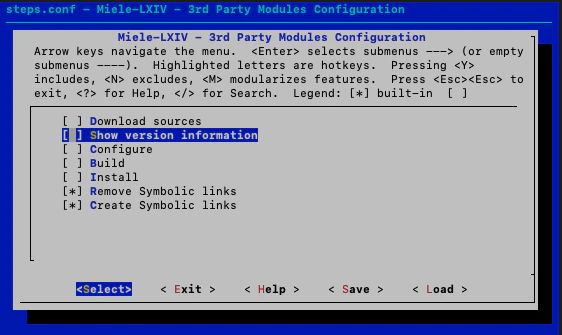
Enable 'Create Symbolic links'
In the kconfig-mconf interface:
- Disable all other steps (Download, Configure, Build, Install)
- Enable “Create Symbolic links”
-
Optionally enter the submenu to select which specific libraries to link (all are recommended)
Configure Unzip Binaries
Within the “Create Symbolic links” submenu:
- Ensure “Unzip binaries” is enabled
- This extracts pre-compiled binaries that ship with Miele-LXIV
- All library options should be enabled (JPEG, TIFF, XML2, ZLIB, VTK, ITK, DCMTK, etc.)
What Gets Linked
The script creates symbolic links for:Core Libraries (always needed)
- DCMTK - DICOM functionality
- VTK - Visualization
- ITK - Image processing
- libjpeg - JPEG support
- libpng - PNG support
- libtiff - TIFF support
- libxml2 - XML parsing
- libiconv - Character encoding
- zlib - Compression
- OpenSSL - Cryptography
- OpenJPEG - JPEG 2000
- Jasper - Image formats
Optional Libraries
- GLEW - OpenGL extensions
- GLM - OpenGL mathematics
Verifying the Links
After the script completes, verify the symbolic links were created:-> arrow shows where each link points.
Removing Old Links
If you need to update library versions, first remove the old symbolic links:Enable 'Remove Symbolic links'
Run
./reconfigure.sh and enable “Remove Symbolic links” instead of “Create Symbolic links”Unzip Binaries
The first time you create symbolic links, the script also unzips pre-compiled binaries included with Miele-LXIV:- Framework libraries
- Additional resources
- Configuration templates
Troubleshooting
Binaries directory doesn't exist
Binaries directory doesn't exist
This means the Miele-LXIV source wasn’t downloaded in Step 2.
- Verify you enabled “APP” in the Download sources menu
- Check that
$SRC/miele-easy-x.x.xexists - Re-run Step 2 if needed
Symbolic link already exists
Symbolic link already exists
If you see “File exists” errors:
- Run
./reconfigure.sh - Enable “Remove Symbolic links”
- Run
./build.sh - Then follow the normal creation process
Link points to wrong version
Link points to wrong version
This happens if you rebuilt libraries with different versions.
- Remove the old links (see “Removing Old Links” above)
- Verify your
seed.confhas the correct version set - Create new links
Configuration Files
The symlink creation step also initializes configuration files in the Miele-LXIV source:url.h- Created fromurl.in.htemplateidentity.conf- Build identity configurationfixup-build-phase.sh- Build phase helper script
Next Step
Step 5: Xcode Configuration
With all libraries linked, perform the final manual Xcode project configuration.