

Use the assistant in local preview
The assistant is available in your local preview when you sign in with the CLI. This lets you test assistant behavior, custom instructions inAssistant.md, and responses while developing documentation locally.
- If you haven’t already, install the CLI with
npm i -g mint. - Run
mint loginto authenticate. - Run
mint devto start the local preview.
UI placement
The assistant appears in two locations: as a button next to the search bar and as a bar at the bottom of the page.

Assistant button next to the search bar.


Assistant button at the bottom of the page.
Keyboard shortcut
Open the assistant chat panel with the keyboard shortcut Cmd + I on macOS and Ctrl + I on Windows.URL parameters
Open the assistant from any page on your documentation site by adding the?assistant query parameter to the URL. Use this to deep-link to the assistant from external content like emails, support replies, in-app banners, or onboarding flows.
?assistant: Open the assistant chat panel without sending a message.?assistant=<message>: Open the assistant chat panel and submit<message>as the user’s first message. URL-encode the value so spaces and special characters survive the request.
Examples
Highlight text
Highlight text on a page and click the Add to assistant button to open the assistant chat panel and add the highlighted text as context. You can add multiple text snippets or code blocks to the assistant’s context.Code blocks
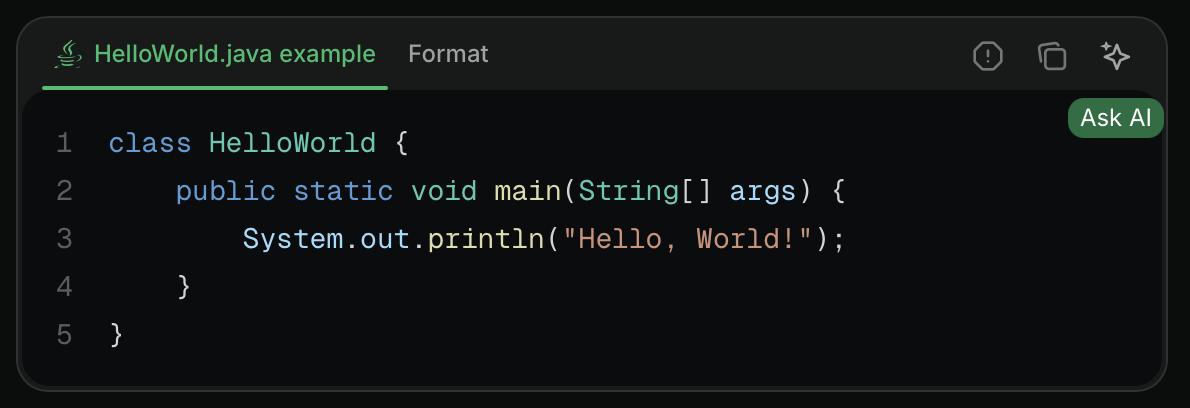
Click the Ask Assistant button in a code block to open the assistant chat panel and add the code block as context. You can add multiple code blocks or text snippets to the assistant’s context.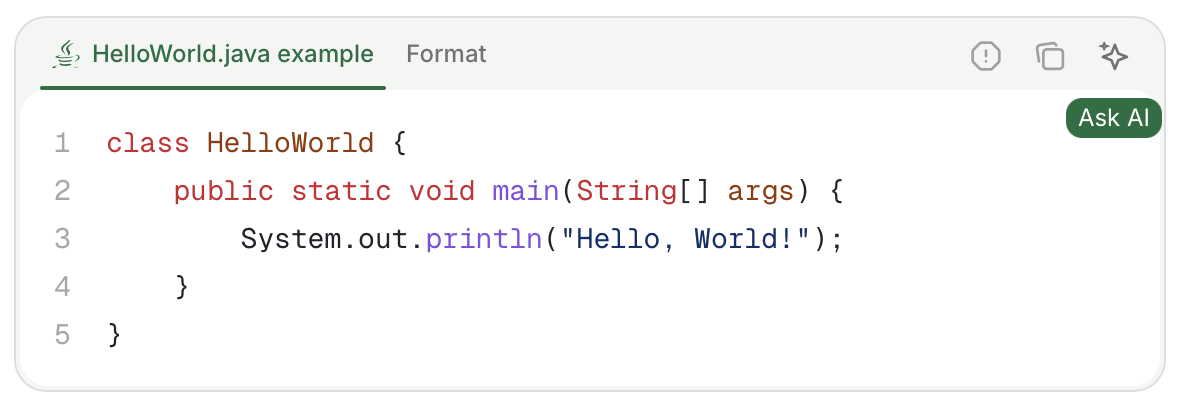
File attachments
Attach files to assistant messages to provide additional context. Supported file types:- Images: JPEG, PNG, GIF, WebP, SVG
- Documents: PDF
- Code and text files: JavaScript (
.js,.jsx,.mjs,.cjs), TypeScript (.ts,.tsx), Python, HTML, CSS, Markdown, MDX, JSON, YAML, XML, SQL, CSV, plain text, shell scripts (.sh,.bash,.env), GraphQL, TOML, Go, Rust, Ruby, Java, Kotlin, Swift, C (.c,.h), C++ (.cpp,.hpp), C#, PHP, Lua, R, Scala
- Maximum file size: 5 MB per attachment
- Maximum attachments per message: 10
Troubleshooting
Assistant chat bar not visible
Assistant chat bar not visible
If the assistant UI is not visible in some browsers, you may need to submit a false positive report to EasyList. Browsers that use the EasyList Cookies List, such as Brave and Comet, sometimes block the assistant or other UI elements. The EasyList Cookies List includes a domain-specific rule that hides fixed elements on certain domains to block cookie banners. This rule inadvertently affects legitimate UI components.Report the incorrect block to EasyList and request removal of the rule. This resolves the issue for all users once the filter list updates.
Assistant blocked on a corporate network, VPN, or firewall
Assistant blocked on a corporate network, VPN, or firewall
If the assistant loads on personal networks but fails on a work network, VPN, or other restricted network, the block occurs at the network level. Corporate proxies, VPNs, and firewalls sometimes block the outbound requests the assistant needs to make. The chat panel cannot connect even though the rest of the site loads normally.For readers: Ask your IT team to allow outbound HTTPS requests to the following hostnames from your network. If you can, try the assistant from a personal network to confirm the issue is network-specific.
leaves.mintlify.com: Assistant API*.mintlify.dev: Assistant streaming and supporting services*.mintlify.com: Dashboard, API, and analyticshcaptcha.comand*.hcaptcha.com: CAPTCHA verification for the assistant
Message contains [REDACTED_SECRET]
Message contains [REDACTED_SECRET]
The assistant scans each message for values that look like credentials, such as API keys, access tokens, passwords in URLs, JSON Web Tokens, and private keys. It also scans any context sent with the message. Mintlify replaces each detected value with
[REDACTED_SECRET] before the assistant model sees the message or Mintlify stores the conversation.The assistant never receives the original value. It does not ask you to paste the value again. If an answer depends on the exact value, the assistant tells you that the value was redacted. To get help with a credential, describe it or replace it with a placeholder like YOUR_API_KEY.