

Comments
All roles can comment, reply, and resolve threads.
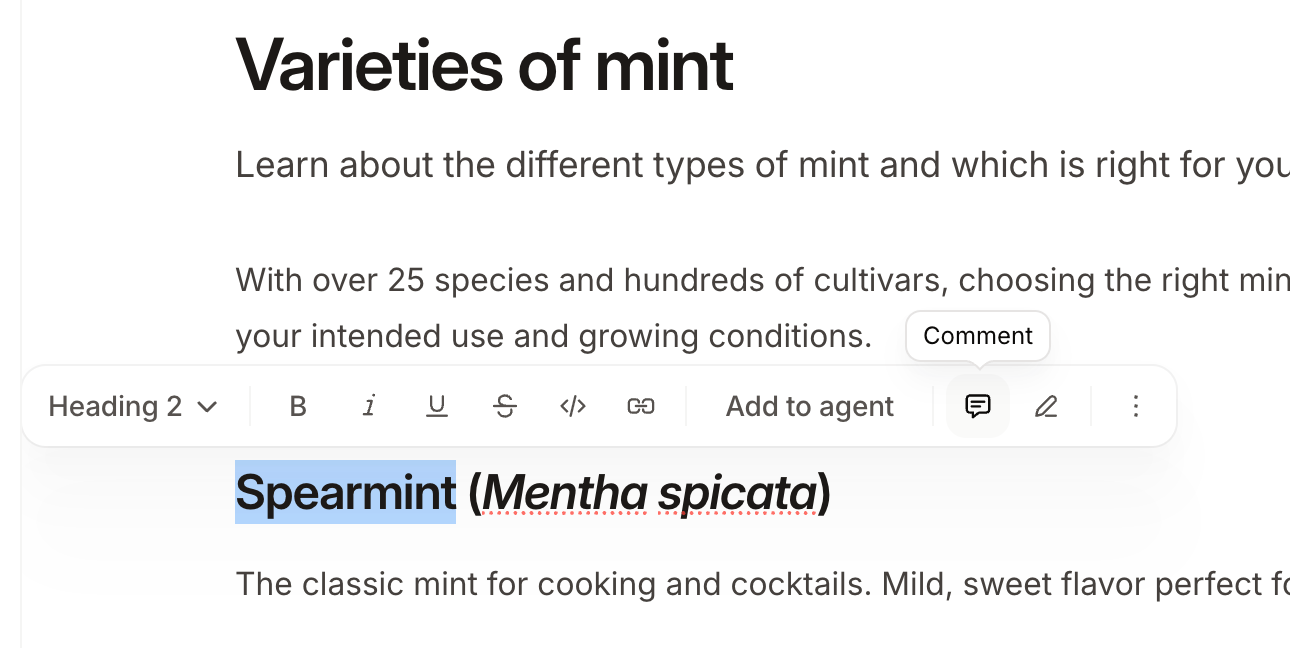
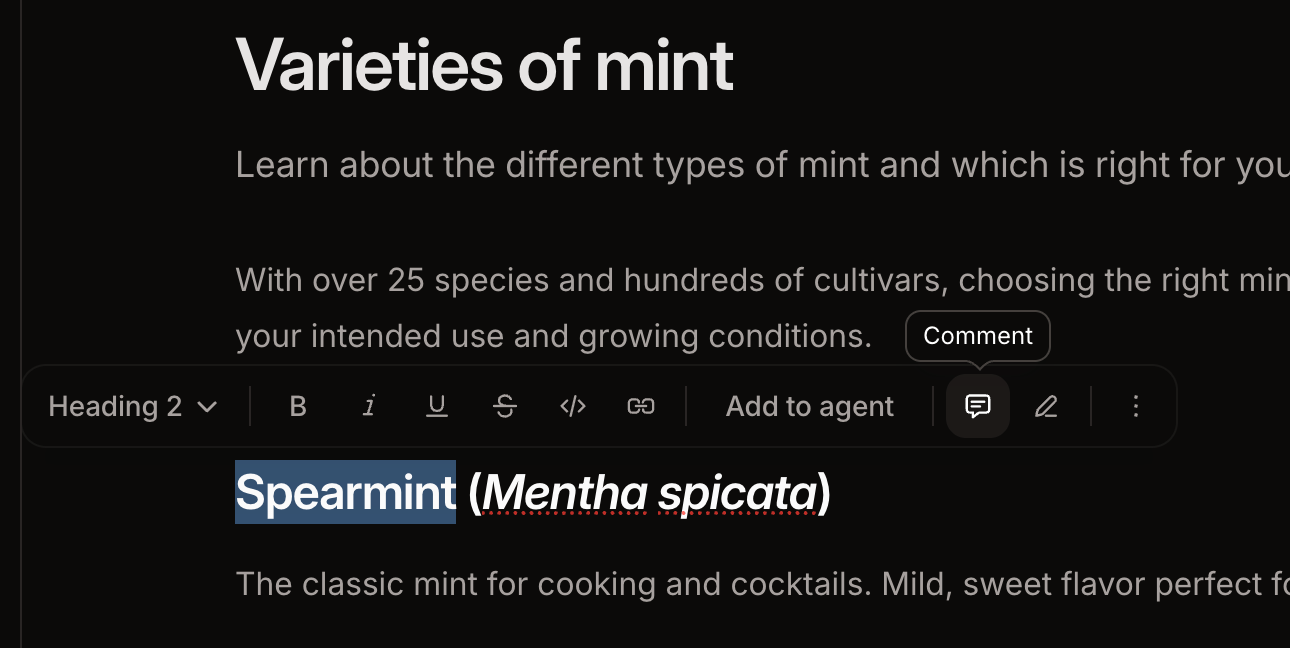
- Hover over the page title and click Add comment.
- In the comments panel, click New comment.
@ to mention a teammate in a comment. They must be a member of your organization who has accepted their invitation. When you mention a teammate in a comment, they receive an email notification. Manage which comment and suggestion emails you receive from the Notifications page of your dashboard.
Comment threads appear in both visual and source mode. In source mode, you can read, reply to, and resolve existing threads, but starting a new comment requires visual mode.
To see every thread on the current page:
- Click More options in the top-right of the page.
- Click Comments.
Mentions in page content
Type@ while editing a page to open the mention menu. Mentions work in both visual and source mode.
- Mention a teammate to reference them in the page content. Mintlify emails them if they have access to the page.
- Mention a page to insert a link to it. Mintlify uses the page’s title as the link text.
Suggestions
Suggestions propose a change while leaving the current content in place, so a teammate can accept or reject it. Editors and admins can accept or reject any suggestion. Viewers cannot. To make a suggestion, highlight text and click Switch to suggesting in the toolbar, or press Cmd + Shift + E (macOS) or Ctrl + Shift + E (Windows). In suggesting mode, a Suggesting label appears in the top bar, and your deletions and insertions appear as highlighted text rather than edits. Formatting changes also become suggestions, including bold, italic, underline, strikethrough, and inline code. The text previews the proposed formatting, but the formatting applies only when someone accepts the suggestion. Click the label to go back to editing. Pending suggestions appear beside the page and in the comments panel. Suggesting mode works only in visual mode. While suggesting mode is on, you can’t switch to source mode. Turn off suggesting mode to edit the MDX directly.Viewers are always in suggesting mode. Suggesting mode activates automatically when a viewer opens the editor so that they can propose changes without editing content directly.
Ask the Mintlify agent
Mention@mintlify in a comment, suggestion, or reply to ask the editor agent about the current page. The agent runs in the background with the page, thread, and branch as context, then posts its answer as a reply in the same thread.
Real-time editing
When multiple people open the same page on the same branch, they edit together. Each person’s cursor and edits are visible to everyone, with avatars in the toolbar. Real-time editing works in both visual mode and source mode. You can edit the MDX in source mode while a teammate works in visual mode on the same page. Their cursor and selection appear in your editor, and yours appear in theirs, including in the title and description fields.- Changes from all collaborators merge automatically. Two people editing the same section won’t create conflicts.
- Undo only affects your own edits.
- If you lose your connection, edits save locally and sync when you reconnect.
- In source mode, invalid MDX or frontmatter YAML stays local to you until you fix it. Teammates only receive valid content, and invalid MDX blocks publishing until it’s repaired.