The best way to learn how to build custom components is to see them in action. This guide walks through a complete example of building a PDF display component from scratch.
Case study: A component to display PDFs
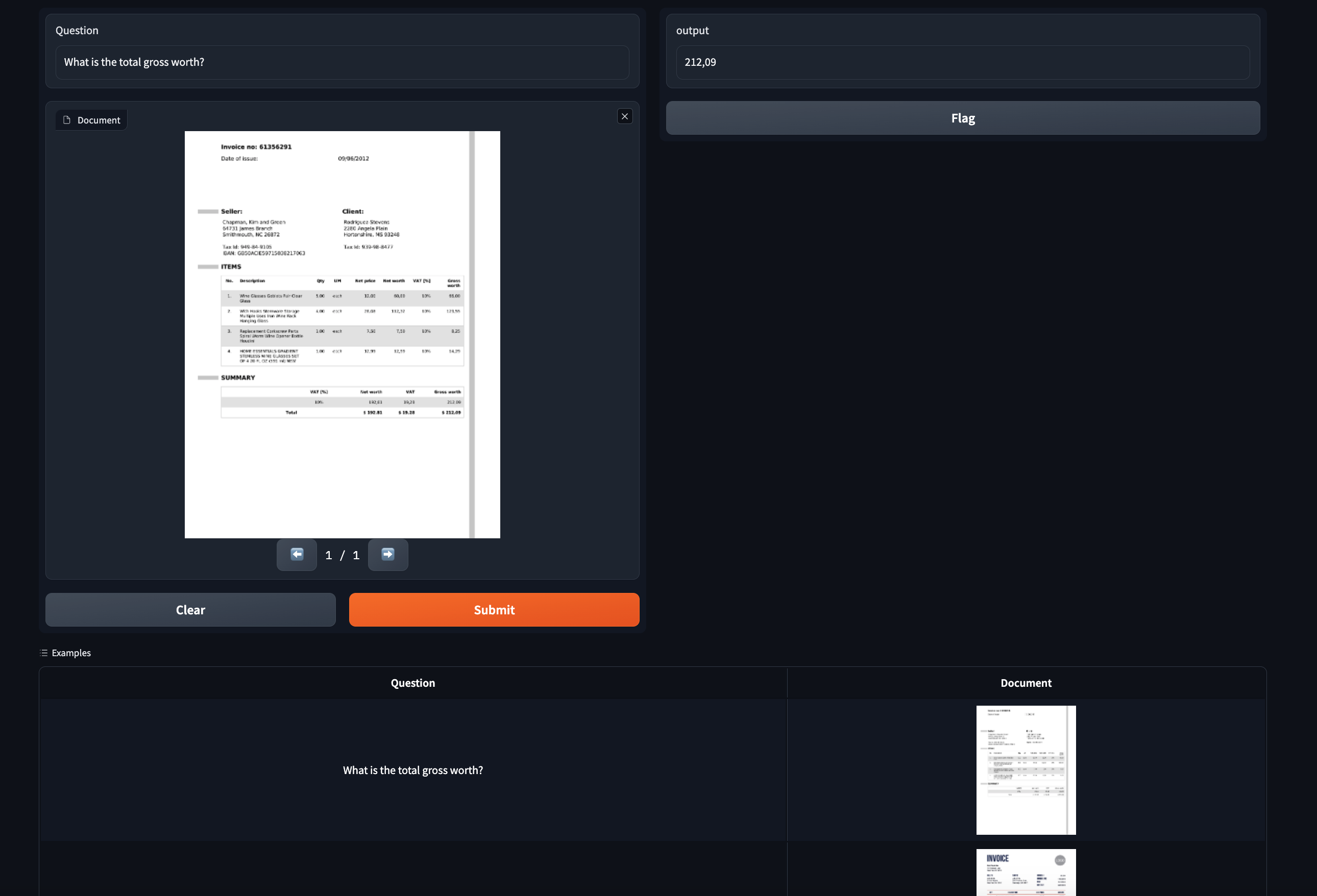
Let’s work through an example of building a custom Gradio component for displaying PDF files. This component will come in handy for showcasing document question answering models, which typically work on PDF input.
This is a sneak preview of what our finished component will look like:
Prerequisites
Make sure you have:
Step 1: Create the custom component
Navigate to a directory of your choosing and run:
This will create a subdirectory called pdf with the following structure:
- backend/     ← Python code
- frontend/    ← JavaScript code
- demo/        ← Sample app
Step 2: Add JavaScript dependencies
We’re going to use the pdfjs library to display PDFs in the frontend. From within the frontend directory, run:
npm install @gradio/client @gradio/upload @gradio/icons @gradio/button
npm install --save-dev [email protected]
npm uninstall @zerodevx/svelte-json-view
package.json should now include these dependencies:
{
  "dependencies": {
    "@gradio/atoms": "0.2.0",
    "@gradio/statustracker": "0.3.0",
    "@gradio/utils": "0.2.0",
    "@gradio/client": "0.7.1",
    "@gradio/upload": "0.3.2",
    "@gradio/icons": "0.2.0",
    "@gradio/button": "0.2.3"
  },
  "devDependencies": {
    "pdfjs-dist": "3.11.174"
  }
}
Step 3: Launch the dev server
Run the dev command to launch the development server:
You should see a link printed to your console:
Frontend Server (Go here): http://localhost:7861/
Step 4: Build the frontend skeleton
In Index.svelte, add the following imports and props:
import { tick } from "svelte";
import type { Gradio } from "@gradio/utils";
import { Block, BlockLabel } from "@gradio/atoms";
import { File } from "@gradio/icons";
import { StatusTracker } from "@gradio/statustracker";
import type { LoadingStatus } from "@gradio/statustracker";
import type { FileData } from "@gradio/client";
import { Upload, ModifyUpload } from "@gradio/upload";

export let elem_id = "";
export let elem_classes: string[] = [];
export let visible = true;
export let value: FileData | null = null;
export let container = true;
export let scale: number | null = null;
export let root: string;
export let height: number | null = 500;
export let label: string;
export let min_width: number | undefined = undefined;
export let loading_status: LoadingStatus;
export let gradio: Gradio<{
    change: never;
    upload: never;
}>;

let _value = value;
let old_value = _value;
The gradio object contains metadata about the application and utility methods. We define that our component will dispatch change and upload events.
Add the upload UI
Replace the content below the </script> tag with:
<Block {visible} {elem_id} {elem_classes} {container} {scale} {min_width}>
    {#if loading_status}
        <StatusTracker
            autoscroll={gradio.autoscroll}
            i18n={gradio.i18n}
            {...loading_status}
        />
    {/if}
    <BlockLabel
        show_label={label !== null}
        Icon={File}
        float={value === null}
        label={label || "File"}
    />
    {#if _value}
        <ModifyUpload i18n={gradio.i18n} absolute />
    {:else}
        <Upload
            filetype={"application/pdf"}
            file_count="single"
            {root}
        >
            Upload your PDF
        </Upload>
    {/if}
</Block>
Step 5: Add PDF rendering logic
Import pdfjs and set up the worker:
import pdfjsLib from "pdfjs-dist";
pdfjsLib.GlobalWorkerOptions.workerSrc = "https://cdn.bootcss.com/pdf.js/3.11.174/pdf.worker.js";

let pdfDoc;
let numPages = 1;
let currentPage = 1;
let canvasRef;
async function get_doc(value: FileData) {
    const loadingTask = pdfjsLib.getDocument(value.url);
    pdfDoc = await loadingTask.promise;
    numPages = pdfDoc.numPages;
    render_page();
}

function render_page() {
    pdfDoc.getPage(currentPage).then(page => {
        const ctx = canvasRef.getContext('2d');
        ctx.clearRect(0, 0, canvasRef.width, canvasRef.height);
        let viewport = page.getViewport({ scale: 1 });
        let scale = height / viewport.height;
        viewport = page.getViewport({ scale: scale });

        const renderContext = {
            canvasContext: ctx,
            viewport,
        };
        canvasRef.width = viewport.width;
        canvasRef.height = viewport.height;
        page.render(renderContext);
    });
}

$: if(JSON.stringify(old_value) != JSON.stringify(_value)) {
    if (_value){
        get_doc(_value);
    }
    old_value = _value;
    gradio.dispatch("change");
}
The $: syntax in Svelte is how you declare reactive statements. Whenever any of the inputs change, Svelte will automatically re-run that statement.
<div class="pdf-canvas" style="height: {height}px">
    <canvas bind:this={canvasRef}></canvas>
</div>

<style>
    .pdf-canvas {
        display: flex;
        justify-content: center;
        align-items: center;
    }
</style>
Step 6: Handle file upload and clear
Add event handlers:
async function handle_clear() {
    _value = null;
    await tick();
    gradio.dispatch("change");
}

async function handle_upload({detail}: CustomEvent<FileData>): Promise<void> {
    value = detail;
    await tick();
    gradio.dispatch("change");
    gradio.dispatch("upload");
}
<ModifyUpload i18n={gradio.i18n} on:clear={handle_clear} absolute />

<Upload
    on:load={handle_upload}
    filetype={"application/pdf"}
    file_count="single"
    {root}
>
    Upload your PDF
</Upload>
Step 7: Add page navigation
Import the button component and add navigation functions:
import { BaseButton } from "@gradio/button";

function next_page() {
    if (currentPage >= numPages) {
        return;
    }
    currentPage++;
    render_page();
}

function prev_page() {
    if (currentPage == 1) {
        return;
    }
    currentPage--;
    render_page();
}
<div class="button-row">
    <BaseButton on:click={prev_page}>
        ⬅️
    </BaseButton>
    <span class="page-count"> {currentPage} / {numPages} </span>
    <BaseButton on:click={next_page}>
        ➡️
    </BaseButton>
</div>

<style>
    .button-row {
        display: flex;
        flex-direction: row;
        width: 100%;
        justify-content: center;
        align-items: center;
    }

    .page-count {
        margin: 0 10px;
        font-family: var(--font-mono);
    }
</style>
Step 8: Implement the backend
In your component’s Python file, update the code to:
from __future__ import annotations
from typing import Any, Callable

from gradio.components.base import Component
from gradio.data_classes import FileData

class PDF(Component):

    EVENTS = ["change", "upload"]
    data_model = FileData

    def __init__(self, value: Any = None, *,
                 height: int | None = None,
                 label: str | None = None,
                 show_label: bool | None = None,
                 container: bool = True,
                 scale: int | None = None,
                 min_width: int | None = None,
                 interactive: bool | None = None,
                 visible: bool = True,
                 elem_id: str | None = None,
                 elem_classes: list[str] | str | None = None,
                 render: bool = True):
        super().__init__(value, label=label,
                         show_label=show_label, container=container,
                         scale=scale, min_width=min_width,
                         interactive=interactive, visible=visible,
                         elem_id=elem_id, elem_classes=elem_classes,
                         render=render)
        self.height = height

    def preprocess(self, payload: FileData) -> str:
        return payload.path

    def postprocess(self, value: str | None) -> FileData:
        if not value:
            return None
        return FileData(path=value)

    def example_payload(self):
        return "https://gradio-builds.s3.amazonaws.com/assets/pdf-guide/fw9.pdf"

    def example_value(self):
        return "https://gradio-builds.s3.amazonaws.com/assets/pdf-guide/fw9.pdf"
Step 9: Build and publish
Build your component:
This creates a .whl file in the dist/ directory that anyone can install with pip install <path-to-whl>.
Publish to PyPI and HuggingFace Spaces:
Conclusion
You’ve built a complete custom component! You can now use it in any Gradio 4.0+ app:
import gradio as gr
from gradio_pdf import PDF

with gr.Blocks() as demo:
    pdf = PDF(label="Upload a PDF", interactive=True)
    name = gr.Textbox()
    pdf.upload(lambda f: f, pdf, name)

demo.launch()
More examples
Explore this collection of custom components on the HuggingFace Hub to learn from other developers’ code.
Need help? Join the Gradio community on the HuggingFace Discord.