Gradio makes it easy to share your machine learning demos with others. You can create temporary share links, add authentication, embed demos in websites, and more.
Quick sharing with share links The fastest way to share your app is with the share=True parameter:
import gradio as gr def greet ( name ): return f "Hello { name } !" demo = gr.Interface( fn = greet, inputs = "textbox" , outputs = "textbox" ) demo.launch( share = True ) # Creates a public link
This generates a public link like https://07ff8706ab.gradio.live that you can share with anyone.
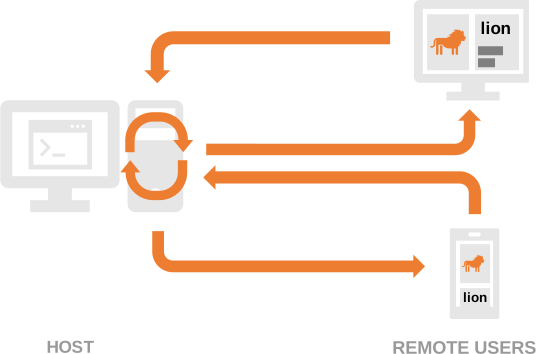
Share links are valid for 72 hours
Share links are publicly accessible
Processing happens on your local device
Your device must stay online
When to use share links Share links are perfect for:
Quick demos to colleagues
Testing with remote users
Temporary showcases
Development and debugging
Share links are public! Anyone with the link can use your app. Don’t expose sensitive information or allow critical operations without authentication.
Authentication Basic username/password Add simple authentication to your app:
import gradio as gr def greet ( name ): return f "Hello { name } !" demo = gr.Interface( fn = greet, inputs = "textbox" , outputs = "textbox" ) demo.launch( auth = ( "admin" , "password123" ))
Multiple users Support multiple username/password pairs:
import gradio as gr def greet ( name ): return f "Hello { name } !" demo = gr.Interface( fn = greet, inputs = "textbox" , outputs = "textbox" ) demo.launch( auth = [ ( "alice" , "password1" ), ( "bob" , "password2" ) ] )
Custom authentication logic Implement custom authentication functions:
import gradio as gr def validate_user ( username , password ): # Custom validation logic return username == password # Example: username must equal password def greet ( name ): return f "Hello { name } !" demo = gr.Interface( fn = greet, inputs = "textbox" , outputs = "textbox" ) demo.launch( auth = validate_user)
Access logged-in username Get the current user’s username using gr.Request:
import gradio as gr def greet ( request : gr.Request): return f "Welcome, { request.username } !" with gr.Blocks() as demo: greeting = gr.Markdown() demo.load(greet, None , greeting) demo.launch( auth = [ ( "alice" , "pass123" ), ( "bob" , "pass456" ) ] )
Logout functionality Add a logout button:
import gradio as gr def greet ( request : gr.Request): return f "Welcome, { request.username } !" with gr.Blocks() as demo: greeting = gr.Markdown() logout_btn = gr.Button( "Logout" , link = "/logout" ) demo.load(greet, None , greeting) demo.launch( auth = [ ( "alice" , "pass123" ), ( "bob" , "pass456" ) ] )
By default, /logout logs out from all sessions . To logout only the current session, use /logout?all_session=false.
OAuth with Hugging Face Enable “Sign in with Hugging Face” for your Space:
Set metadata
Add to your Space’s README.md:
Add login button
import gradio as gr def greet ( profile : gr.OAuthProfile | None ): if profile is None : return "Please log in" return f "Hello { profile.name } !" with gr.Blocks() as demo: login_btn = gr.LoginButton() greeting = gr.Markdown() login_btn.click(greet, inputs = None , outputs = greeting) demo.launch()
Access user profile
Use gr.OAuthProfile to get user information: def get_user_info ( profile : gr.OAuthProfile): return { "name" : profile.name, "username" : profile.username, "profile_url" : profile.profile }
OAuth features only work on Hugging Face Spaces. For local testing, log in with huggingface-cli login or set the HF_TOKEN environment variable.
Deep links Create shareable links that capture the current state of your app:
import gradio as gr with gr.Blocks() as demo: with gr.Row(): input_text = gr.Textbox( label = "Input" ) output_text = gr.Textbox( label = "Output" ) submit_btn = gr.Button( "Submit" ) deep_link_btn = gr.DeepLinkButton( "Share this state" ) submit_btn.click( lambda x : x.upper(), inputs = input_text, outputs = output_text ) demo.launch( share = True )
Users can click the deep link button to get a URL that preserves all component values at that moment.
Deep links require your app to be publicly accessible (hosted on Spaces or using share=True).
Embedding Gradio apps Once your app is hosted (on Hugging Face Spaces or your own server), you can embed it in websites.
Web Components (recommended) Web components offer better performance and automatic height adjustment:
Include the Gradio library
Add to your HTML <head>: < script type = "module" src = "https://gradio.s3-us-west-2.amazonaws.com/4.44.0/gradio.js" ></ script >
Add the component
Place where you want the app: < gradio-app src = "https://username-space-name.hf.space" ></ gradio-app >
Customization options < gradio-app space = "gradio/Echocardiogram-Segmentation" eager = "true" initial_height = "400px" container = "false" theme_mode = "dark" ></ gradio-app >
Available attributes:
src: Full URL to the Gradio appspace: Shorthand for Hugging Face Spaces (username/space-name)eager: Load immediately (true) or lazily (false, default)initial_height: Height while loading (default 300px)container: Show border and hosting info (default true)info: Show hosting info only (default true)autoscroll: Auto-scroll to output (default false)theme_mode: light, dark, or system (default)control_page_title: Set page title to app title (default false)
Listen to events < script > function handleLoadComplete () { console . log ( "Gradio app loaded" ); } const gradioApp = document . querySelector ( "gradio-app" ); gradioApp . addEventListener ( "render" , handleLoadComplete ); </ script >
IFrames For sites where you can’t add JavaScript:
< iframe src = "https://username-space-name.hf.space" style = "border:0; width:100%; height:600px;" allow = "microphone; camera" ></ iframe >
Set a fixed height and use style="border:0;" to remove borders. Add allow attributes for webcam/microphone access.
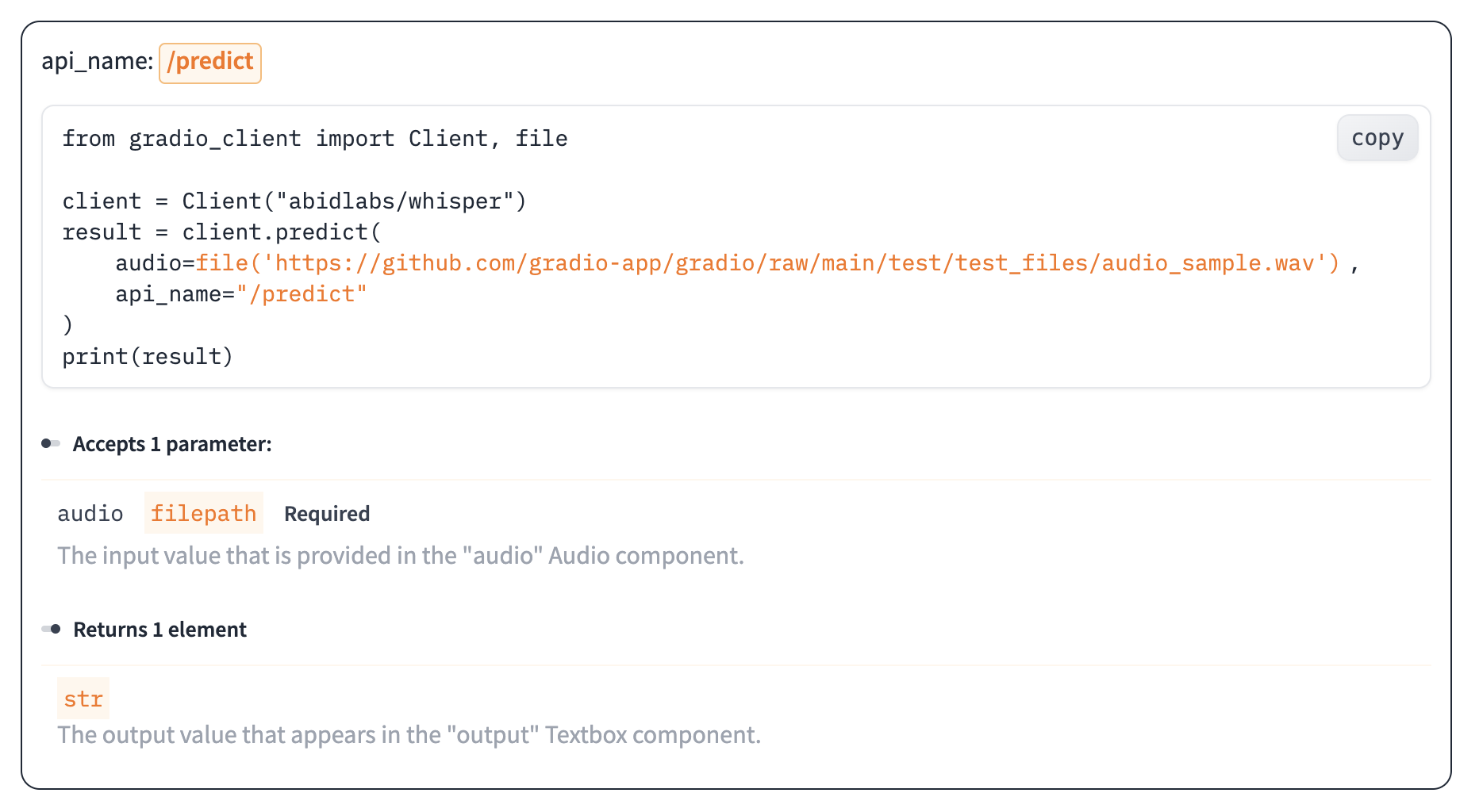
API access Every Gradio app automatically exposes an API. Users can click “Use via API” in the app footer to see:
Available endpoints
Parameter types
Example code for Python and JavaScript clients
Interactive API recorder
Learn more in the Python client and JavaScript client guides.
Rate limiting Protect your public API from abuse:
import gradio as gr from collections import defaultdict import time rate_limit = defaultdict( lambda : { "count" : 0 , "timestamp" : time.time()}) def check_rate_limit ( request : gr.Request): ip = request.client.host current_time = time.time() # Reset count if 1 minute has passed if current_time - rate_limit[ip][ "timestamp" ] > 60 : rate_limit[ip] = { "count" : 0 , "timestamp" : current_time} # Check limit (10 requests per minute) if rate_limit[ip][ "count" ] >= 10 : raise gr.Error( "Rate limit exceeded. Try again later." ) rate_limit[ip][ "count" ] += 1 def process ( text , request : gr.Request): check_rate_limit(request) return f "Processed: { text } " demo = gr.Interface( fn = process, inputs = "text" , outputs = "text" ) demo.launch()
For OAuth users, rate limit by username instead of IP:
def check_rate_limit ( request : gr.Request): identifier = request.username or request.client.host # Rate limiting logic...
Analytics By default, Gradio collects basic analytics to improve the library:
Environment (Colab, Spaces, etc.)
Components used
Advanced features enabled
Unique developer count (via IP)
Gradio version
No user data from your app is collected.Disable analytics import gradio as gr demo = gr.Interface( fn = lambda x : x, inputs = "text" , outputs = "text" , analytics_enabled = False ) demo.launch()
Or set globally:
export GRADIO_ANALYTICS_ENABLED = False
Progressive Web Apps (PWA) Make your Gradio app installable as a PWA:
import gradio as gr def greet ( name ): return f "Hello { name } !" demo = gr.Interface( fn = greet, inputs = "textbox" , outputs = "textbox" ) demo.launch( pwa = True , favicon_path = "./icon.svg" # Optional custom icon )
Users can install your app on their device:
Next steps
Hugging Face Spaces Deploy to Hugging Face Spaces for permanent hosting
Docker deployment Deploy Gradio apps with Docker
 Learn more in the Python client and JavaScript client guides.
