Interactive vs static
Every component in Gradio comes in astatic variant, and most come in an interactive version as well.
- The static version is used when a component is displaying a value, and the user cannot change that value by interacting with it.
- The interactive version is used when the user is able to change the value by interacting with the Gradio UI.
Example: Textbox
Let’s see some examples:Example: Image
Perhaps a more interesting example is with theImage component:
Components without interactive versions
Not every component has a distinct interactive version. For example, thegr.AnnotatedImage only appears as a static version since there’s no way to interactively change the value of the annotations or the image.
What you need to remember
When is interactive mode used?
When is interactive mode used?
Gradio will use the interactive version (if available) of a component if that component is used as the input to any event; otherwise, the static version will be used.
What do you need to implement?
What do you need to implement?
When you design custom components, you must accept the boolean
interactive keyword in the constructor of your Python class. In the frontend, you may accept the interactive property, a bool which represents whether the component should be static or interactive. If you do not use this property in the frontend, the component will appear the same in interactive or static mode.The value and how it is preprocessed/postprocessed
The most important attribute of a component is itsvalue. Every component has a value. The value is typically set by the user in the frontend (if the component is interactive) or displayed to the user (if it is static). It is also this value that is sent to the backend function when a user triggers an event, or returned by the user’s function at the end of a prediction.
So this value is passed around quite a bit, but sometimes the format of the value needs to change between the frontend and backend. Take a look at this example:
Image component as the input and the output. In the frontend, the Image component will actually upload the file to the server and send the filepath but this is converted to a numpy array before it is sent to the user’s function. Conversely, when the user returns a numpy array from their function, the numpy array is converted to a file so that it can be sent to the frontend and displayed by the Image component.
The two conversion methods
Each component does two conversions:preprocess
Converts the
value from the format sent by the frontend to the format expected by the Python function. This usually involves going from a web-friendly JSON structure to a Python-native data structure, like a numpy array or PIL image. The Audio and Image components are good examples of preprocess methods.What you need to remember
Must I implement these methods?
Must I implement these methods?
Every component must implement
preprocess and postprocess methods. In the rare event that no conversion needs to happen, simply return the value as-is. Textbox and Number are examples of this.What control do I have?
What control do I have?
As a component author, you control the format of the data displayed in the frontend as well as the format of the data someone using your component will receive. Think of an ergonomic data structure a Python developer will find intuitive, and control the conversion from a web-friendly JSON data structure (and vice-versa) with
preprocess and postprocess.The example version of a component
Gradio apps support providing example inputs — and these are very useful in helping users get started using your Gradio app. Ingr.Interface, you can provide examples using the examples keyword, and in Blocks, you can provide examples using the special gr.Examples component.
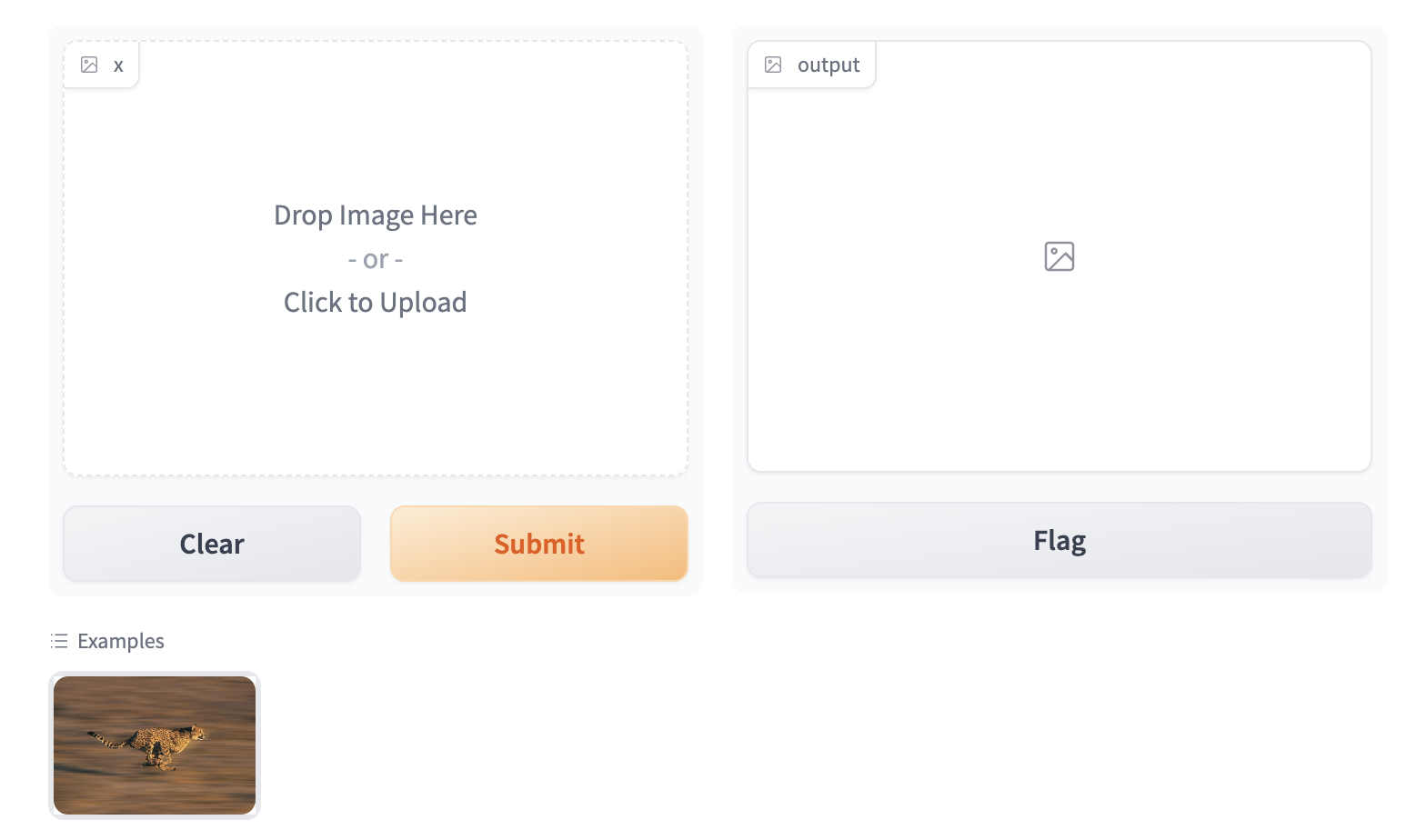
At the bottom of this screenshot, we show a miniature example image of a cheetah that, when clicked, will populate the same image in the input Image component:
Implementing the example view
To enable the example view, you must have the following two files in the top of thefrontend directory:
Example.svelte: This corresponds to the “example version” of your componentIndex.svelte: This corresponds to the “regular version”
value is processed using the same .postprocess() method described earlier. If you’d like to process the data differently (for example, if the .postprocess() method is computationally expensive), then you can write your own .process_example() method for your custom component, which will be used instead.
The Example.svelte file and process_example() method will be covered in greater depth in the dedicated frontend and backend guides respectively.
What you need to remember
When should I create an example view?
When should I create an example view?
If you expect your component to be used as input, it is important to define an “Example” view. If you don’t, Gradio will use a default one but it won’t be as informative as it can be!