Documentation Index
Fetch the complete documentation index at: https://www.mintlify.com/docs/llms.txt
Use this file to discover all available pages before exploring further.
Security Disclaimer: While we provide this guide to help you integrate Auth0 with Mintlify, consult with your security team before implementing any authentication solution. Mintlify is not responsible for any security issues that may arise from your specific implementation.
Overview
This guide walks you through setting up Auth0 as an authentication provider for your Mintlify documentation. By the end, your users can log in to your documentation using their Auth0 credentials.Create a Regular Web Application in Auth0
Log in to your Auth0 dashboard and navigate to Applications > Applications. Click Create Application, give your application a name (for example, “Mintlify”), and select Regular Web Applications as the application type. Then click Create.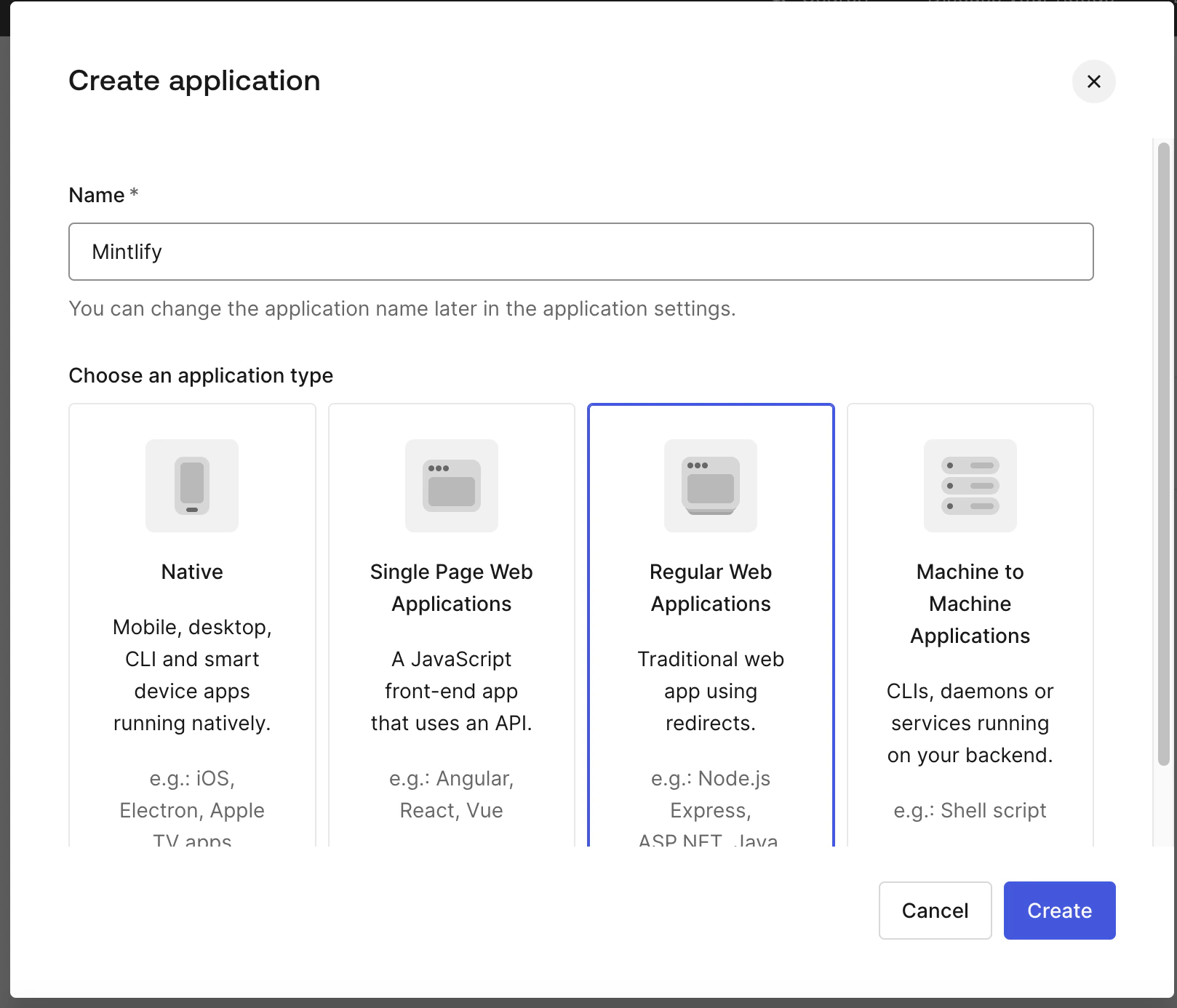
Get client information
After creating your application, you’ll be taken to the application settings page. Here, you’ll find the essential credentials needed for the OAuth integration: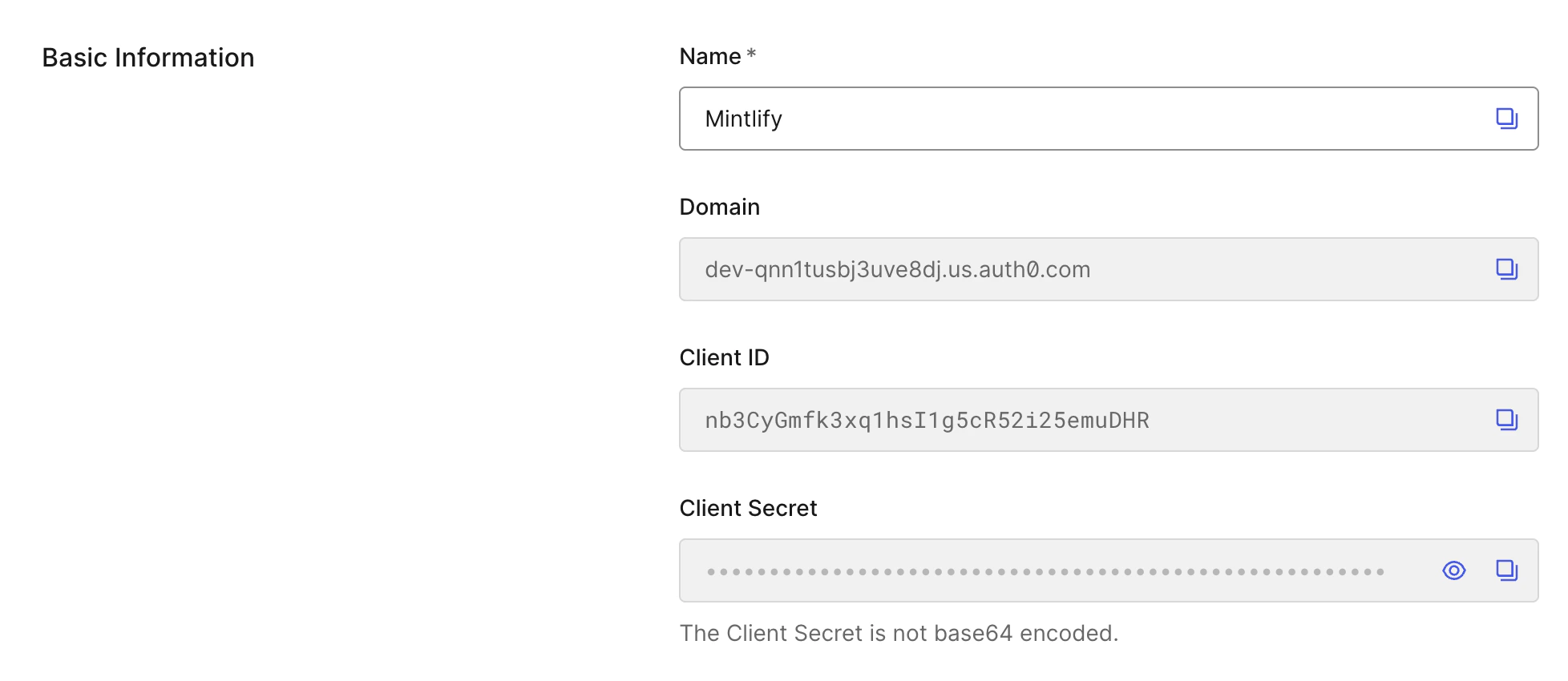
- Domain: This is your Auth0 tenant domain (for example,
your-tenant.auth0.com) - Client ID: The public identifier for your application
- Client Secret: The secret key for your application (keep this secure)
Setup Mintlify client
Navigate to your Mintlify Dashboard and go to the Settings > Authentication section. Select OAuth as your authentication method and you’ll see the OAuth configuration form: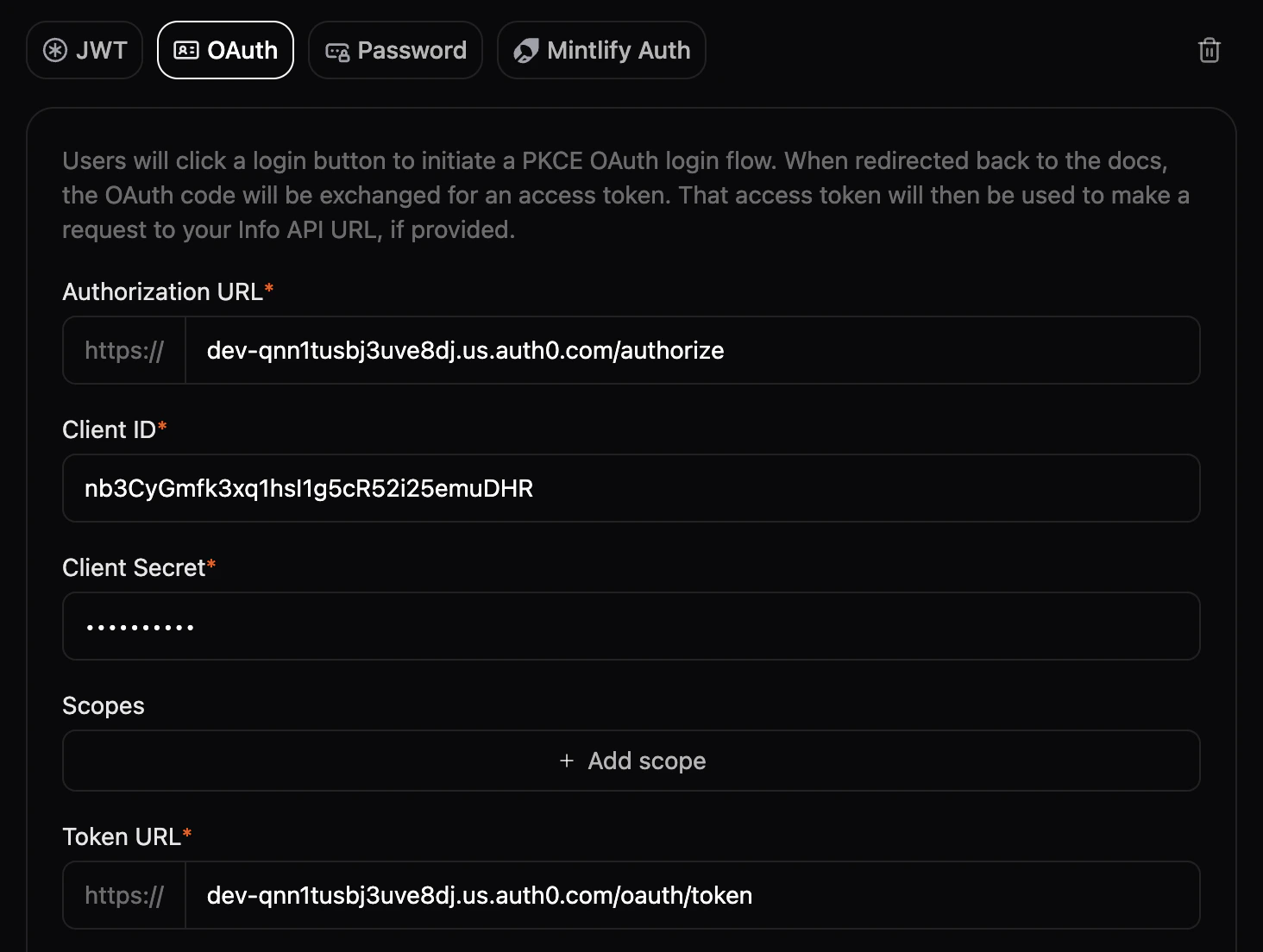
- Authorization URL:
https://YOUR_AUTH0_DOMAIN/authorize(replaceYOUR_AUTH0_DOMAINwith your actual Auth0 domain from step 2) - Client ID: Enter the Client ID from your Auth0 application
- Client Secret: Enter the Client Secret from your Auth0 application
- Scopes: Leave blank unless you have custom scopes set in Auth0
- Token URL:
https://YOUR_AUTH0_DOMAIN/oauth/token(replaceYOUR_AUTH0_DOMAINwith your actual Auth0 domain)
Configure Callback URL
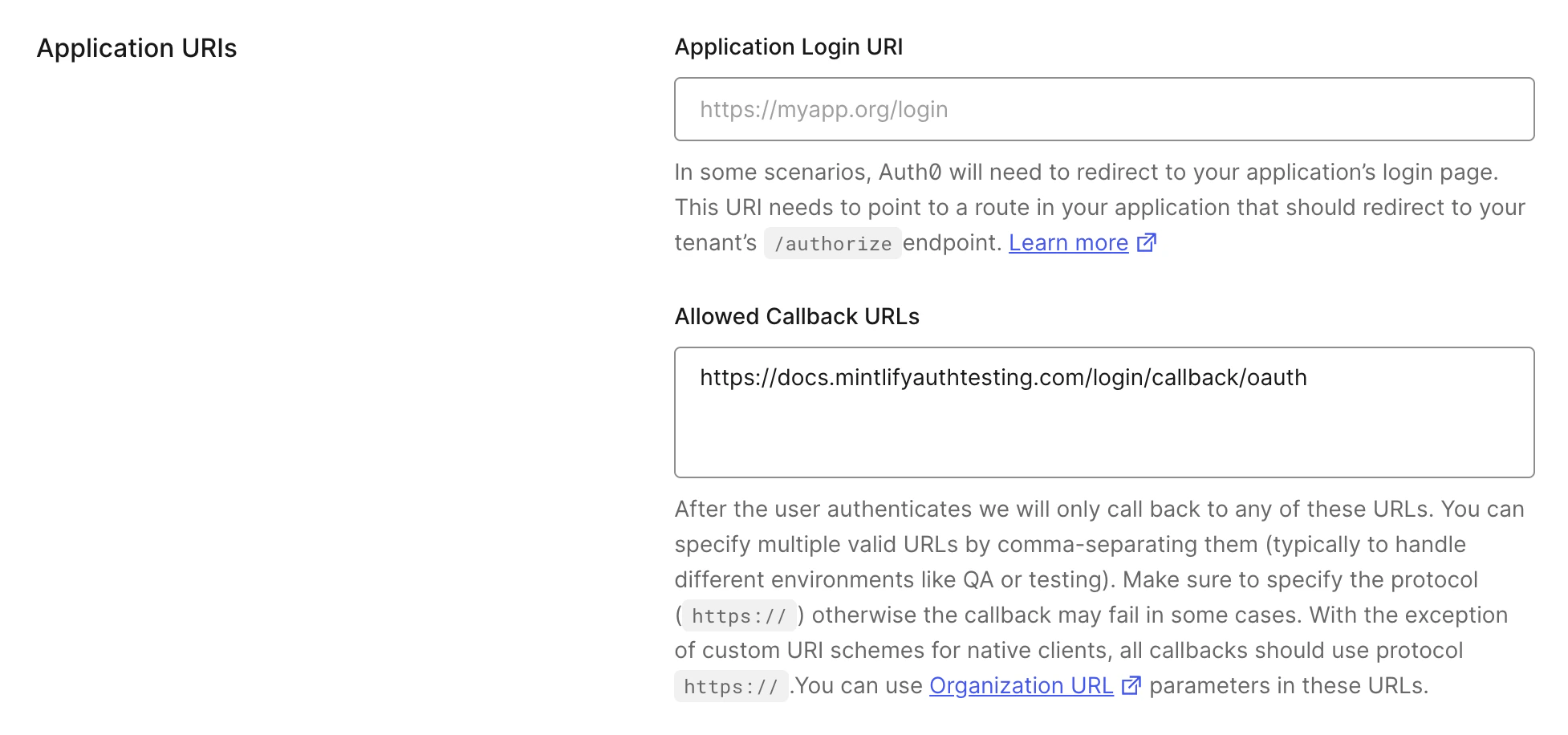
Mintlify generates a unique Redirect URL that Auth0 needs to recognize for the OAuth flow to work properly.Copy the Redirect URL from your Mintlify Dashboard’s Authentication settings: