Dmytro Tovstokoryi
Design
Share this article
Dmytro Tovstokoryi
Design
Share this article
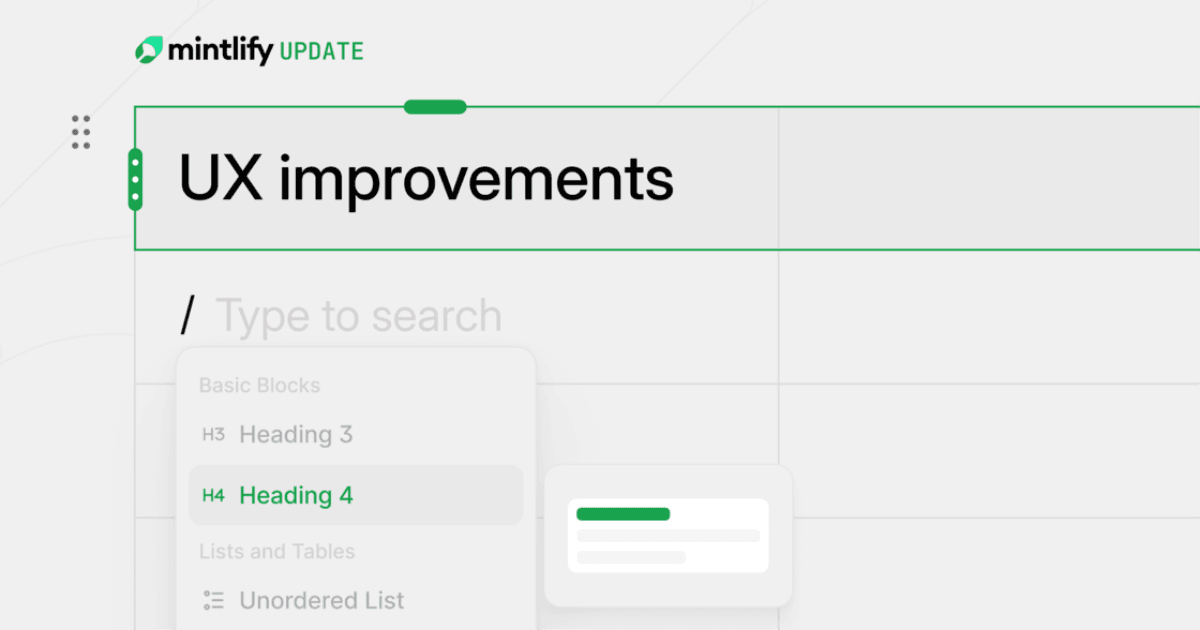
We recently overhauled our web editor. This blog covers 22 UX details implemented by our design engineering team.
Building a product includes large scale features and technical decisions. But what often gets overlooked are the small UX details.
When building our web editor, we treated every detail as a chance to make the experience feel more natural and intuitive.
This update includes a lot of everyday UX improvements that make writing, editing, and polishing docs feel better.
Clearer Change Review
Docs review should be visual. You should be able to understand what changed without mentally translating a raw diff.
1. Visual Diff Navigation
The visual diff view shows changes inside the WYSIWYG editor, with minimap navigation to move through edits quickly.
Instead of reading a code-style diff, you can scan the page the way a reader will see it. Additions, removals, and edits are easier to understand in context.
2. AI Pull Request Details
When a change is ready, the editor can generate a PR title and description for you.
This is a practical shortcut, not a magic trick. The point is to remove one more blank text box from the final step. You can still edit the title and description before sending it off.
Faster Everyday Writing
Most editing time is spent on ordinary motions: inserting a block, moving content around, selecting a section, or turning one format into another. The new editor smooths out those moments.
3. Better Drag And Drop
Drag and drop now works more naturally across blocks, lists, columns, and accordion groups.
There is also a better drag handle context menu, so you can move content and act on it from the same place. It makes restructuring a page feel less like surgery and more like editing.
4. Global Block Selection
You can select blocks globally, then move or modify them as a group.
This makes larger edits much easier. When you are cleaning up a long page, you do not want to repeat the same action one block at a time.
5. Turn Blocks Into Anything
The new "Turn into" action lets you convert a block from one type to another through the context menu.
A paragraph can become a heading. A note can become a callout. Content can change shape without needing to be copied, deleted, and recreated.
6. New Slash Menu
The slash menu has a new design that is easier to scan and faster to use.
Slash commands are one of the main ways people insert components, media, and formatting. The new menu makes that flow cleaner, especially as the editor supports more block types.
7. Emoji Trigger
Typing : now opens emoji suggestions directly in the editor.
It is a tiny improvement, but those are the ones that make writing feel fluid.
8. Heading Level 4 Support
The editor now supports heading 4, so pages with deeper structure can be edited visually without dropping into Markdown.
Richer Component Editing
Mintlify docs are not just text. They use tables, tabs, badges, trees, colors, code blocks, diagrams, snippets, and custom components to explain products clearly.
The editor is getting better at handling those pieces directly.
9. Table Creation
Tables have a new editing experience that feels more like working with structured content and less like wrestling with Markdown.
10. Table Editing
You can create and adjust tables visually, which makes reference content, compatibility charts, and comparison sections easier to maintain.
11. Better Code Blocks
Code blocks have been overhauled with line numbers, syntax-highlighted diffs, a wrap toggle, expandable blocks, and Twoslash support.
Code examples are where docs need to be precise. The editor should help authors make code easier to read without forcing them to preview somewhere else.
12. Mermaid Diagram Preview
Mermaid diagrams now preview directly in the editor.
You can edit the diagram and see the result in place, instead of switching between source text and a separate preview. Flowcharts, architecture diagrams, and sequence diagrams become much easier to maintain.
13. Editable Color Component
The Color component can now be edited visually.
This makes design tokens, palettes, and brand references easier to adjust without touching raw component syntax.
14. Editable Tree Component
The Tree component is now editable in the editor too.
File structures are common in docs. Editing them visually makes examples cleaner and less fragile.
15. Editable Badge Component
Badges can be edited directly in the page.
For small labels like beta, required, deprecated, or platform-specific notes, this keeps authors in the writing flow.
16. Reorderable Tabs
Tabs can now be reordered with drag and drop.
If you are documenting SDKs, languages, frameworks, or plan types, changing the order should be as easy as moving the tab into place.
17. Smarter Component Paste
The editor now handles all Mintlify components on paste.
Moving content into the editor is less brittle. Components come in as components, not broken text that needs to be rebuilt by hand.
Smoother Media Automations
Docs are increasingly visual. Screenshots, videos, diagrams, and embeds are part of how products get explained clearly.
18. Video Support
Videos are now supported directly in the editor.
You can add richer walkthroughs without leaving the page or falling back to awkward workarounds.
19. YouTube And Loom Embeds
You can add YouTube and Loom embeds through the slash command menu.
This makes it easier to bring demos, tutorials, and product walkthroughs into docs while keeping the writing flow simple.
20. Better Image Editing
Images now support dark and light mode variants without needing a Frame wrapper, and the image toolbar has been redesigned.
This is one of those changes that removes friction from a common task. Authors can make images fit the page and theme without thinking about component plumbing.
Faster Navigation
Large docs sites need good wayfinding for writers, not just readers. The editor is getting better at helping authors understand where they are and move around quickly.
21. Table Of Contents Sidebar
The editor now has a table of contents sidebar, so you can jump between sections on the page without scrolling through the whole document.
It is especially useful for long conceptual pages, API guides, and migration docs.
22. Docs Config Sheet
The docs.json sheet has been redesigned.
Configuration is easier to read and change, which makes docs structure feel less like a hidden file and more like part of the editor.
A Better Editor Foundation
Some of the most important UX work is the least visible.
We also improved typing latency and rendering performance. That foundation matters because every other interaction depends on it. If typing feels slow, nothing else feels polished.
The goal is simple: the editor should be fast enough that you forget about the editor and focus on the docs.
All of these changes point in the same direction. Mintlify's editor is becoming faster, clearer, and easier to use for everyday docs work.
More blog posts to read

Rise of the Knowledge Engineer
Agents are one of the largest audiences for company knowledge, accounting for 66% of measured web traffic across documentation powered by Mintlify. The emerging role responsible for keeping that knowledge accurate and retrievable is the knowledge engineer.
September 16, 2026David Isquick
Product Marketing

Highlights from the 2026 State of Knowledge Report
AI agents overtook humans as the primary readers across Mintlify-powered sites. In August alone, agents made 257 million web requests compared to 131 million human page loads, which means agent traffic now outnumbers human traffic by nearly 2:1.
September 16, 2026Lauren Volpi
Marketing