

Emails authentication requires an Enterprise plan.
- The people who read your pages don’t have accounts in an identity provider you control.
- You want per-person access that you can revoke, instead of a shared password.
- You want to show different pages to different readers with groups.
Turn on emails authentication
1
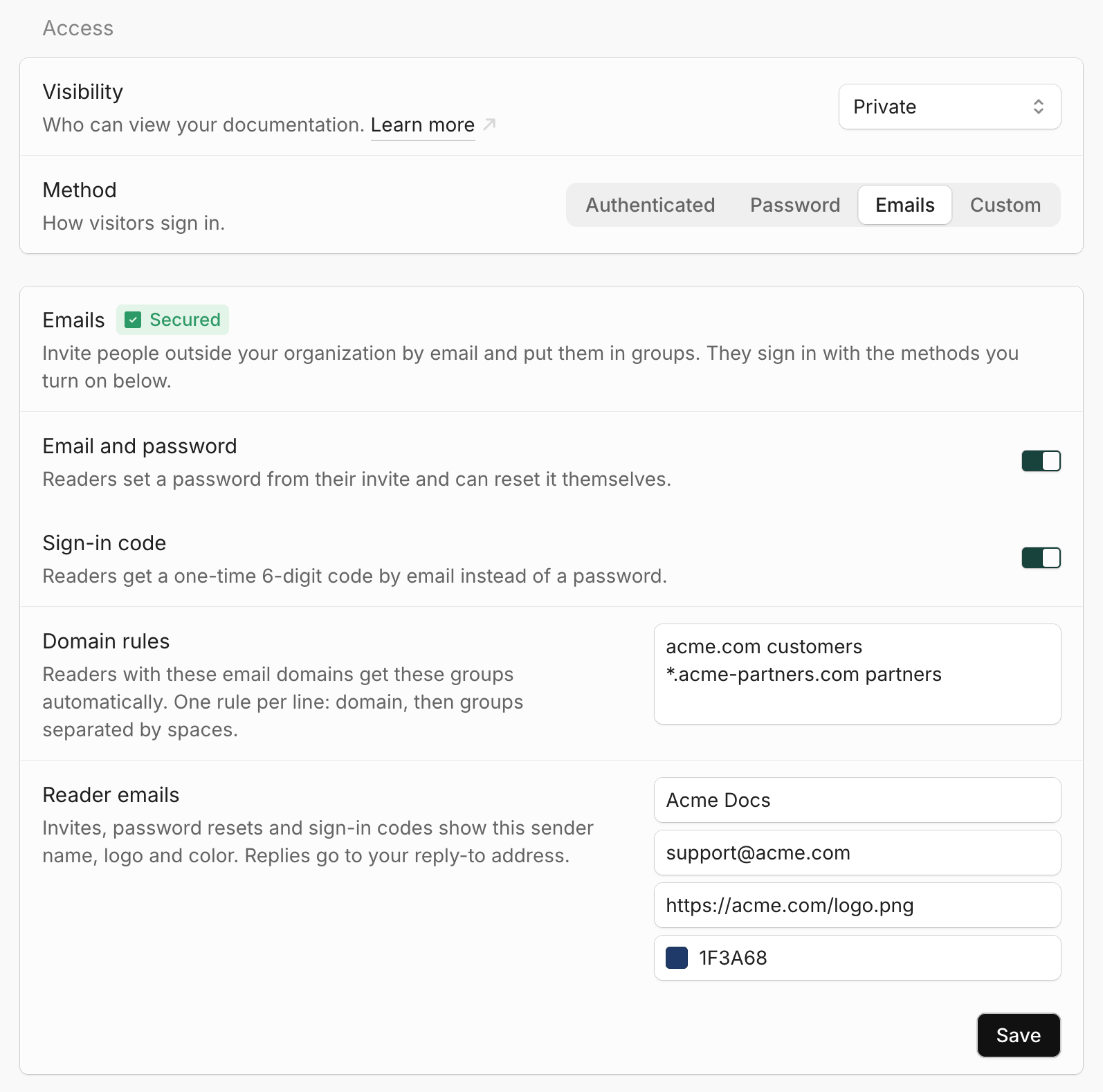
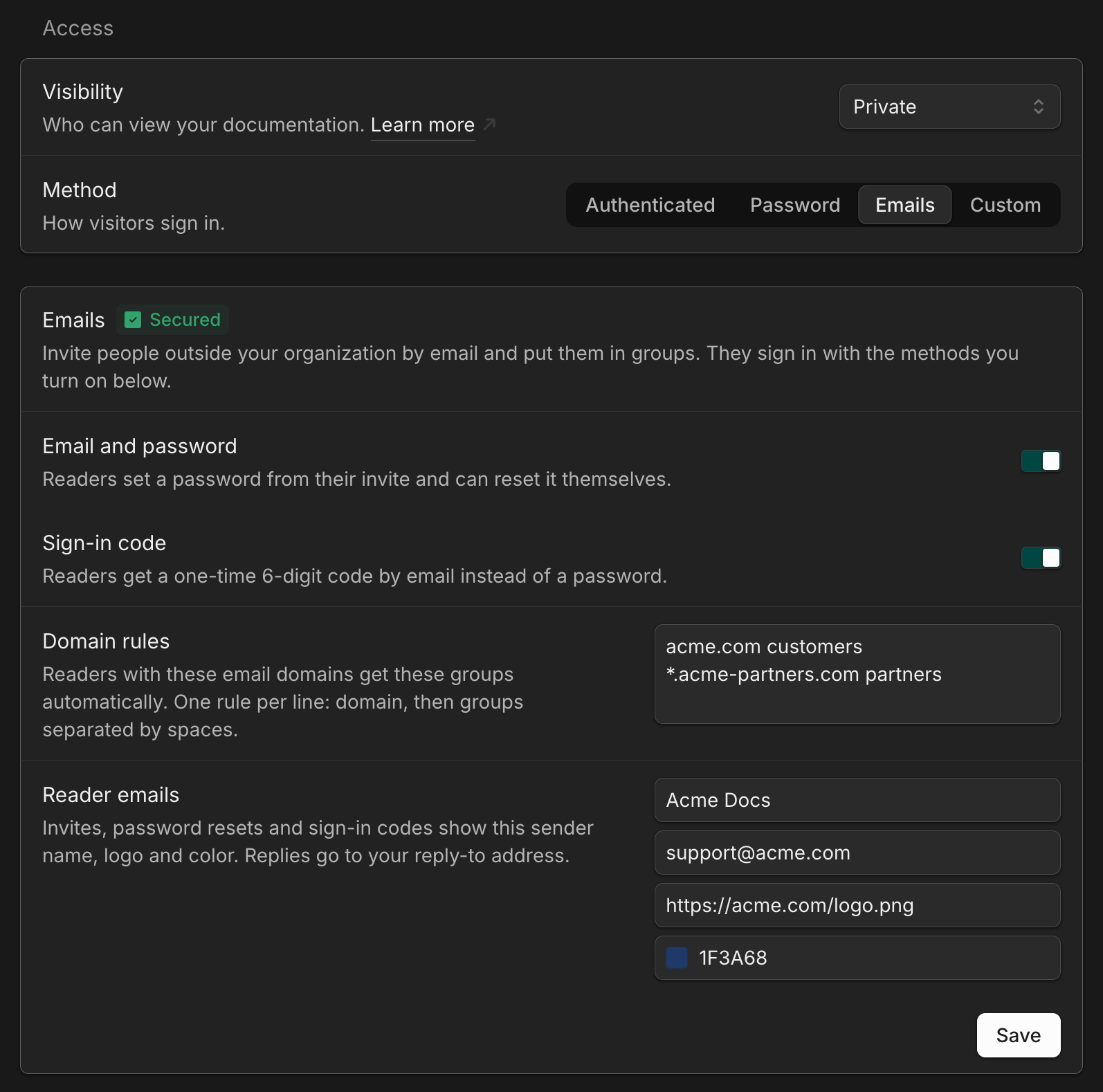
Choose the emails method.
- In your dashboard, go to Access.
- Set Visibility to Private.
- Set Method to Emails.
2
Choose how readers sign in.
Turn on one or both sign-in methods:
- Email and password: Readers set a password from their invite email and can reset it themselves.
- Sign-in code: Readers get a one-time 6-digit code by email each time they sign in.
3
(Optional) Brand your reader emails.
Under Reader emails, set how invites, password resets, and sign-in codes look:
- From name: The sender name readers see, such as
Acme Docs. Defaults to your site name. - Reply-to: Where replies go, such as
support@acme.com. - Logo URL: An
https://URL for the logo at the top of each email. - Brand color: The color of buttons in each email.
4
Save.
Click Save. After your site redeploys, visitors must sign in to read your documentation.
Add readers
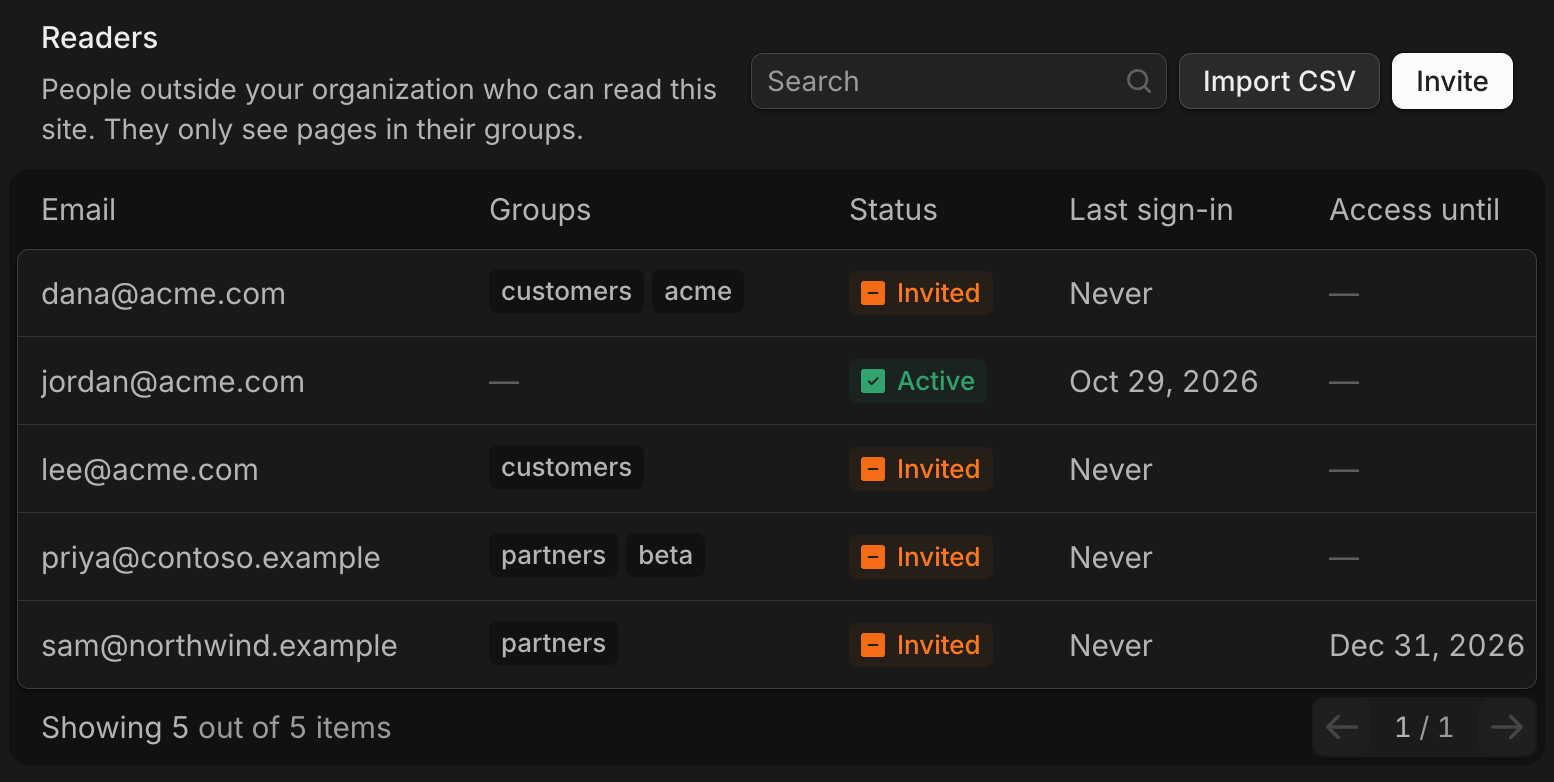
Readers are the people who can sign in to your site. Manage them in the Readers section of your Access settings.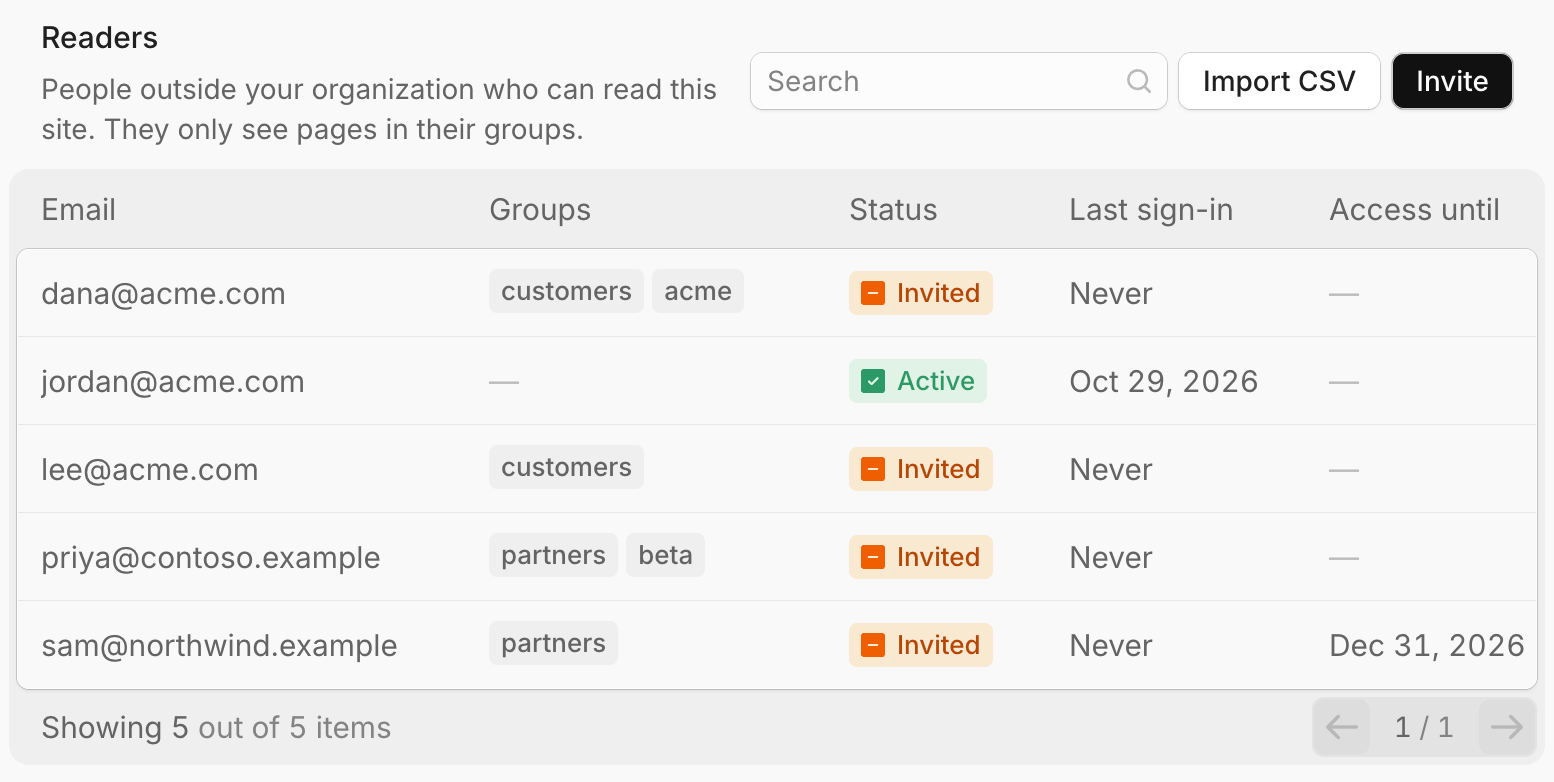
Invite readers
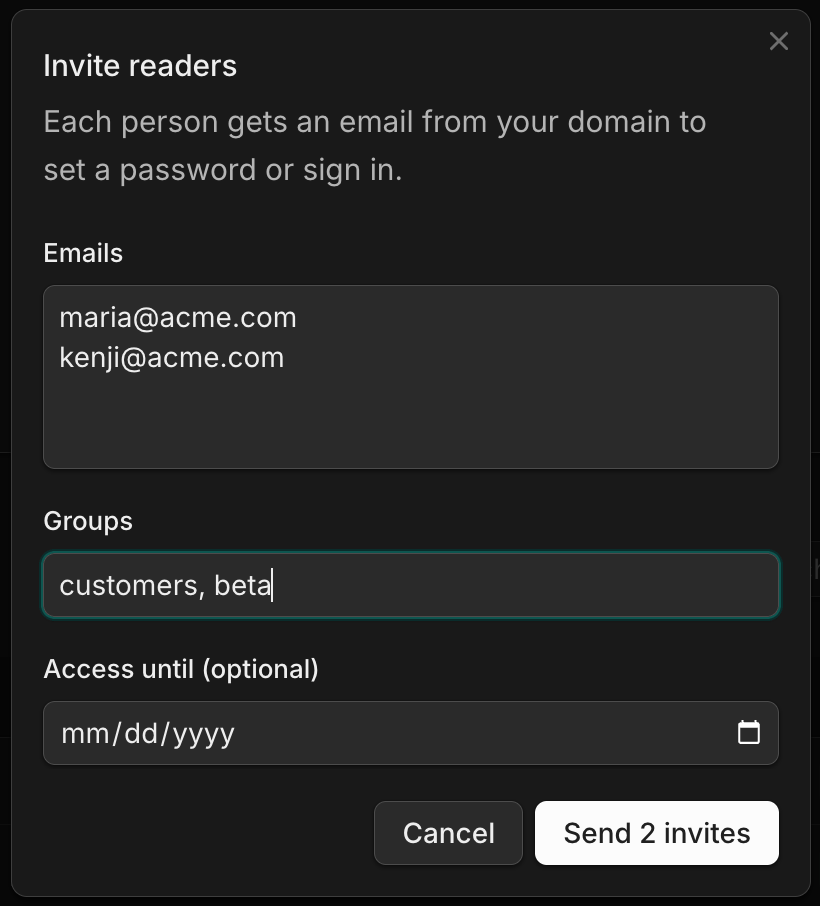
- Click Invite.
- Enter one or more email addresses, one per line.
- Optionally, enter groups separated by commas and an Access until date.
- Click Send invites.
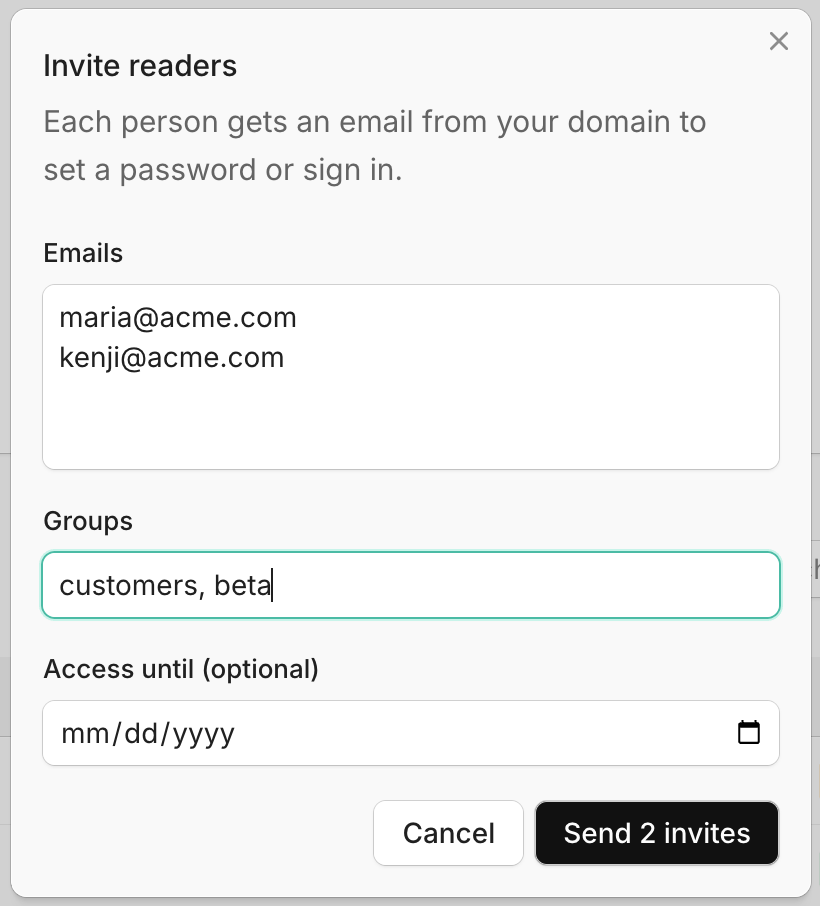
Import readers from a CSV
To add many readers at once, click Import CSV and choose a file with these columns:readers.csv
email: Required.groups: Optional. Separate multiple groups with;or|.access_until: Optional. A date such as2026-12-31.
Limit how long a reader has access
Set Access until when you invite or import a reader. After that date, the reader can’t sign in and their current session ends.Remove a reader
Open the actions menu on the reader’s row and click Remove reader. Mintlify signs the reader out the next time their session refreshes and they can’t sign in again unless you reinvite them.How readers sign in
When someone visits your site, they see a sign-in page with your logo. Depending on the methods you turned on, they can:- Enter their email and password.
- Click Email me a code and enter the 6-digit code from the email. Codes expire after 10 minutes.
- Click Forgot password? to get a reset link. Reset links expire after one hour and work once.
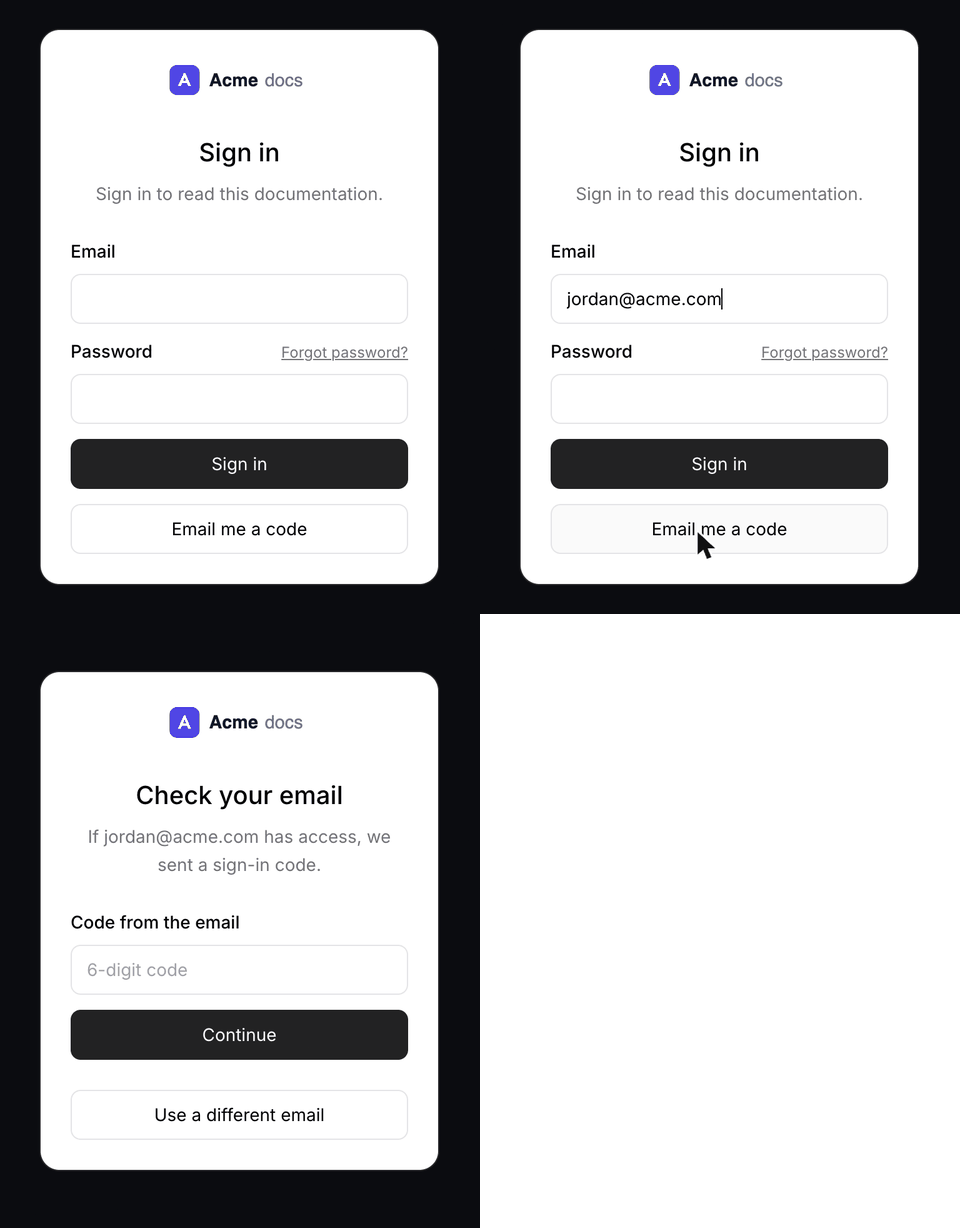
Control access with groups
Groups decide which pages each reader can see. They work the same way as groups for OAuth and JWT authentication:- Pages without a
groupsproperty are visible to every signed-in reader. - Pages with a
groupsproperty are visible only to readers in at least one of those groups. - Pages with
public: trueare visible to everyone, including visitors who aren’t signed in.
Page for the partners group
- Per reader: Set groups when you invite or import a reader.
- Domain rules: Give every reader with a matching email domain the same groups. Enter one rule per line: the domain, then the groups separated by spaces.
Domain rules
acme.com matches dana@acme.com. A rule for *.acme-partners.com matches subdomains such as sam@eu.acme-partners.com, but not acme-partners.com itself. Domain rules only add groups. People with a matching domain still need an invite to sign in.
Send reader emails from your own domain
By default, reader emails come fromnotifications@mintlify.com with your From name. To send them from your own address, such as docs@docs.acme.com, add a sending domain.
1
Add your domain.
- In your Access settings, find Sending domain under the Emails settings.
- Enter the sender name, such as
docs, and the domain, such asdocs.acme.com. - Click Add domain.
2
Add the DNS records.
Copy each record into your DNS provider. Mintlify shows a DKIM
TXT record and SPF MX and TXT records on the send subdomain of your domain.3
Verify.
After the records propagate, click Verify. When the status changes to Verified, reader emails come from your address.
notifications@mintlify.com. Each site can have one sending domain, and each domain can belong to only one site. You can’t use mintlify.com or its subdomains.
To change the sender name, edit it and save. To stop sending from your domain, click Remove.