
Overview

ChuchoBot monitors specific instruments (stocks, bonds, CEDEARs, etc.) for arbitrage opportunities. You can customize which instruments to monitor based on your trading strategy.

Adding/Removing Instruments via UI

The easiest way to manage instruments is through the ChuchoBot interface.
1

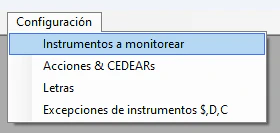
Open Configuration Menu

In ChuchoBot, go to ConfiguraciónInstrumentos a monitorearConfiguration Menu
2

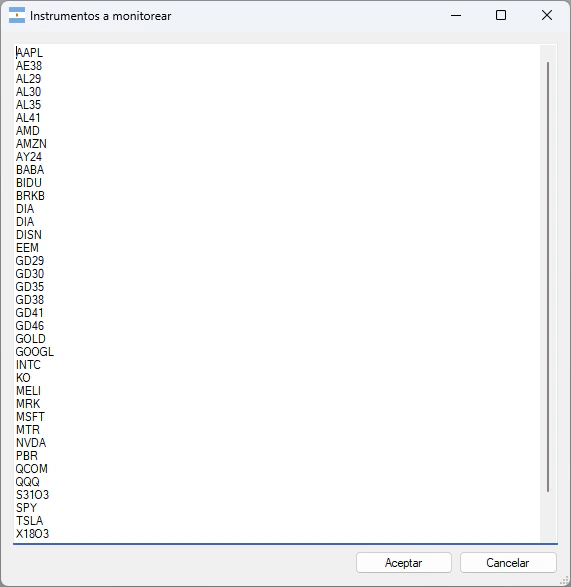
Edit Instrument List

A text window will open showing the current list of instruments.
  • Add instruments: Type one ticker per line
  • Remove instruments: Delete the line with the ticker Instruments to Monitor
3

Save Changes

Click OK or Save to apply your changes. The application will start monitoring the new instruments immediately.
Each instrument should be on its own line. For example, to add GGAL (Banco Galicia), simply add a new line with GGAL.

Configuring via Config File

You can also edit instruments directly in the ChuchoBot.exe.config file:
<userSettings>
  <Primary.WinFormsApp.Properties.Settings>
    <setting name="ArbitrationTickers" serializeAs="Xml">
      <value>
        <ArrayOfString xmlns:xsd="http://www.w3.org/2001/XMLSchema" 
                       xmlns:xsi="http://www.w3.org/2001/XMLSchema-instance">
          <string>GGAL</string>
          <string>YPFD</string>
          <string>PAMP</string>
          <string>AL30</string>
          <string>GD30</string>
          <!-- Add more instruments here -->
        </ArrayOfString>
      </value>
    </setting>
  </Primary.WinFormsApp.Properties.Settings>
</userSettings>

Default Instruments

ChuchoBot comes pre-configured with a comprehensive list of popular instruments:
  • AL29, AL30, AL35, AL41
  • GD29, GD30, GD35, GD38, GD41, GD46
  • AE38
  • Tech: AAPL, MSFT, GOOGL, META, NVDA, AMD, TSLA
  • ETFs: SPY, QQQ, DIA, IWM, EEM, EWZ
  • Popular stocks: AMZN, NFLX, MELI, BABA, and many more
  • GGAL (Banco Galicia)
  • YPFD (YPF)
  • PAMP (Pampa Energía)
  • BMA (Banco Macro)
  • And others
  • CRCJO, DNC3O, IRCOO

Example Instruments List

Here’s an example of a focused instruments list for monitoring popular CEDEARs and bonds:
<ArrayOfString xmlns:xsd="http://www.w3.org/2001/XMLSchema" 
               xmlns:xsi="http://www.w3.org/2001/XMLSchema-instance">
  <!-- Argentine Bonds -->
  <string>AL30</string>
  <string>GD30</string>
  <string>AL35</string>
  <string>GD35</string>
  
  <!-- Tech CEDEARs -->
  <string>AAPL</string>
  <string>MSFT</string>
  <string>GOOGL</string>
  <string>NVDA</string>
  <string>TSLA</string>
  
  <!-- ETFs -->
  <string>SPY</string>
  <string>QQQ</string>
  
  <!-- Latin American -->
  <string>MELI</string>
</ArrayOfString>

Instrument Ticker Exceptions (D/C)

Some instruments don’t follow the standard naming convention for MEP (D) and CCL (C) tickers.

Configuring Exceptions

1

Open Exception Configuration

Go to ConfiguraciónExcepciones de instrumentos $;D;C
2

Add Exception

Enter exceptions using the format: {Ticker Pesos};{Ticker MEP};{Ticker CCL}Example: X20Y4;XY4D;XY4C
This is stored in the config file as:
<setting name="TickersDC" serializeAs="Xml">
  <value>
    <ArrayOfString xmlns:xsd="http://www.w3.org/2001/XMLSchema" 
                   xmlns:xsi="http://www.w3.org/2001/XMLSchema-instance">
      <string>CRCJO;CRCJD;CRCJC</string>
      <string>DNC3O;DNC3D;DNC3C</string>
      <string>IRCOO;IRCOD;IRCOC</string>
    </ArrayOfString>
  </value>
</setting>
This configuration is useful for treasury bills and other instruments where the ticker naming doesn’t follow standard patterns.

Best Practices

  • Start small: Begin with 10-20 instruments you actively trade
  • Performance: Monitoring too many instruments may impact performance
  • Liquidity: Focus on liquid instruments with active trading
  • Strategy: Align your instrument list with your arbitrage strategy
After modifying the config file directly, restart ChuchoBot for changes to take effect.

Build docs developers (and LLMs) love