Overview
ChuchoBot connects to the Primary API (Matriz) provided by your broker (ALyC). Each broker has a unique API base URL that must be configured before you can use ChuchoBot.ChuchoBot requires access to Primary API (Matriz) to function. If you don’t have access to Matriz, you cannot use this application.
Configuration Method
You can configure the Primary API base URL in two ways:1. Using the Login Window (Recommended)
Enter API Base URL
In the Primary Login window, replace the 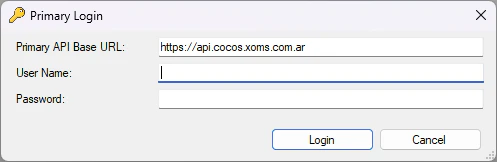
Primary API Base URL field with the URL provided by your broker.2. Editing the Configuration File
You can also manually edit theChuchoBot.exe.config file:
Broker API URLs
Use the appropriate API base URL for your broker:Cocos Capital
Cocos Capital
Eco Valores
Eco Valores
Bull Market Brokers
Bull Market Brokers
Veta Capital
Veta Capital
Cohen
Cohen
Adcap
Adcap
BCCH
BCCH
For a complete list of brokers offering DMA access to Matriz, visit: https://www.matbarofex.com.ar/agentes-dma
Verification
After configuring the API URL and logging in:- The application should connect successfully
- You’ll see market data streaming in real-time
- The WiFi icon should turn green when connected