

Documentation Index
Fetch the complete documentation index at: https://www.mintlify.com/docs/llms.txt
Use this file to discover all available pages before exploring further.
About MCP servers
The Model Context Protocol (MCP) is an open protocol that creates standardized connections between AI applications and external services, like documentation. Mintlify generates a search MCP server for your site, preparing your content for the broader AI ecosystem. Any MCP client like Claude, Cursor, Goose, or ChatGPT can connect to your content. Your search MCP server exposes tools for AI applications to search and retrieve your content. Your users must connect your search MCP server to their tools.How MCP servers work
When an AI application connects to your search MCP server, it can search your content and retrieve full pages in response to a user’s prompt. This avoids relying on information from training data or generic web searches. Your search MCP server provides access to all indexed content on your Mintlify site.- AI applications can proactively search your content while generating a response even if not explicitly asked to search for an answer.
- AI applications determine when to use the available tools based on the context of the conversation and the relevance of your content.
- Each tool call happens during the generation process, so the AI application uses up-to-date information from your site to generate its response.
MCP tools
Your search MCP server provides two tools that agents can use:- Search: Searches across your site to find relevant content, returning snippets with titles and links. Use this to discover information or find pages matching a query.
- Query docs filesystem: Reads and navigates your site’s virtual filesystem using shell-style commands. Use this to browse and retrieve content, or extract specific sections—including batch reads across multiple pages in a single call.
MCP resources
Your search MCP server also exposes your skill.md files as MCP resources. Agents connected to your search MCP server can discover and access your skill files without installing them separately.Skill.md resources appear in the search MCP server’s resource list and contain the capability descriptions Mintlify generates or that you define in your custom skill files.
Search parameters
The MCP search tool supports optional parameters that AI applications use to control and refine search results.version: Filter results to a specific site version. For example,'v0.7'. Only available when your site has multiple versions. Only returns content tagged with the specified version or content available across all versions.language: Filter results to a specific language code. For example,'en','zh', or'es'. Only available when your site has multiple languages. Only returns content in the specified language or content available across all languages.
Search MCP compared to web search
AI tools can search the web, but the search MCP provides distinct advantages.- Direct source access: Web search depends on what search engines have indexed, which may be stale or incomplete. The search MCP searches your current indexed content directly.
- Integrated workflow: MCP allows the AI to search during response generation rather than performing a separate web search.
- No search noise: SEO and ranking algorithms influence web search results. MCP goes straight to your content.
Access your search MCP server
Mintlify generates a search MCP server for your site and hosts it at the/mcp path of your site URL. For example, Mintlify’s search MCP server is available at https://mintlify.com/docs/mcp.
- For public content, your search MCP server is available to anyone. It searches all indexed public pages.
- For content with partial authentication, where some pages are public and others require login, you must enable your search MCP server before users can access it. Unauthenticated users can search public content. Users who authenticate can search all content they have permission to access based on their user groups.
- For content where all pages require authentication, you must enable your search MCP server before it is available to users. Users must authenticate before connecting to your search MCP server. Your search MCP server searches only the content each user has access to based on their user groups.
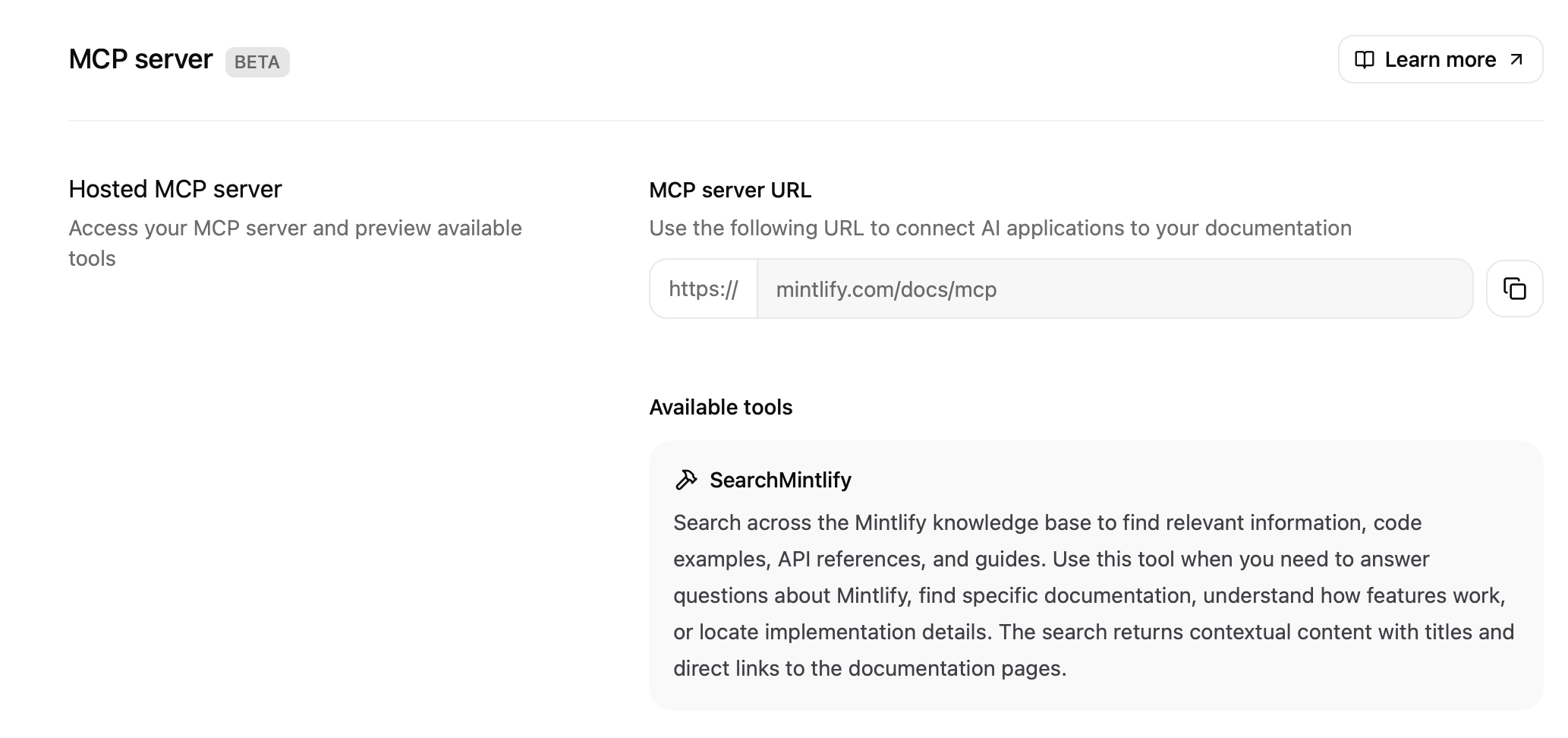
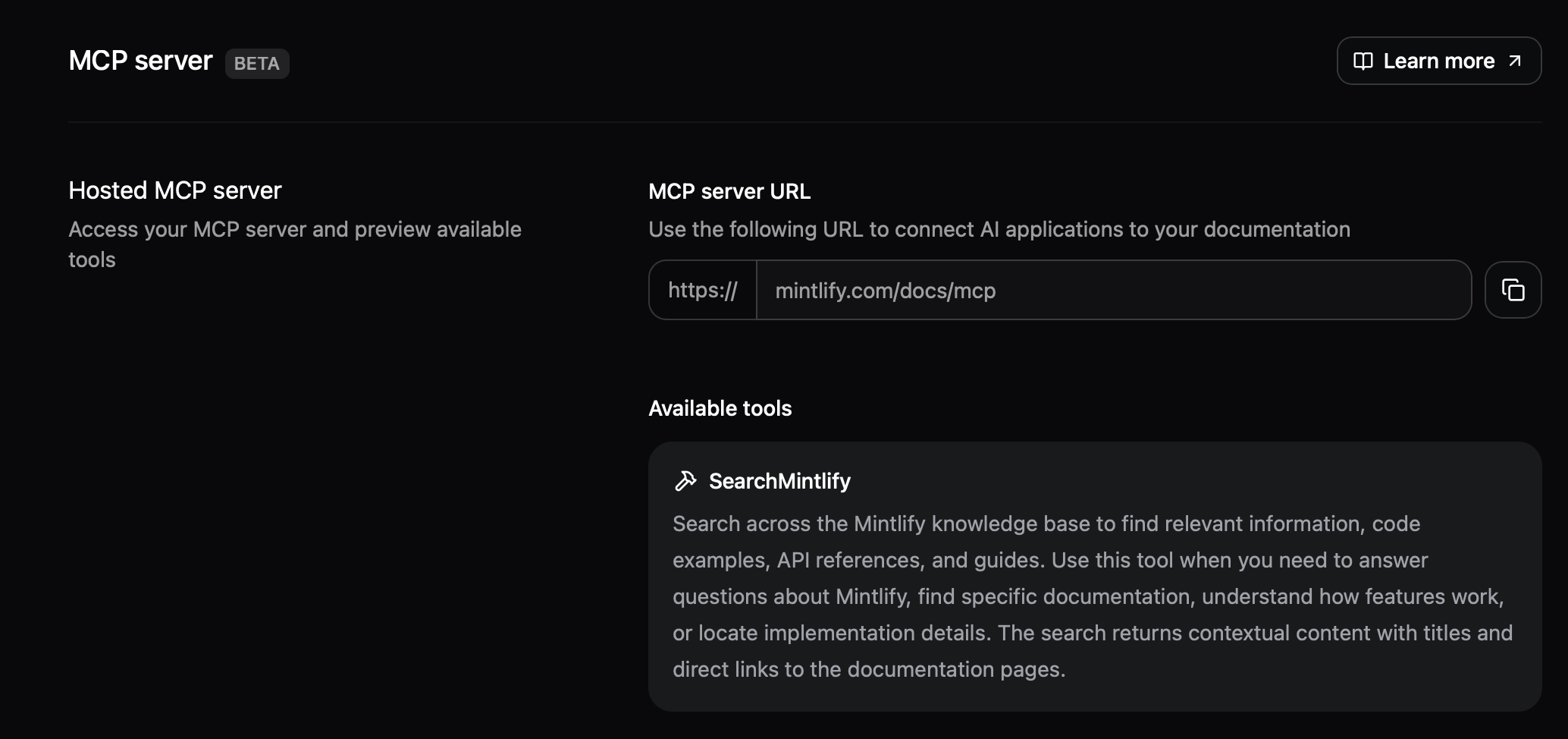
Search MCP servers use the
/mcp and /authed/mcp paths. Other navigation elements cannot use these paths.Discovery endpoint
Mintlify hosts a discovery document at/.well-known/mcp for agents and tools to locate your search MCP server without prior configuration.
GET /.well-known/mcp returns a JSON document describing your search MCP server:
| Field | Description |
|---|---|
version | The MCP server version. |
transport | The transport protocol. Always http. |
url | The default public MCP server URL. |
servers | Available MCP servers. Always includes a public entry. When authentication is enabled on your site, also includes an authenticated entry. |
servers[].name | Identifier for the server entry. |
servers[].authentication | Authentication method for the server entry. |
/.well-known/mcp.json. Mintlify additionally serves an MCP server card at /.well-known/mcp/server-card.json and a list of server cards at /.well-known/mcp/server-cards.json. All discovery endpoints are served automatically and don’t require configuration.
Enable authenticated MCP
If your site requires authentication, your search MCP server requires users to authenticate before connecting. When a user adds your MCP server URL to their AI tool, they must log in with their existing credentials. After authenticating, a redirect sends them back to their tool. The MCP server only returns content each user has permission to access based on their user groups. If your site has partial authentication with both public and protected pages, you have two search MCP server endpoints:/mcp: Does not require authentication. Returns only public content. Share this with users who need access to public content./authed/mcp: Always requires authentication. Returns content scoped to each user’s permissions based on their user groups. Share this with users who need access to protected content.
/authed/mcp endpoint uses its own OAuth flow at /authed/mcp/oauth/*. Redirect domains configured for your MCP server apply to both /mcp and /authed/mcp.
By default, your MCP server is only available for localhost tools. To allow web-based tools to connect, add the redirect domains for the AI tools. A redirect domain is the hostname that an AI tool uses after a user completes authentication like claude.ai or app.cursor.ai. Your users’ AI tools cannot complete authentication unless their redirect domain is on this list.
Enable authenticated MCP in your dashboard
- Navigate to the MCP server page in your dashboard.
- Click the Enable MCP Server toggle.
Add redirect domains
Add the redirect domains for the AI tools you want to grant your users access to. Your users’ AI tools cannot complete authentication unless their redirect domain is on this list. Common redirect domains include
claude.ai and vscode.dev/redirect.By default, redirect domains use https://. To allow a custom protocol scheme, include the full protocol in the domain entry. For example, a native app callback like myapp://callback. Mintlify always blocks dangerous protocols such as javascript:, data:, and file:.Loopback addresses (localhost, 127.0.0.1) are always trusted and do not need to be added.Client credentials
Client credentials let you connect to your authenticated MCP server programmatically without a browser-based login. Use client credentials for server-side integrations, CI/CD pipelines, automated workflows, and any environment where a user cannot complete an interactive OAuth flow. Client credentials authenticate against the/authed/mcp endpoint and return all content from public pages and authenticated pages that aren’t restricted to specific groups.
Create a client credential
- Navigate to the MCP server page in your dashboard.
- In the Client Credentials section, click Create credential.
- Enter a label for the credential to identify its purpose.
- Copy the client ID and client secret. The client secret is only shown once. You cannot retrieve it later.
Exchange credentials for an access token
Send a POST request to your MCP server’s token endpoint with your client ID and secret. Your token endpoint is at the The response includes an access token and a refresh token:Access tokens expire after the number of seconds specified in
/authed/mcp/oauth/token path of your site’s URL.expires_in. Use the refresh_token to obtain a new access token when the current one expires.Managing client credentials
You can manage your client credentials from the MCP server page in your dashboard.- Delete a credential to permanently revoke access. This cannot be undone.
Rate limits
To protect availability, Mintlify applies rate limits to MCP servers.| Scope | Limit | Description |
|---|---|---|
| Per user (IP address) | 5,000 requests per hour | Limits how frequently a single user can query your MCP server configuration. |
| Search per site (domain) | 10,000 requests per hour | Limits total search tool calls across all users of your MCP server. |
| Query docs filesystem per site (domain) | 10,000 requests per hour | Limits total query docs filesystem tool calls across all users of your MCP server. |
| Authenticated search per site (domain) | 5,000 requests per hour | Limits total authenticated search tool calls across all users of your MCP server. |
| Authenticated query docs filesystem per site (domain) | 5,000 requests per hour | Limits total authenticated query docs filesystem tool calls across all users of your MCP server. |
Content filtering and indexing
Your MCP server searches content that Mintlify indexes from your project repository. File processing and search indexing control what content is available through your MCP server. For sites that require authentication, your MCP server indexes public pages and any pages an authenticated user has permission to access based on their user groups. For sites with partial authentication, unauthenticated users can search public pages. Authenticated users can search public pages and any pages they have permission to access based on their user groups.File processing with .mintignore
If files match .mintignore patterns, Mintlify does not process or index them. These files are not available through your MCP server.
Search indexing with docs.json
By default, Mintlify only indexes pages included in your docs.json navigation for search through your MCP server.
Mintlify excludes hidden pages (pages not in your navigation) from the search index unless you choose to index all pages. To include hidden pages in your MCP server’s search results, add the seo.indexing property to your docs.json.
noindex: true to its frontmatter.
Use your MCP server
Your users must connect your MCP server to their preferred AI tools.- Make your MCP server URL publicly available.
- Users copy your MCP server URL and add it to their tools.
- Users access your content through their tools.
Example: Connect to the Mintlify MCP server
Connect to the Mintlify MCP server to search this documentation site within your preferred AI tool. This gives you more accurate answers about how to use Mintlify in your local environment and demonstrates how you can help your users connect to your MCP server.Use multiple MCP servers
Users can connect multiple MCP servers to their AI tools. Connected MCP servers do not consume context until the AI calls a search tool. The AI decides when to search based on query relevance, so it doesn’t search every connected server for every question. When the AI searches, each query returns multiple results that add to the conversation’s context. If the AI searches several servers for a single question, this can use up significant context. Best practices for using multiple MCP servers:- Connect only the MCP servers relevant to your current work.
- Be specific in your prompts so the AI searches the most relevant server.
- Disconnect servers you’re not actively using to reduce potential context usage.