How to turn Markdown files into a docs website
Harkirat Chahal
Growth
Share this article
Harkirat Chahal
Growth
Share this article
Turning Markdown files into a docs website involves organizing pages, adding metadata, configuring navigation and search, and publishing to a domain. This guide walks through seven steps, from structuring your repository to previewing edits and automatically publishing approved changes, and compares static site generators with a managed platform.
Turning Markdown files into a docs website involves organizing pages, adding metadata, configuring navigation and search, and publishing to a domain. With a static site generator, teams configure the build, choose a hosting provider, and stay responsible for deployment and maintenance. A managed documentation platform handles hosting, search, and automated deployment, so contributors can focus on writing, reviewing, and organizing the content.
This guide walks through seven steps, from structuring your repository to previewing edits and automatically publishing approved changes. Mintlify publishes Markdown and MDX files from a connected repository and provides navigation, search, and hosting. Teams can maintain their documentation in Git, review edits through pull requests, and check preview deployments before merging changes into the live site.
Step 1: Structure your Markdown documentation repository
Start by choosing where the documentation will live, grouping related pages into folders, and separating publishable content from drafts. Establishing this structure before configuring navigation reduces the number of file moves and link changes needed later.
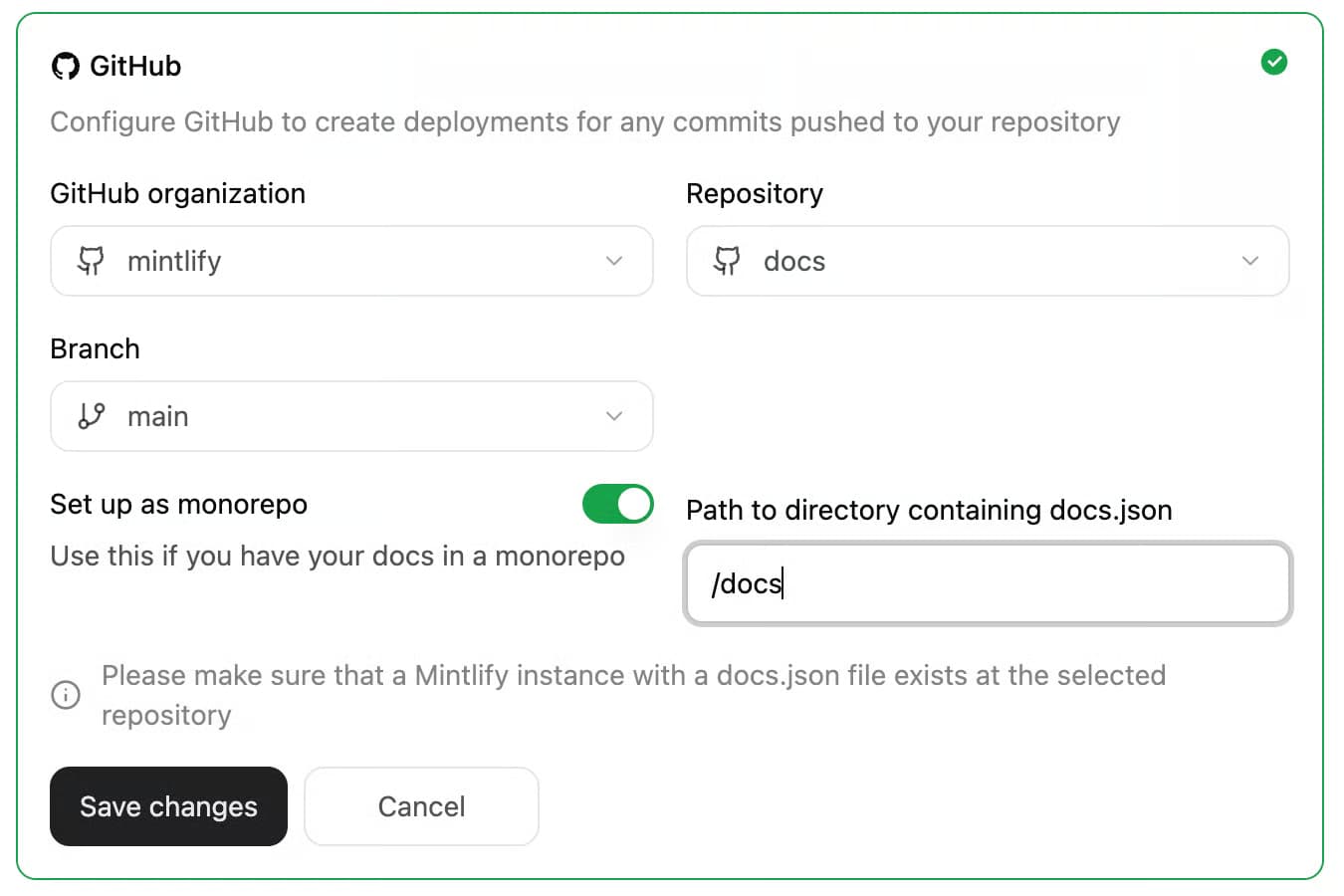
Choose a dedicated repository or a docs folder: A dedicated documentation repository keeps its own commit history and review settings, while a docs/ folder inside the product repository puts documentation and code changes in the same pull request. Both layouts work with Mintlify’s GitHub integration. For a docs folder, place docs.json inside it, enable docs.json is in a subdirectory in the dashboard’s Git Settings, and enter the folder path, such as /docs.
Plan file paths before publishing: Use descriptive, lowercase filenames with hyphens, and group related pages under folders such as guides/ and reference/. Decide where each page will live before adding its path to Mintlify’s navigation configuration. Record the current URL of each published page so you can add redirects wherever the new address differs.
Keep assets and configuration with the project: Store images and downloadable files that you want the site to host in clearly named folders, such as images/ and downloads/. Mintlify uses docs.json for site settings and navigation. Keep it at the root of your documentation directory, including when that directory sits inside a larger repository.
Exclude files that should remain unpublished: Create a .mintignore file beside docs.json and list the files and folders to leave out, using .gitignore pattern syntax. Matching files stay off the published site and cannot be accessed through their URLs. Mintlify also skips files such as README.md, LICENSE.md, and CONTRIBUTING.md by default.
# Exclude draft documents
drafts/
*.draft.mdx
# Exclude internal documentation
internal/
# Exclude specific files
private-notes.md
Prepare content from other sources: Collect the pages and assets you intend to publish from existing repositories or document tools. During a migration to Mintlify, preserve the original exports and edit copies. Track each page’s source, title, existing URL, destination path, and migration status in an inventory. Use it to check for missing pages and prepare redirects before launch.
Step 2: Add frontmatter and components to Markdown pages
With the files organized, configure each page’s title and description, then add components where they help readers follow the instructions. Frontmatter stores page metadata between two --- lines at the top of the file.
Set the page metadata: The title field names the page, description adds a summary beneath it, and sidebarTitle supplies a shorter navigation label. All three fields are optional, and without an explicit title, Mintlify converts the filename into one, so guides/getting-started.md becomes “Getting started.” The following example also adds a sidebar icon and a “NEW” tag.
---
title: 'About frontmatter'
description: 'Frontmatter is the metadata that controls how your page appears and behaves'
sidebarTitle: 'Frontmatter'
icon: 'book'
tag: 'NEW'
---
Choose the page’s visibility: Set hidden: true to remove a page from the sidebar and exclude it from indexing while keeping it accessible by URL. Setting noindex: true alone keeps the page in navigation but excludes it from site search, sitemaps, search engine indexing, and AI assistant context. To restore a hidden page, remove the hidden field entirely. Use the file exclusions from Step 1 for content that should never appear on the published site.
Add components with a clear purpose: Use callouts for prerequisites and warnings, tabs for alternative instructions, and steps for ordered procedures. The choice between Markdown and MDX determines how you add these elements. Mintlify accepts both file types, so existing Markdown pages can stay as .md, and pages that need components can use .mdx.
Mintlify components use tags such as <Note>...</Note> around the content they contain. When importing existing pages, check for unsupported directives, imports, template variables, and HTML that need conversion before the pages can render correctly.
Preview the rendered pages: After installing the Mintlify CLI, run the following command from the directory containing docs.json.
mint dev
The preview uses port 3000 by default. Open the local URL shown in the terminal, inspect the page titles and descriptions, and test any tabs or expandable components. Check the terminal for parsing errors as you edit.
Step 3: Configure docs site navigation and sidebars
Arrange pages in the order readers need them, placing prerequisites before the instructions that depend on them. Group related guides and references together before writing the sidebar configuration.
Define the page order: Add each sidebar page to its group in the navigation property of docs.json, listing entries in reading order.
Page entries reference file paths without the .md or .mdx extension. The following example creates two sidebar groups, with a collapsed Editing subgroup inside Getting started. Add the navigation property to your existing docs.json, replacing the example paths with your own.
{
  "navigation": {
    "groups": [
      {
        "group": "Getting started",
        "icon": "play",
        "pages": [
          "quickstart",
          {
            "group": "Editing",
            "expanded": false,
            "icon": "pencil",
            "pages": ["installation", "editor"]
          }
        ]
      },
      {
        "group": "Writing content",
        "icon": "notebook-text",
        "tag": "NEW",
        "pages": ["writing-content/page", "writing-content/text"]
      }
    ]
  }
}
Choose a top-level structure: Use groups for a single sidebar, tabs for distinct sections such as guides and API references, and version or language selectors when readers need different editions of the documentation. Mintlify uses one primary pattern at the navigation root, with other elements nested beneath it. A group can also have a root page that opens when readers select its title.
Check for missing pages and broken navigation: Open the local preview, expand each group, and follow every sidebar link. Compare the visible pages with your content inventory. A page omitted from navigation remains accessible by URL but is excluded from search, sitemaps, and AI context by default, so confirm that each omission is intentional.
Run mint validate from the directory containing docs.json to check the build, then resolve any reported warnings or errors before continuing.
Step 4: Set up search for your Markdown documentation site
Mintlify includes built-in search so readers can find a task, feature, or error message without knowing which section contains the answer. Test common queries, then adjust keywords, ranking, and exclusions to help readers find the correct instructions.
Use specific headings and relevant keywords: Name pages and sections after the tasks they explain, such as “Rotate an API key” or “Configure webhook retries.” The keywords frontmatter field adds searchable terms without displaying them in the page body. Use it for common abbreviations, previous feature names, or alternative terms readers use. Add the field to the page’s existing frontmatter.
---
keywords: ['configuration', 'setup', 'getting started']
---
Adjust ranking after testing queries: Apply a boost multiplier to a page or navigation group to adjust where it ranks in Mintlify search. Values from 2 to 5 can prioritize quickstarts and key references, and values below 1 can reduce the prominence of deprecated content. Use boosts sparingly, then repeat your test queries to check that relevant results still appear first.
Control exclusions and filters: Set searchable: false to remove a Mintlify page from site search and AI assistant context. It remains in the sitemap and eligible for external search indexing unless other settings exclude it. Enterprise sites can enable product and version filters when their navigation defines those divisions.
Test results and review search activity: Try queries for setup tasks, exact error messages, and commonly used feature names. Confirm that each result opens the intended page and that excluded content stays out of results.
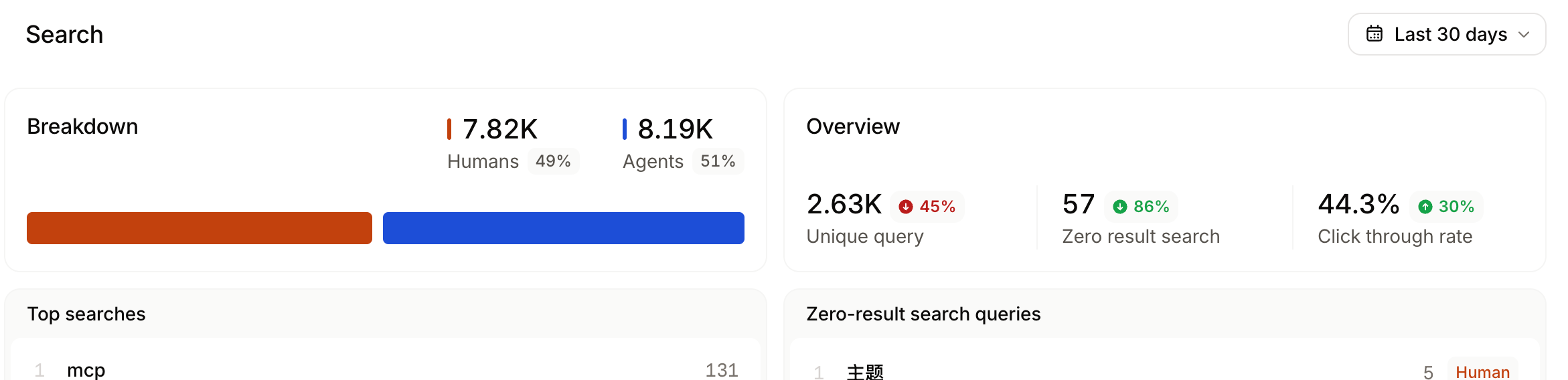
After launch, use Mintlify’s search analytics, available on Pro and Enterprise, to review frequent queries, searches with no results, and click-through rates. Investigate repeated unsuccessful searches to determine whether a page needs clearer wording, additional keywords, or missing instructions.
Step 5: Host your docs site on a custom domain with SSL
Mintlify hosts your documentation and manages its SSL/TLS certificate. Connect a custom domain so readers can access the site at an address such as docs.example.com.
Add your domain: Open Custom domain setup in the Mintlify dashboard, enter docs.example.com, and select Add domain. The custom domain setup displays the DNS records required to verify ownership and direct traffic to Mintlify.
Create the verification records first: The dashboard lists two TXT records and one CNAME. Open your domain provider's DNS settings and add the two TXT records first.
| Record type | Name | Value |
|---|---|---|
| TXT | _acme-challenge.<your-domain> | Value shown in your dashboard |
| TXT | _cf-custom-hostname.<your-domain> | Value shown in your dashboard |
| CNAME | <your-domain> | cname.mintlify.builders |
Switch traffic after verification: For a standard DNS setup, wait until both TXT records show green checks before adding or changing the CNAME. When replacing an existing docs site, also wait for the TLS certificate to be provisioned before switching traffic. Proxied domains require the provider-specific procedure on the setup page.
Check HTTPS: DNS propagation can take up to 48 hours. Once setup completes, open https://docs.example.com and confirm that pages load without certificate warnings. Mintlify renews the certificate automatically.
Set the canonical domain: Add your preferred domain under seo.metatags.canonical in docs.json, preserving any existing SEO settings. Mintlify appends each page’s path to this base URL, giving search engines a preferred address for every page.
"seo": {
  "metatags": {
    "canonical": "https://www.your-custom-domain-here.com"
  }
}
Replace the example domain with your own. After deploying the change, inspect a published page’s canonical tag and confirm that it includes both the custom domain and the correct page path.
Step 6: Set up preview deployments for pull requests
Use a preview deployment to review the rendered pages alongside the Markdown edits before publishing changes.
Confirm the repository connection: In the Mintlify dashboard's Git Settings, check the repository, the documentation directory, and the deployment branch, which is the one Mintlify publishes as your live documentation. For your own GitHub repository, confirm that the Mintlify GitHub App is installed and has access to it.
Open a pull request: Push your documentation changes to a separate branch and open a pull request targeting the deployment branch. Mintlify adds a preview link to the pull request and updates the preview whenever you push additional commits.

Review the changed pages: Open the preview’s floating widget to see added, modified, and removed files, then select a changed page to inspect it.
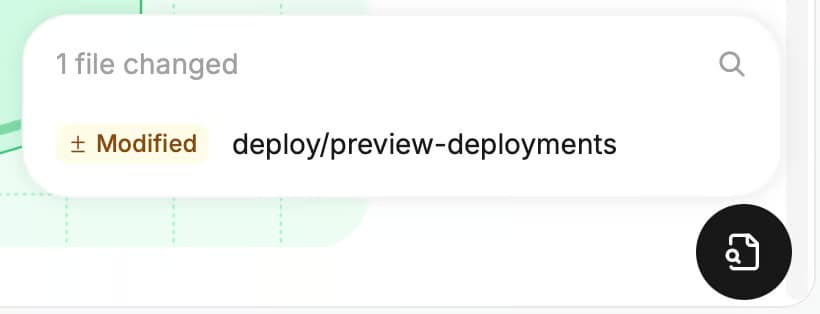
Check that images load, sidebar links reach the intended pages, and tabs or accordions work. View the pages at desktop and phone widths, paying particular attention to wide tables and code blocks. After requesting corrections, review the updated preview before approving the pull request.
Create a manual preview when needed: To review a branch without opening a pull request, go to Publishes → Previews → Create custom preview. Enter the branch name and select Create preview.
Check preview access: Preview URLs are public by default, and teams on Enterprise can restrict access through organization authentication or password protection. For pull requests from a fork, Mintlify comments with a link a maintainer uses to approve the preview.
Step 7: Publish updates with a docs-as-code workflow
Make review and validation part of every documentation update. A docs-as-code workflow keeps edits in Git, records reviewer feedback in pull requests, and publishes changes once they reach the deployment branch.
Enable automated checks: For connected GitHub repositories on Pro and Enterprise, turn on Mintlify’s CI checks from the dashboard’s General settings. The available checks detect broken internal links and apply prose linting rules to flag writing inconsistencies. Choose Warning for advisory feedback or Blocking to return a failed status when a check finds issues.
Require checks and approval before merging: In the repository’s branch protection settings, require pull request approval and select the Mintlify checks that must pass. A blocking check returns a failure status, but the repository rule is what prevents merging. Require approval of the latest changes so edits added after review receive another check.
Review and publish the update: Once the checks pass, have a reviewer confirm the technical accuracy of the instructions and inspect the preview from Step 6. Merge the approved pull request into the configured deployment branch to trigger Mintlify’s automatic build and deployment.
Verify the live pages: Open the dashboard’s Publishes page and check the deployment status for the merged update. Once deployment succeeds, visit the changed pages on your custom domain and confirm that the published instructions, navigation, and images are correct. For a failed deployment, inspect its logs and fix the reported error before retrying.
Restore a previous build when necessary: On Enterprise projects without site authentication enabled, Mintlify rollbacks let editors and admins restore one of the last 10 successful builds. Open Publishes, expand the build, and click Roll back. A rollback changes only the version served to readers, so the problematic source files still need a correction in Git. New commits continue building during the rollback, and you can publish the corrected version by selecting Promote on the latest successful build.
Display when pages were updated: To show a “Last modified” date, enable metadata.timestamp in docs.json. For Git-backed pages, Mintlify normally uses the last commit that changed the source file. The date records when the file last changed, so keep reviewing instructions whenever the product changes.
Mintlify vs. static site generators for Markdown documentation
Choosing how to publish Markdown also means deciding who will maintain the site after launch. The comparison below shows which responsibilities stay with your team when using a static site generator and which Mintlify manages.
| Task | Static site generator | Mintlify |
|---|---|---|
| Rendering | Your team maintains the generator, theme, dependencies, and any required plugins. | Renders .md and .mdx pages, with built-in components for structured documentation. |
| Navigation | Defined through configuration files or generated from folders, depending on the generator. | Configure groups, tabs, versions, and languages in docs.json. |
| Search | Availability and setup depend on the generator, theme, or search integration. | Built-in search with page keywords, ranking boosts, and exclusion controls. |
| Hosting and HTTPS | Choose a host and configure deployment and DNS. Certificate automation depends on the host. | Hosting and automatic certificate renewal are managed by Mintlify after domain verification. |
| Pull request previews | Configure previews through your hosting provider or CI workflow. | Automatic previews for pull requests targeting the deployment branch on Pro and Enterprise. Forked pull requests get a preview after a maintainer approves it. |
| Deploy on merge | Configure a build-and-publish workflow through CI or the hosting provider. | The repository integration automatically deploys changes merged into the configured deployment branch. |
| Rollback | Restore a previous deployment through the host, or revert the source change and rebuild. | Enterprise supports restoring one of the last 10 successful builds without rebuilding. Projects with site authentication enabled are excluded. |
A generator remains useful when your team needs custom rendering or infrastructure that a managed platform cannot support. For teams choosing between self-hosted and managed documentation, Mintlify takes the generator, theme, search integration, and deployment pipeline off the list of systems to maintain, while the Git review process stays with writers and engineers.
Publish Markdown documentation with Mintlify
Start with a quickstart and its supporting pages, then test the complete path from editing a file to publishing the approved update. Mintlify’s free Starter plan includes Git sync, built-in search, and a custom domain. Teams that need the preview deployments, CI checks, and analytics covered in this guide can use Pro or Enterprise.
For existing documentation, use the migration guides to plan the transfer of content, assets, and navigation. The switch program offers a free preview using your current documentation, with migration support available to help prepare the site for launch.
Coinbase launched its new developer documentation in six weeks and reported reducing update times from more than 20 minutes to under 60 seconds. Anthropic uses Mintlify for Claude Code documentation, where one technical content engineer manages docs serving millions of monthly visitors.
Start publishing your Markdown documentation with Mintlify or talk to the team about your migration.
Frequently Asked Questions
Can you publish Markdown documentation without a build step?
Browser-based renderers display Markdown without generating HTML files in advance. Mintlify still builds the site, but the build runs automatically whenever a change reaches the deployment branch, so contributors never run build commands themselves.
How do you keep URLs working after moving or renaming Markdown files?
Map each old path to its replacement using Mintlify’s redirects in docs.json. Permanent redirects preserve access through existing bookmarks and shared links, and wildcard rules can cover entire folder moves. Because redirect configuration lives alongside your content, reviewers can assess the file move and its URL changes together, then test the redirects in a preview before publication.
Is GitHub Pages enough to host a Markdown documentation site?
GitHub Pages can host a documentation site and turn Markdown into pages with its built-in Jekyll build, but search and pull request previews need separate setup there. Mintlify includes search, navigation components, and a web editor on every plan, with previews and CI checks added on Pro and Enterprise.
Can non-technical contributors update a docs-as-code site?
Contributors can format pages visually and insert components in the Mintlify web editor without learning Git commands or writing component syntax. The editor handles repository synchronization, and edits made on a feature branch go through review before publication. Writers and engineers can therefore work on the same version-controlled content, with comments and suggestions available to teammates who have viewer access.
More to read

Mintlify vs ReadMe for AI agents, speed, and pricing in 2026
Mintlify vs ReadMe, tested on ten live docs sites and 130 agent questions: agent search, page speed, self-updating docs, editing, API references, and pricing.
September 30, 2026Cole Gottdank
GTME

Mintlify's Starter Plan
A homegrown docs site looks cheap until your team owns search, authentication, AI-readable content, and maintenance. Mintlify Starter handles the core infrastructure for free.
September 28, 2026Harkirat Chahal
Growth