Harkirat Chahal
Growth
Share this article
Harkirat Chahal
Growth
Share this article
MCP server documentation has two readers: developers who connect to the server, and agents that choose which tool to call. This guide covers what to include for each, from tools, authentication, and per-client setup to tool descriptions, annotations, discovery files, and llms.txt, with examples from Mintlify's own MCP docs.
MCP server documentation explains to developers and AI agents what a Model Context Protocol (MCP) server can do and how to connect to it. For developers, these docs help them connect an AI client (like Cursor or Claude) to your product and problem-solve when issues arise. Agents, on the other hand, use them to decide which of your server's tools to call and how to do so.
Having an MCP server is becoming table stakes for many companies, as about 10,000 were active by December 2025. However, without the right documentation, the effort and expense of implementing one will be wasted. Poor MCP server docs delay adoption as developers struggle to connect, and agents call the wrong tools, so tasks fail.
This guide covers what to include in your MCP server documentation and how to write it for both devs and AI agents, with examples from Mintlify's own MCP docs.
Key points on MCP server docs
- MCP server documentation has two readers: developers who connect to the server, and agents that choose which tool to call.
- MCP server docs for developers should cover what the server does, every tool it offers, and authentication and setup steps for each client.
- MCP server docs for agents should cover tool descriptions that say when to use each tool, annotations like
readOnlyHint, and discovery files and Markdown pages that agents can read on their own. - Mintlify hosts an MCP server for your docs and helps you write MCP server docs, including tabs and code groups for per-client setup steps and, on Enterprise, automations that draft updates from merged pull requests.
What should MCP server documentation include?
MCP server documentation needs two sets of content: setup and reference pages for developers, and machine-readable descriptions and files for agents.
Here's a breakdown of the kinds of content your MCP server docs will need, who it's for, and why it matters:
| What to document | Reader | Why it matters |
|---|---|---|
| What the server does and when to use it | Developers | Lets them choose the right server before they read further |
| Every tool, with inputs, outputs and permissions | Developers | Shows what the server can read or change |
| Server URL and connection details | Developers | Gives them what they need to add the server to a client |
| Authentication | Developers | Shows how to sign in and what each credential allows |
| Setup steps for each client | Developers | Covers how each AI client configures servers differently |
| Rate limits and context usage | Developers | Explains errors and slow responses before they become tickets |
| Troubleshooting | Developers | Fixes common errors without a support request |
| Best practices | Developers | Prevents costly mistakes, especially with tools that can write or delete |
| Tool descriptions and annotations | Agents | Help the agent pick the right tool and know which tools change data |
| Discovery endpoint and server card | Agents | Let clients find and connect to the server without manual setup |
| Markdown pages and llms.txt | Agents | Let agents read your docs directly |
If you only have time for a few rows, start with the server URL, authentication, and setup steps. Those decide whether a developer gets connected at all, making them the most important.
How to document an MCP server for devs
Throughout this section, we'll use Mintlify's own docs as examples, referencing the search MCP server docs and admin MCP server docs.
Explain what the server does and when to use it
Start with the basics. Say what the server does, who connects to it, and its main use cases. A reader decides in those few lines whether this is the right server.
Mintlify's search MCP docs do this in their first paragraph by stating that Mintlify generates a search MCP server for your site and that any MCP client can connect to it. This means AI tools can search your content and retrieve full pages as Markdown, so when a developer asks a question about the product, they get answers from the docs and no longer have to look it up separately.
If you ship more than one MCP server, add a table that shows what each one does and who it's for.
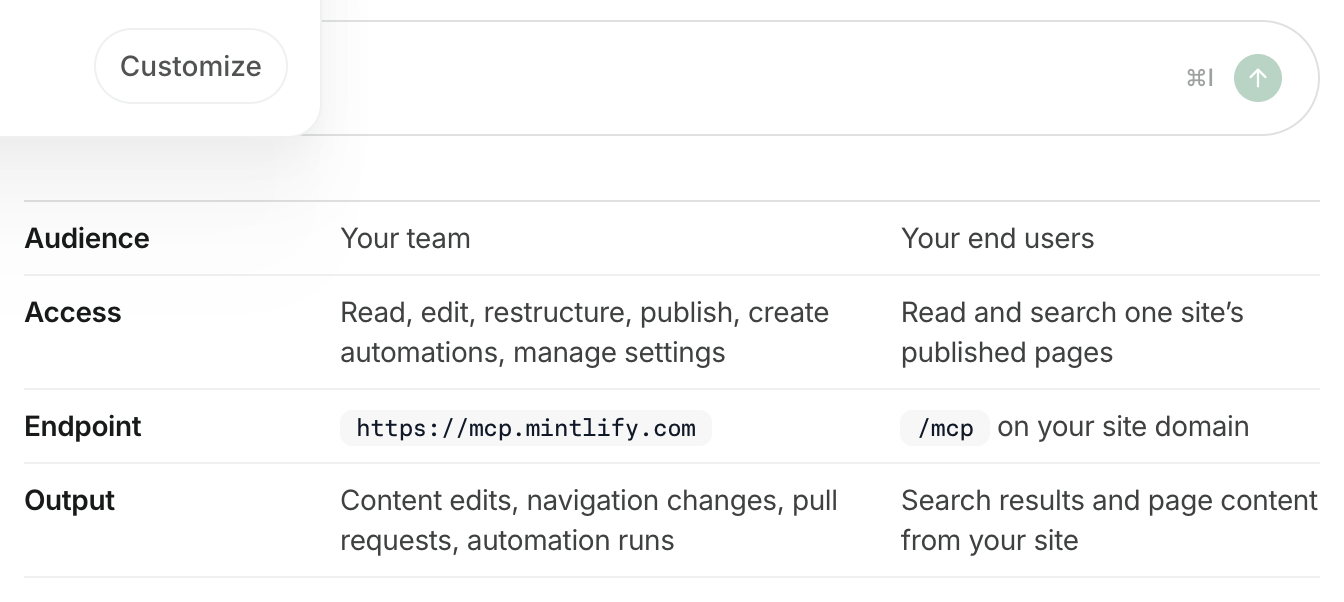
Mintlify's table clearly compares its admin and search MCP servers by who uses them, what they can do, and where they live. Consider outlining yours the same way, by audience and what each server can change.
List every tool with its inputs, outputs, and permissions
Before developers connect a server, they want to know what it can touch. The tools section answers that by listing each tool's name, the inputs it needs from the agent, the output it returns, and whether it only reads or can also change something.
For example, Mintlify's search MCP docs outline three tools that agents can use:
- Search
- Query docs filesystem
- Submit feedback
For submit feedback, it reads, "Reports a documentation issue back to your team when an agent finds a page that is incorrect, outdated, confusing, or incomplete. The agent supplies the page path and a description of the problem, which Mintlify records as unhelpful feedback in your analytics dashboard."
That's a good pattern to copy: input, result, and where the result goes so users know exactly what the tool does. For permissions, Mintlify's comparison table above does the same job at the server level: the search server can "read and search" but can't edit your docs (its only write is the feedback it records), while the admin server can also edit, publish, and manage settings.
If your server has more than a handful of tools, group them by job so readers can find the one they need.
Give the server URL and connection details
The MCP server URL is how the client connects to the server, so put it near the top of your docs in a code block or inline code where people can copy it easily. Mintlify's docs do this: the search server lives at https://mintlify.com/docs/mcp, and every client uses that URL, whether it connects through a connector, a command, or a config file.
Aside from the URL, developers will need the connection details, including:
- Transport: How the client talks to the server (remote servers like Mintlify's use HTTP)
- Sign-in method: OAuth through a browser, or a credential for tools that can't sign in
- Prerequisites: What they need before they can get started
- Scope: Which projects or data the connection can reach
- Optional settings: Headers or flags that change what the server allows
- Supported clients: Which clients are supported
For Mintlify's admin MCP, the docs list prerequisites before the setup steps, which include a Mintlify account with access to the project, Git provider access with write permission, and an MCP-capable AI tool. Tell readers the prerequisites up front so they don't find out midway through the setup.
Document authentication
Explain how readers sign in and what each method allows. Many servers offer two paths: an interactive sign-in for people, and credentials for automated tools that can't open a browser.
The screenshot below shows how Mintlify's search MCP docs outline the credentials for sites that require a login, along with what each one can access. Automated tools, like CI/CD pipelines, use client credentials, and the docs walk through creating one.
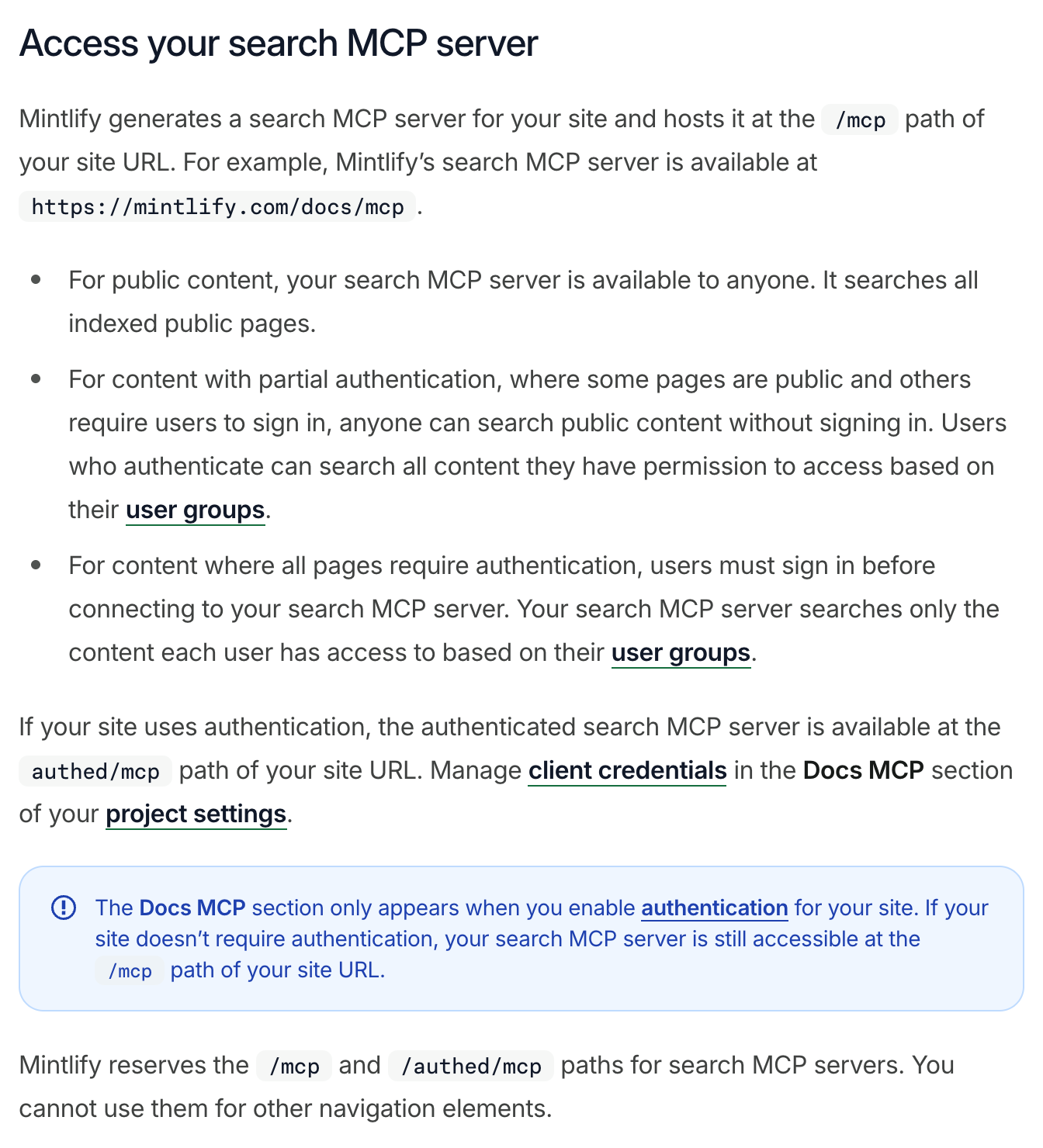
If your sign-in only works with certain clients, list them. Mintlify's docs, for example, say that popular clients such as Claude, ChatGPT, Cursor, and Devin are always allowed to complete authentication, so developers on other tools know to check before they connect.
Developers often try the API key they already have, so call out any credentials that look alike but aren't interchangeable. Mintlify's docs state that MCP client credentials are separate from its API keys, and that API keys can't authenticate to the MCP server.
Write setup steps for each client
Different AI tools require a different setup, so explain the process for each common client, including Claude, Claude Code, ChatGPT, Cursor, Codex, and any others preferred by your users.
Mintlify's admin MCP server docs organize the different setup steps using tabs with an explanation, as seen below. Tabs help readers find what they're looking for and keep the page short and organized.
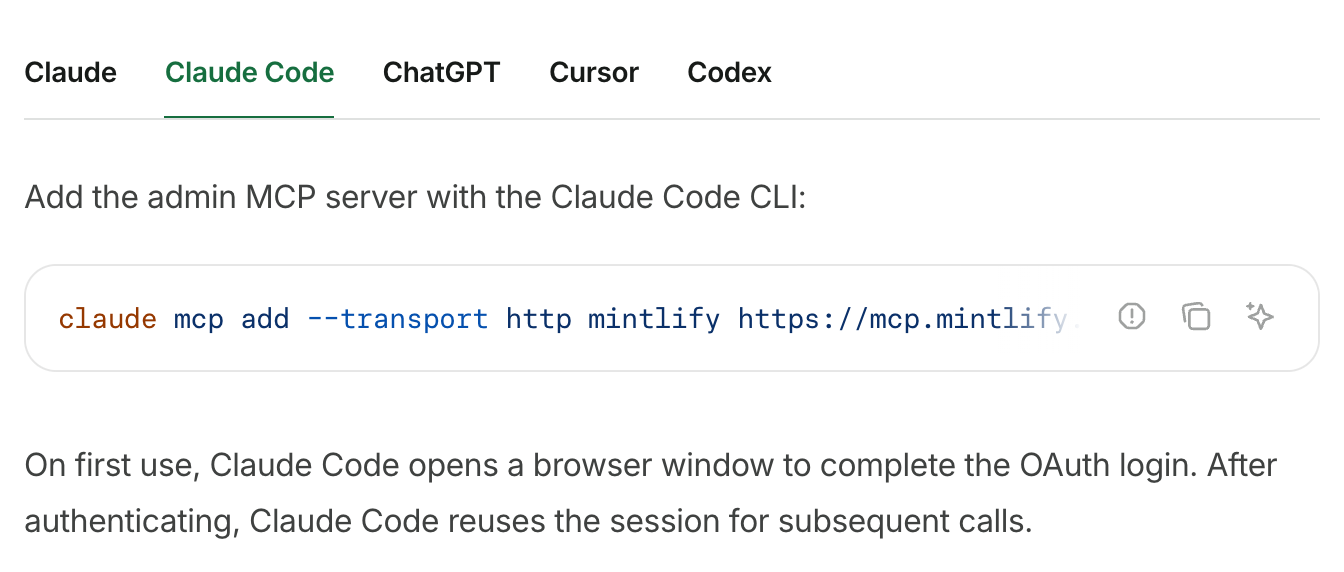
Because each client reads a different format, give every tab its own copy-ready snippet rather than one generic config. End each tab with a quick check, such as asking the AI client to run a search, so developers know the connection works.
Note rate limits and context usage
Rate limits provide a cap on how often a tool can be called. If your server has rate limits, you should state what they are and what happens when a client reaches the limit. Without a documented limit, a developer who gets an error can't tell whether something is broken or they just need to wait.
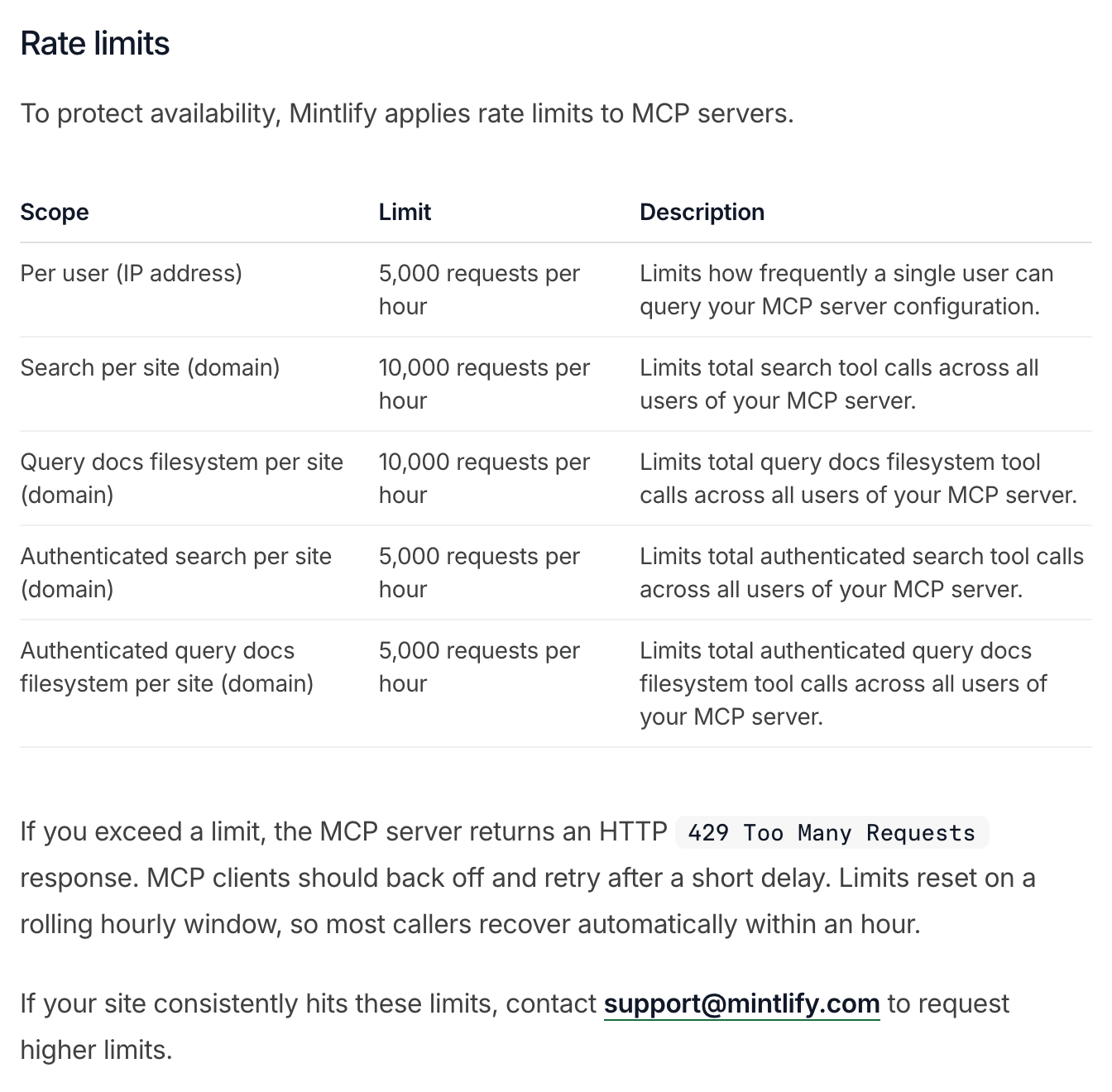
For example, Mintlify's search MCP server docs list each limit by scope: 5,000 requests per hour per user (by IP) for server configuration, and 10,000 per hour per site for search. The docs say that the server returns an HTTP 429 error when a limit has been exceeded, tells clients to back off and retry, and notes that limits reset on a rolling hourly window.
Another important factor to mention is context usage. Every connected server adds its tool names and descriptions to the model's context window, leaving less room for the conversation itself. Mintlify's search MCP docs tell users to connect only relevant servers, write specific prompts, and disconnect idle servers.
Add troubleshooting
For each common problem, name it in the heading, explain the cause in one sentence, and then give the fix. Mintlify's admin MCP docs follow this pattern:
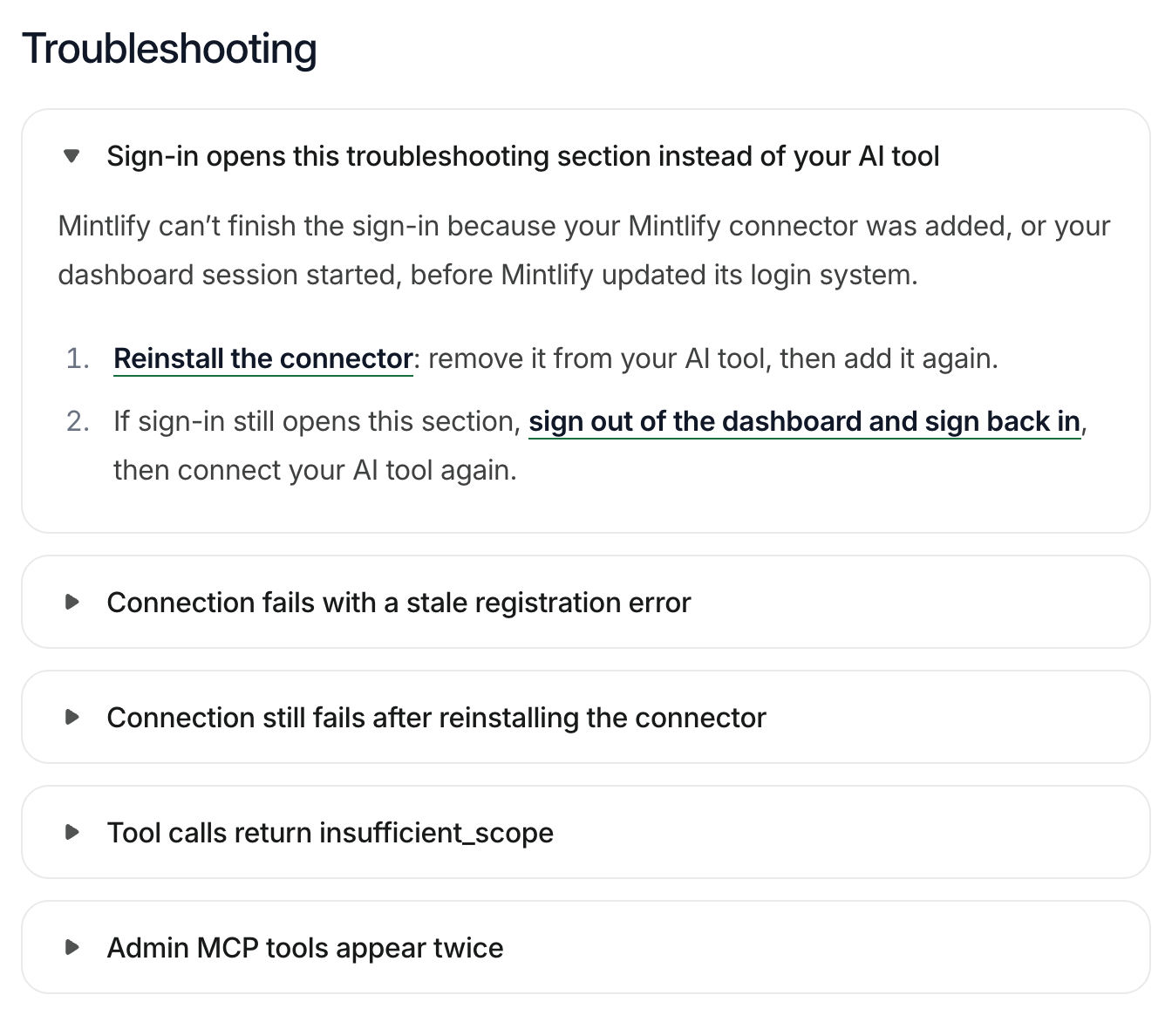
The most valuable troubleshooting guidance is based on real challenges people have experienced. Look to your support inbox, community forums, and GitHub issues for ideas of the common challenges.
Add a best practices section
The best practices section offers quick tips to help developers use your server safely and get better results. This could include how to review changes before they go live and other tips to keep readers from turning to the troubleshooting section. Provide the reason for each tip so readers can decide if it's relevant for them.
Mintlify's admin MCP docs include a best practices section with three tips: open the editor link in a separate tab, review every pull request before merging, and keep each branch focused on one change. That's because the admin server can edit, restructure, and publish content, and smaller pull requests are easier to review. This matters most when your server can write, since a mistake there costs more than a bad search result.
A good way to collect ideas for this section is to write what you'd tell a new user in their first week, with a reason for each tip.
How to document an MCP server for agents
Agents don't read your docs site first. When they connect, they get your server's tool list (each tool's name, description, and annotations) straight from your code, and pick a tool from it. That makes the tool definitions the most important docs you write for agents.
This section covers three things that help agents use your server correctly: tool descriptions and annotations that help them pick the right tool, a discovery endpoint and server card, and Markdown pages with llms.txt.
Write tool descriptions agents can use
An agent reads a tool description to determine if it's the right tool to call, so it should be specific. Most mistakes happen when two tools look alike. If search and read_page both say they "get content," an agent may search for a page it already has, or try to read one it never found.
A good MCP tool description includes:
- When to use the tool and when to use a different one
- The input with an example value
- What comes back so the agent knows if it needs to make another call
- Whether the tool has read or change permissions
Instead of "Read page," a stronger version would say, "Fetch the full content of a page. Use it before editing, so changes build on the current text."
Annotations mark each tool's behavior in a way agents can read, such as whether it only reads data or can change it. Some clients use them to decide which tools can run without asking the user first. They're hints, not guardrails: the MCP spec tells clients to treat them as untrusted, so the server should still enforce its own permissions. Mintlify's search MCP docs show the four annotations its built-in tools carry: readOnlyHint: true, destructiveHint: false, idempotentHint: true, and openWorldHint: false.
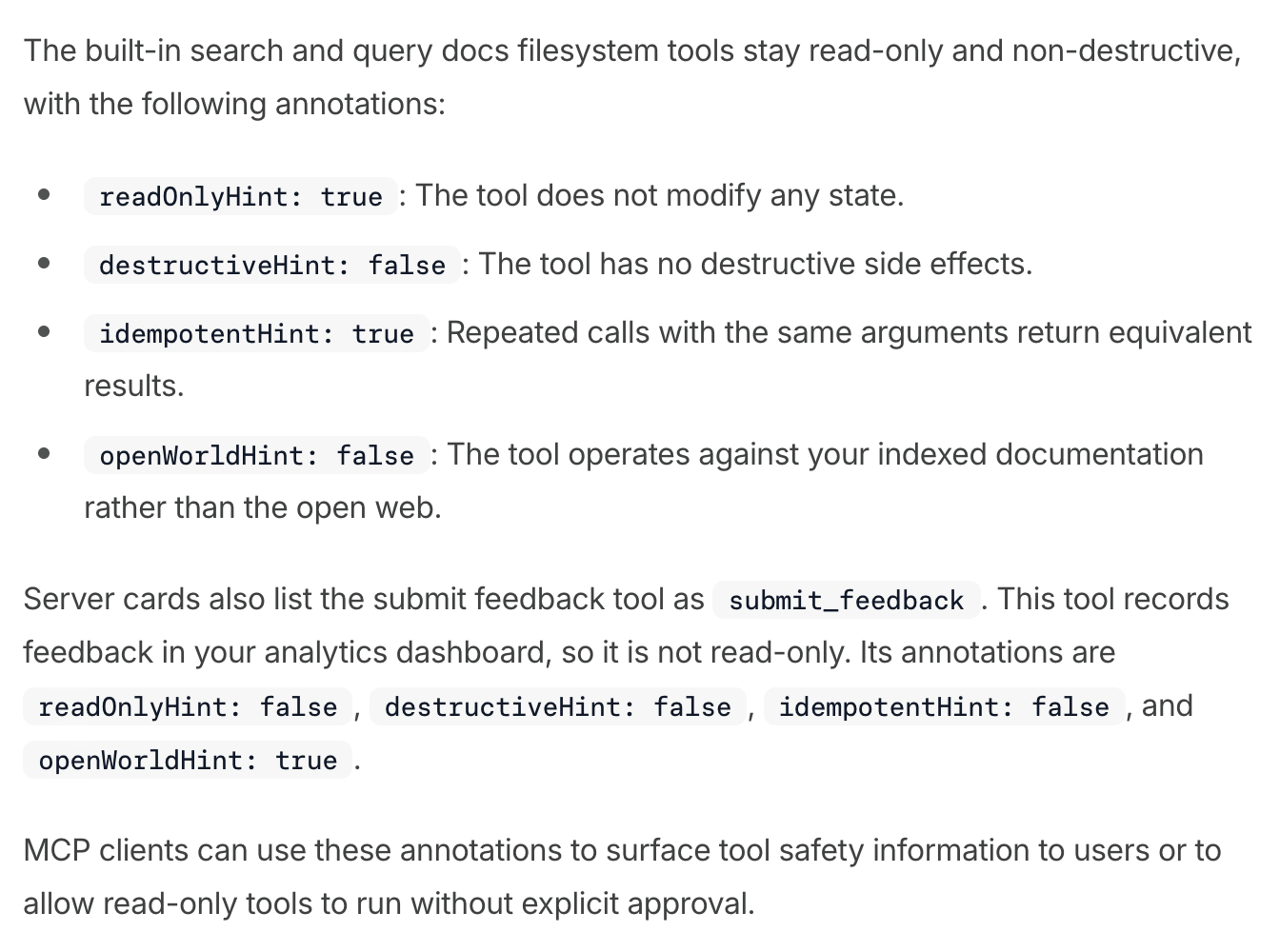
Set annotations on every tool and keep them accurate. A write tool marked read-only can run without anyone approving it.
Publish a discovery endpoint and server card
A discovery endpoint lets a client find your server, and a server card describes it: its name, version, description, and how to connect so that a client can set it up without someone pasting a URL.
The MCP Server Cards extension lets you host the card at any URL and recommends your MCP endpoint plus /server-card. Mintlify serves its card at /.well-known/mcp/server-card.json, next to its discovery document, so clients find both in one place.
Mintlify's search MCP server docs clearly outline the discovery endpoint and what the call returns:
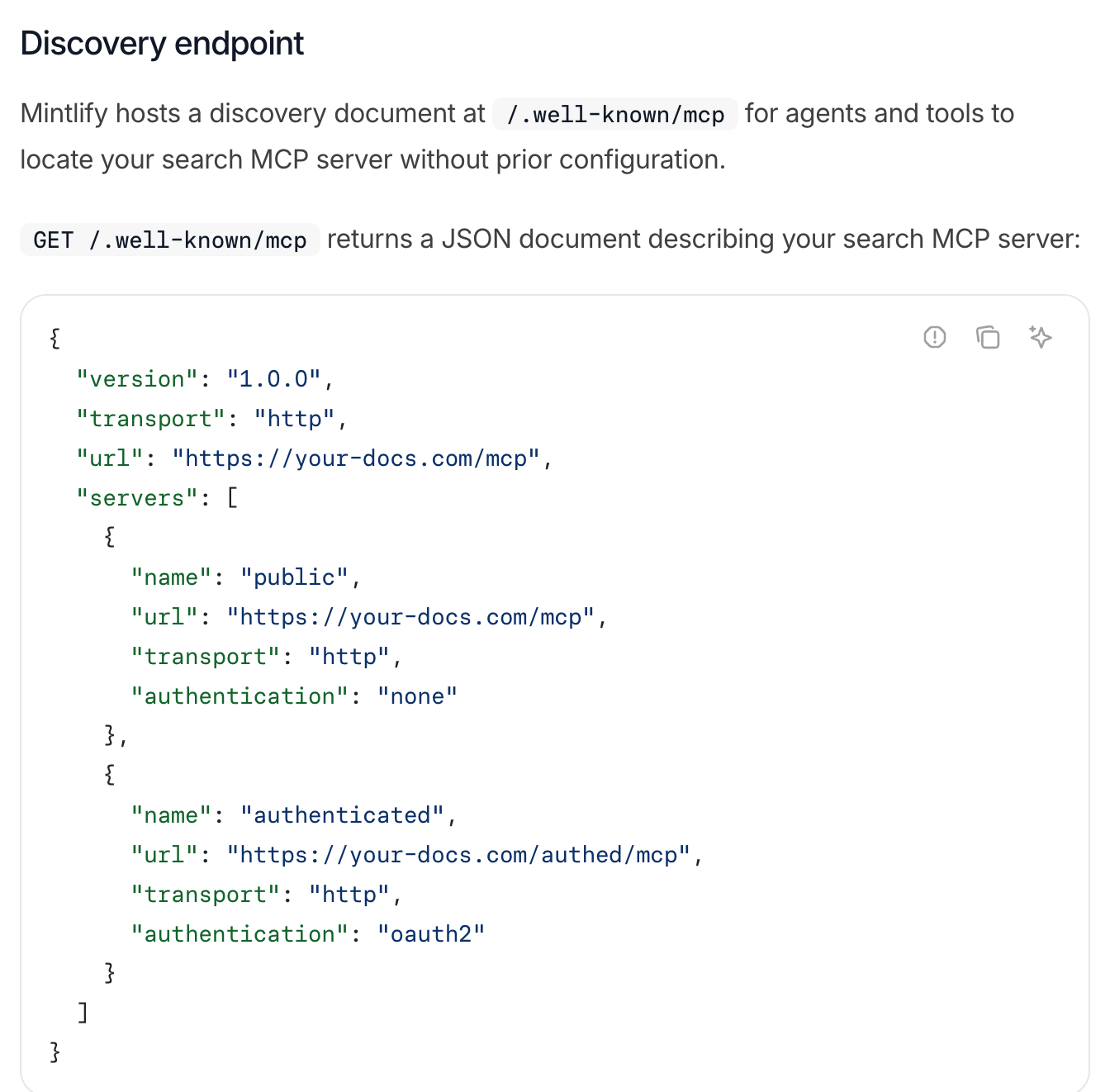
Notice that the response lists each endpoint with its sign-in method, public and authenticated. If your server has more than one endpoint, list them all, so a client picks the one it can actually use.
Serve your docs as Markdown and llms.txt
Developers often ask an agent to set up an MCP server for them, which means the agent reads your setup docs too. It finds the right page through your llms.txt file, a short index of your key pages, and reads it best as Markdown, without navigation or scripts.
Each entry in llms.txt can carry a short description, and that's what the agent uses to pick a page. In Mintlify, it comes from the description field in each page's frontmatter, so make it specific: "How to connect the MCP server in Cursor, Claude Code and VS Code" works better than "MCP setup."
Document your MCP server with Mintlify
Good MCP server docs serve two readers, and Mintlify handles much of the work for both. Developers get components built for per-client setup. Agents get Markdown pages, llms.txt, and discovery files generated for every site, with no extra setup.
Here are just some of the ways Mintlify makes creating MCP server documentation easier:
- Code groups: Code blocks become tabs that sync with other tabs on the page when labels match, so a reader picks Cursor once and every block switches.
- Automations and Autopilot: Automations run the prompts you set on a schedule, when code is pushed or a pull request merges, or when a connected tool fires an event (Enterprise plan). Autopilot opens docs pull requests on its own when code changes (paid plans). Either way, your tool list and setup steps stay in sync with your code.
- Hosted MCP server and llms.txt: Every Mintlify site gets a search MCP server at
/mcp, discovery endpoints, and Markdown versions of every page so that agents can read your setup docs too. - Agent feedback: The search MCP server's submit feedback tool lets agents report incorrect or outdated pages, and Mintlify records them in your analytics dashboard, so you find stale setup steps before developers do (Pro and Enterprise plans).
- Contextual menu: An optional menu on each page lets readers copy it as Markdown or open it in an AI tool, so a developer can hand your setup page to Claude or ChatGPT and have it walk them through the connection.
Your MCP server is only as useful as the docs that explain it to developers and agents. Start for free and publish your MCP server docs on Mintlify.
Frequently Asked Questions
How do you write good MCP tool descriptions?
State when to use the tool, what each input means, what comes back, and whether it changes anything. Name neighboring tools so the agent knows where to go instead. Back the description with annotations such as readOnlyHint, and keep both accurate.
Do you need separate docs for each MCP client?
You need separate setup steps for each client, but you can put them on the same docs page. Every client connects to the same server and URL, but how they connect varies. For instance, Claude uses a connector, whereas Claude Code uses a command. You can put each client in a separate tab, so readers can click through to access the client they want to set up.
How do you make MCP server docs readable for AI agents?
Start with your tool definitions, since that's what agents read first: give each tool a description that says when to use it and when to use a different one, and add annotations like readOnlyHint. Then make your docs site easy for agents to find and parse. Publish a discovery endpoint and server card, serve every page as Markdown, and list your key pages in an llms.txt file.
How do you know if agents are struggling with your MCP docs?
Watch what agents actually do. Server logs show wrong tool calls, repeated calls, and calls that fail on bad inputs, and each pattern points to a tool description that needs work. Test new descriptions by giving an agent real tasks and reading its transcripts, as Anthropic recommends in Writing effective tools for agents. On Pro and Enterprise plans, agents can also report incorrect or outdated pages through the search MCP server's submit feedback tool, which records them in your analytics dashboard.
More to read
AGENTS.md vs CLAUDE.md: how coding agents find docs
Learn how AGENTS.md, CLAUDE.md, skill.md, llms.txt, and MCP work together to help coding agents follow project instructions and access documentation.
November 2, 2026Harkirat Chahal
Growth
How to create Markdown versions of your docs
Generate Markdown versions of your docs, serve them through .md URLs and content negotiation, and test caching, auth, and parity before each release.
October 26, 2026Harkirat Chahal
Growth

How to help AI agents find the right page after a 404
Help AI agents recover from 404s with real status codes, Markdown error bodies, index links, related-page suggestions, and redirects for .md URLs.
October 26, 2026Harkirat Chahal
Growth
How to help AI coding agents find your docs
Help AI coding agents find the right docs page with llms.txt indexes, page links, stable URLs, crawler access, Markdown routes, and retrieval checks.
October 26, 2026Harkirat Chahal
Growth
MCP vs API: what an MCP server adds to your API
Learn what an MCP server adds to an existing API, from tool discovery and filtered responses to docs search, with practical examples of how developers use each.
October 25, 2026Harkirat Chahal
Growth
The Mintlify skill for Claude Code, Cursor, and Codex
Install the Mintlify agent skill so Claude Code, Cursor, or Codex can set up, write, and customize your Mintlify docs with the right config and components.
October 22, 2026Harkirat Chahal
Growth